Display options
Global settings
The choices that apply whichever way the coins are shown, one, two or four at a time: the market cards between coins, the ticker's own address, and the look of the whole screen. Every picture here is the ticker's own output.
Market Info
The whole market, between your coins
Now and then a card about the market as a whole rather than any one coin, then the coins carry on exactly where they left off.
- Market overview: total value, its 24h change, Bitcoin's share, the day's volume
- Sector heat: the family of coins with the best day
- One round every few minutes, each card for the seconds you choose
Give me the full detailsHide the details
What does the Market overview card show?
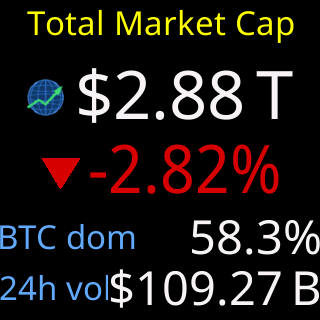
The Market overview card shows four numbers about the crypto market as a whole. Under the heading "Total Market Cap" sit a globe and the combined value of every cryptocurrency, shortened to trillions (T) or billions (B) with two decimals. Beneath that is how far the total moved over the last 24 hours, to two decimals, led by a triangle pointing up or down. Two rows close the card: "BTC dom", Bitcoin's share of the total to one decimal, and "24h vol", the value of everything traded across the market in the last 24 hours.
Every 24-hour figure is rolling: the 24 hours up to now, not since midnight. The move wears your colorset's up or down color. A move that rounds to 0.00% is neither, so it takes the neutral gray, with a flat bar where the triangle would be. As the settings page puts it, rising dominance means money is favoring Bitcoin over the rest of the market.
What is a crypto sector, and how does the ticker pick the hottest one?
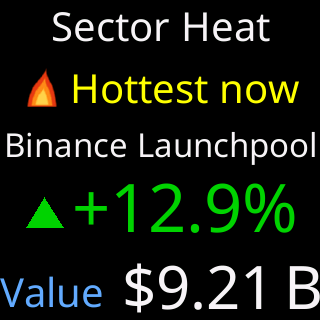
A sector is a family of coins with the same purpose, such as gaming, AI, DeFi or meme coins; the ticker uses the categories CoinGecko sorts coins into. The Sector heat card names the sector whose combined value rose the most, in percent, over the last 24 hours. Very small sectors are left out, so a handful of tiny coins that doubled overnight cannot take the title.
The card reads "Sector Heat", then a flame and "Hottest now", then the sector's name. A long name steps down in size or splits over two lines, and is cut short with "..." only as a last resort. Next comes the 24-hour move to one decimal with its triangle, and at the bottom "Value": the combined market value of the sector's coins. On a day when every sector fell, the hottest is the one that fell least, and its move shows in your colorset's down color with a downward triangle. A move that rounds to 0.0% shows in the neutral gray.
How often do the Market Info cards appear, and for how long?
The Market Info cards share one schedule, set on a single line of the settings page: Show every, 2 to 30 minutes between rounds, and for, 4 to 15 seconds per card. From the factory it reads "Show every 10 min for 7 sec". Each card you have turned on shows once per round, Market overview first, then Sector heat.
Each card keeps its own clock, counted from its own last showing. The ticker also keeps at least 30 seconds between any two cards or popups it puts up on its own schedule, the address popups included, so in an ordinary round the Sector heat card follows the Market overview about half a minute later, with coins in between. Only at start-up do the cards run back to back. The switches and both numbers are one setting for all three layouts: One, Two and Four per screen share them.
Do the market cards interrupt my coins?
A Market Info card takes its turn at the moment the screen would change anyway, and the coins carry on where they left off. The card never replaces a coin and never moves the rotation forward: when it goes, the coin that was due next comes up, with its full time. In One per screen with several chart periods, a card that lands between two of a coin's charts hands back to the same coin, which redraws and moves on to its next chart. The card's seconds are added to the lap, never taken from a coin.
What happens to the market cards at start-up?
At every start-up the cards you have turned on lead: they show before the first coin, back to back, each for a fixed 7 seconds whatever your "for" setting says, and then settle into the normal schedule. If the market figures are not in yet, the ticker holds off the coins and asks again every few seconds, for up to 15 seconds from the start of the rotation, so waiting on market figures never holds the coins back for longer than that. A card still without figures after that is skipped until its next round.
A Save & Apply does not replay the cards. The ticker counts every card as shown at that moment and starts each one's clock over, so the next round comes a full interval later.
How fresh are the market figures?
The ticker fetches new market figures when a card comes due, but no more often than once every ten minutes, because whole-market numbers move slowly. With Show every set under ten minutes, a round can repeat the figures from the round before. The figures come from CoinGecko, like the prices; see where the prices come from.
What happens when the market data is not available?
When a refresh fails, the ticker keeps the last figures it received and the card shows those rather than a blank. If it has received none since it was switched on, it skips that card for the round, the coins carry on, and it tries again at the next round. A card is only ever drawn with figures in it, never as an empty frame.
How do I turn a market card on or off?
Each card has a checkbox, Market overview and Sector heat, under Show Market Info in the Global Settings of the settings page. Every change applies at once, with no Save & Apply. Ticking a box also puts that card on the ticker straight away so you can see what you switched on, held for at least 7 seconds, or for your "for" time if that is longer. The preview counts as that card's showing, so its next one comes a full interval later. Untick both to show only coins.
Show my IP address
Never lose the way to your settings
The settings page lives at the ticker's own address on your home network, and the ticker shows that address now and then, written out or as a QR code.
- Written out: read it and type it into a browser
- QR code: point a phone camera, nothing to type
- Each on its own schedule: how often, how long, how many times
- A new address from your router shows both at once
Give me the full detailsHide the details
Why does the ticker show its IP address?
The ticker shows its address because the settings page lives on the ticker itself, at that address on your home network. Your router gives the ticker the address, something like 192.168.1.42, and any phone or computer on the same network opens the settings page by typing it into a browser with http:// in front. The address can change, so the ticker keeps telling you what it is, in two forms that each keep their own schedule in the Show my IP address section: written out, and as a QR code.
What is the difference between the Text and QR code forms?
The Text form is a box in the middle of the screen: "My settings are here:", the address in large type, the name of your Wi-Fi network under it, and a bar that runs down while the box is up. It only has to be read, so a few seconds is enough. The box takes its colors from your colorset.
The QR code form fills the screen: "Scan for my settings", the address with http:// in front, pictures of a phone and a tablet, and the code itself. A red line inside the bottom of the code's white border, with a seconds countdown under the tablet, shows how long the code will stay. The code holds the settings page's web address, http:// followed by the ticker's address, and nothing else: no network name, no password. Point a phone's camera at it and the page opens with nothing to type. Scanning takes longer than reading (find the phone, unlock it, aim), which is why the code gets its own, longer time.
How do Show Every, For how long and Number of times work?
Each row sets its own schedule, and the two rows share nothing but the screen.
| Row | Show Every | For how long | Number of times | Show at start |
|---|---|---|---|---|
| QR code | 1 to 60 minutes (factory: 2) | 20 to 60 seconds (factory: 30) | 1 to 99, or ∞ (factory: 1) | On or off (factory: on) |
| Text | 1 to 60 minutes (factory: 5) | 5 to 30 seconds (factory: 7) | 1 to 99, or ∞ (factory: 2) | No switch |
The minus and plus buttons on each number step by one, and by five in the upper part of the range. The ∞ button beside them, "Keep showing forever", keeps a row coming back at every interval. When both rows fall due together the code goes first, and the written address follows as a showing of its own. Scheduled showings always start as a new coin or page of coins appears, and the ticker keeps at least 30 seconds between them and any Market Info card. While a showing is up the rotation waits; when it ends, the next screen comes. A row that is switched off grays out its numbers, which are kept for when you switch it back on.
What does Number of times mean over a day or after a restart?
Number of times counts showings since the ticker last started, not per day. With Number of times at 3 and Show Every at 10 minutes, the address shows about 10, 20 and 30 minutes after the first coin appears, then stays away for the rest of the day and beyond, until the count starts again. It starts again at every start-up, at every Save & Apply, and when you change that row's numbers; a change also restarts the row's clock, so the next showing is a full interval away. On ∞ a row keeps going all day: every 10 minutes comes to about 144 showings a day. The showing you get when you switch a row on is extra: it does not count, and it does not move the schedule.
Does the ticker show its address at start-up?
The start screen always shows the address: under the logo, "My settings are here:" and the address with http:// in front, which briefly cycles through colors. That is why the Text row has no start-up switch. The QR code row has one, Show at start. Ticked, it brings the first of the row's showings forward to shortly after the first coin appears, instead of a full interval later. It does not add a showing, so a Number of times of 1 means that one start-up showing and no more. Unticked, and for the Text row always, the first showing comes one full interval after the first coin. The schedule starts from the first coin rather than from power-on, because start-up can take a while and the address is on the start screen meanwhile.
What happens when my router gives the ticker a new IP address?
When its address changes, the ticker shows both forms, the QR code and then the written address, even if you have switched both rows off or used up their counts. It compares its address with the last one it saw at every start-up, and every 30 seconds while it runs. A change found at start-up is shown shortly after the ticker starts. A change found while it runs is shown straight away, in case you are looking, and again at the next start-up, because most of the time nobody is watching. After that start-up showing the ticker goes back to your schedule and says nothing more until the address changes again. A lost connection is not a new address: while the ticker has no usable address it announces nothing, puts no address popup on the screen, and checks again half a minute later.
Why does the ticker's IP address change?
The ticker's address changes because your router lends each device an address for a while, a system called DHCP. Most routers give a returning device its old address back, but not always: after the router restarts, is reset or replaced, or after the ticker has been unplugged long enough for the loan to run out, it can come back with a different one. The old address then leads nowhere, and a bookmark to it stops working, which is why the ticker announces the new one.
How do I keep the ticker's address from changing?
Reserve the address on your router, and leave the ticker's own network settings alone. Most routers call this a DHCP reservation, an address reservation or a static lease: you pair an address with the ticker's MAC, the hardware ID shown as "MAC" in the footer of the settings page. Type the MAC in by hand rather than picking from the router's list of devices, so the reservation lands on the ticker and not on a look-alike entry. The router then gives the ticker the same address every time. Do it on the router rather than typing a fixed address into the ticker: the router is what hands out addresses on your network, so only a reservation made there is sure to keep that address away from every other device. Once the address stays put, bookmarks keep working and the new-address showing has nothing to announce.
How do I preview the address, or turn it off?
Switching a row on puts that form on the ticker at once, for that row's own seconds, so you can check how it looks. While the ticker is still starting, the page says so instead: “Still starting up, so the address isn't on your ticker's screen yet.” (or the QR code). Switching both rows off turns the whole feature off, and the numbers wait for when you switch a row back on. The start screen and the new-address showing still appear with both rows off. When a scheduled showing is on the screen and you open the settings page, the ticker takes it down, since you have found the page; changing another setting does the same. If a browser refuses the address, type it with http:// in front; see when a browser turns http into https.
Brightness and quiet hours
Bright by day, dim at night
Brightness changes the ticker the moment the slider moves. Quiet hours dim it to a night level between two times you choose, and bring it back in the morning.
- Ten percent to full; the lowest step is dim, never off
- Quiet hours can run overnight, across midnight
- No clock to set: the local time comes from its server and your time zone
Give me the full detailsHide the details
How bright can the ticker be, and how fast does a change apply?
The ticker's Brightness runs from 10% to 100% in steps of 10, and the screen follows the slider as you drag it: each step goes to the ticker as the slider reaches it, with no Save & Apply. The percentage is the share of time the screen's backlight is lit, which the ticker sets by pulsing the light rapidly: at 50% it is on half the time. At the bottom of the range the screen is dim but still lit, because the ticker holds the backlight between 10% and 100% whatever any setting says, the night level included, so no setting can turn the screen off.
What are quiet hours?
Quiet hours dim the ticker to a night level between two times you choose, then bring it back to your Brightness. Under Nighttime quiet hours, below the Brightness slider, are a checkbox that switches the schedule on, a From and a to time, the abbreviation of the time zone those times are in, and the night level slider, which runs from 10% to 100% in steps of 10 like the daytime one. Quiet hours are off from the factory. Every change applies the moment you make it, and while the checkbox is off the times and level stay grayed out, kept for when you tick it. The night level may be set above the daytime level; the page then marks it "brighter than daytime", so it is never a surprise.
Can quiet hours run past midnight?
Quiet hours can cross midnight, and overnight is the usual case. When the From time is later than the to time, the ticker treats the window as one stretch through the night, so 10:00 PM to 7:00 AM dims from ten in the evening until seven the next morning. When From is earlier than to, the window sits inside one day, for an afternoon nap, say. Setting both times the same means the screen never dims: the ticker reads that as an empty window, not a 24-hour one.
What happens when quiet hours start and end?
At the From time the ticker drops to the night level, and at the to time it returns to your Brightness, each in a single step rather than a fade. It checks the clock once a second, so the change lands within a second of the minute. The window includes its first minute and ends exactly on its last: with a to time of 7:00 AM, the screen is back at the daytime level at 7:00, not 7:01.
Quiet hours also stand aside while a firmware update runs and while the ticker is in Wi-Fi setup, so those screens always show at your daytime level. The colorset card, which appears at start-up and whenever you pick a set, prints the brightness the screen is actually at, so during quiet hours it shows the night level.
Why does the Brightness slider seem to do nothing at night?
During quiet hours the screen follows the night level, so moving the Brightness slider changes the daytime level for later and leaves the screen as it is. To change what you see at night, move the night level slider instead; the screen follows it at once while the window is open.
How does the ticker know the local time?
The ticker has no clock or battery of its own; it takes the time from its server whenever it fetches prices, and counts forward in between. To turn that into local time it needs your time zone. The first time you open the settings page, the page gives the ticker the zone your phone or computer is set to. You can change it in the Time zone row under the quiet-hours times, where United States zones come first.
The zone you pick brings its daylight-saving rules with it, so there is no separate daylight-saving switch to set. The ticker checks its zone's current offset with its server at start-up and about once an hour after that, so a daylight-saving change, or a zone you have just picked, takes effect within the hour with no restart.
What does the ticker do before it knows the time?
Until it knows the time, the ticker stays at your daytime Brightness. After power-up that lasts only until the first reply from its server, which normally comes during start-up: plugged in at 2 AM inside quiet hours, the ticker starts at the daytime level and drops to the night level as soon as its server answers. If it goes 24 hours without a single reply, it stops trusting its own count, quiet hours stand down and the screen stays at the daytime level until the server answers again. A ticker that has never been told a zone uses New York time. More on Brightness and quiet hours.
Colorset
Ten palettes for the whole screen









Every ticker ships in Default, where green is up and red is down. Other sets trade that pair for one that reads better for you or suits the room. Pick a mode to see all ten as it draws them.

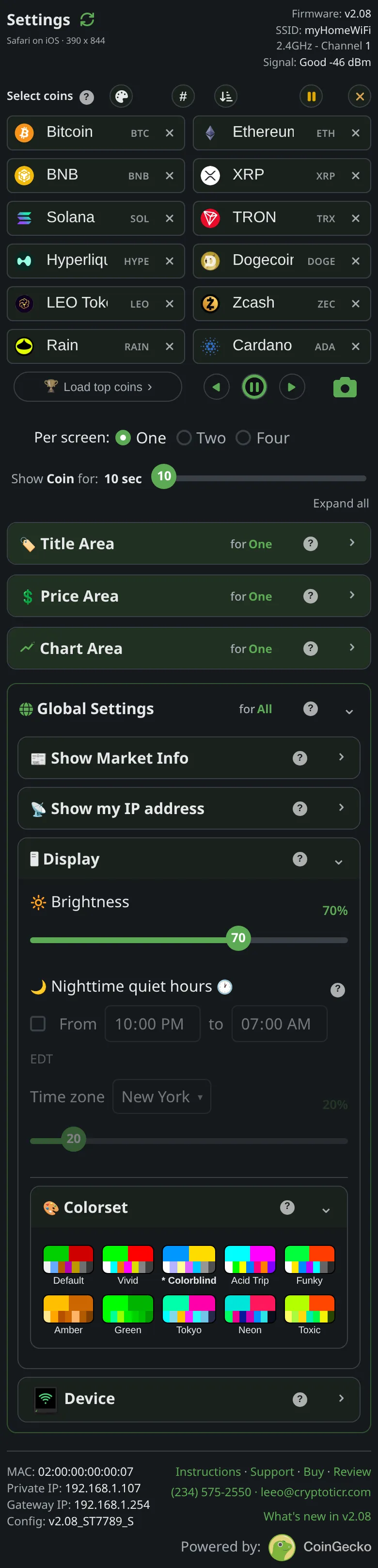


- Colorblind uses blue and yellow
- A change shows on the glass at once

- Every ticker starts up on its set's card

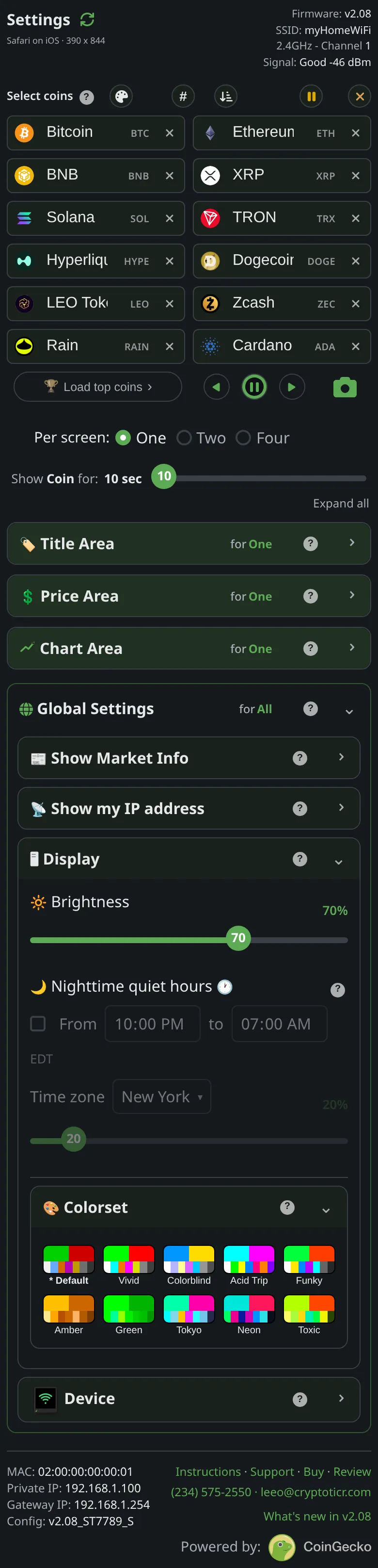

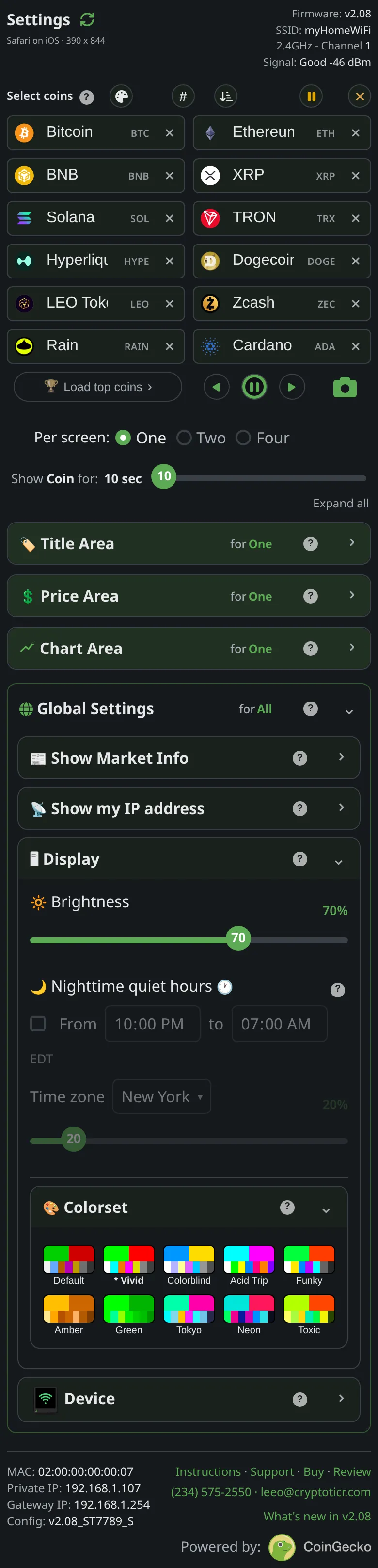


Give me the full detailsHide the details
What are the ten colorsets?
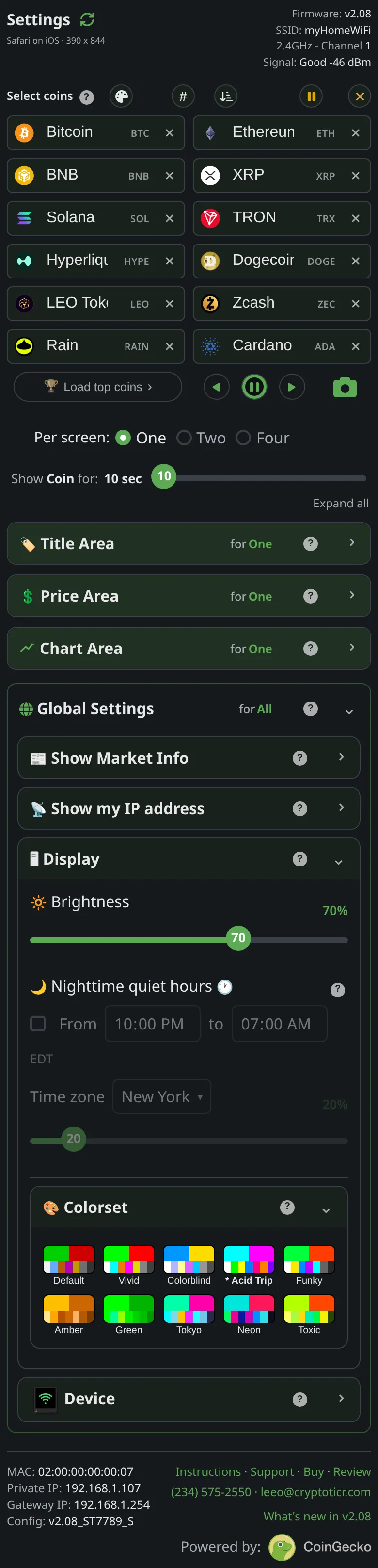
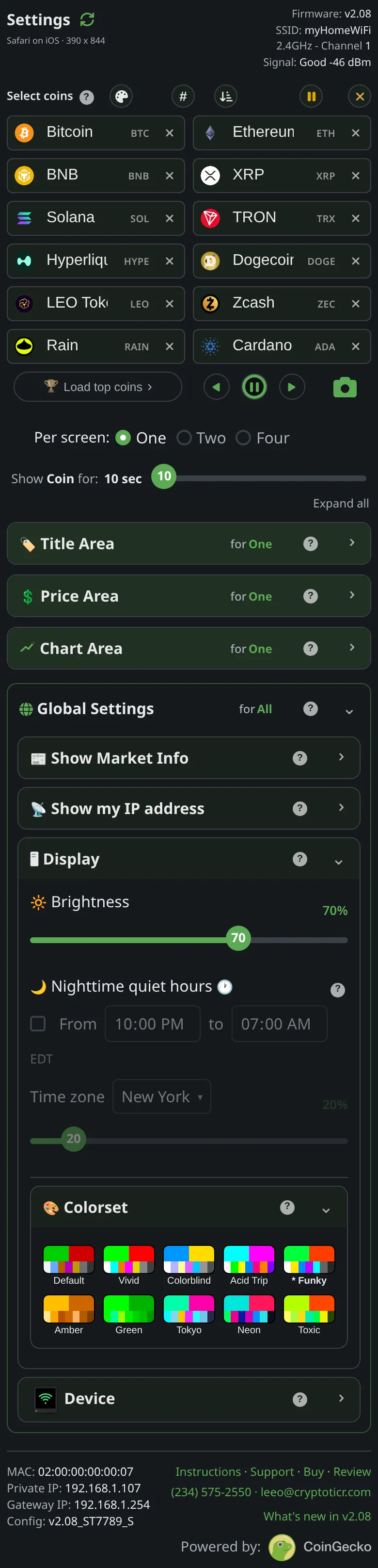
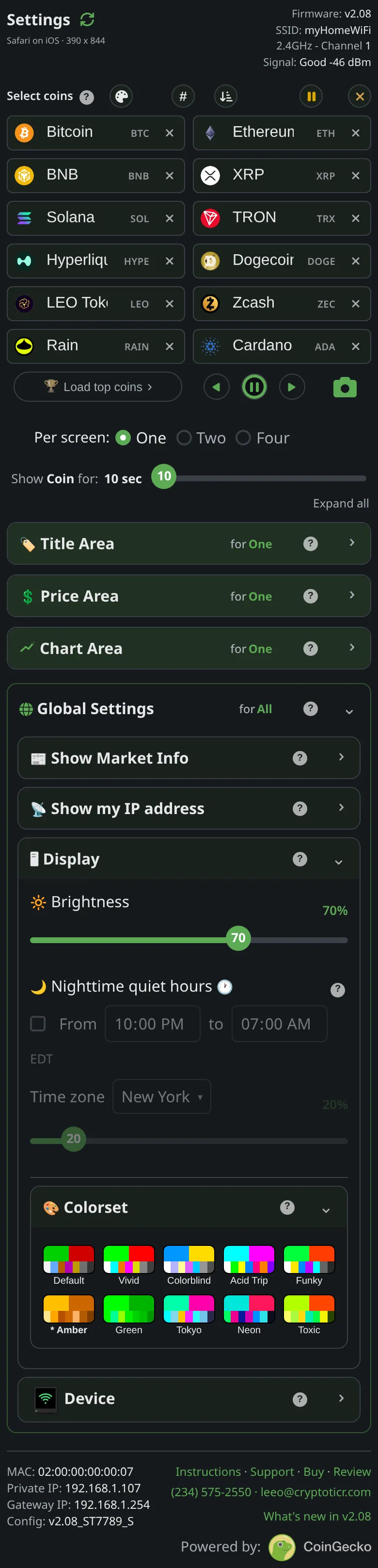
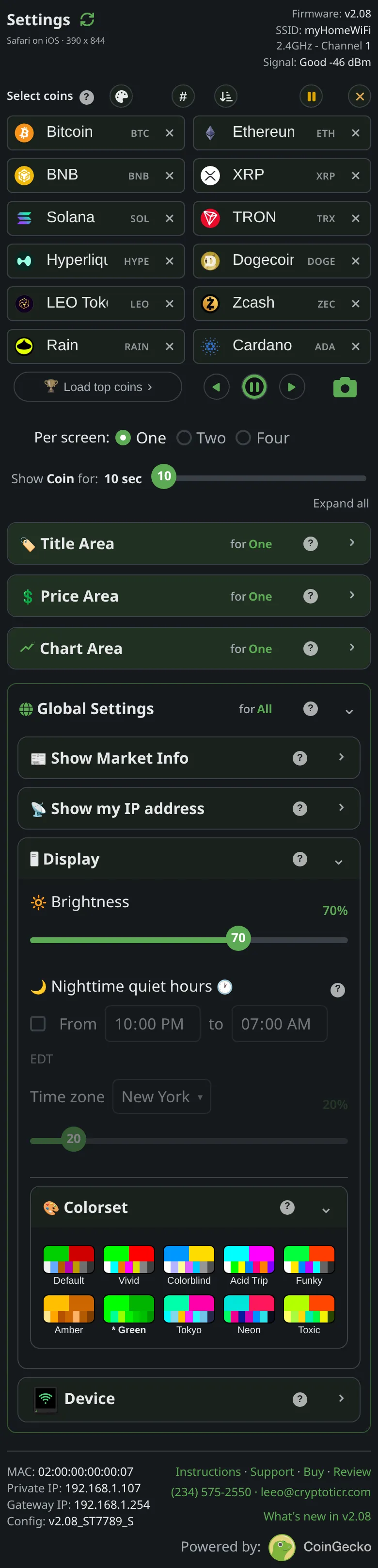
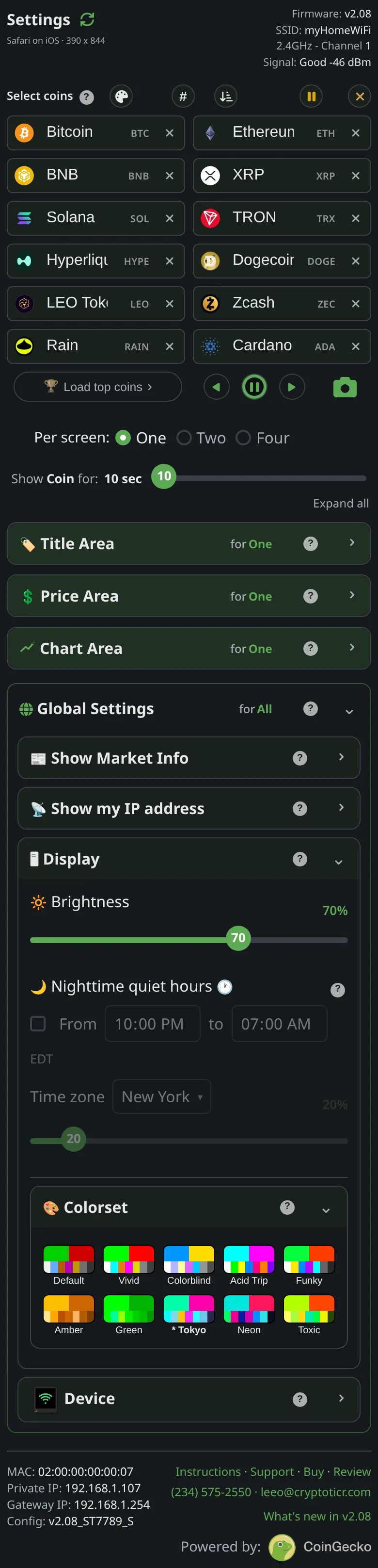
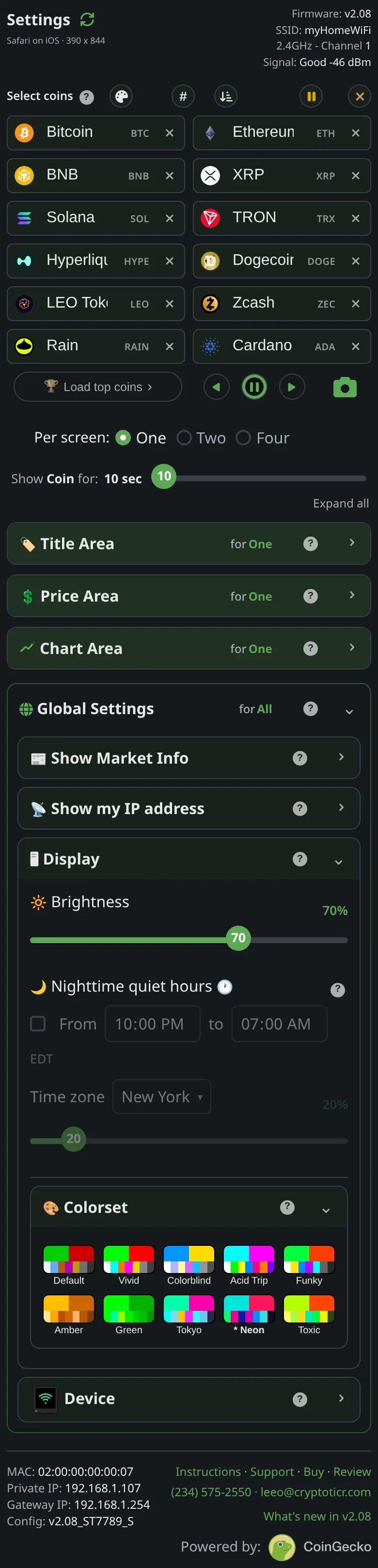
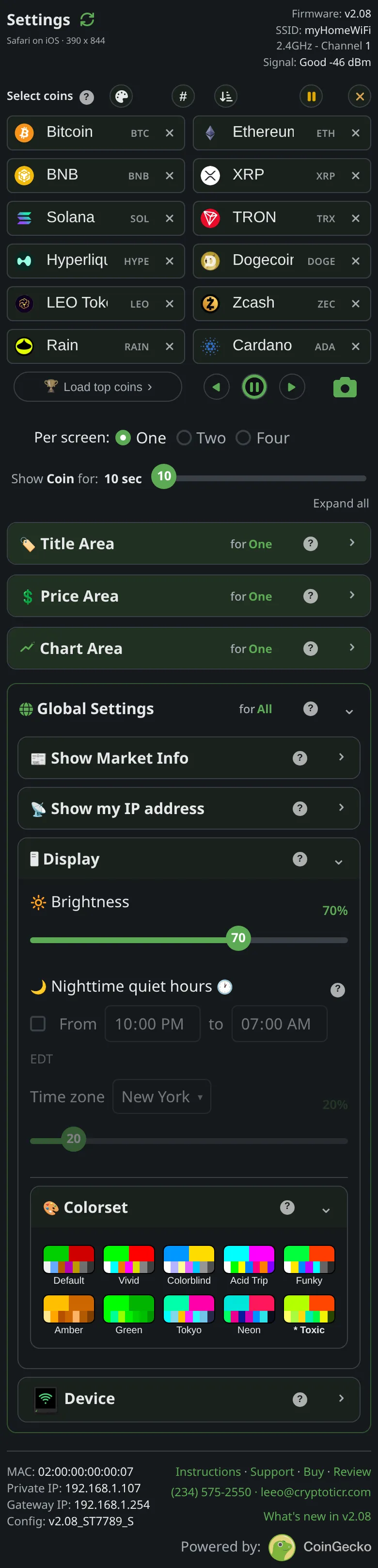
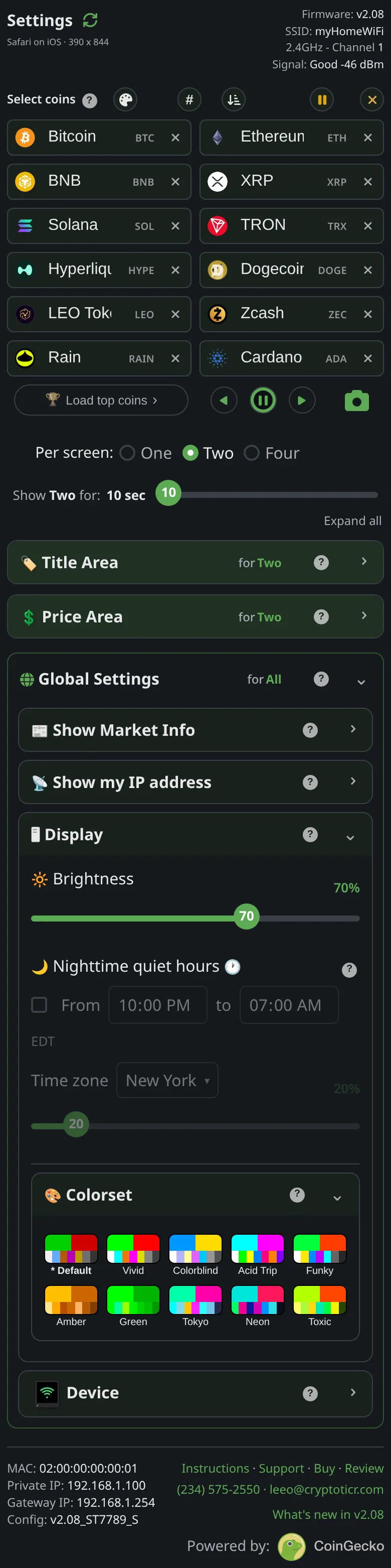
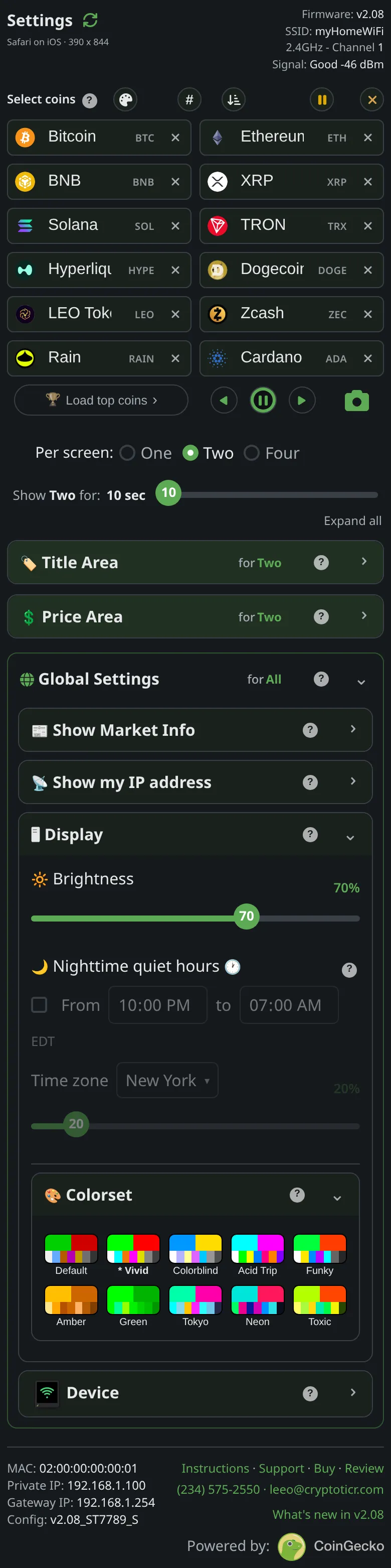
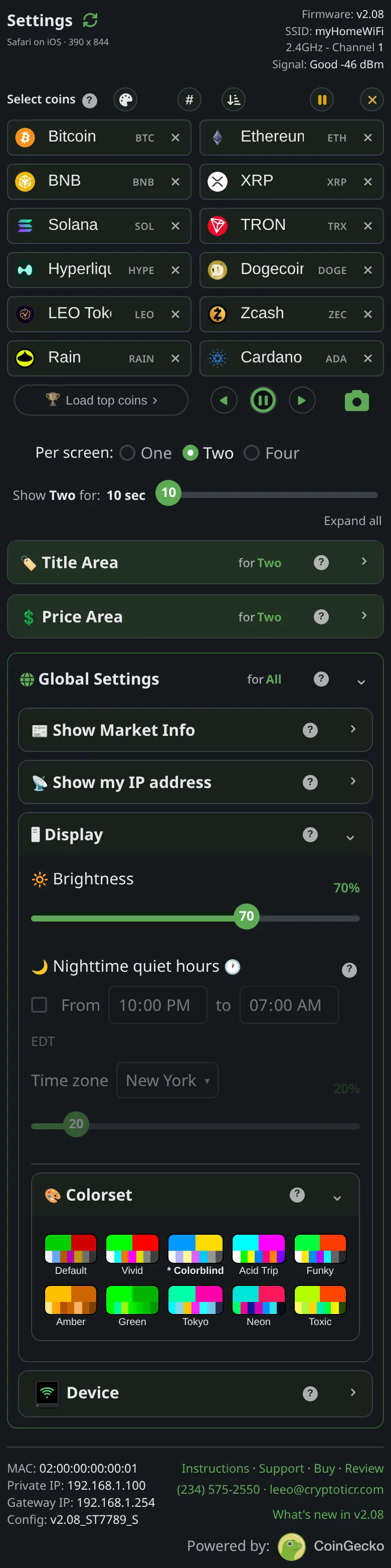
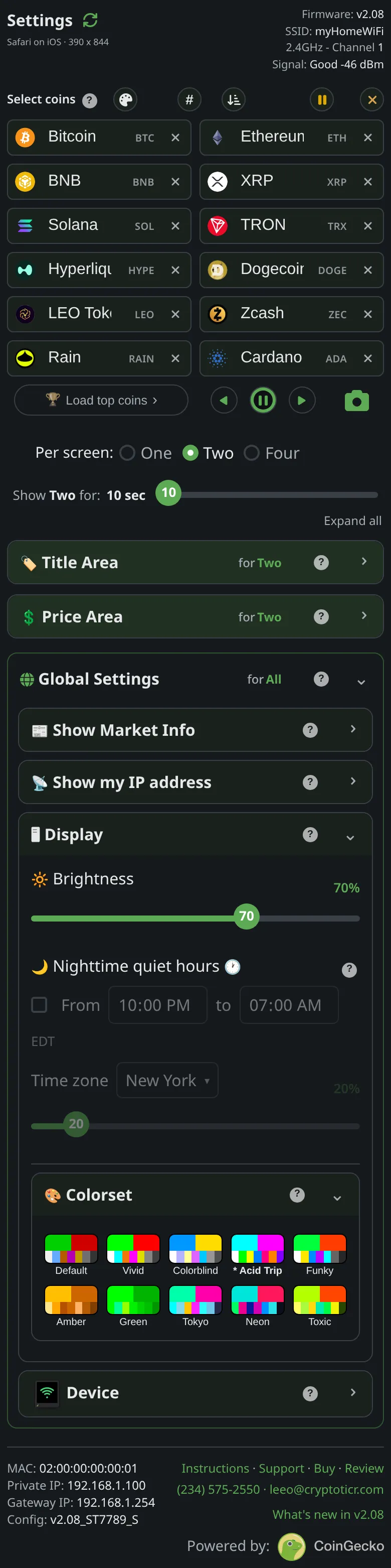
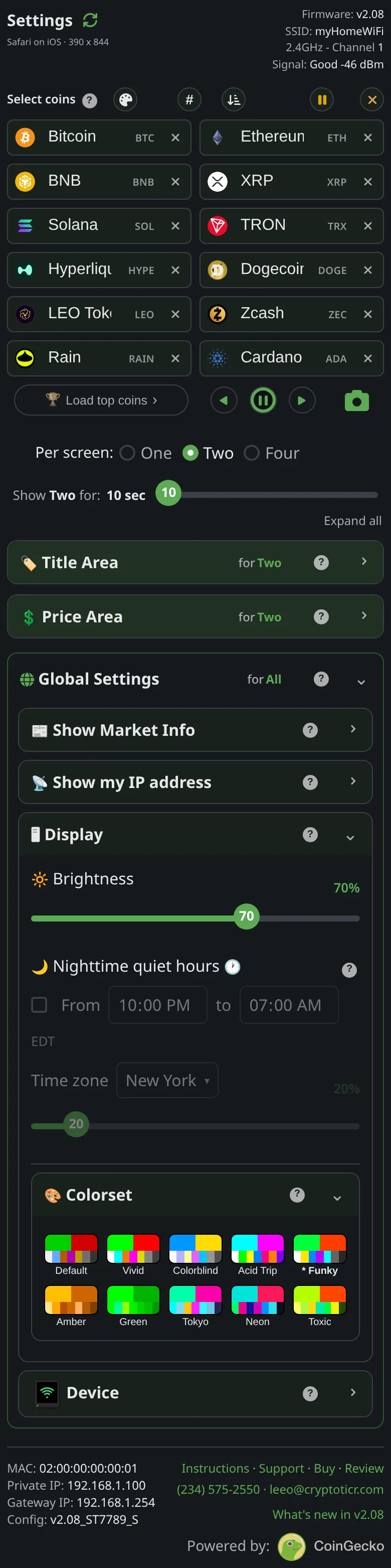
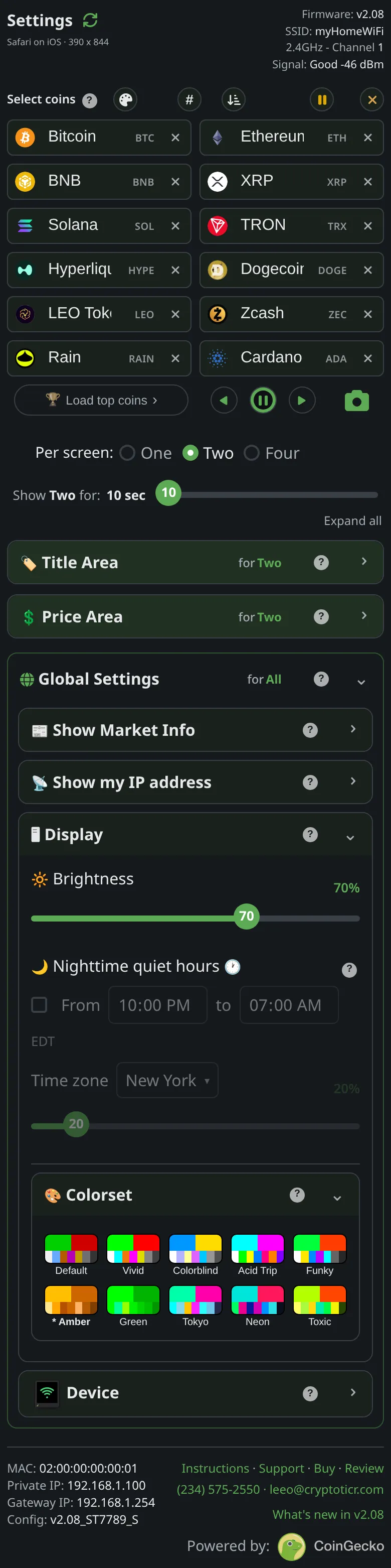
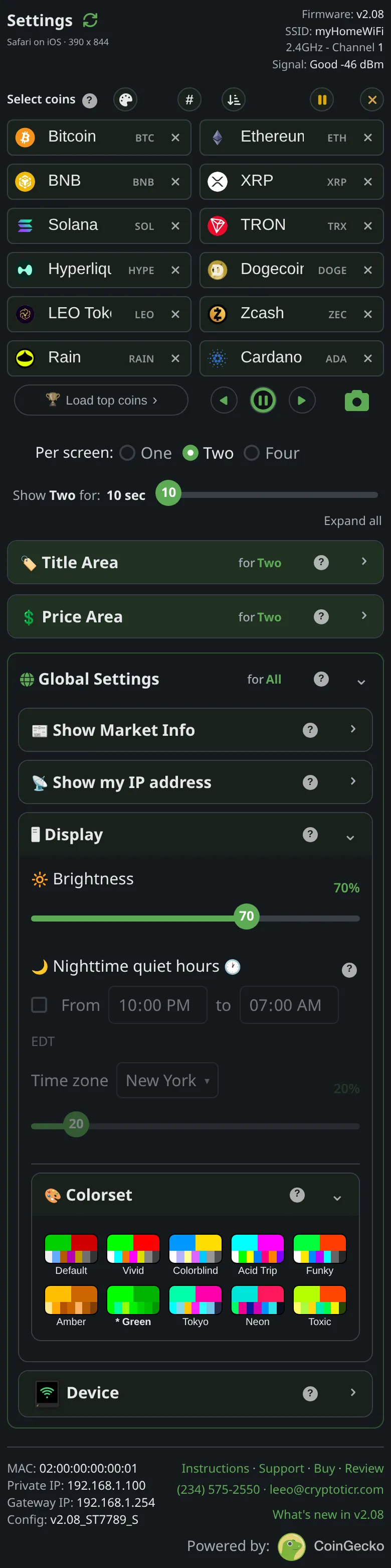
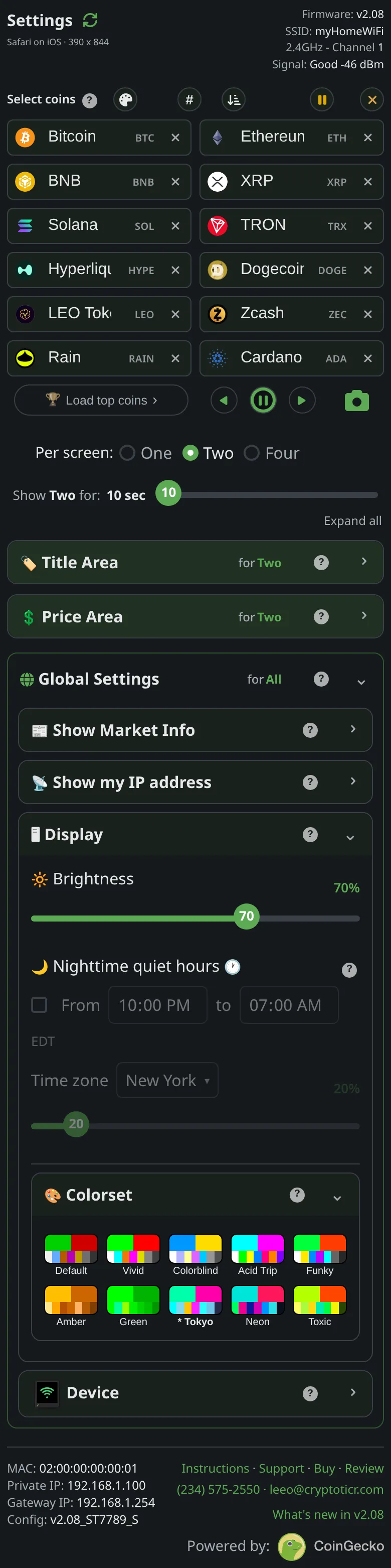
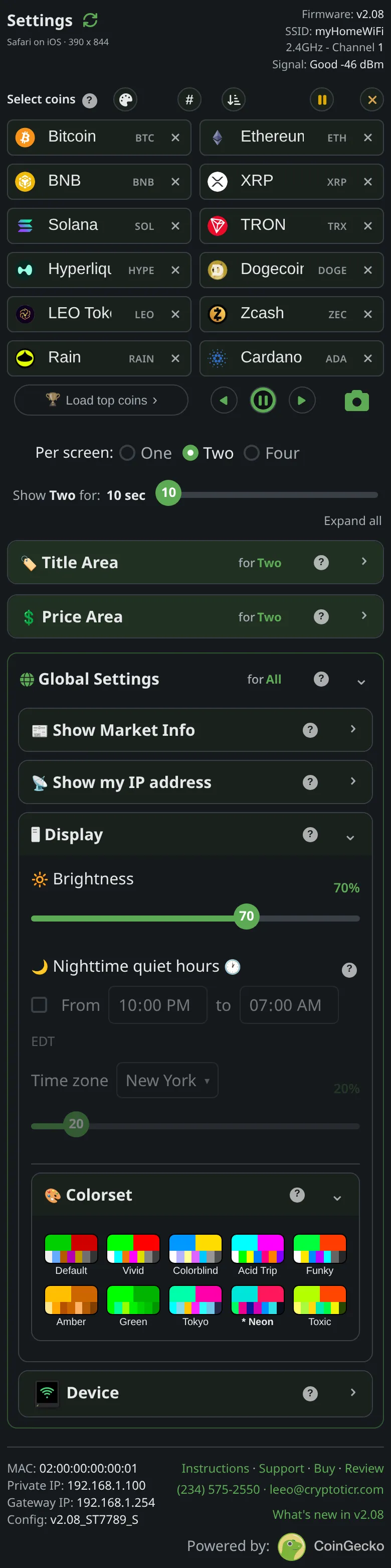
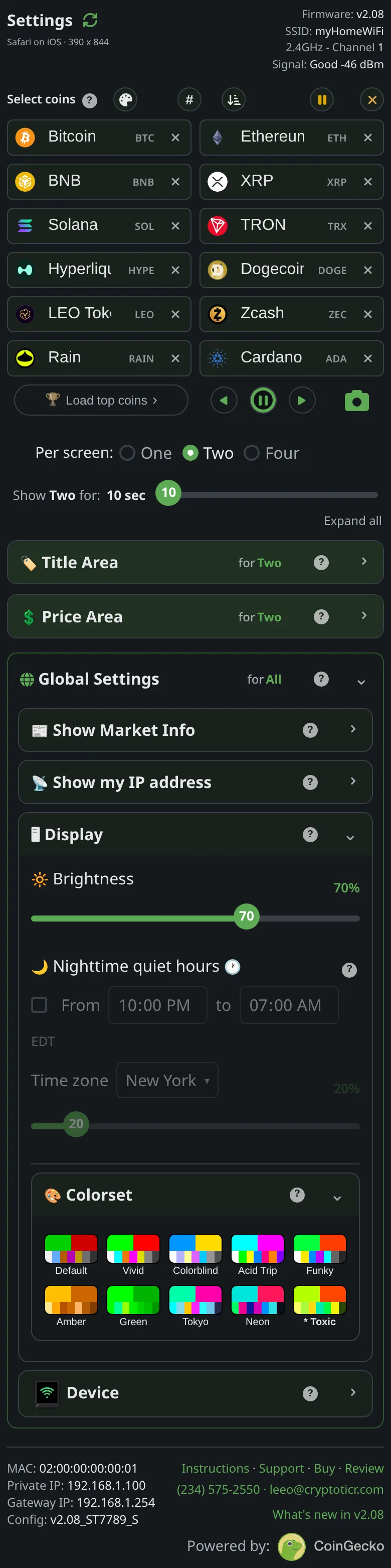
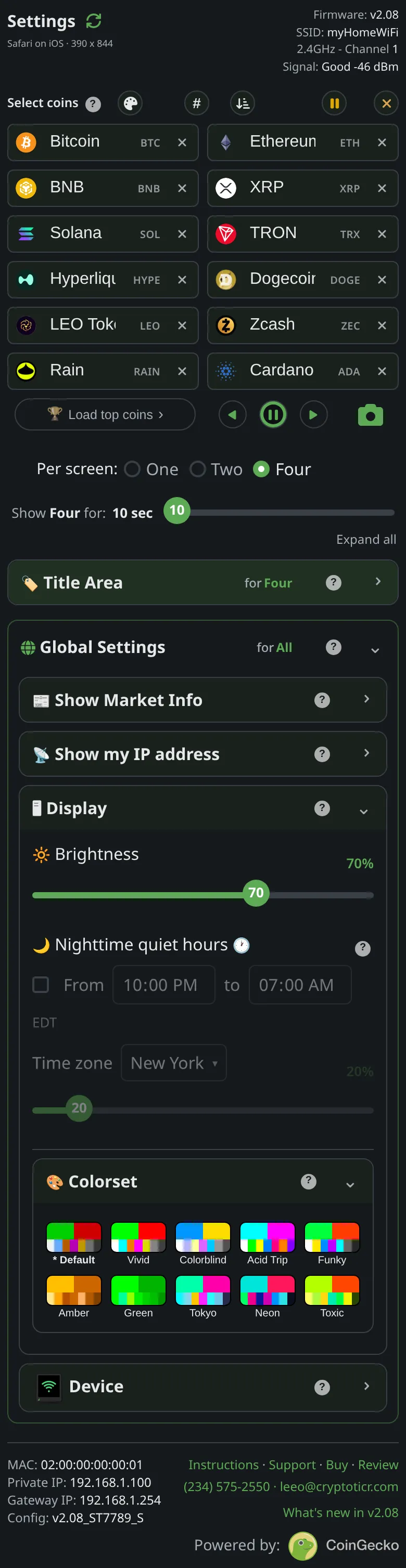
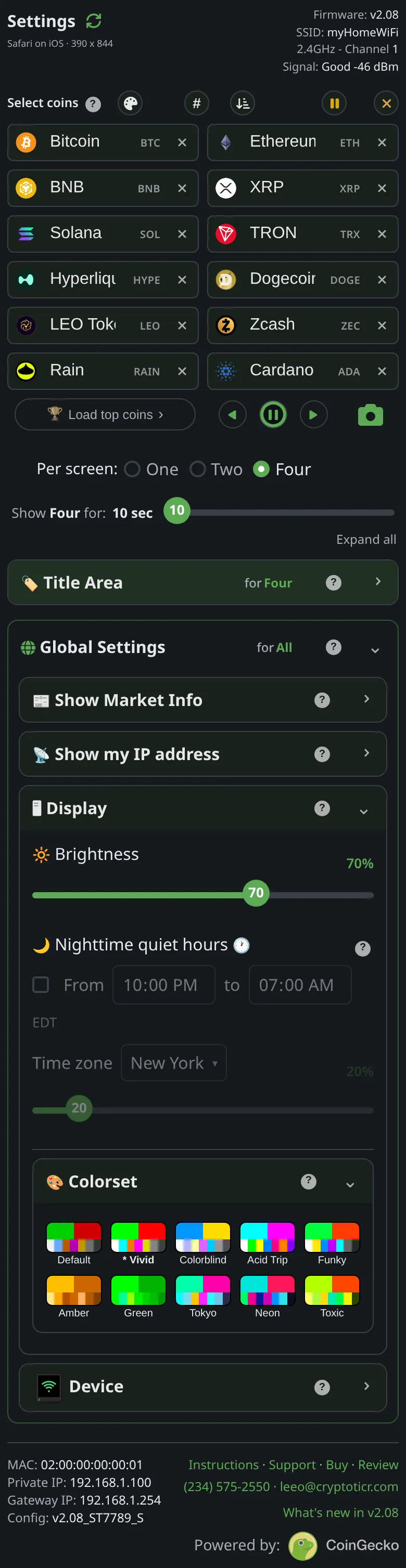
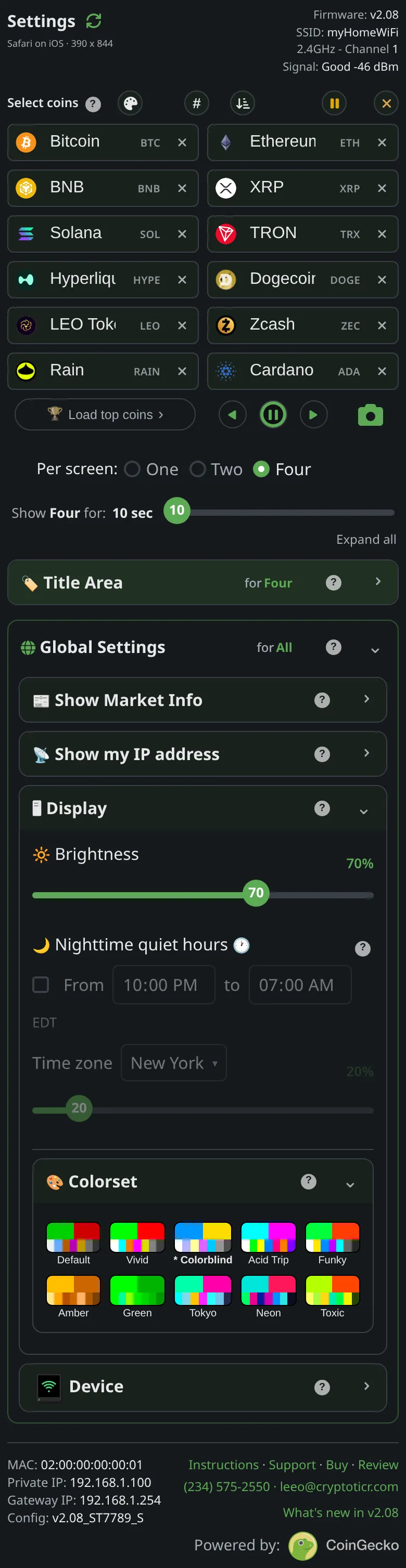
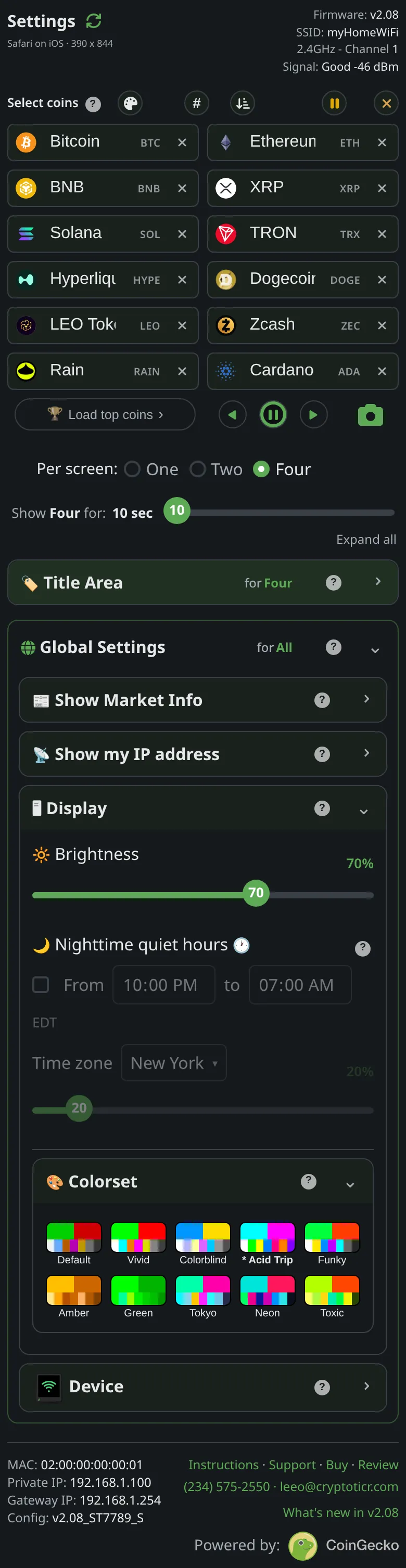
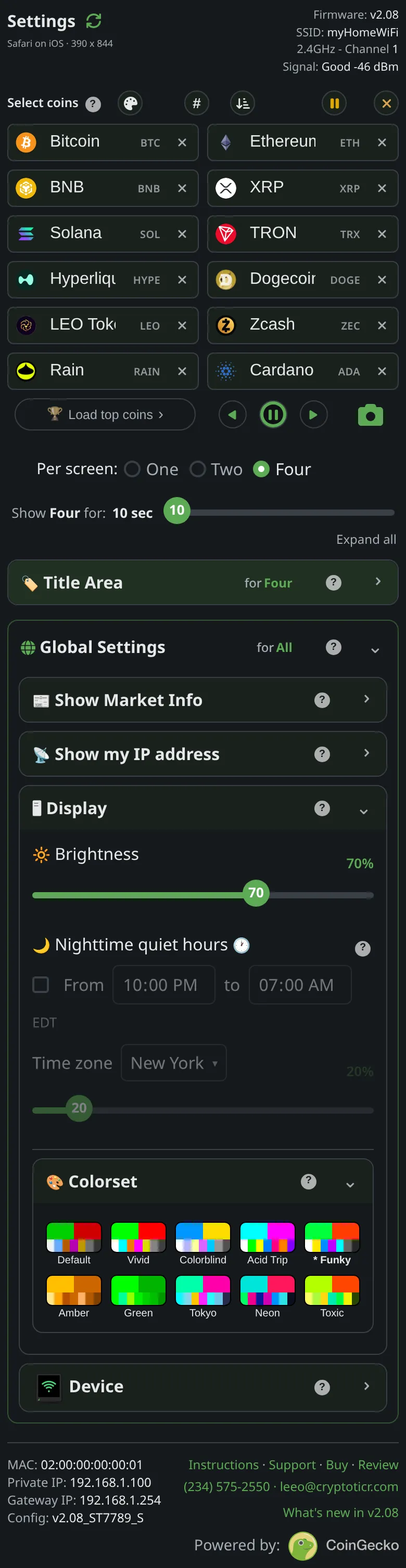
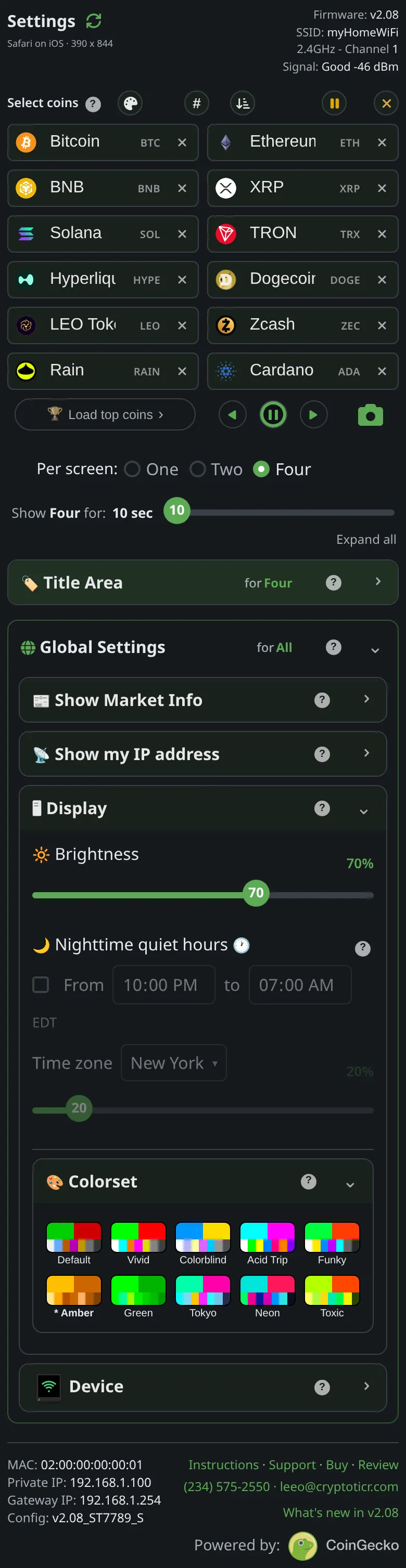
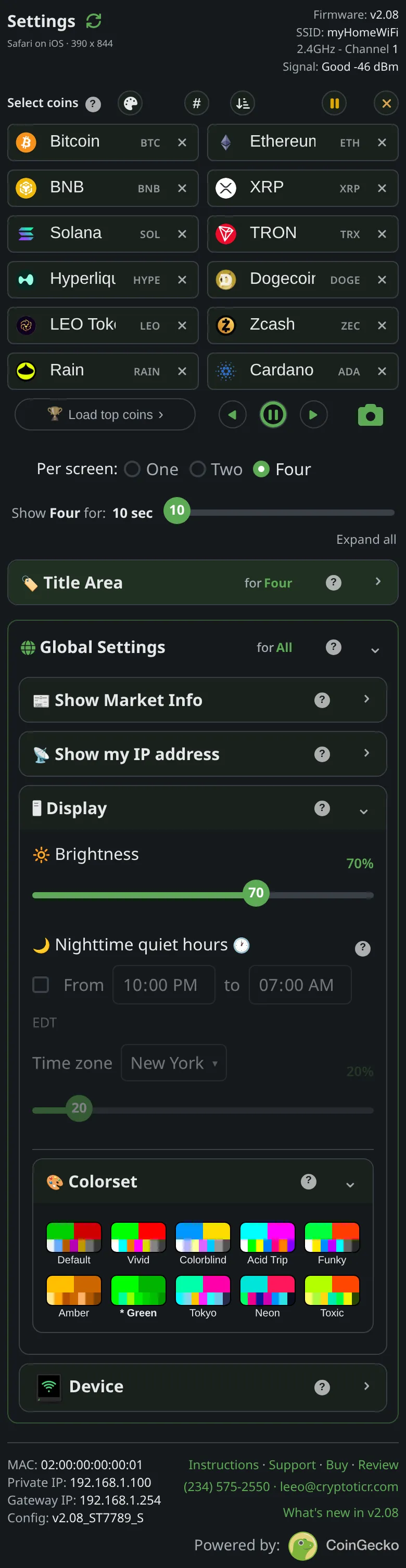
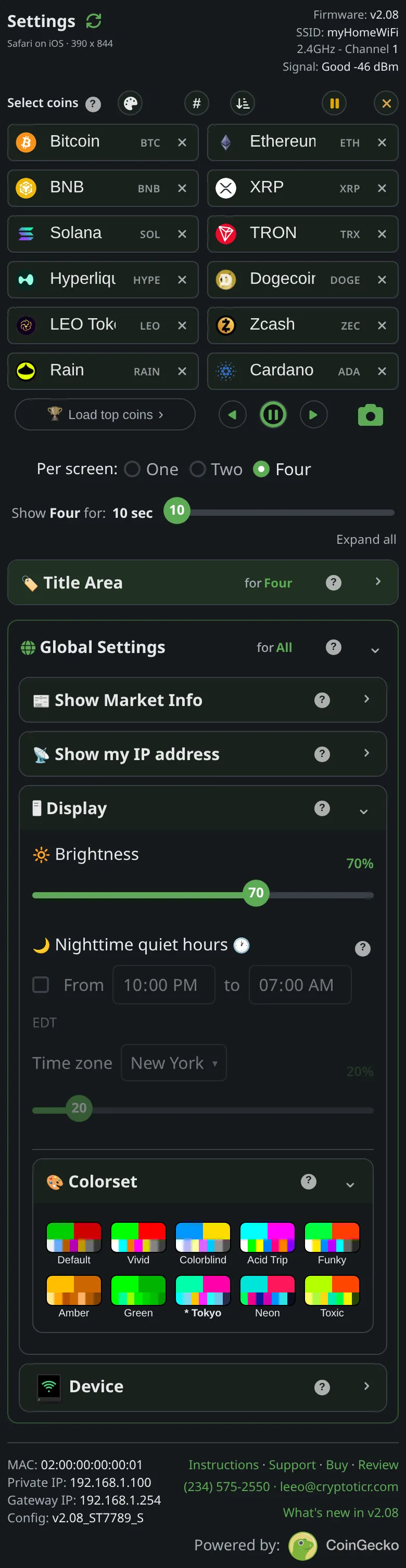
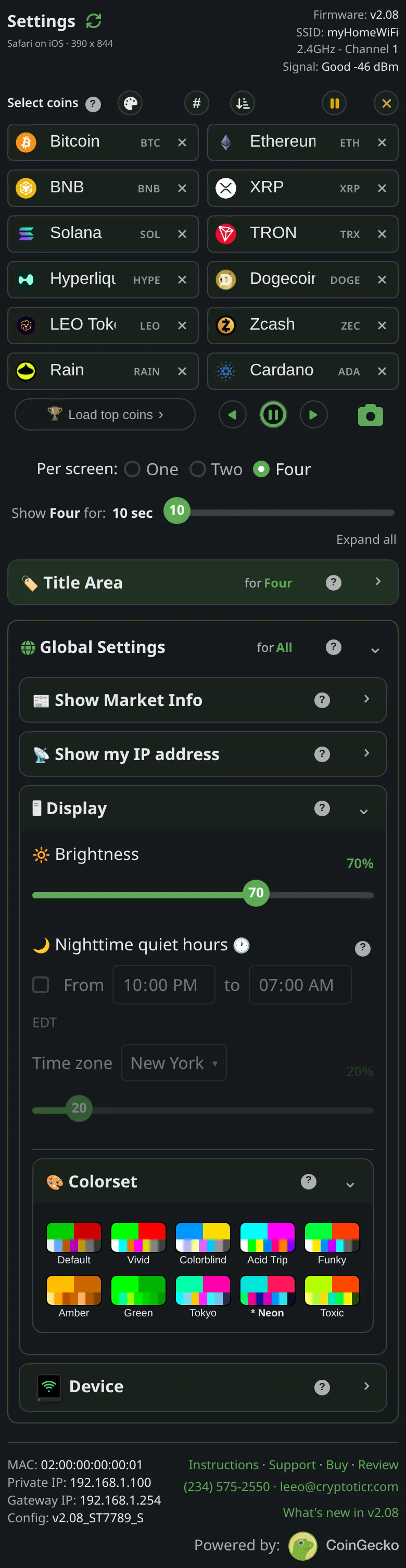
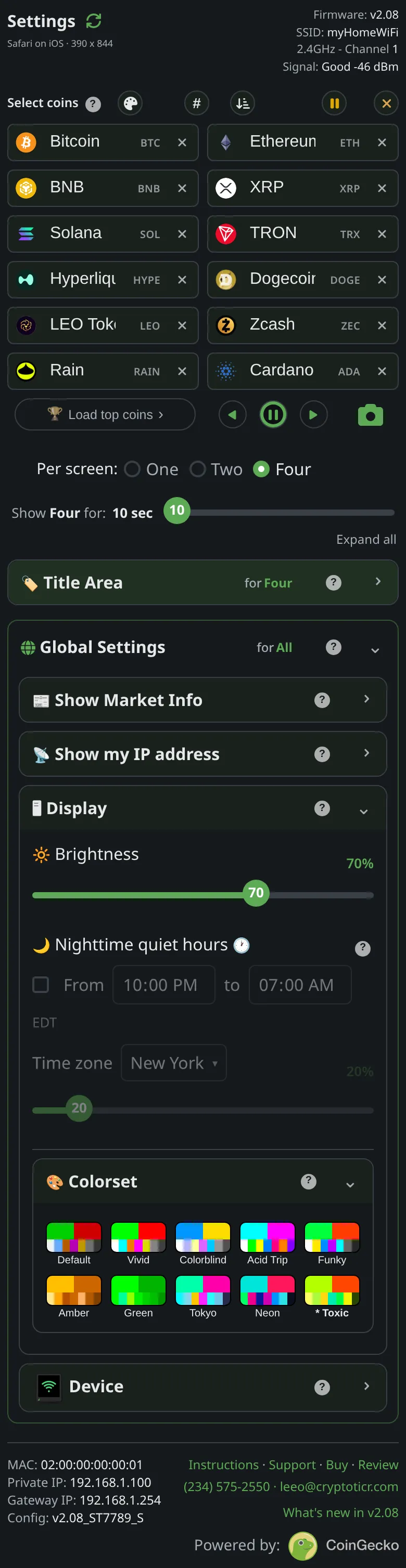
A colorset is the ticker's whole color scheme, and there are ten, picked from the swatches in the Colorset section, inside Display in the Global Settings of the settings page. Each swatch shows its set's up and down colors above its other colors, with the name underneath. The up color marks a rise and the down color a fall; the rest of the set colors the words, figures and chart details around them.
| Colorset | Up | Down | The rest of the set |
|---|---|---|---|
| Default | Green | Red | Near-white text, light blue volume, orange market cap |
| Vivid | Pure green | Pure red | Default's pairing at full strength, on pure white, with cyan volume |
| Colorblind | Blue | Yellow | White text, lavender volume, pale yellow market cap |


| Acid Trip | Cyan | Magenta | Saturated colors throughout: green volume, yellow market cap, orange period label |

| Funky | Bright green | Orange-red | Yellow volume, blue market cap |

| Amber | Bright amber | Deep amber | Everything in shades of amber |
| Green | Bright green | Darker green | Everything in shades of green |
| Tokyo | Mint green | Hot pink | Cyan coin names, light blue volume, gold market cap |

| Neon | Turquoise | Pink-red | Green coin names, magenta volume, deep blue market cap |


| Toxic | Lime | Orange | Yellow text, lime volume, gold market cap |
Default and Vivid keep the classic green and red, Vivid at full strength. Colorblind trades them for blue and yellow. Amber and Green are single-color sets. Acid Trip, Funky, Tokyo, Neon and Toxic are bolder schemes, each with a pair of its own; which suits you is a matter of taste and of the room the ticker sits in.
Which colorset should I pick if red and green look alike?
Colorblind is the set for anyone who finds red and green hard to tell apart: it shows a rise in blue and a fall in yellow, a pair that stays distinct for most people with red-green color blindness. Everything that means up or down follows that pair, from the price to the chart line. The V/M letters described below help too, because they name the rotating figures without relying on color.
What makes Amber and Green different?
Amber and Green are single-hue sets that imitate an old monochrome monitor. Everything on the screen turns to shades of one color, the coin icons and the other pictures included, which the ticker converts to its amber or green on the fly. Up is the brighter shade and down the deeper one, so in these two sets brightness does much of the work that color does in the others. Because their figure colors are close, these two are the sets with the V/M letters switched on from the factory.
Which parts of the screen does a colorset recolor?
A colorset recolors nearly everything on the coin screens and the Market Info cards:
- the up and down pair: the price, the 24h%, the chart line, the 7-, 30- and 90-day changes, and the moves on the Market Info cards;
- the coin's name and symbol, and the words and figures on the Market Info cards;
- the figures that take turns under the price: volume, market cap and rank;
- the chart's helpers: its period label, the time divider lines, and the dotted lines at the first and last price;
- the message boxes over the coins, the written address included, which take a deep tint of the set's main accent color;
- the countdown ring when you pause the ticker from the settings page.
A few things stay fixed on purpose. The neutral gray for a change that rounds to zero is the same in all ten sets. The QR code itself is always black on white, so it scans in any set. The start screen, Wi-Fi setup and the Wi-Fi screens you reach from the settings page use the Default set, and your colorset takes over from the first coin or card after start-up. What green, red and the gray mean on each layout is shown with pictures on the one-coin, two-coin and four-coin pages.
Can I change the colors of volume, market cap and rank?
Volume, market cap and rank can each take a color of your own, kept separately for each colorset. In the Price Area section, a swatch beside 24h Vol, Market Cap and Market Cap Rank opens a picker with a color square, a hue slider and a box for a hex code, and the ticker shows the color as you choose it. The picker stops short of the darkest shades, because the screen's background is black, and a typed-in black is raised to a visible shade. A Default button appears beside any edited color and returns that colorset's own color. Switch sets and each brings back its own choices; nothing is overwritten.
The 24h% cannot be recolored: its color is its meaning, so it always wears the set's up, down or neutral color. Show (V/M) prefix, also kept per colorset, puts a small V before volume and an M before market cap; rank always wears its "#". The Price Area appears in One and Two per screen, since Four per screen has no room for these figures. Your custom colors apply to these figures on the coin screens; the Market Info cards keep the set's own colors.
What is the colorset card at start-up?
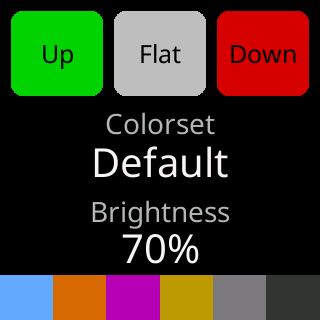






The colorset card is the ticker's own sample of the set in use, and every ticker shows it at every start-up, for 2.5 seconds before the first coin or card. It has three blocks labeled "Up", "Flat" and "Down" in the set's up color, the neutral gray and its down color; "Colorset" and the set's name; "Brightness" and the level the screen is at right now; and along the bottom a band of six more of the set's colors: volume, market cap, the first-price and last-price lines, the chart's period label and the time dividers. The same card shows for 3.5 seconds whenever you pick a set.
How fast does a new colorset show on the ticker?
A new colorset shows on the ticker at once: tapping a swatch applies it, with no Save & Apply, and the ticker answers with the colorset card. Tap through several in a row and the ticker skips the ones in between and shows the set you land on. After the card, everything is drawn in the new set: in One per screen a coin follows straight away, and in Two and Four per screen the new colors arrive with the next page. The page confirms each pick with a short "Colorset:" message and a star before the chosen swatch's name.
Is the colorset the same as the settings page theme?
The colorset colors the ticker's screen, while the settings page theme, chosen with the button at the top of the page, colors only the page on your phone or computer and is remembered by that browser alone. Changing one never changes the other. See Themes, and custom colors for your own figure colors.
Device
Restart, Wi-Fi, reset, lock
The last card in Global Settings looks after the ticker itself rather than its screen. Each control is walked through, phone and ticker side by side, on the Device page.