Custom colors
 9:41192.168.1.107
What it shows
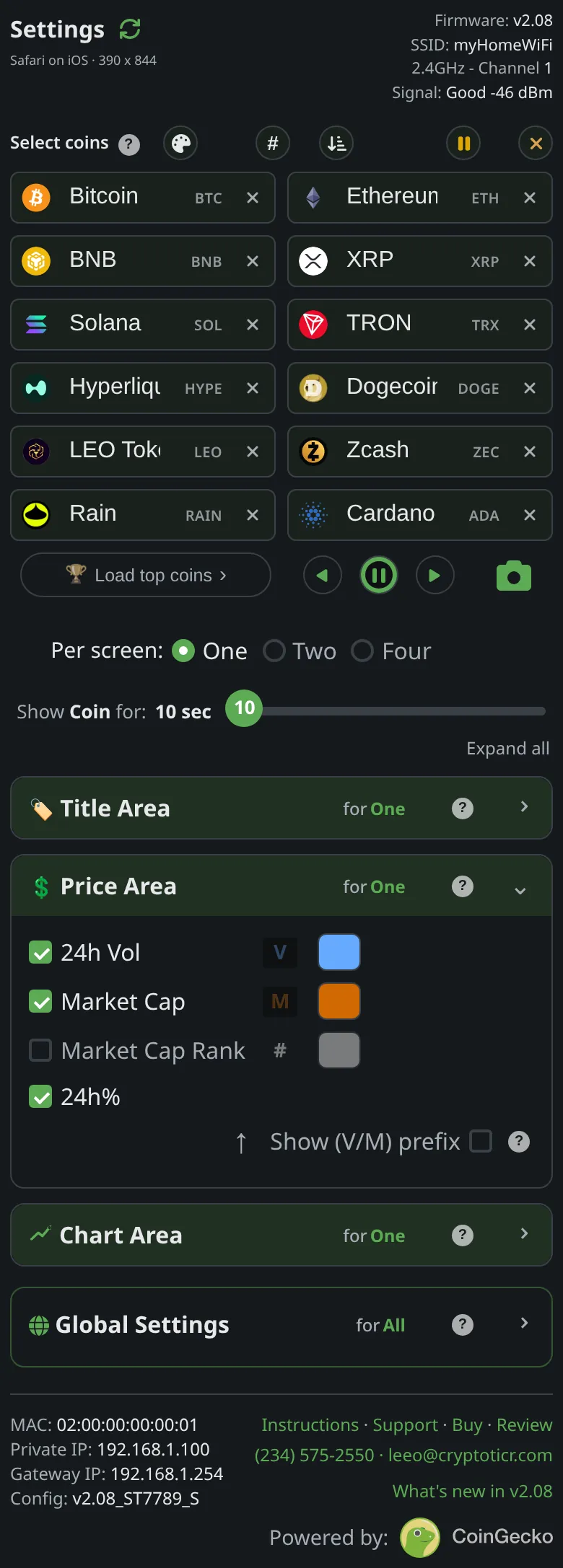
Beside 24h Vol, Market Cap and Market Cap Rank in the Price Area controls sits a color swatch. Tap it to open a picker; the figure on the glass takes the new color as you choose.
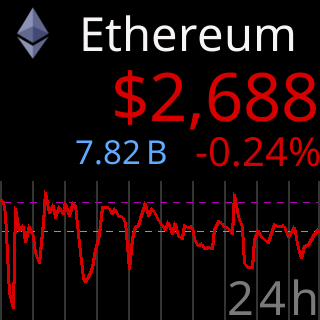
The 24h Vol figure shown here, and Market Cap and Market Cap Rank in their turn, are the three that take a custom color. The 24h% cannot be recolored: it always wears the colorset’s up and down colors, because its color is its meaning. It wears a neutral gray when it rounds to 0.00%, the same in every set.
The picker will not go to black, which would be invisible on the ticker: the brightness is held to a visible floor, and a typed-in black is bumped to a visible gray. A Default button beside an edited color returns that colorset’s normal color.
Options
- Three colors per colorset, kept separately for each of the ten sets:
Choices are remembered per colorset, and Reset returns that colorset's normal color. - Colors are typed as a hex value or picked; both apply at once.
Where to set it
Display → Price Area, the swatch beside each figure. Reference: Setting: 24h Vol color, Setting: Market Cap color, Setting: Market Cap Rank color.