Export and import settings
Before you start
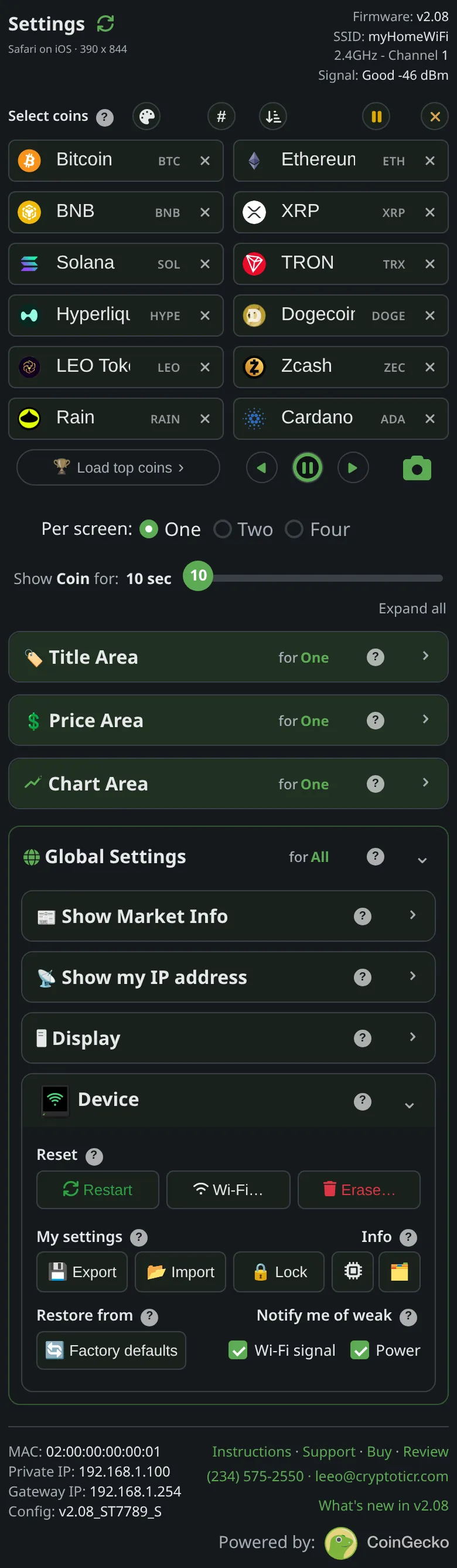
- The file holds everything on the page: coins, colors, timings, the popup rows, quiet hours. It does not hold the Wi-Fi network or password. The page says:
Export downloads everything on this page (coins, colors, timings, not Wi-Fi) as a small file named after the ticker and the date. - Import applies straight away, with no extra Save step.
 9:41192.168.1.107
Steps
- Scroll to
Device→My settings. - Tap
Export. The browser saves a file named after the ticker and the date and time, ending in.json, and the page saysSettings exported. - Keep the file somewhere you will find it: a backup before experimenting, or the way to copy a setup to a second ticker.
- To load a file, tap
Importand choose it. The page checks it is a settings file, applies it to the ticker, and saysImported, saved and applied to your Ticker.
You’re done when
- After Export: the file is on your device. After Import: the page’s coin boxes and controls show the file’s values and the ticker has redrawn.
Problems?
Import failed: not a settings file, or another import error: Import failed.- The browser did not offer to save (some in-app browsers cannot download): open the page in Safari, Chrome or another full browser and export again.