Mesh and band-steering routers
Two kinds of router, one behavior
A mesh system is several units sharing one network name. A band-steering router is one unit that offers its 2.4 GHz and 5 GHz bands under one name and chooses which band each device gets. Many mesh systems do both. From the ticker’s side they behave alike: during a join, or a few minutes after it, the router may ask the ticker to leave so it can move it somewhere else. The ticker has only a 2.4 GHz radio, so being steered toward 5 GHz leads nowhere.
What the setup page says
When that happens, the setup page explains it under Extra technical detail:
Your router asked me to leave. That usually means it restarted, or it moved me to a different access point. Tap Connect again.Your router and I could not agree on a security type. I can join WEP, WPA and WPA2 Wi-Fi, but not WPA3.Some mesh systems in mixed WPA2/WPA3 mode send this once with a good password and accept the next try. If it repeats, the network is set to WPA3 only, or it requires Protected Management Frames; see Your router and I could not agree on a security type.
Neither line means the password is wrong, and the page does not say it is.
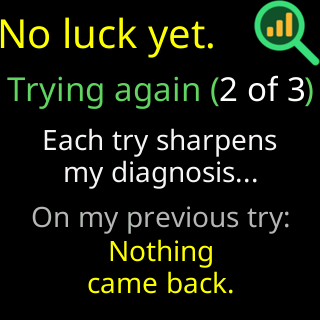
For most failures the ticker already retries on its own, up to three tries for each tap of Connect, and the glass shows No luck yet. and Trying again (2 of 3) between them.
What to do
- Tap
Connectagain. A handoff is a moment’s event, and the next try is often let in. - If your system can give its 2.4 GHz band a name of its own, do that and pick the 2.4 GHz name. A network that exists only on 5 GHz is invisible to the ticker:
I can't find that network right now. Make sure it's on and in range. I can only join 2.4 GHz networks, so a 5 GHz-only one is invisible to me. - If it cannot, use its temporary 5 GHz pause or its IoT network, where it has one. Router issues and how to fix them lists where those settings are on eero, Google Nest, TP-Link Deco, NETGEAR Orbi, ASUS and others.
- Turn off Fast Roaming (802.11r, sometimes called Fast Transition) for the network the ticker uses. Many small devices cannot join a network that advertises it.
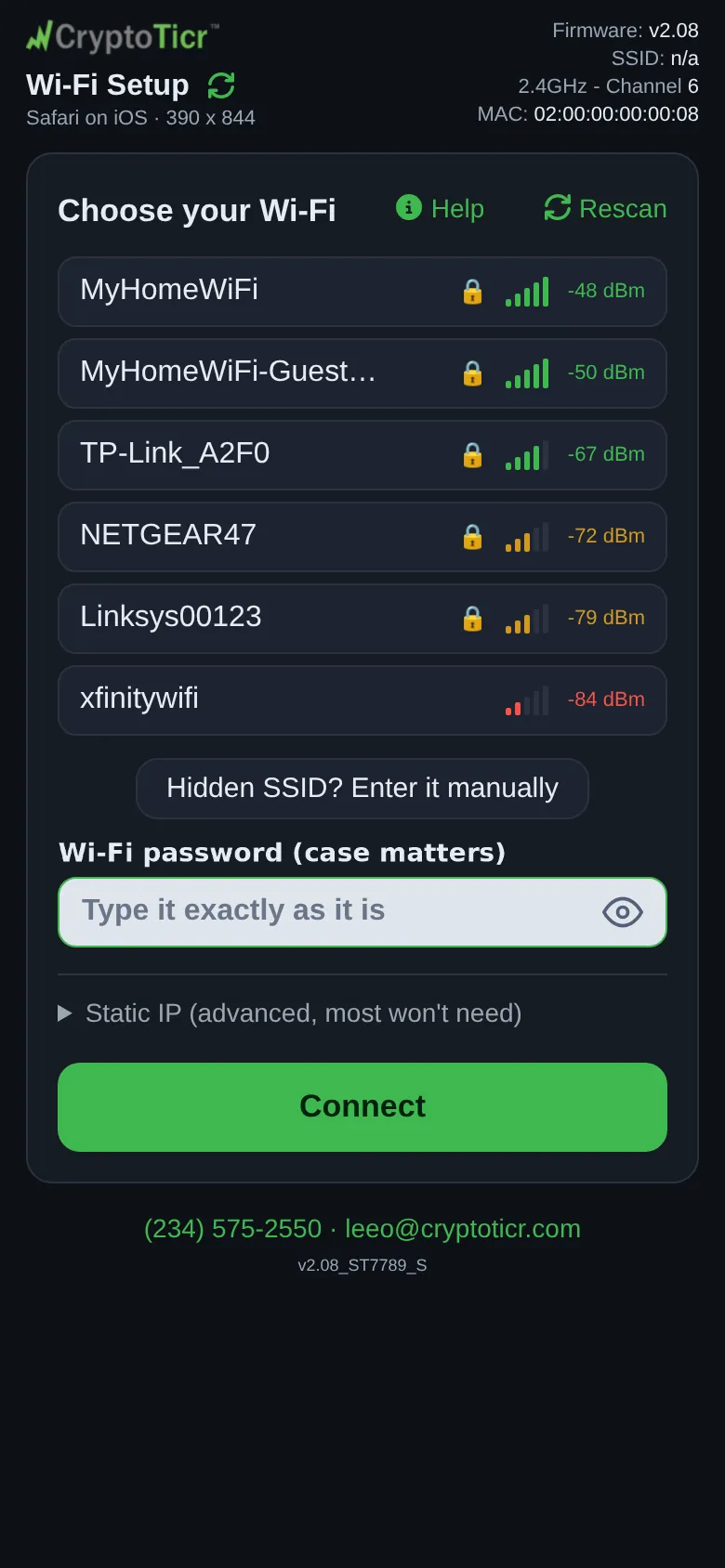
- Set the ticker up near the unit it will use, and check the bars beside the network name in the setup page’s list: Signal bars and dBm.
 9:41192.168.4.1
A mesh behind another router
If the mesh is plugged into a router from your internet provider and both are running their own network, the ticker can end up on one and your phone on the other, and then the phone cannot open the ticker’s settings page. Put the mesh in bridge mode, which TP-Link Deco calls Access Point mode and eero calls Bridge mode, so there is one network in the house. Or turn off the Wi-Fi on the provider’s router and let the mesh do it all.
Once it is on
The ticker stays with the unit it joined until that connection breaks. It does not look for a nearer unit while it runs, so a ticker carried to another room keeps talking to the unit it started with. Switch it off and on after a move, and it joins again from where it now sits.
When a mesh does drop it, the ticker reconnects by itself, and shows nothing unless the drops become frequent: three within an hour and its signal card says Wi-Fi drops out. See The Wi-Fi signal check.