Global settings
Device
The Device section looks after the ticker itself: restarting it, moving it to another network, erasing it, a password for its settings, and a backup of them. Each is walked through below, phone and ticker side by side, exactly as they look.
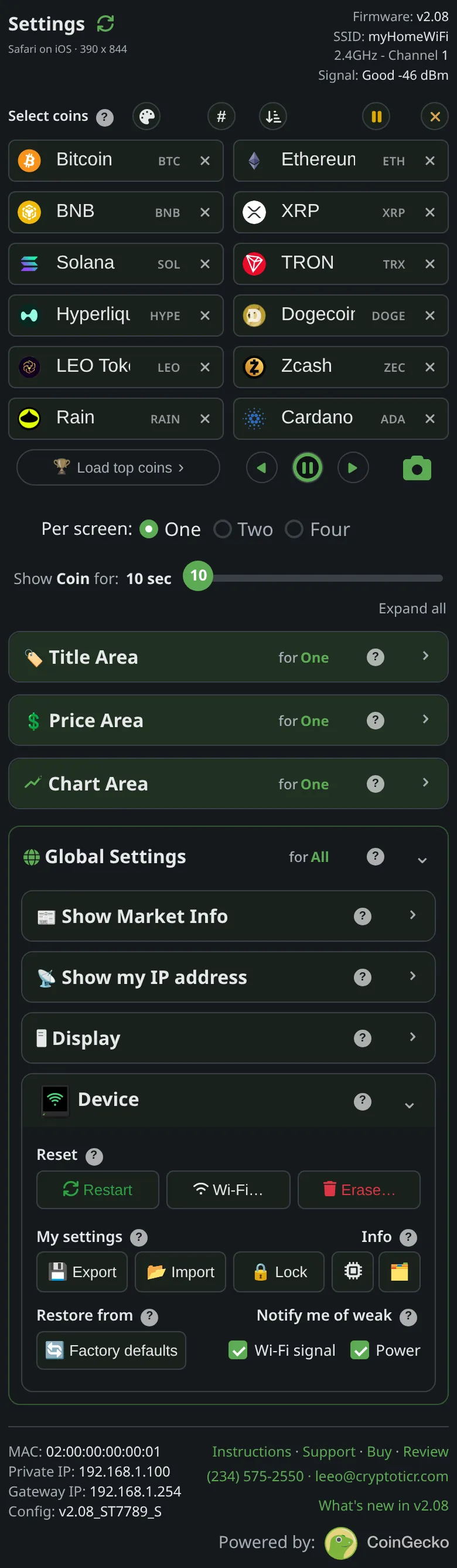 9:41192.168.1.107
Restart
Nothing lost, nothing erased
The ticker starts again from its start screen, rejoins your Wi-Fi and carries on, and the settings page finds it again by itself.
- Worth trying first whenever the ticker seems stuck
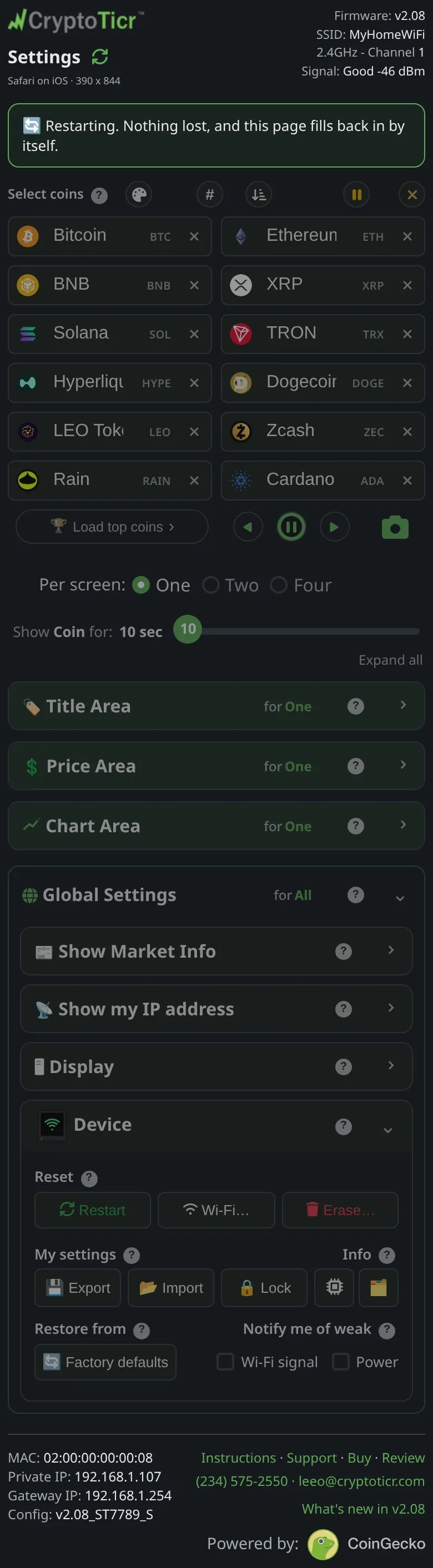 9:41192.168.1.107
The page says so and waits for the ticker to come back.
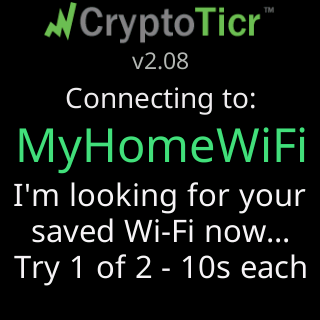
The start screen, then your coins.
Give me the full detailsHide the details
What does Restart on the settings page actually do?
Restart makes the ticker go through the same start-up it runs when you switch it on, reading everything back from its saved settings. It begins the moment you tap: there is no confirmation step. Right before it goes, the ticker writes any change you made with a control that applies instantly, such as the brightness slider. It normally saves those about 30 seconds after your last change, so pulling the plug inside that half minute can lose one; the Restart button never does. With the Lock on, Restart needs the password, like any other change.
A restart does empty the price data. The ticker keeps prices and charts only in memory, so after every start it fetches them fresh before the first coin appears.
What does the ticker show while it restarts?
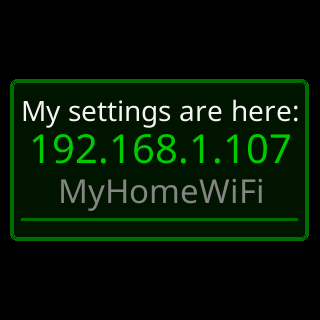
The ticker narrates the whole start on its screen. Under its logo and version it shows “Restarting...” with an hourglass for about three seconds, then “Connecting to:” with your network's name and “Try 1 of 2 - 10s each”. Once the router lets it back on, short lines tell the rest: “I found your Wi-Fi!” with a signal grade, “I'm logging in using my saved password...” (“I'm logging in...” on a network with no password), “I've logged in!”, then “Your router gave me this address to use:” (or “I'm using the fixed address you gave me:”) and the address in large type. Quick checks of the internet and of its data server follow, ending on “Everything checks out!”. Then come “My settings are here:” with the address, the colorset card, any Market Info cards you have switched on, and your coins; a weak Wi-Fi signal also brings its signal card once at start-up.
How long until the coins are back?
The pauses built into that story add up to about 25 seconds. On top come the time your router takes to let the ticker back on, the moment its server says go, and a 7-second look at each Market Info card you have switched on.
The settings page does not wait for the coins. The ticker starts its web server before it rejoins your Wi-Fi, so the page can reconnect while the story is still playing. After your tap the page waits 6 seconds, then keeps checking, 2 seconds apart, showing “Checking again… (check #1)” and counting up, and finishes with “Back online, everything is as you left it.” The ticker notices the page coming back and takes it as someone watching: from then on, each good-news pause in its story shrinks to a quarter of its length. A step that reports a problem always keeps its full length, so it stays readable.
Does restarting count toward the five-restart factory reset?
A Restart from the settings page never counts toward the five quick restarts that factory reset the ticker. The ticker counts only starts that follow the power being switched on, and it recognizes a restart it made itself, for any reason, and leaves it out. Unplugging and plugging it back in does count one step, but the count clears once the ticker has run for five seconds, so an ordinary unplug adds up to nothing. The ticker has no buttons of its own, so the cable is the other way to restart it.
What if my Wi-Fi is not there when it restarts?
The ticker tries its saved network twice, ten seconds each, and then waits for it instead of going into setup. A ticker that has been set up treats a missing network as an outage, because after a power cut the router usually comes back later than the ticker does. The waiting screen is headed by what it has seen: “Trying to connect” while nothing has answered, “Waiting for Wi-Fi” when its last try got a clear answer (with “I can't see it right now.” under it when its scan missed the network, or “It's there. I can't join yet.” when the scan saw it), “Wi-Fi answered” when the router is there but will not let it on, and “Almost connected” when it joined but got no address. The bottom line takes turns between the plan, “I retry every 15 seconds,” / “restart every 2 minutes.”, the way out, “New Wi-Fi? Restart me” / “5 times fast. Wipes me.” (that is, power it off and on five times, quickly), and what its last try recorded, for a support call, unless the card already shows it. As soon as a try succeeds, the normal story carries on and the coins come back with nothing for you to do.
One case ends the wait early. If the router answers and refuses the saved password four times in a row, which takes about a minute, the ticker opens its setup network by itself and keeps every setting, so you can type the new password; see changing your router's password. More on the wait: what happens when the Wi-Fi drops.
Why does the start screen sometimes say “Restarted to reconnect”?
The ticker restarts itself in a few situations, and the first screen says which. “Restarted to reconnect” / “to your Wi-Fi” follows a restart it made to get back on Wi-Fi: after being off the network for a long stretch while running (an hour at most), during the two-minute restarts of the waiting screen, and once after it moves to a new network with Change Wi-Fi. “Restarted to refresh” / “my memory” means its free memory stayed too low to fetch prices for several minutes, or that an update could not start for lack of memory; the update then runs a couple of minutes later. “Looking good!” / “Starting up...” is the restart that ends setup, and “Wi-Fi saved.” / “Starting up...” the one after a setup that chose a network with no internet. A plain “Restarting...” is one you asked for, with Restart or one of the erase buttons.
What if the settings page does not come back?
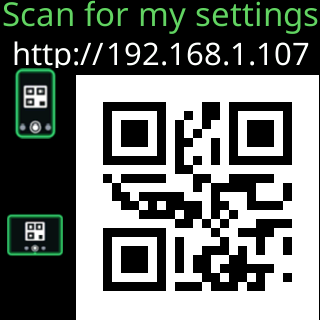
The page keeps checking the address it was opened from, so it cannot follow the ticker if your router hands it a different address this time. Read the new one on the glass: “My settings are here:” shows it during every start. When the address has changed since the last start, the ticker also shows it again shortly after the coins return, written out and as a QR code, even if you have switched those pop-ups off under Show my IP address. See lost the ticker's address.
Change Wi-Fi
Move to a new network, safely
For a new router, a new home, or a network with a new name. The ticker keeps its coins and every setting, and only switches if the new network lets it in.
- If it cannot get on, nothing changes
- Then join your phone to the new network too
 9:41192.168.1.107
 9:41192.168.1.107
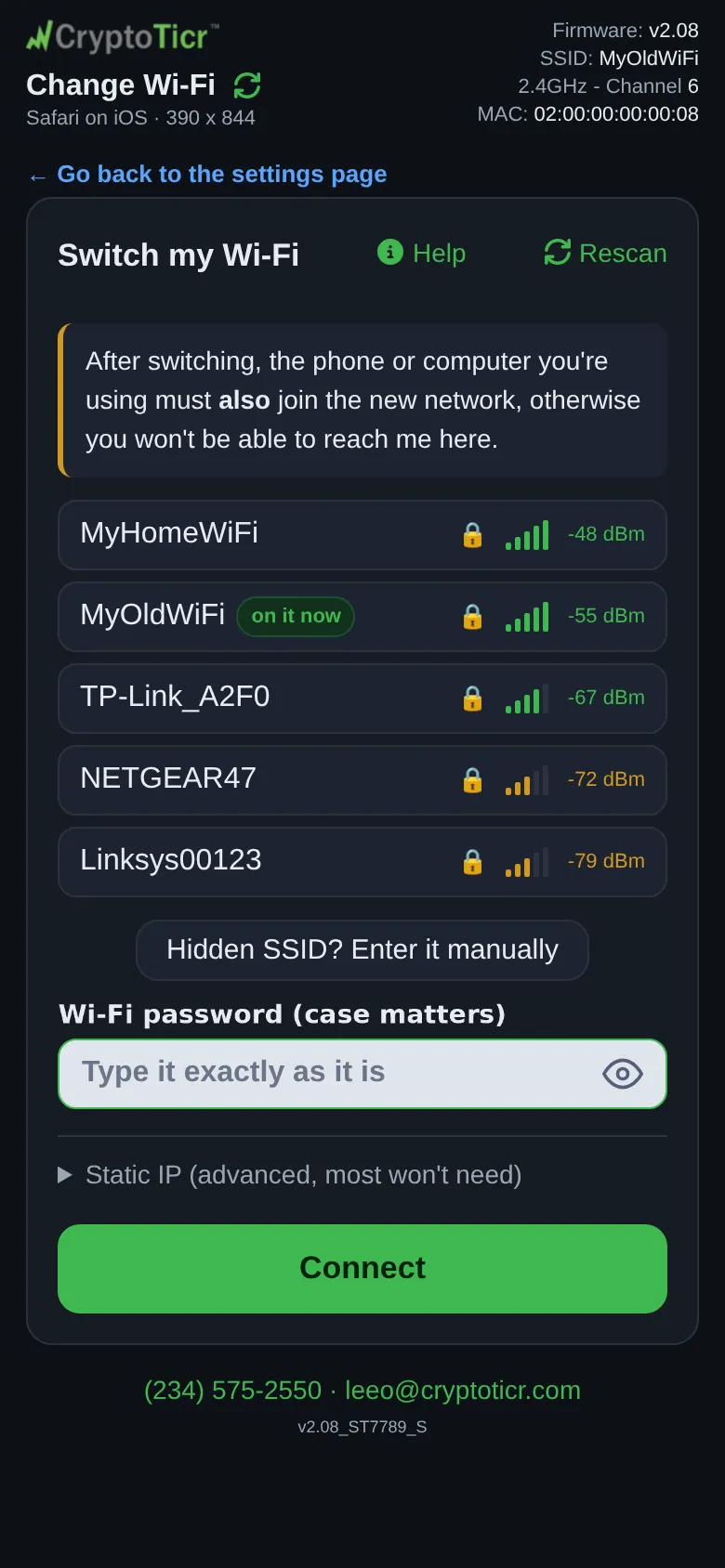
The one it is on now is marked. Tap the one to move to.
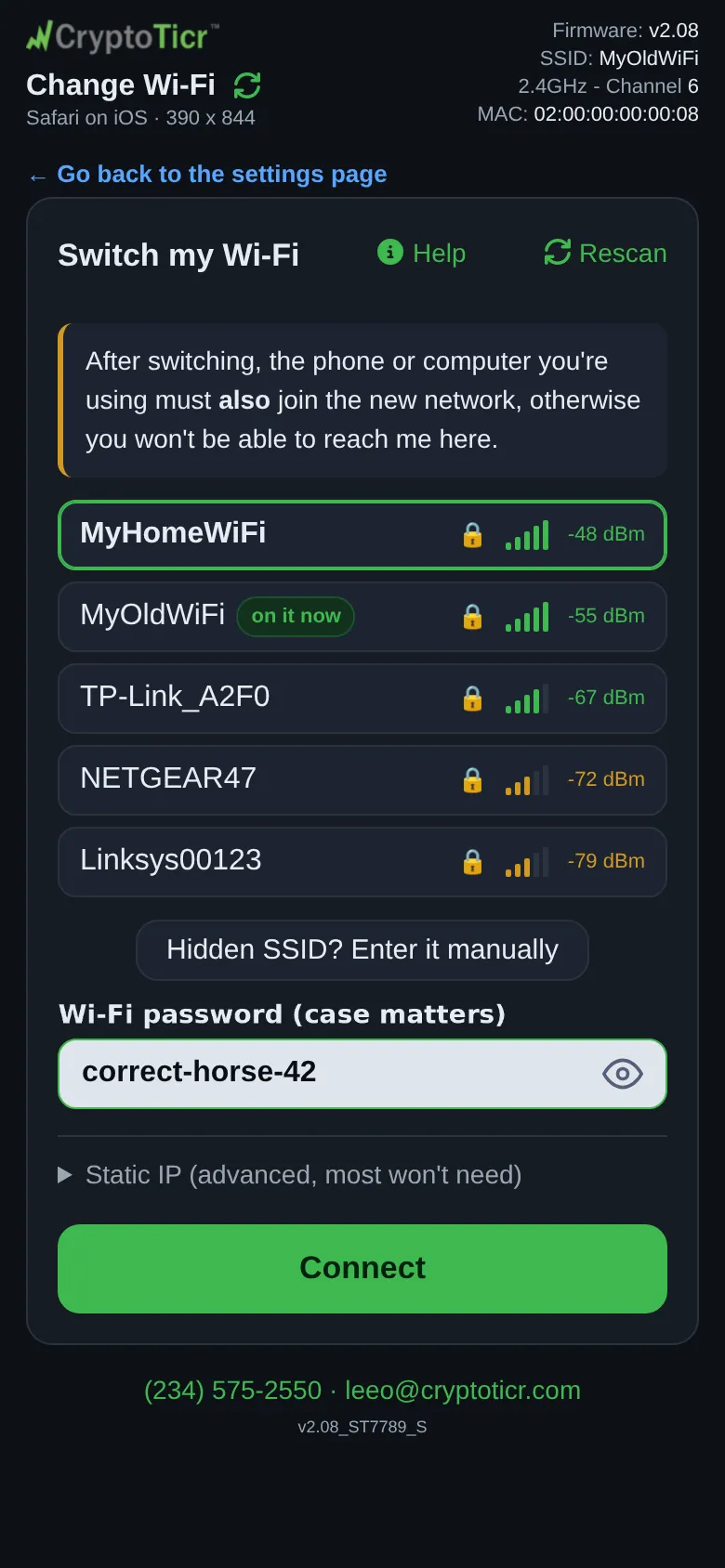 9:41192.168.1.107
Exactly as it is: capitals, spaces and symbols matter.
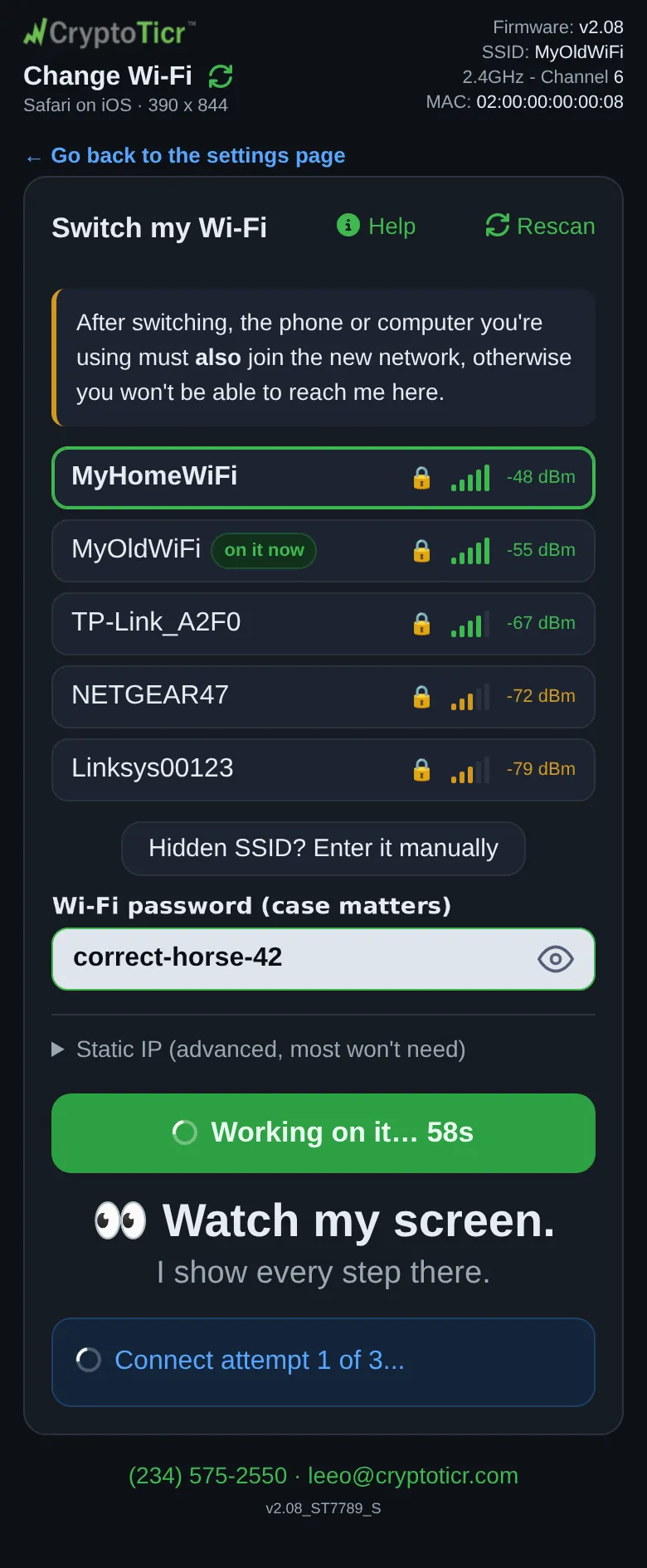 9:41192.168.1.107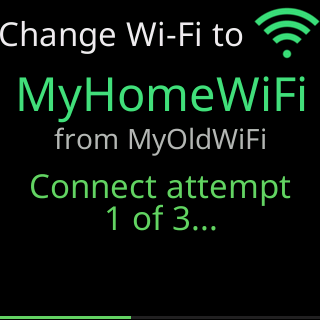
It names both networks and counts its attempts.
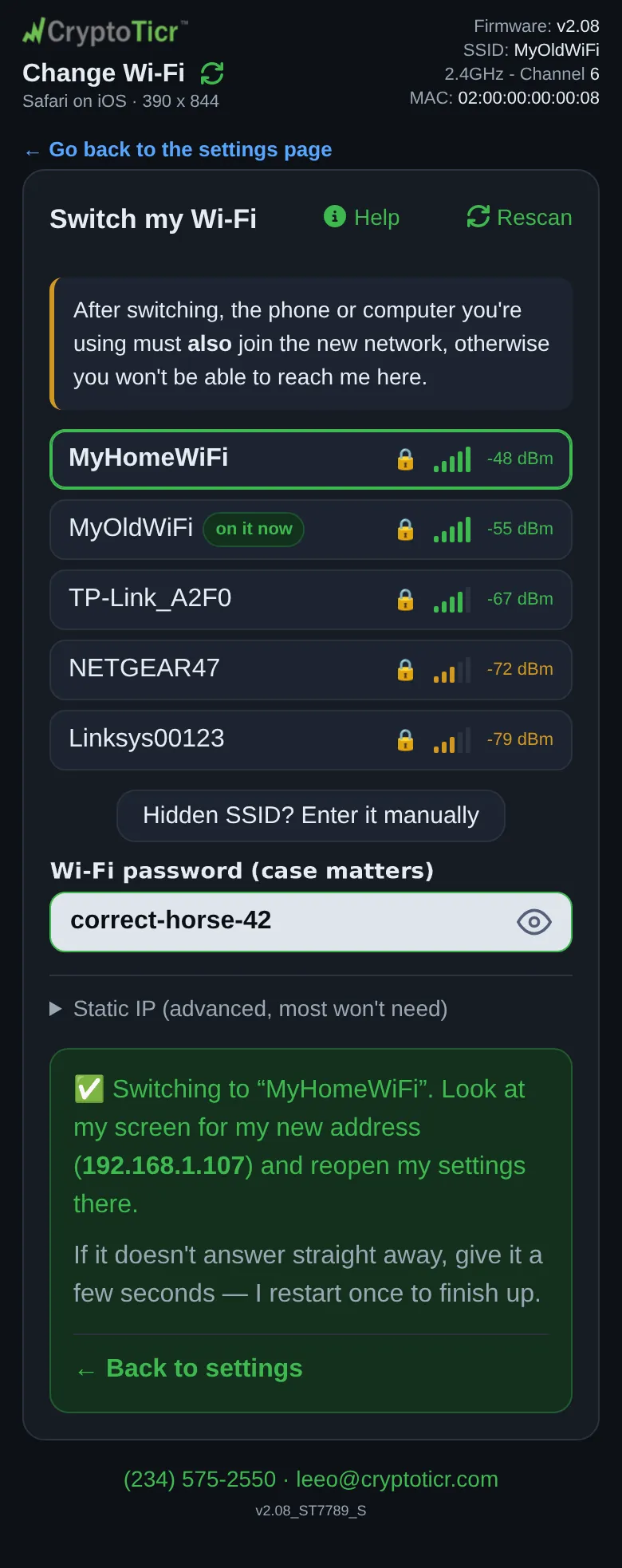 9:41192.168.1.107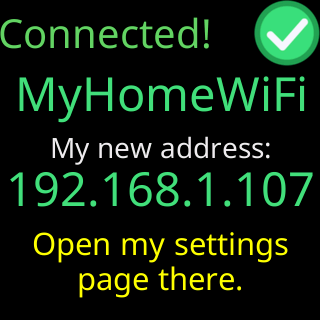
Join your phone to the new network, then open that address.
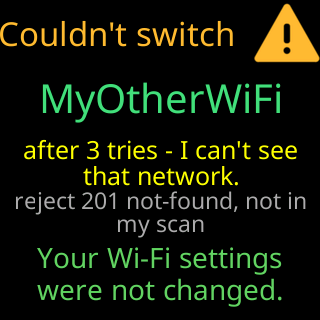
It says why and stays on the network it had. Nothing was changed.
More: change the Wi-Fi network, moving to a new home or router, can't reach the ticker after a change.
Give me the full detailsHide the details
How does the ticker test a new network before it switches?
The ticker proves a new network works before it saves anything. When you tap Connect on the Change Wi-Fi page, it first looks for the network in a scan, “Looking for that network nearby...”, to learn its signal and security; a network the scan misses, a hidden one for instance, is tried anyway (“Not in my scan - trying anyway (hidden?)”). Then it leaves your current network and dials the new one with the details held in memory only. Each attempt gets up to nine seconds and there are up to three, shown as “Connect attempt” / “1 of 3...”; between them the glass gives the last attempt's reason and “Retrying...”. Once it is on, it checks that it can reach the internet through the new network (“Wi-Fi OK - checking the internet...”). Only then does it write the new network to its storage, read the saved copy back to make sure it took, and keep the address settings that came with it. With the Lock on, unlock on the settings page first, in the same browser: the Change Wi-Fi page then works as usual. Without that, the list itself is refused with “My settings are locked. Unlock them on my settings page first, then change my Wi-Fi.”
Does the ticker keep my current Wi-Fi if the new one fails?
A failed change leaves the ticker on the network it had. It notes that network before the first try and never overwrites it while it tests. If all three attempts fail, the glass says “Couldn't join. Back on your saved Wi-Fi.”, the old address settings go back, and the ticker rejoins, allowing up to 12 seconds. It then holds a card headed “Couldn't switch” for 15 seconds, with the network it tried, the reason in its own words, and “Your Wi-Fi settings were not changed.” The coins come back without a restart. A round that never gets on takes at most about a minute from Connect to being back on the old network: three nine-second attempts, two 3.5-second pauses, 12 seconds to rejoin, plus the scan.
Two outcomes count as failures even though the router let the ticker on: a network that gives no internet on any of the three tries (“Joined, but no internet yet.”), and one where something answers in place of the ticker's server, as a sign-in page does. The second stops the tries at once, because trying again cannot get past it.
What do I see on the phone and on the ticker while it switches?
The ticker pauses its coins and shows “Change Wi-Fi to”, the new network's name and “from” the old one, above the current step and a green bar. The page shows “Trying” and the name, then repeats each step the ticker shows for as long as it can still reach the ticker. When the ticker leaves your network to try the new one, the page loses contact and keeps checking quietly.
On success the glass shows “Connected!”, the new name, “My new address:” with the address, and “Open my settings page there.” for 20 seconds; then the ticker restarts once and comes up on the new network. If your phone can still reach it, the page shows that address as a link and warns that the ticker restarts once to finish up. If it cannot, after a run of unanswered checks the page says “I've stopped answering here, which usually means I've moved to” the new network, and sends you to the glass, which always shows the outcome: the new address, or what went wrong.
Why does my phone have to join the new network too?
The settings page is served by the ticker itself, at its address on whichever network it is on, so after a switch your phone or computer has to be on the new network to reach it. The page says so before you start: “After switching, the phone or computer you're using must also join the new network, otherwise you won't be able to reach me here.” Unless you gave it a fixed address, the new router hands the ticker its address; read it off the glass, where “My settings are here:” also shows it during every start.
Why does the ticker show a list of networks on its own screen?
The Change Wi-Fi page gets its list from a fresh scan, and the ticker shows the result on its glass as well. It shows “Scanning Wi-Fi” and “Looking for 2.4GHz networks nearby...”, then pages through what it found, a lock beside secured names and bars for signal, up to 14 networks with a note such as “+ 3 more in setup page” for the rest, and ends on “Resuming coin display...”. Your phone gets the full list once the glass is done, with the ticker's current network marked “on it now”. If the ticker is busy drawing a screen at that moment, the page says it could not get a list and asks you to tap “Rescan”.
Does the ticker remember more than one network?
The ticker holds one network at a time. A proven change replaces the old one, so it will not fall back to it later if the new network goes away. The address settings travel with the network: picking a different network on the page empties the “Static IP (advanced, most won't need)” boxes, so the ticker takes its address from the new router unless you fill them in again.
How do I change only the ticker's address?
Pick the network the ticker is on now. There is nothing to type; the page says “You're on this one now” and applies only the Static IP boxes. The ticker shows “Updating my address...” and tests the new address before keeping it. If it works, you get the “Connected!” card and one restart; if it reaches nothing, the glass says “Couldn't apply that address”, the previous address goes back, and the page says “That address didn't reach anything.” Emptying the boxes returns it to an address from the router: the ticker waits up to 12 seconds for one. If none works, it puts the old address back, the glass says “Couldn't apply that address”, and the page says “The router gave me no working address.” and that the ticker is still on its network with the address it had. See fixed address. To keep the same address for good, a reservation on your router is the better way; see the address settings.
What is “Save it anyway” for?
“Save it anyway” stores a network the ticker cannot reach from where it is, for a ticker you are about to move. It appears only after a failed try and takes two taps; the second, “Yes, save it and leave”, comes with the warning that the ticker leaves your current network at once. The glass then says “Saved. Leaving this network now.”, and the page says it saved the network, then “Moving me? Unplug me and plug me in there. Otherwise I'll join it once it's on. If my setup screen comes up first, restart me once it is.” If the name or password turns out to be wrong, the ticker has never once connected with them, so it does not wait for that network forever: after a couple of failed rounds at start-up it opens its setup network by itself, keeping every setting. Once the ticker has joined that network, even by itself while running, it counts as a network that works, and it waits for it like any other. See save a network for another place.
What if I only change my router's password?
A new password for the network the ticker is on is set at the router, not on this page, because it does not exist until you set it. You can warn the ticker first: pick the network it is on, tap “I'm about to change this password”, then “Continue”. For the next 30 minutes, losing the Wi-Fi makes the ticker restart after two minutes instead of the usual hour. After that restart the router refuses the old password, and after four refusals in a row the ticker opens its setup network by itself, keeping every coin and setting; you type the new password there. Without the warning the same happens after up to an hour, or right away if you unplug the ticker and plug it back in. The warning holds an intention, not a password, and a power cut clears it. See changing your router's password.
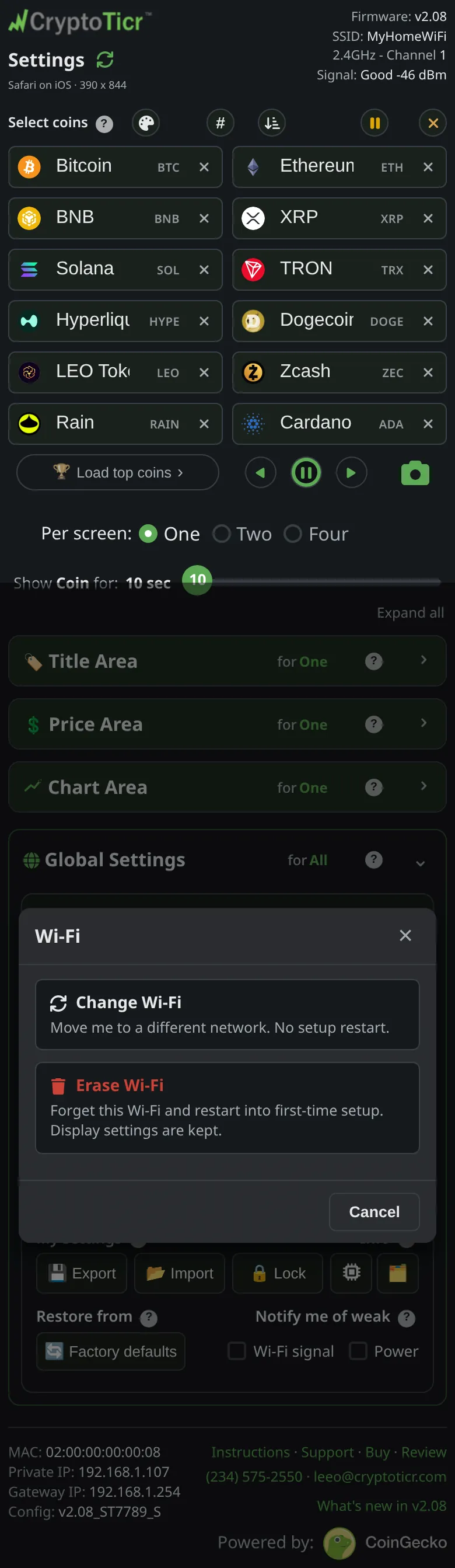
Erase Wi-Fi
Forget the network, keep everything else
Forgets the network and its password and restarts into first-time setup, keeping your coins, colors and timings.
- For a network that is gone for good
- Then set the Wi-Fi up again, below
 9:41192.168.1.107
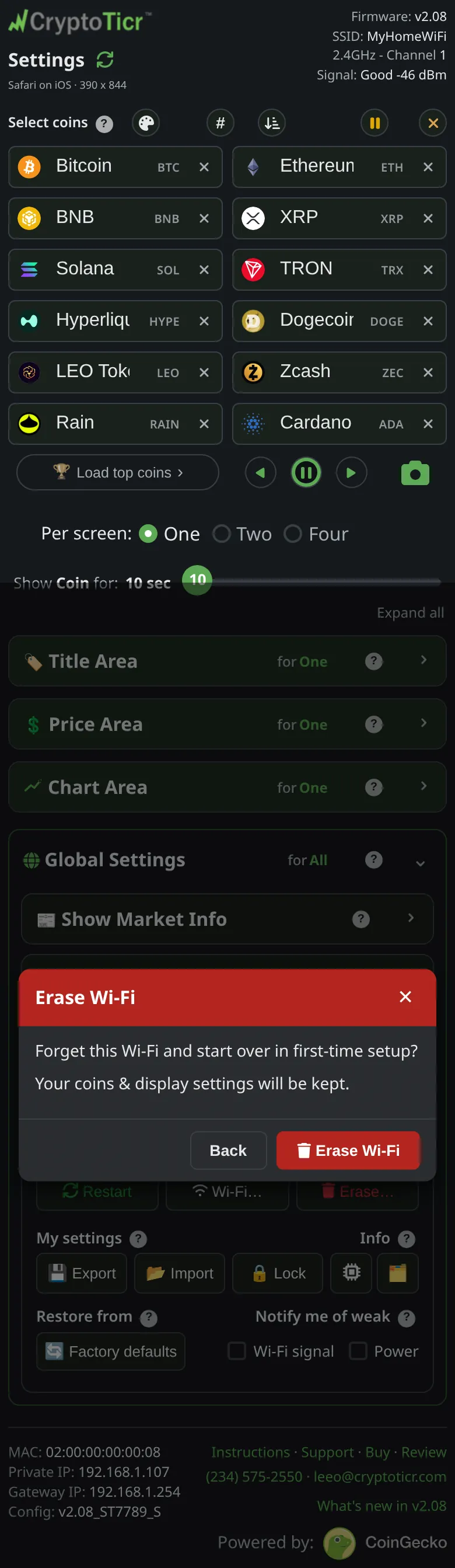
A second tap confirms it.
 9:41192.168.1.107
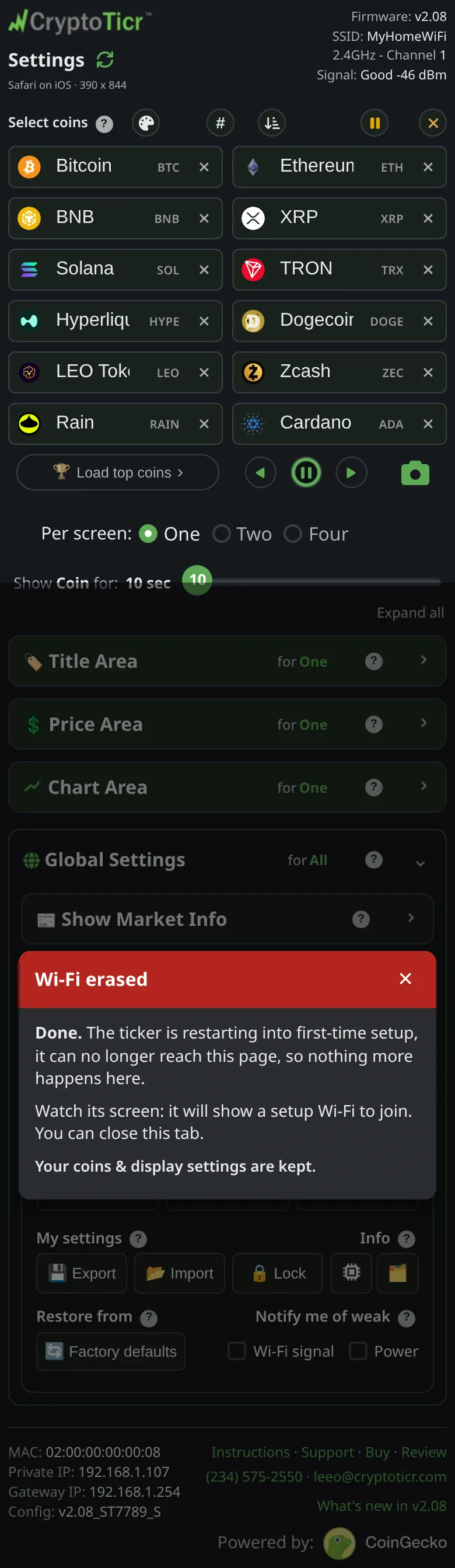
The ticker restarts and cannot reach this page any more.
Carry on with Setting up Wi-Fi, below.
More: erase the Wi-Fi and set up again.
Give me the full detailsHide the details
What exactly does Erase Wi-Fi forget?
Erase Wi-Fi forgets the saved network's name, its password and any fixed address you gave the ticker, and nothing else. The fixed address goes with the network because it belongs to it: kept, the setup page would offer it again, and an address that suited the old router could strand the ticker on the new one. Your coins, colors, timings, brightness, the notice switches and any Lock password all stay exactly as they were. So does the name of the ticker's own setup network, “CT” and three digits, which comes from its chip and never changes.
What does the ticker do right after the erase?
The ticker restarts at once and comes up in first-time setup. The start screen shows “Restarting...” with an hourglass; then, with no network saved, the ticker goes straight to its welcome, “Let's get me set up” / “on your home Wi-Fi”, and its setup network is already on the air while that card is up. The setup cards follow and repeat; the Setting up Wi-Fi section walks through them. On the phone, the “Wi-Fi erased” dialog explains that the ticker can no longer reach the page, and closes itself after a minute. No prices show until the ticker is on a network again.
How long does it wait in setup?
The ticker waits in setup for as long as it takes. With no network saved there is nothing to go back and retry, so it never restarts itself out of setup, and the cards keep coming round until someone joins. A power cut starts setup again from the welcome card. While no network is saved the ticker does not count quick restarts either, so the five quick restarts do nothing in this state; to factory reset it, finish setup first and use Erase… on the settings page.
When should I erase the Wi-Fi instead of changing it?
Erase the Wi-Fi when the ticker is about to leave the only network it knows: a move, or a new router with a new name that you will set up later. If the new network is in range now, use Change Wi-Fi instead; it tests the network before switching and keeps the old one if the test fails. A new password on the same network needs neither: after four refusals in a row the ticker opens its setup network by itself and keeps everything (changing your router's password). And if you know the new network's name and password but cannot reach it from here, “Save it anyway” on the Change Wi-Fi page stores it ahead of the move.
What if the old network is already gone?
Erase the Wi-Fi before the old network disappears, because afterwards this button is out of reach. A ticker that has been set up treats a missing network as an outage: it waits for it, trying every 15 seconds and restarting every two minutes, and never opens setup on its own for a network that is not there. While it waits, the settings page cannot be reached, so the way back to setup is the five-restart factory reset: power it off and on five times, quickly. It erases your coins and colors along with the network. The waiting screen says as much in its bottom line: “New Wi-Fi? Restart me” / “5 times fast. Wipes me.” An export made before the move brings the settings back afterwards; see export and import and moving to a new home or router.
What is different after setting it up again?
Nothing else you chose changes. The ticker comes back with the same coins and colors, and because it has met you before, it skips the first-run introduction and goes from its usual start-up story straight to the coins. Its address on the new network is whatever the router hands out, shown under “My settings are here:” during every start, and the setup page opens the settings page for you once setup ends. A fixed address has to be typed again, in the setup page's “Static IP (advanced, most won't need)” section.
Setting up Wi-Fi
From the box to your network
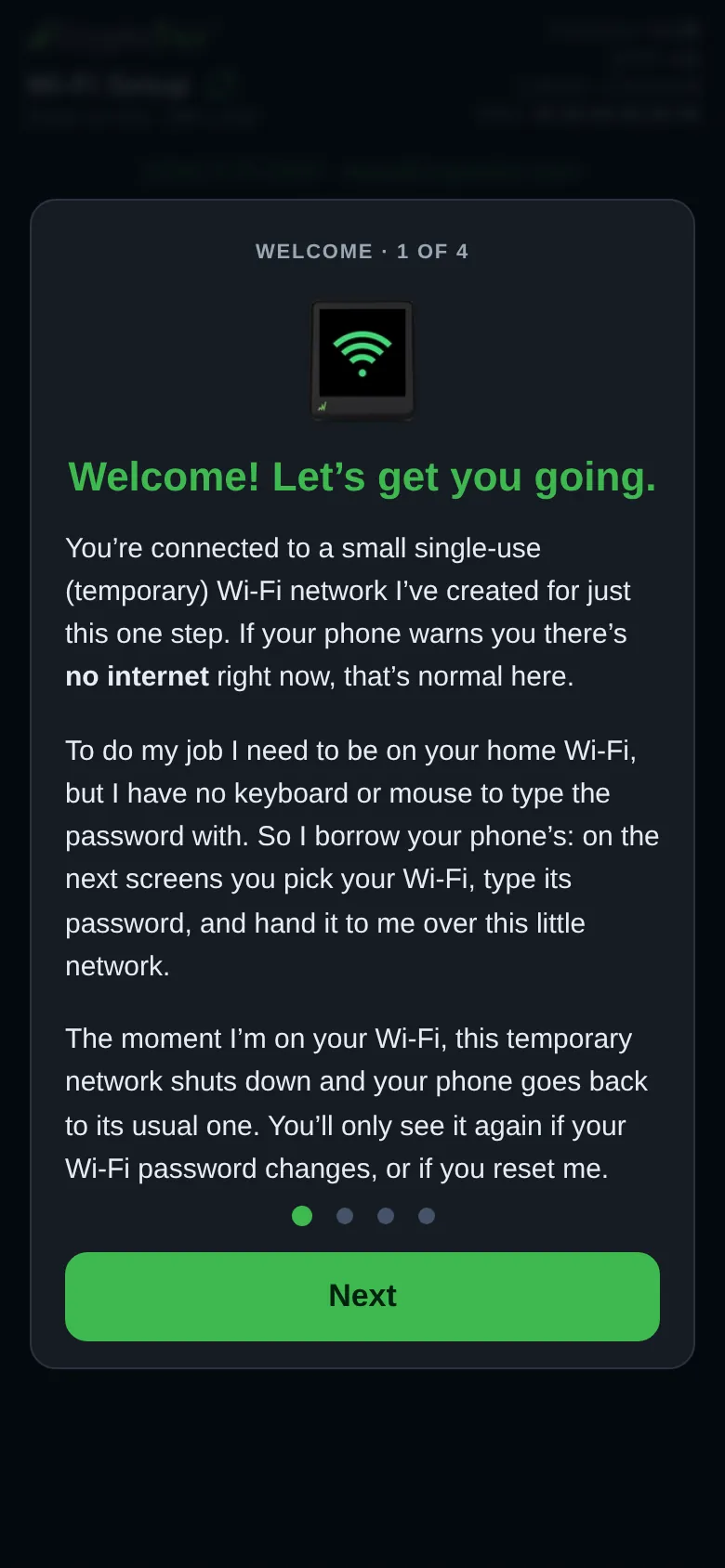
What a new ticker does, and every ticker after its Wi-Fi is erased: it makes a Wi-Fi network of its own, named on its screen, and walks you through joining yours.
- Its network is named CT and three digits
- The cards repeat, so there is no rush
- Any phone, tablet or computer will do
On the ticker, while it waits

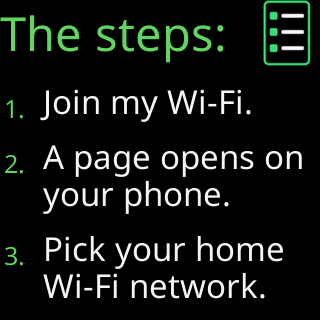
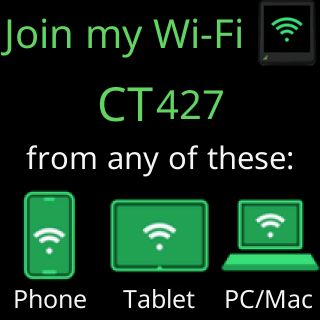
From a phone, a tablet or a computer: the network named here.
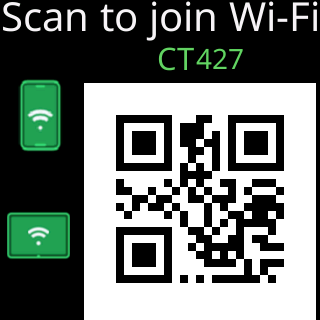
A phone camera joins it in one step.
On the phone
 9:41192.168.4.1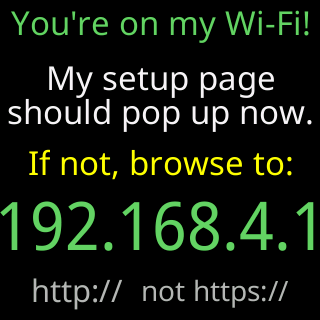
The setup page opens by itself. If not, browse to 192.168.4.1.
 9:41192.168.4.1
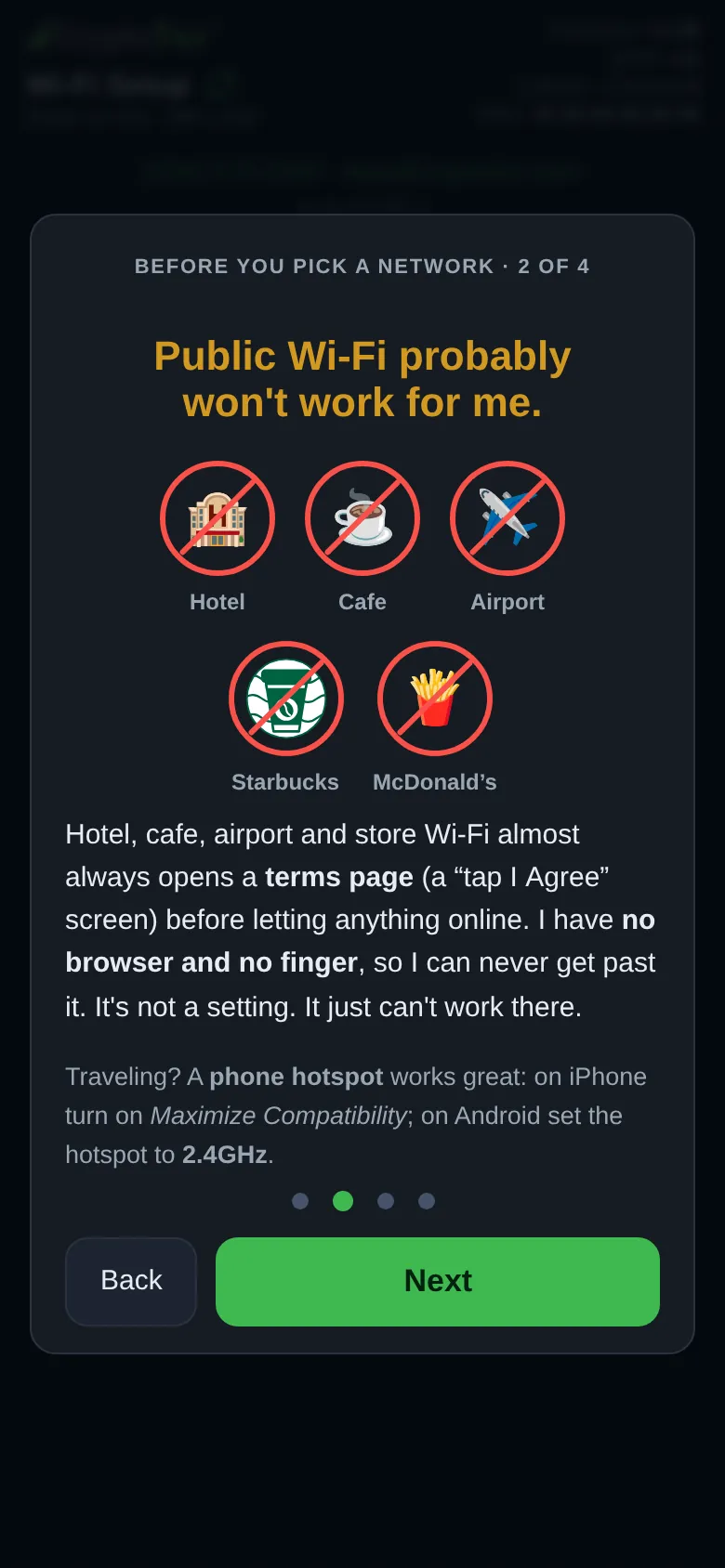
Hotels, cafes and airports want a page ticked that the ticker cannot tick.
 9:41192.168.4.1
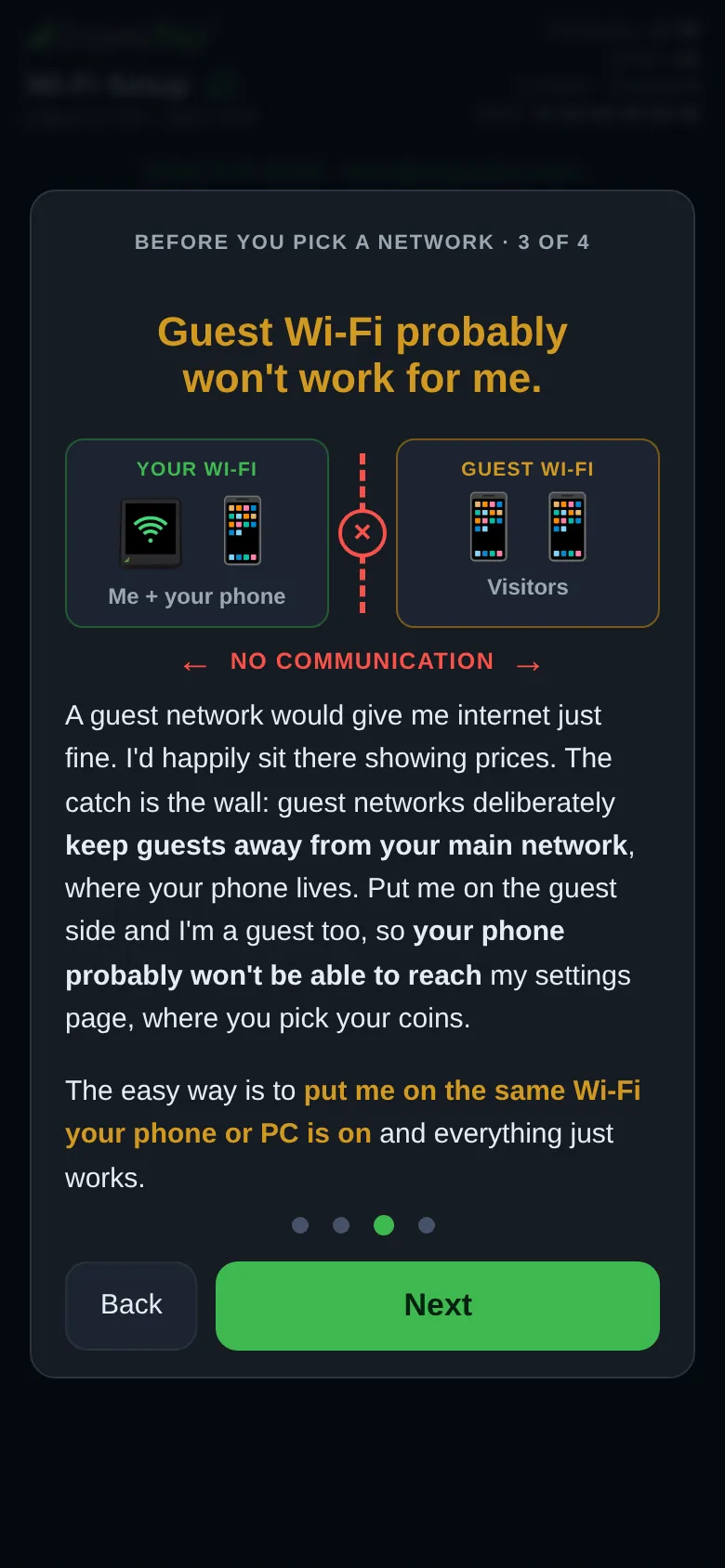
A guest network keeps the phone and the ticker apart.
 9:41192.168.4.1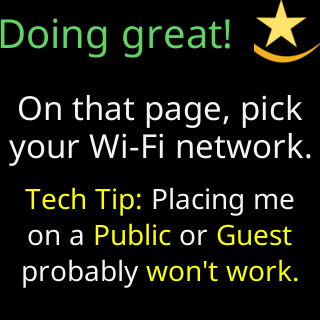
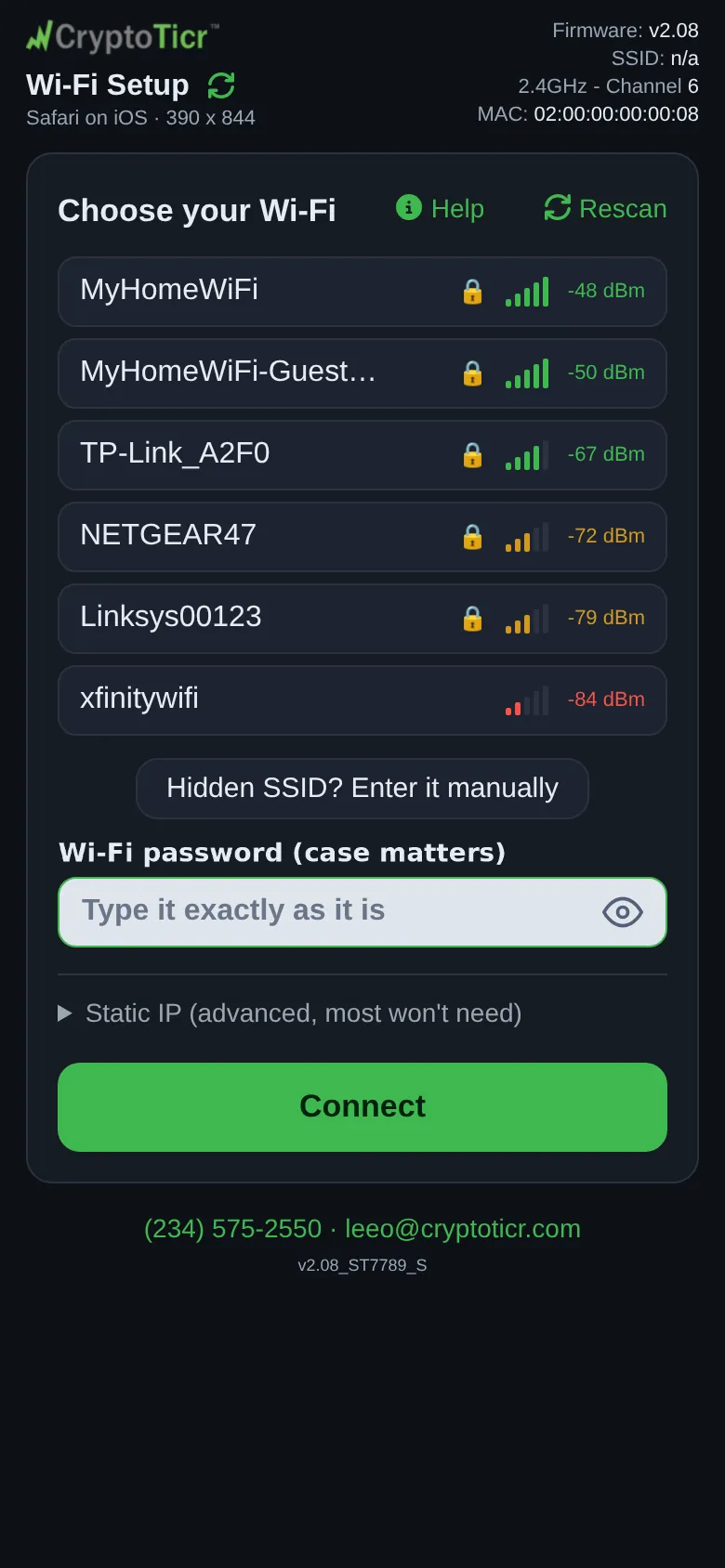
The page lists the networks the ticker can hear.
 9:41192.168.4.1
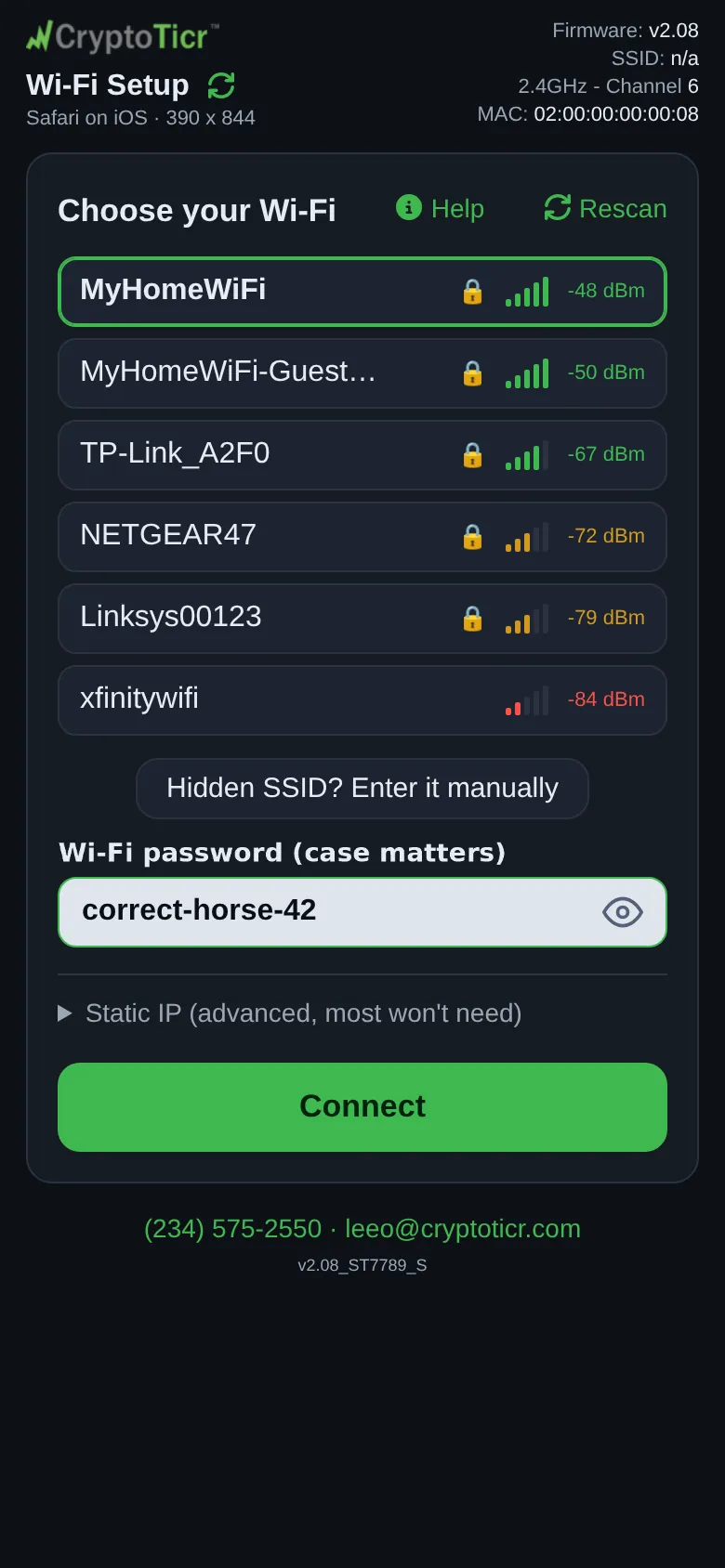
Exactly as it is. The eye shows what you typed.
 9:41192.168.4.1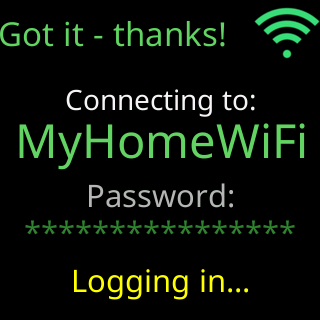
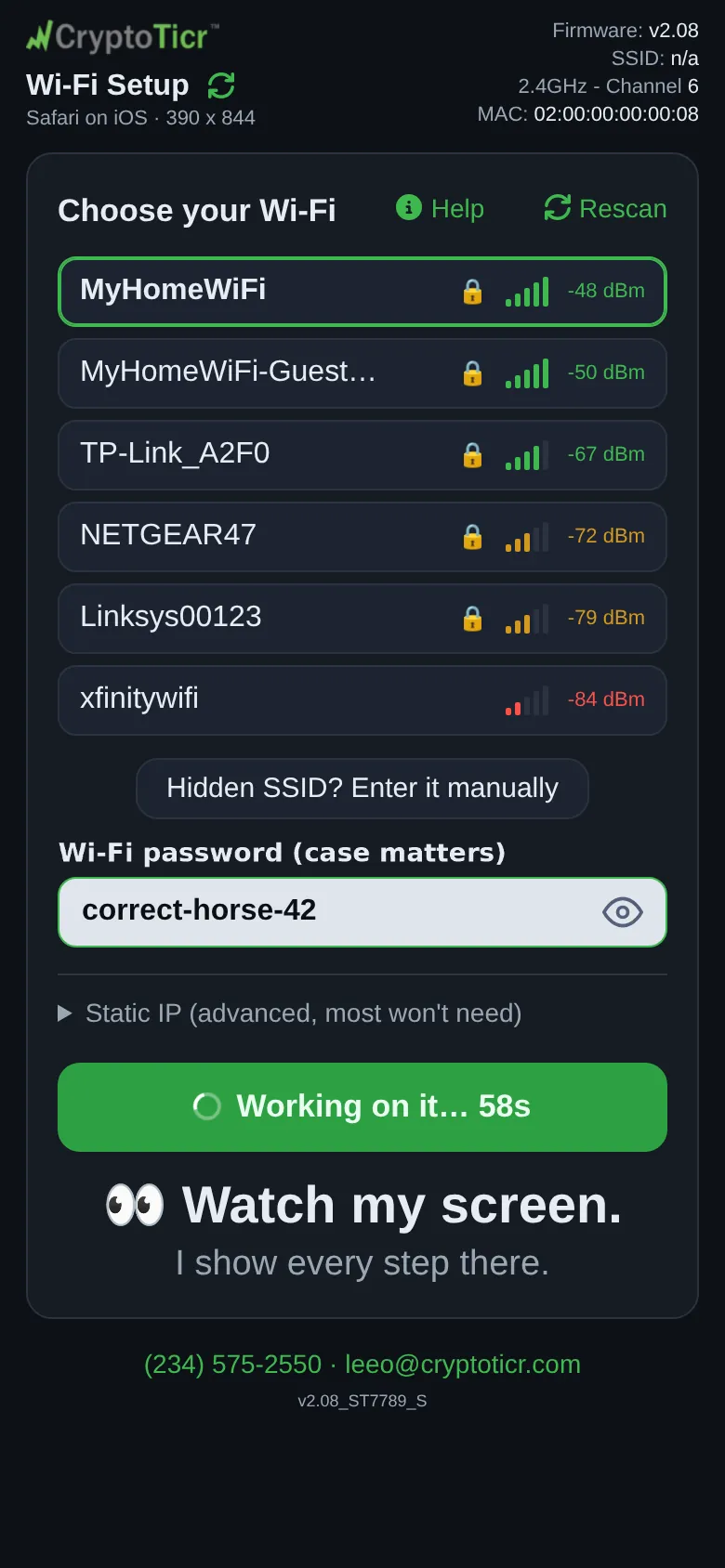
The ticker shows every step on its screen.
 9:41192.168.4.1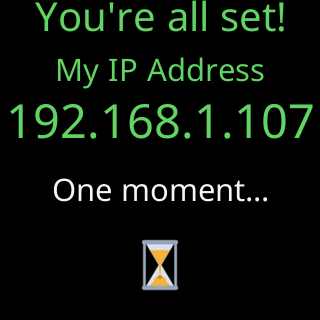
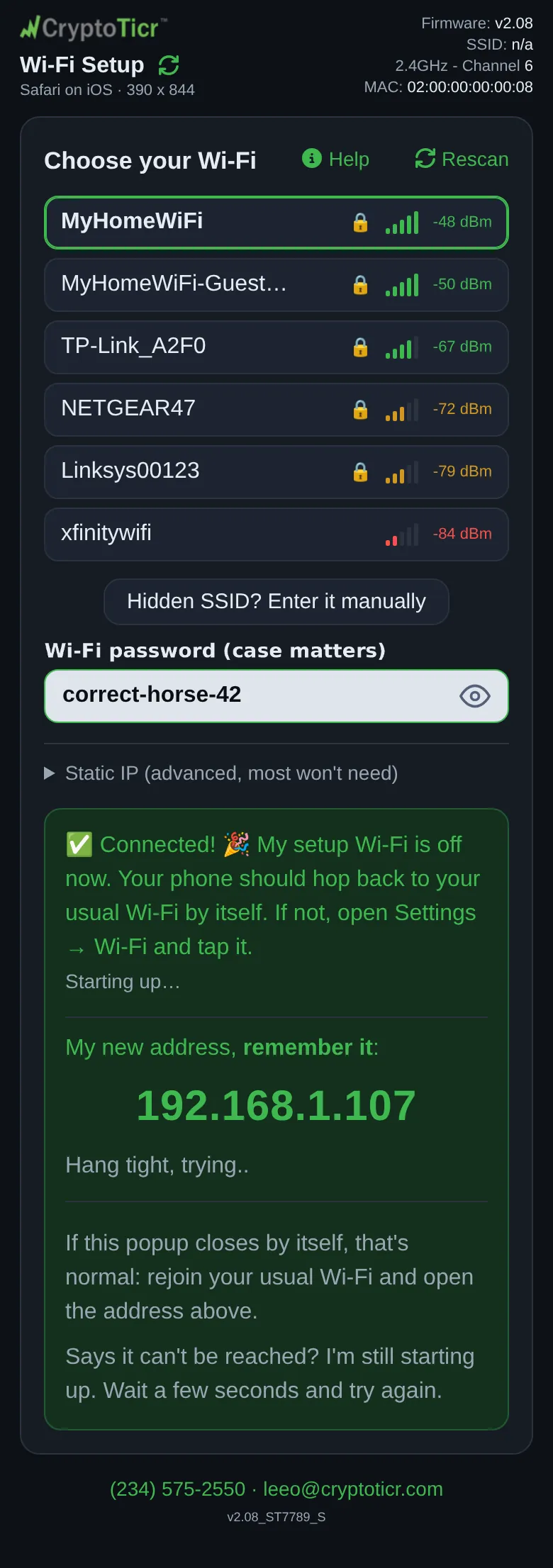
The phone goes back to your usual Wi-Fi. Note the address.
Then, on your home Wi-Fi

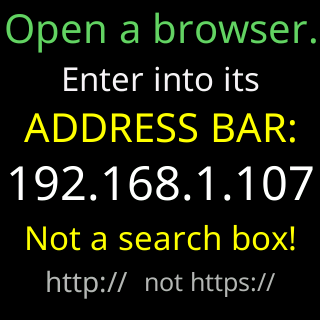
Type the address into the address bar, not a search box.
The settings page opens with nothing to type.
More: join the setup network, choose your Wi-Fi and connect, setup from a Windows PC, a hidden network, a fixed address, a network with no internet.
Give me the full detailsHide the details
What is the ticker's setup network?
The setup network is a small Wi-Fi network the ticker makes itself, so a phone can hand it your home Wi-Fi details. Its name is “CT” and three digits taken from the ticker's chip, so it never changes, and the ticker later uses the same name on your router. It is open, so there is nothing to type to join it. It runs on channel 1, takes up to four devices at once, and the ticker sits on it at 192.168.4.1. Your phone may warn that this network has no internet; that is expected. The network goes on the air as the welcome card appears and shuts down when the ticker restarts onto your Wi-Fi.
How does the setup page open on my phone?
The setup page opens by itself on most phones because the ticker answers the check a device makes when it joins a network. The phone asks a known address whether the internet is there; the ticker answers every name with its own address and replies with its setup page, so the phone pops the page up or posts a sign-in notice to tap. Some phones, and often Windows laptops, leave it to you: open a browser and go to http://192.168.4.1, with http:// rather than https://, because the ticker serves plain web pages only.
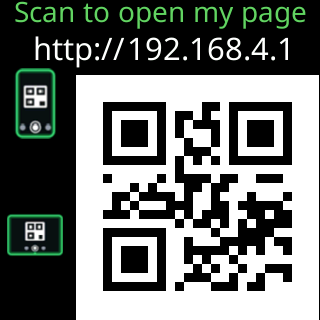
The glass follows along. The instant a device joins, it shows “You're on my Wi-Fi!” with the address. If no browser has shown the page after 90 seconds, that card alternates with “Scan to open my page”, a QR code that opens the page in the phone's own browser. Once a browser really shows the page, the glass moves on to “Doing great!”.
What does the ticker need from my Wi-Fi?
- 2.4 GHz: its radio cannot see 5 GHz. A router with one name for both bands works; on a split router, pick the 2.4 GHz name.
- Open, WEP, WPA or WPA2 security; not WPA3 only, and no username.
- No sign-in page: hotel, cafe and store networks that want you to tap “I agree” cannot work, because the ticker has no browser.
- Your main network: a guest one usually gives it prices but walls your phone off from its settings page.
- A name of up to 32 bytes (an accent or emoji counts as several) and a password of up to 64 characters, typed exactly. A name its fonts cannot draw still joins but looks different on the glass; for example \ shows as /, ^ as ', and { } as ( ).
- An address from your router, or a fixed one under “Static IP (advanced, most won't need)”.
How does the network list work, and what about a hidden network?
The ticker builds the list when the setup page asks for it, not before, because a scan takes its one radio off the setup network for a few seconds. After four cards to tap through, the page shows “Choose your Wi-Fi”: each name once, strongest first, a lock on secured networks, five bars and the signal in dBm, green at -67 dBm or better, amber down to -79, red below. A “guest” badge marks names containing that word, “my saved Wi-Fi” a saved network that has worked, and other tickers' setup networks are left out. Networks appear as they are found, and each search adds to the list, up to 32 networks, so one a sweep missed stays. “Rescan” works the same way: it adds what it finds and keeps the rows already shown. A network that hides its name never appears: tap “Hidden SSID? Enter it manually” and type the exact name. The ticker tries a name its scan cannot see anyway, since a hidden network answers only when asked by name.
What happens when I tap Connect?
The page checks what you typed, hands it over, and holds the button for up to a minute (“Working on it… 60s”), because every extra press would make the ticker start over. It refuses a password under five characters for a secured network and asks once about one under eight, or one with a space at either end; a second tap sends it as typed. The box under “Wi-Fi password (case matters)” shows what you type unless you close the eye, and the eye decides the same for the glass, which shows “Got it - thanks!”, the network, the password and “Logging in...” so you can catch a typo.
The ticker looks for the network in a scan, then tries to join: up to three tries of up to ten seconds each, with “No luck yet.” and the last reason between them. It stops early when another try cannot change the answer: a password the router proves wrong, a network it cannot find, a full router, or a weak signal. If a refused password starts or ends with a space, it tries once more without the spaces, as long as eight characters remain, and keeps that version if it works.
Once on, it shows “Checking if I can get to the internet...”, a “Status report:” table for eight seconds, or 15 when a check failed (the network, the signal, its new address and how each connection check went), and “You're all set!” with “My IP Address” for eight more. Then it restarts onto your Wi-Fi, opening with “Looking good!” / “Starting up...”. That is what happens when the internet answers; on a network without it, the ticker asks first (below).
What do the failure messages mean?
The phone leads with a verdict built from what the ticker observed, then says what to try:
- “The router rejected this password outright”: the router proved it wrong.
- “I've tried this password 3 times now and never got in.”: refused without that proof; it suggests a typo, then distance, then a router that holds new devices for approval.
- “I can't find that network right now.”: check it is on, in range and on 2.4 GHz.
- “Your router says it can't accept any more devices right now.”
- The router let the ticker on but never sent it an address.
- “I can barely hear your router from here”, or “I lost sight of your router partway through connecting.”
- “I can see your network, but nothing came back when I asked to join.”
- A network that wants “a business style sign in with a username”.
- “Something stopped me joining your home Wi-Fi, and I can't tell exactly why.”
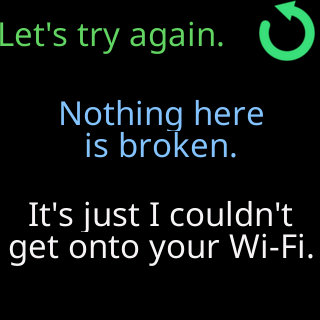
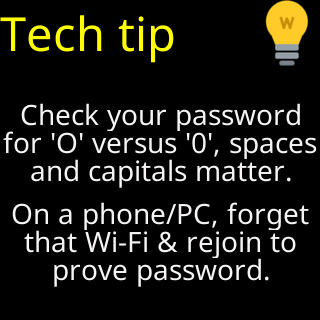
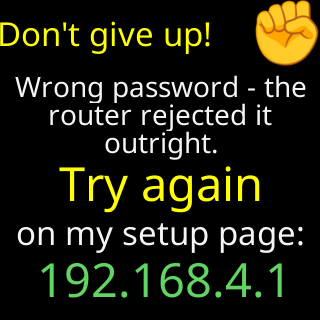
Your entries stay in the form: fix what the message points at and tap Connect again. The glass loops the failure cards, 11 seconds each: “What happened” with what the ticker recorded, “Let's try again.”, “Tech tip” (only after a refusal), “Also worth trying” (only when the signal measured weaker than -67 dBm) and “Don't give up!” with 192.168.4.1 for anyone who closed the page. From the second failure, “Don't give up!” also leads for 12 seconds. More: password refused.
What if it joins but cannot reach the internet?
The ticker asks before it uses a network with no internet. First the “Status report:” shows each check's result in color, for 15 seconds when a check failed. Then the glass shows “Can't get online”, the network's name, “Answer on your phone.”, “Use it, or pick another.” and “3 min, then I'll use it.”. The phone says the network let the ticker in, names what failed, such as a sign-in page, then says “On this Wi-Fi I can't show prices.” and shows two buttons, Use it anyway and Pick another Wi-Fi. Pick another Wi-Fi keeps setup open: choose another network and tap Connect. Use it anyway, or no answer within about 3 minutes, sets the ticker up on that network: the glass shows “Wi-Fi joined.”, the address and “Can't get online.”, then it restarts with “Wi-Fi saved.” / “Starting up...”, and prices start when the internet comes back. If the table's last line says “A sign-in page blocks me.”, the network wants a web sign-in the ticker cannot do; use your home Wi-Fi or a phone hotspot. See a network with no internet.
How long will it wait, and what if my phone drops off?
A new ticker, or one whose Wi-Fi was erased, waits in setup with no time limit: with no working network saved there is nothing to go back and retry. Failure cards loop for as long as your phone stays on the setup network; once they have played twice, leaving it brings the join cards back.
Phones often hop back to their usual Wi-Fi from a network with no internet. The page rides out the ticker's quiet spells while it scans and joins, asking several times before it says “I've lost touch with your setup device (phone/tablet/PC).” and explains how to rejoin. A ticker that opened setup because its saved network refused it restarts after 15 quiet minutes to try that network again, after a five-second countdown that any use of the page stops. Its “Heads up” card says so: “I'll retry by myself” / “in 15 minutes.”, counting down.
Why did the setup network open by itself?
A ticker that cannot get back on the Wi-Fi it had can open its setup network on its own, and it keeps every coin and setting. Most often the router refused its saved password four times in a row, because the password changed. The cards then lead with “Heads up”, the network's name and “Your Wi-Fi refused me”, or “I can't find your Wi-Fi” when it could not find the network. Later in each round that card comes back, ending “Fixed it on the router?” or “Wi-Fi working again?” / “Restart me once.”: if the trouble is fixed, unplug the ticker and plug it back in once. Otherwise join the CT network, pick your network and type its current password. More: the ticker opened its setup network by itself.
What happens if the power goes off during setup?
What the ticker does depends on how far setup got. Before you tap Connect nothing is saved, and setup starts again from the welcome card. After a Connect that failed, it keeps what you typed, but those details have never worked: a new or factory-reset ticker goes straight back to setup at power-up without trying them, and one whose Wi-Fi was erased tries them for about a minute, then reopens setup with its settings kept. A setup network the ticker opened by itself, after it lost the Wi-Fi it had, is different: a failed try there saves nothing, so the network it had stays saved. If the router had already accepted the password, the ticker joins that network at power-up as if setup had finished. While no network is saved, power cuts do not count toward the quick-restart factory reset.
How do I find the settings page afterwards?
The setup page finds it for you. It keeps the new address, shows it under “My new address, remember it:”, keeps checking it and, when the ticker answers on your Wi-Fi, opens the settings page in the same tab. If nothing answers for a couple of minutes, it suggests your phone is still on the vanished setup network and asks you to rejoin your usual Wi-Fi. The glass shows the address during every start, under “My settings are here:”, and your Show my IP address settings decide when it appears later.
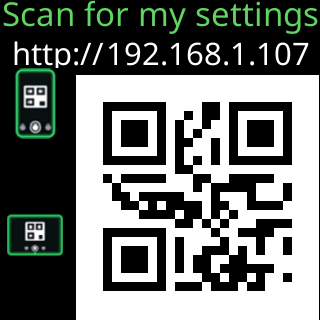
A new or factory-reset ticker also introduces itself once: a couple of coins, then “Nicely done!”, “Open a browser.” with the address, “Scan for my settings” with a QR code, and “For help...”. The moment it sees the settings page open, it says “You're in settings!” instead.
Erase
Start over, or back to new
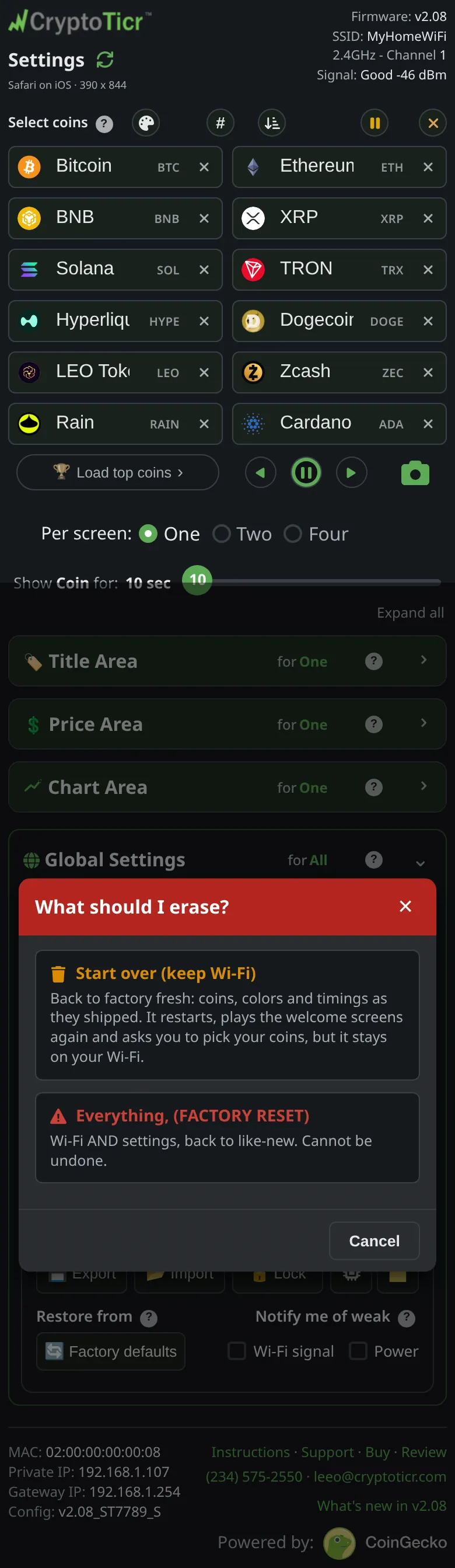
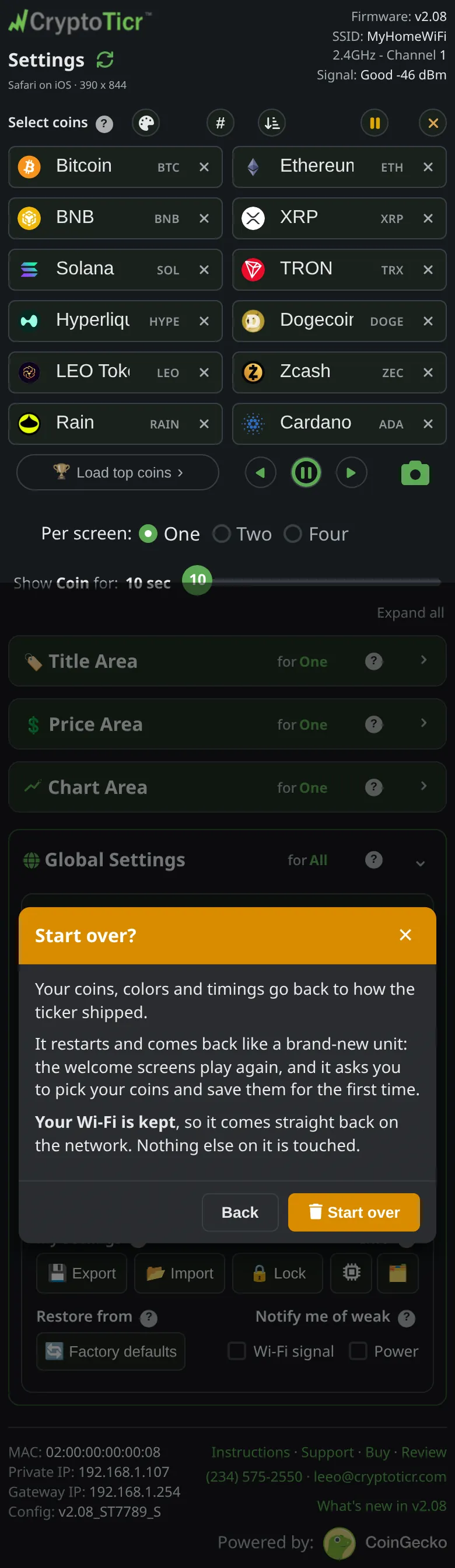
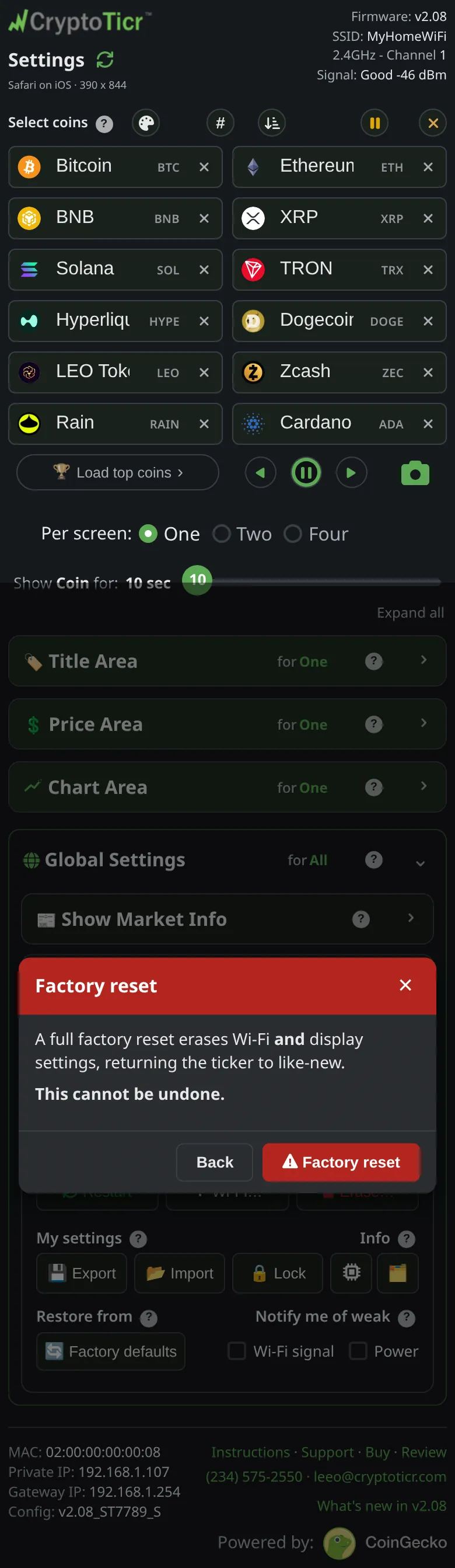
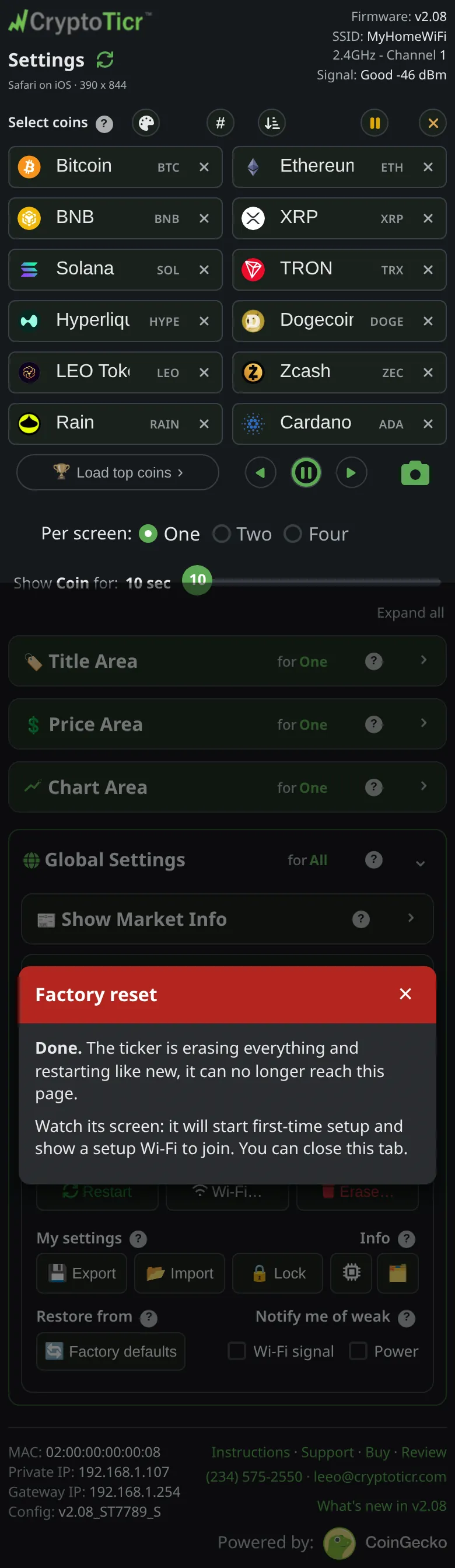
Start over puts your coins, colors and timings back as they shipped and keeps the Wi-Fi. Factory reset erases the Wi-Fi as well, and the ticker comes back like new.
- Neither can be undone
- After a factory reset, setup starts as above
 9:41192.168.1.107
 9:41192.168.1.107
Settings only. The Wi-Fi stays.
 9:41192.168.1.107
The Wi-Fi and every setting.
 9:41192.168.1.107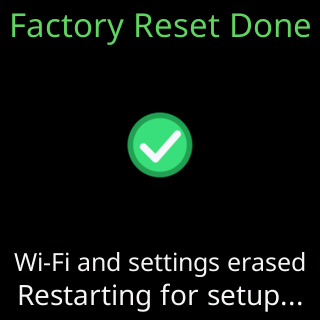
Then setup starts, as above.
More: what a reset erases and keeps, start over and keep the Wi-Fi, factory reset from the settings page.
Give me the full detailsHide the details
Which erase options does the settings page have?
The settings page has four ways to put the ticker back, gentlest first, and each one asks you to confirm before it does anything. Two sit behind Erase… in the Device card, one behind Wi-Fi…, and one under Restore from.
| Option | Where | Erases | Keeps | Afterwards |
|---|---|---|---|---|
| Factory defaults | Restore from | Every setting on the page, set back to its shipped value | The Wi-Fi, a fixed address, the Lock password | Keeps running, no restart |
| Erase Wi-Fi | Wi-Fi… | The network, its password and a fixed address | The coins, every setting, the Lock password | Restarts into first-time setup |
| Start over (keep Wi-Fi) | Erase… | The coin list, every setting and the Lock password | The network, its password and a fixed address | Restarts and plays its welcome again |
| Everything, (FACTORY RESET) | Erase…, or five quick restarts | All of the above, the Wi-Fi included | The coin pictures | Restarts into first-time setup |
A plain Restart erases nothing. Factory defaults is covered under More, and Erase Wi-Fi under Erase Wi-Fi.
What does Start over (keep Wi-Fi) erase?
Start over (keep Wi-Fi) wipes the ticker's whole settings store and then restarts. That store holds the coin list, paused coins included; the layout for one, two and four coins per screen; brightness, colorset and the colors chosen for each colorset; every timing; the Market Info cards; the address and QR code schedules; quiet hours and the time zone; and the two notice switches. It also holds the Lock password, so Start over removes the password as well, together with the ticker's record of having welcomed you.
What does Start over keep, and why?
Start over keeps the Wi-Fi network and its password because the ticker stores them apart from its settings, so wiping the settings never reaches them. A fixed address is kept too: the ticker copies it aside before the wipe and writes it back afterwards, because on a network that doesn't hand out addresses by itself the ticker would otherwise come back with no address at all. Last, it writes back its own record that it has been set up and has been online. Without that record the ticker would believe it had never been set up, and it would open first-time setup on a network it joins every day. The coin pictures are stored apart from the settings and stay as well.
What does the ticker do after Start over?
The ticker restarts, rejoins your Wi-Fi by itself and runs the shipped coins straight away, with nothing to save first. Because it has forgotten welcoming you, it plays its first-run show again: a Market Info card and two coins at a brisk pace, then one pass of its welcome cards, “Nicely done!”, “Open a browser.” with its address, a QR code under “Scan for my settings”, and a card about where to get help. If you open the settings page while they play, the ticker answers “You're in settings!” and goes back to its coins. The page stops answering while the ticker restarts, so reload it once the coins are back.
What does a factory reset erase and keep?
A factory reset erases everything Start over erases, plus the saved Wi-Fi network, its password and a fixed address, because an address only means something on the network it was set for. No setting and no password survives. The coin pictures stay when they pass the ticker's own check, so it doesn't have to download them again, and the ticker's software stays exactly as it is: a reset changes what the ticker remembers, never the program it runs.
What happens after a factory reset?
The ticker shows “Factory Reset Done”, “Wi-Fi and settings erased” and “Restarting for setup...” for five seconds, then restarts into first-time setup with its own CT network, exactly as a new ticker does. The erase is already complete when that card appears. The settings page loses the ticker at the same moment and tells you so. Once the Wi-Fi is set up again, as in Setting up Wi-Fi, the ticker starts with the shipped coins and plays the same welcome as after Start over.
Can an erase be undone?
No erase can be undone, because the ticker keeps no copy of what it erased: its settings and its own internal backup copy are wiped together. The way to be able to go back is Export beforehand, which saves your coins and settings to a file on your phone or computer. Import then puts them back in one step, on this ticker or another (see More). The file never holds the Wi-Fi, the Lock password or the time zone, so after a factory reset the Wi-Fi and the password are set up again by hand, and the settings page gives the ticker your time zone the next time you open it.
Does the Lock stop an erase?
On a locked ticker every erase from the settings page needs the password, the same as any other change. Start over and a factory reset both remove the password along with the settings, while Factory defaults and Erase Wi-Fi leave it in place. If the password has been forgotten, the page can't erase anything, and the way back is the five quick restarts.
Five quick restarts
A factory reset without the settings page
For when the page cannot be reached at all: cut the power five times in a row, each time within five seconds of switching it on.
- Unplug the cable, or press the button on it
- The Restart button on the settings page does not count
- From the second time, circles count them
- Only on a ticker that has been set up
The start screen. Nothing else yet.
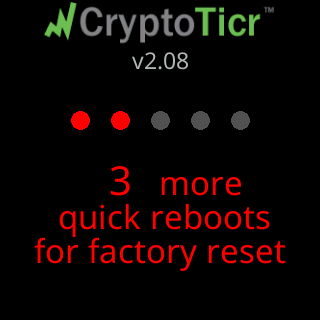
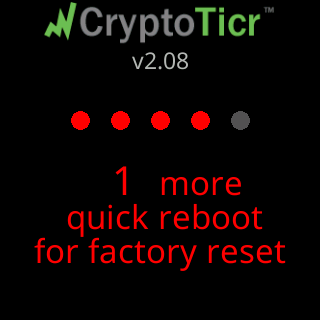
Two red circles. A red line grows under the words: cut the power again before it reaches the end.
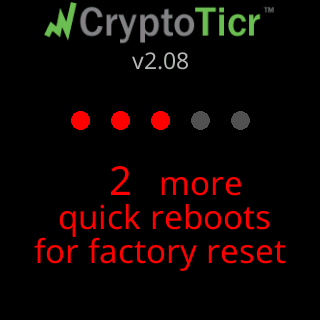
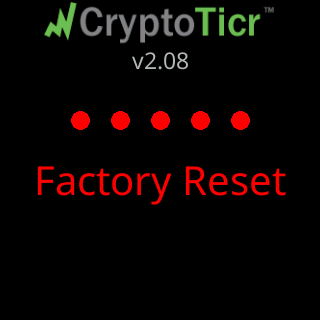
All five red.
As a new ticker does. Set up the Wi-Fi as above.
More: factory reset, the five restarts, written out, the count keeps starting over.
Give me the full detailsHide the details
How does the five-restart factory reset work?
The ticker counts power-ons that follow each other quickly, and the fifth in a row triggers a full factory reset. Every time it is switched on with a saved Wi-Fi network, it adds one to a counter kept in memory that survives the power being cut. Once it has been running for five seconds, it sets that counter back to zero. So the count can only climb while every power-on is cut short inside those five seconds, and when it reaches five the ticker erases itself.
How much time do I have for each restart?
Each power cut has to come within the first five seconds that the ticker is switched on. Only powered time counts: the ticker can stay unplugged as long as you like between restarts, so there is no need to rush plugging it back in. From the second power-on, a red line grows under “for factory reset” from left to right, timed to finish as the window closes. Cut the power while it is still growing. If the line completes, the count starts again from nothing, and the next power-on counts as the first again.
The window is kept short so that a flickering outlet or a bumped cable is unlikely to string five power-ons together by accident, and long enough to see the circles appear and then unplug calmly.
What does the countdown on the screen mean?
The countdown shows how many quick power-ons the ticker has counted and how many are left. From the second one, the start screen adds a row of five circles under the logo, red for each power-on counted and gray for the rest, with a red message underneath: “3 more”, “quick reboots”, “for factory reset”, then “2 more”, then “1 more” and “quick reboot”. The first power-on looks like any ordinary start, because every ordinary start counts as one. On the fifth, all five circles are red, “Factory Reset” appears in red for a second and a half, and the erase begins.
What counts as a restart?
Only a real power-on counts: unplugging the USB cable and plugging it back in, or anything else that cuts the power. Restart on the settings page doesn't count, and neither do the restarts the ticker makes by itself, to reconnect or to recover from a fault. That is deliberate. A ticker that keeps restarting on its own can never count its way to a factory reset and lose the Wi-Fi it depends on.
Why does the ticker need this gesture?
The ticker has no buttons and no touch screen, so its power cable is the only thing you can work by hand. The gesture is the way back when the settings page can't help: the network it knew has been renamed or replaced, the Lock password is forgotten, or the page won't load at all. Some of the ticker's waiting screens suggest it, for example “New Wi-Fi? Restart me” / “5 times fast. Wipes me.” while it waits for a network that doesn't come back. In each case the restart it means is a power cut: power it off and on five times, quickly.
Does it work when the ticker can't get online?
The five restarts work whether or not the ticker can reach your Wi-Fi, because it counts each power-on before it even tries to connect. That is what makes the gesture useful while the ticker waits for a network that is down or gone, or after it has opened its own setup network because its saved network turned it away. The one exception is a ticker with no saved network at all.
When does the gesture not work?
The five restarts do nothing in three cases:
- The ticker has no saved Wi-Fi network, as on a brand-new ticker or after Erase Wi-Fi. It then sets the count back to zero at every start, since it is already in first-time setup.
- A power-on lasted five seconds or more. The count starts over, and the next power-on shows no circles.
- The restarts weren't power cuts, as described above.
More help: the count keeps starting over.
What do five quick restarts erase?
Five quick restarts do exactly what Everything, (FACTORY RESET) does on the settings page: the Wi-Fi network and its password, a fixed address, the coin list, every setting and the Lock password are erased, and the coin pictures stay. The gesture can't keep the Wi-Fi; for that, use Start over (keep Wi-Fi) under Erase. The screen then shows “Factory Reset Done”, “Wi-Fi and settings erased” and “Restarting for setup...” for five seconds, and by then the erase is already complete. The ticker restarts into first-time setup with its own CT network, as in Setting up Wi-Fi.
Lock
A password on the settings page
For a ticker on a busy shared network: anyone can still look, and nobody can save a change without the password. A code on its screen proves you are standing at the ticker.
- Write the password down
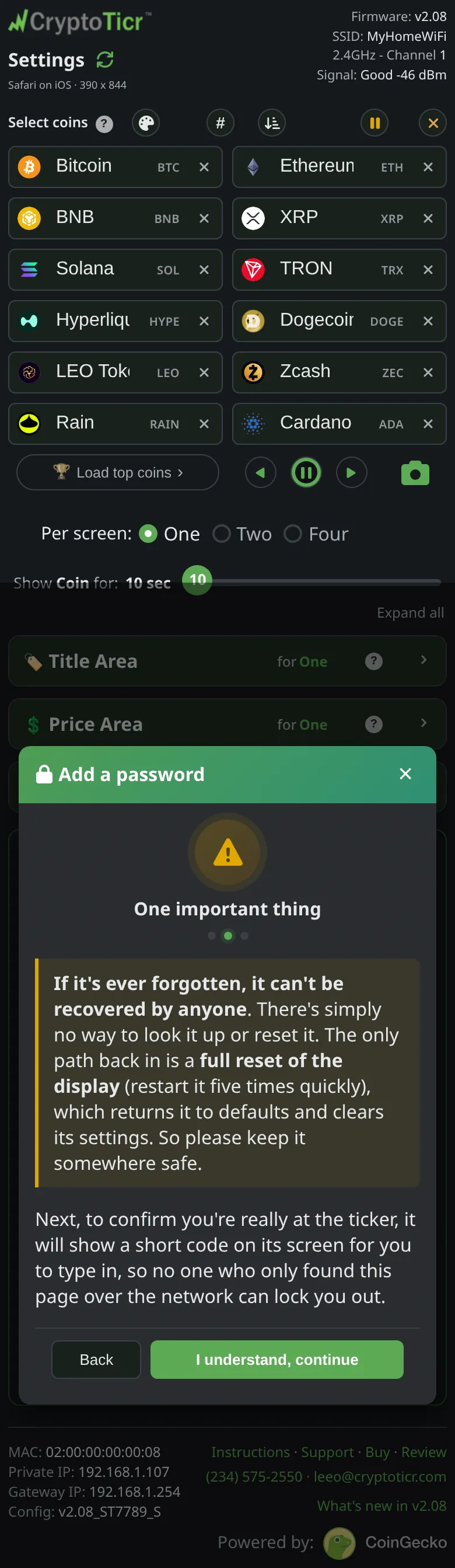
- Forgotten, it can only be cleared by a factory reset
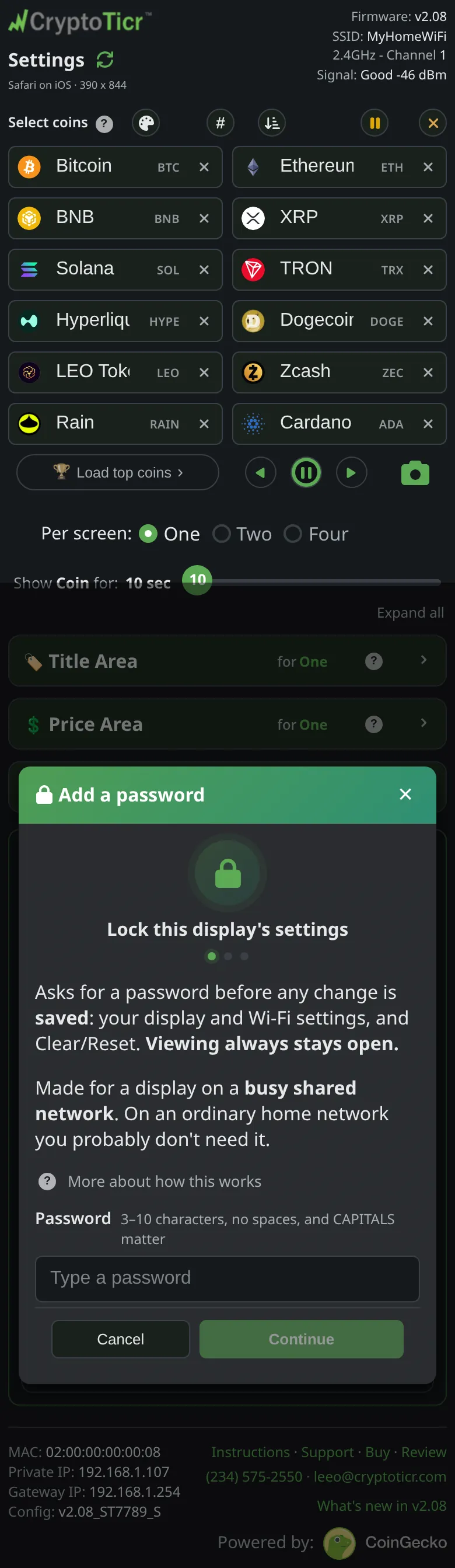 9:41192.168.1.107
3 to 10 characters, no spaces.
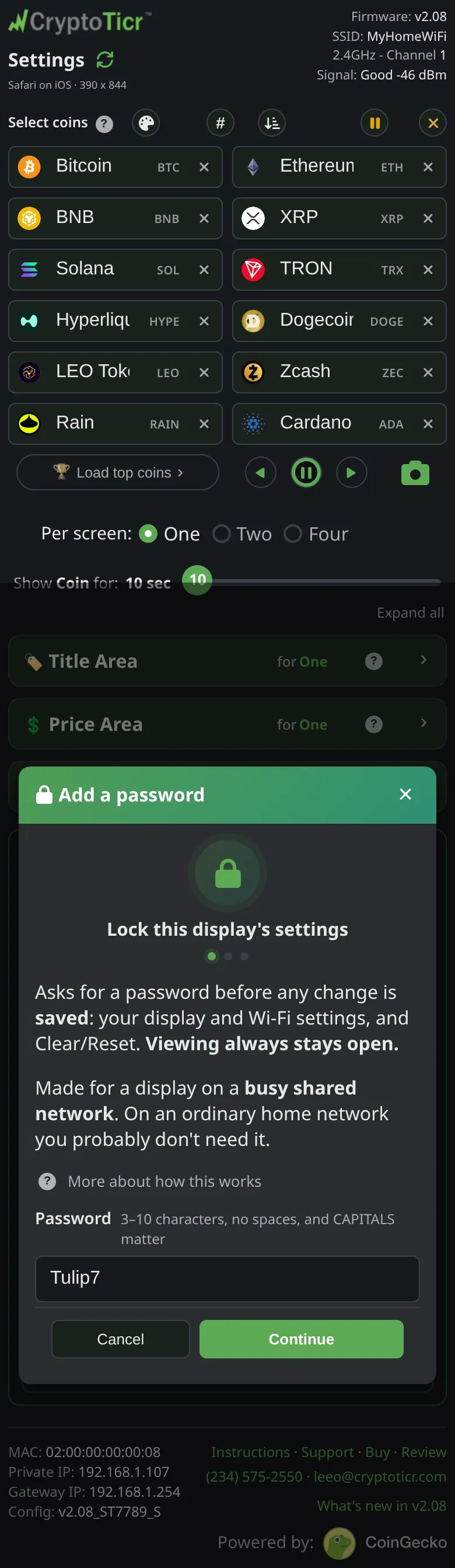 9:41192.168.1.107
 9:41192.168.1.107
A forgotten password means a factory reset.
 9:41192.168.1.107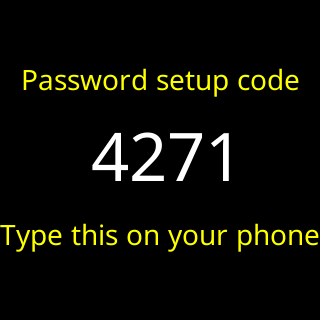
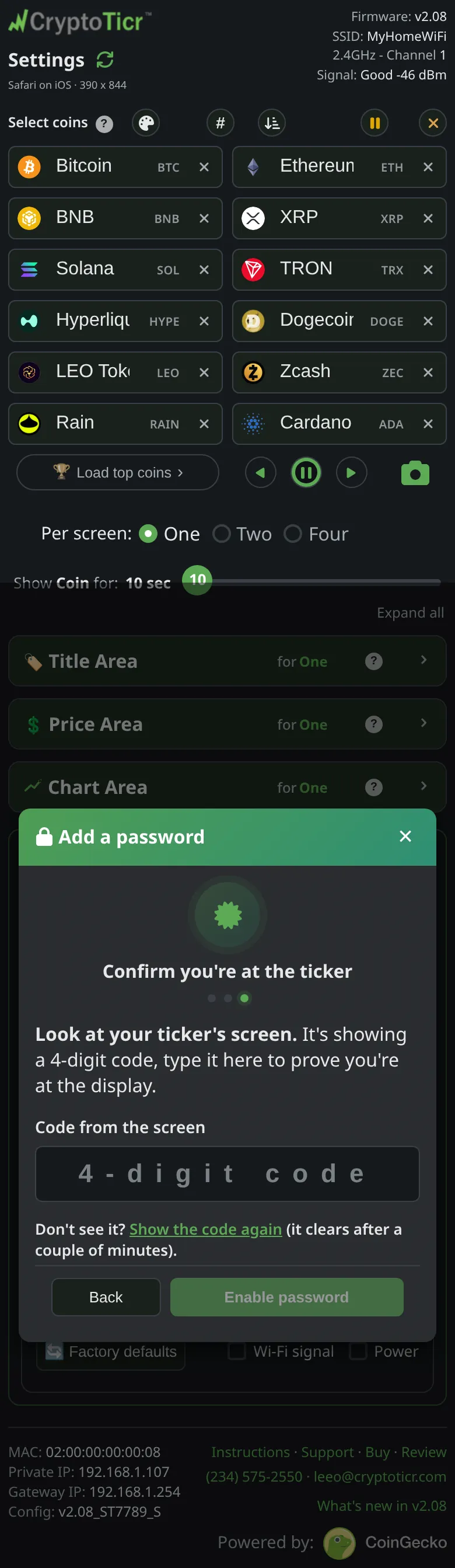
Four digits, shown on the ticker for two minutes. Three tries per code.
 9:41192.168.1.107
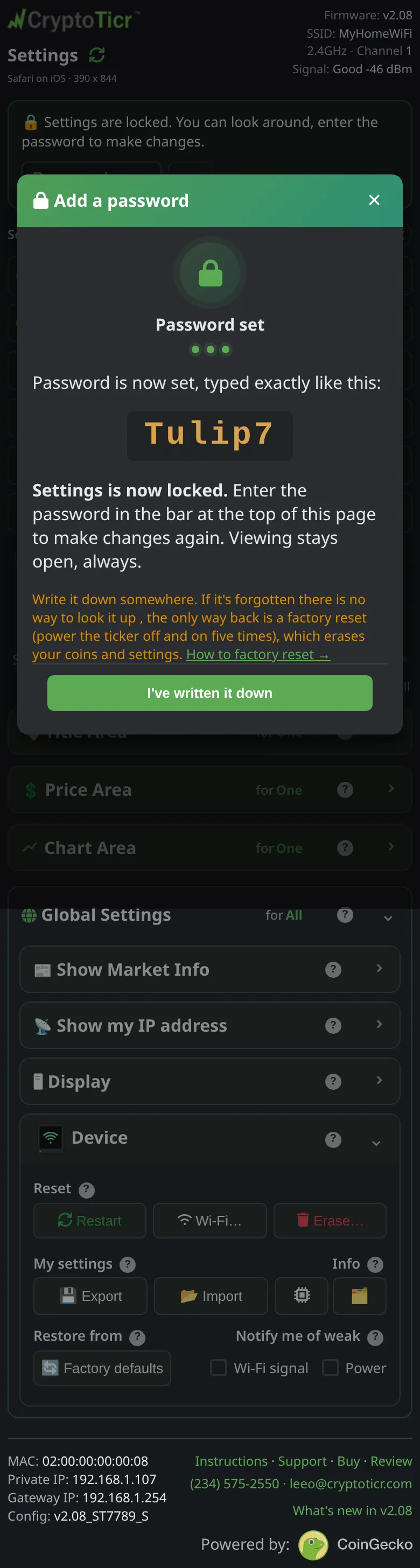
The page shows the password once. Keep it.
More: lock the settings with a password, forgot the password.
Give me the full detailsHide the details
What does the Lock protect?
The Lock puts a password on every change made from the settings page. With it on, the password is needed to:
- save any setting, from the coin list to brightness;
- use Restart, anything under Wi-Fi… or Erase…, and Factory defaults;
- pause or step through the coins, or put a card or the address on the ticker's screen;
- add or remove the password itself.
The page still opens for anyone on your network and shows every setting, dimmed, with nothing to tap until the password is typed. The ticker itself carries on exactly as before. It is one password for the ticker, not one per person, and it applies to everyone on the network, you included.
How do I set a password on the settings page?
Setting the Lock takes a few taps on the page and one look at the ticker's screen:
- In the Device card, tap Lock. A dialog titled “Add a password” opens.
- Type a password of 3 to 10 characters: letters, digits and ordinary symbols, with no spaces. Capitals matter. The box shows the characters as you type and never capitalizes on its own, and anything it can't accept, such as a space, an accented letter or an emoji, is left out as you type. Tap Continue.
- Read “One important thing” and tap “I understand, continue”. The ticker now shows a code.
- Type the four digits from the ticker's screen into “Code from the screen”. The page sends them as soon as the fourth digit goes in.
- The page shows the password exactly as it was set and says “Settings is now locked.” It also signs this browser out, so your first step is to type the password into the bar at the top, which proves it works. Tap “I've written it down”.
Why does the ticker show a code on its screen?
The ticker shows a code so that only someone who can see its screen can turn the Lock on. Without it, anyone who found the settings page over the network could set a password and lock the owner out of their own ticker. The card reads “Password setup code”, then four digits in large white numbers, then “Type this on your phone”. Only the newest code works, and it expires after two minutes, when the card leaves the screen. Each code allows three tries: a wrong one brings “That code didn't match the one on your ticker. Try again: 2 more tries with this code.” (then “1 more try with this code.”), and after the third a new code goes up with “That code didn't match the one on your ticker. A fresh code is on the screen, try again.” An expired code gets the fresh-code reply too. “Show the code again” asks for another. The ticker puts up at most one new code every 30 seconds, counted from when it started too: asked sooner, the page says “Your ticker will show a new code in N seconds.” and asks again by itself. “Still starting up, try again in a moment” means the ticker was still starting. While the code is up, the settings page cannot take a screenshot of the ticker's screen, so read the code off the ticker itself. Once the password is set, the card goes at once and the coins come back. The code is only for this step and is never the password.
How does a phone stay unlocked?
Each browser asks for the password once and then remembers it for that ticker, so the phone you use every day opens the page ready to make changes. Another phone, or another browser on the same phone, asks again. A browser that hasn't been given the password shows “Settings are locked. You can look around, enter the password to make changes.” across the top, with a password box and an Unlock button, and “Unlocked on this device.” confirms a correct entry. More: using the page from several devices.
How do I change or remove the password?
The password is removed from a browser that is already unlocked: tap Unlock in the Device card, then Remove password, and anyone on the network can change settings again. The same dialog offers Log out here, which returns only this browser to view-only and leaves the password in place for every other phone and browser. To change the password, remove it and set a new one with Lock. A new password needs a fresh code from the screen, like the first.
What happens after wrong password attempts?
After several wrong passwords in a row, the ticker makes you wait before the next try, and the wait grows while the wrong tries continue. The page says “Too many tries, wait 10 seconds, then try again.” and the Unlock button counts the wait down. The ticker keeps this count itself, so reloading the page doesn't skip a wait, and the right password clears the whole history. A wrong entry of exactly four digits gets its own reply, “Not that one, that's the 4-digit code from my screen, which was only for setting the password up. Enter the password you typed in.”, because the setup code is often the number that got written down.
What if I forget the password?
A forgotten password can't be looked up, and the way back is a factory reset, which erases the password together with the Wi-Fi and every setting. The page's Erase… needs the password as well, so the reset is done at the ticker: power it off and on five times, quickly (see five quick restarts). Afterwards, set the ticker up again. A file saved earlier with Export brings the coins and settings back but never a password, so the ticker comes back unlocked. A locked-out browser can't use Export either, so the time to save a backup file is while you still have the password.
Which resets remove the password?
Start over (keep Wi-Fi) and a factory reset both remove the password along with the settings. Factory defaults, Erase Wi-Fi and Import all leave it in place, and Export never includes it. The full comparison is under Erase.
Weak Wi-Fi and power
The ticker keeps an eye on itself
When its Wi-Fi signal is weak it says so once at start-up, and while the link keeps dropping it repeats that every quarter of an hour. The same goes for poor USB power.
- Closer to the router usually cures a weak signal
- Notify me of weak: switch the repeats per notice
- Ticking one shows its card at once
Give me the full detailsHide the details
When does the weak Wi-Fi card appear?
The ticker shows its Wi-Fi card at start-up only when the signal is weak, and after that only when the connection is actually failing. The start-up showing comes once, before the first coin; a ticker with a good signal goes straight to its coins. While running, the card returns at most every 15 minutes, and only while the link needs attention: the connection has dropped three times within the last hour, or the signal is weaker than -85 dBm, where drops are only a matter of time. Each showing holds for 8 or 9 seconds.
Why does the ticker count dropped connections instead of signal strength?
The ticker waits for dropped connections because a signal reading is a poor guide to whether a link works. A ticker at -82 dBm on a clean channel can be rock solid, while one at -68 dBm beside a microwave with thirty neighboring networks can drop all day. The ticker notes the time whenever it loses a connection that was working, one that had an address. The repeated tries while a router is off, and the times the ticker leaves on purpose, do not count, so one router restart is one drop at most. Three inside an hour show the link is misbehaving whatever the number says. A low reading on a link that isn't dropping never interrupts the coins, because that would report a problem the ticker doesn't have. System Info shows a running total of every disconnection as Reconnects, counted since the ticker last started.
How does the ticker judge its Wi-Fi signal?
The ticker takes a signal reading once a second and keeps a running average in which each new reading counts for a quarter, because a single reading is noisy even when nothing moves. Every decision uses that average. Weaker than -79 dBm is weak; from -79 to -67 dBm the ticker gives no verdict; -67 dBm or stronger is good. A verdict gets worse the moment the average crosses a line but improves only once the average is 5 dB clear of it, so a ticker parked on a line doesn't flip back and forth. The number is negative, and closer to zero is stronger: -50 dBm is a far better signal than -80 dBm. More: signal bars and dBm.
What does the Wi-Fi card show?
The Wi-Fi card has five rows:
- A title: “Weak Wi-Fi signal”; “Wi-Fi drops out” when dropped connections brought the card on; or “Wi-Fi signal” when you asked to see it and the signal isn't weak.
- A router, the Wi-Fi symbol and a thumb: red and down when the signal is weak, up when it is good, and no thumb in between, where there is no verdict to give.
- Your network's name.
- “Strength:” with a word and the reading, for example “Strength: Very Weak -85 dBm”. Above the weak line the words run from “Excellent” and “Strong” through “Good” to “Fair”; below it they are “Weak”, “Very Weak”, “Useless” and “Dead!”.
- The band and channel, for example “2.4GHz - Channel 6”.
When drops brought the card on, the ticker knows the link keeps failing but not why, so the card names the symptom rather than a cause. The ticker's radio uses 2.4 GHz only, so a Wi-Fi extender helps a weak reading only if it covers that band.
How do I turn the repeats off?
The ticker's repeats are switched by the Wi-Fi signal and Power boxes under Notify me of weak, in the Device card. Unticking a box stops that card's repeats and changes nothing else: the ticker runs the same either way. Neither box stops the single showing at start-up. Ticking a box puts its card on the ticker at once, even when all is well, so you can check the live signal or the measured voltage there and then.
What does the power check measure?
The power check measures the ticker's own 3.3-volt supply, the voltage its processor runs on, so a healthy reading sits between 3.00 and 3.60 volts rather than at the 5 volts of a USB charger. The ticker reads it up to 40 times a second and judges it once a minute: the lowest reading of the minute against the low lines, and the average against the high lines. The dip decides the low side because a supply can average a healthy figure and still sag for an instant under load. The average decides the high side because a lone high reading is usually measurement noise, while a supply that stays high is the real concern. The dip during start-up, while the Wi-Fi connects, is recorded but kept out of the verdict, because every ticker dips there.
When does the power card appear, and what does it say?
The power card has four warning faces, one for each way the supply can be off:
| Card title | Measured | Advice on the card |
|---|---|---|
| “Power a bit low” | Dipped below 3.00 V | “Try a different USB power source.” |
| “Power very low!” | Dipped below 2.90 V | “Switch to a different USB power source.” |
| “Power a bit high” | Averaged above 3.60 V | “Switch to a different USB power source.” |
| “Power very high!” | Averaged above 3.70 V | “Unplug. Use a different power source.” |
The large figure on the card is the dip for the low faces and the average for the high ones. A good verdict never brings the card on. A bad one shows it once whatever the Power box says, no earlier than 75 seconds after start-up so the figure comes from a full minute of readings, and then every 15 minutes while it lasts, if Power is ticked. It holds for 9 seconds, or 11 for the “very” faces. A verdict gets worse at once but improves only when the voltage clears the line by 0.05 V, so a borderline supply doesn't flicker between faces. More: the power check.
Why does the power card suggest a different power source?
The ticker can measure its supply but can't see where a problem starts, so the card names the part you can change. On the low side, a thin or long USB cable loses voltage under load as readily as a tired adapter does, and the power warning the ticker shows during setup names both: “Use different USB cable” above “and/or power source.” A cable can only lose voltage, never add it, so for a high reading the card asks for a different power source instead.
Do the cards ever pile up?
The ticker keeps its scheduled cards at least 30 seconds apart, so the Wi-Fi and power cards, both on a 15-minute rhythm, never run back to back with each other or land on top of the address card. Right before it installs a software update, the ticker shows both cards in turn on purpose, with “All good, updating now” or “Not great, updating anyway” as the last line. The power card says “Still measuring, updating now” instead when it has no verdict yet. The supply is also measured during the download itself, so a dip there counts in the power check afterwards.
Export, import and the rest
Back up, restore, look inside
Save every setting to a file and load it back, or look inside the ticker for a support call.
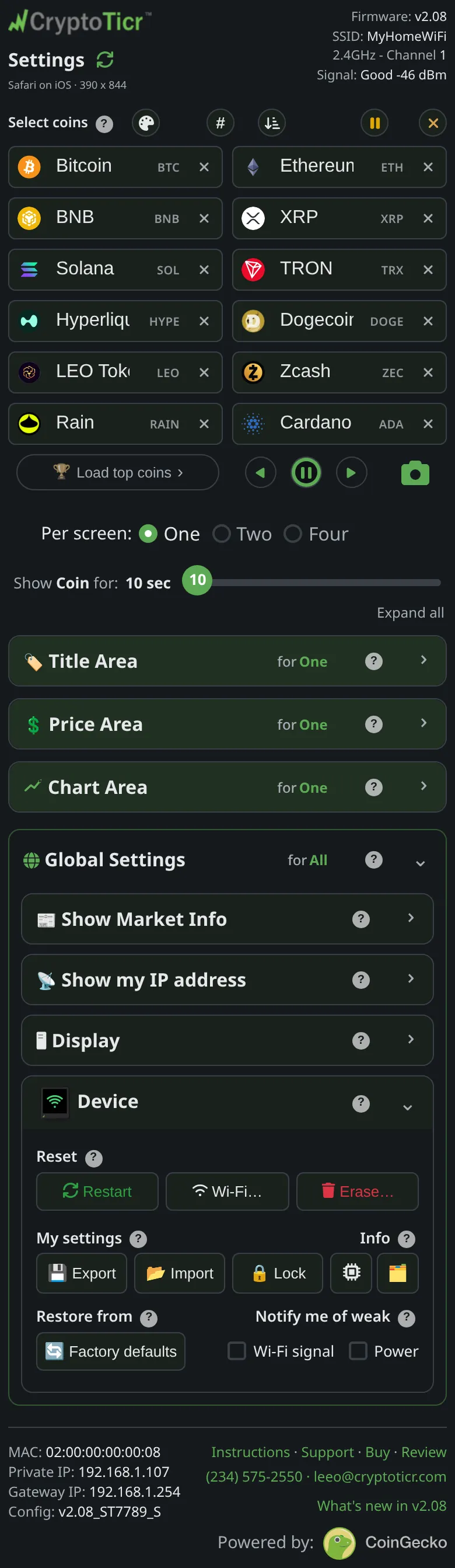
- Export: your coins and settings to a file on your phone or computer
- Import: load one back, saved and applied in one step
- Info: its memory, network and stored files
- Factory defaults: coins, colors and timings as they shipped
 9:41192.168.1.107
Export downloads a file of every setting. Import reads one back and applies it in one step.
 9:41192.168.1.107
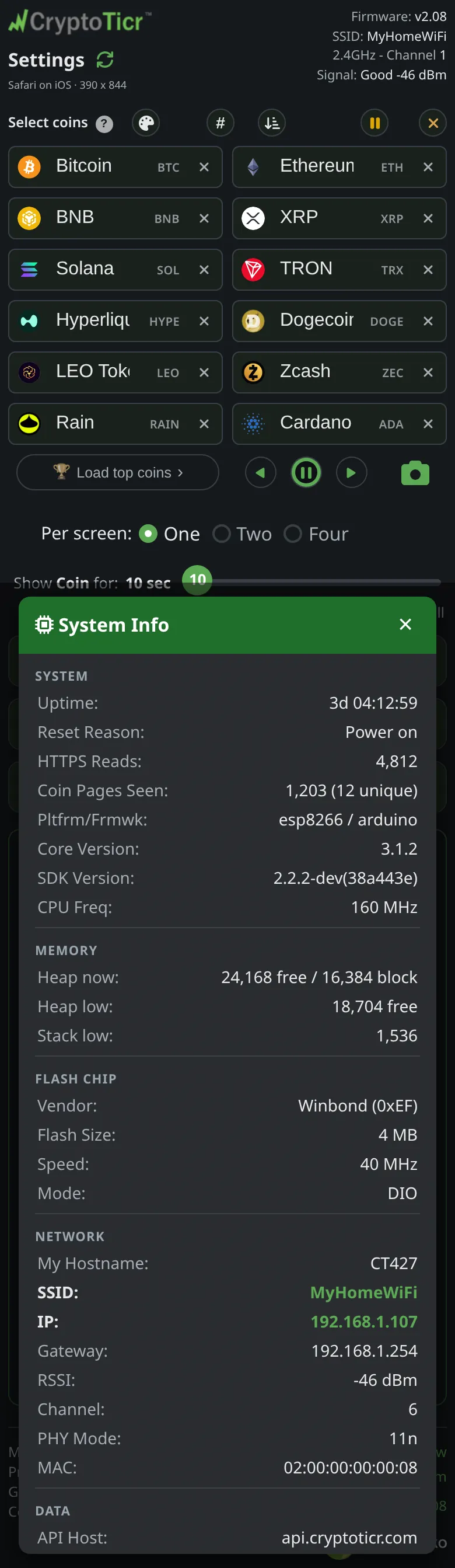
Memory, flash, network and power, on one list. This is what a support call asks for.
 9:41192.168.1.107
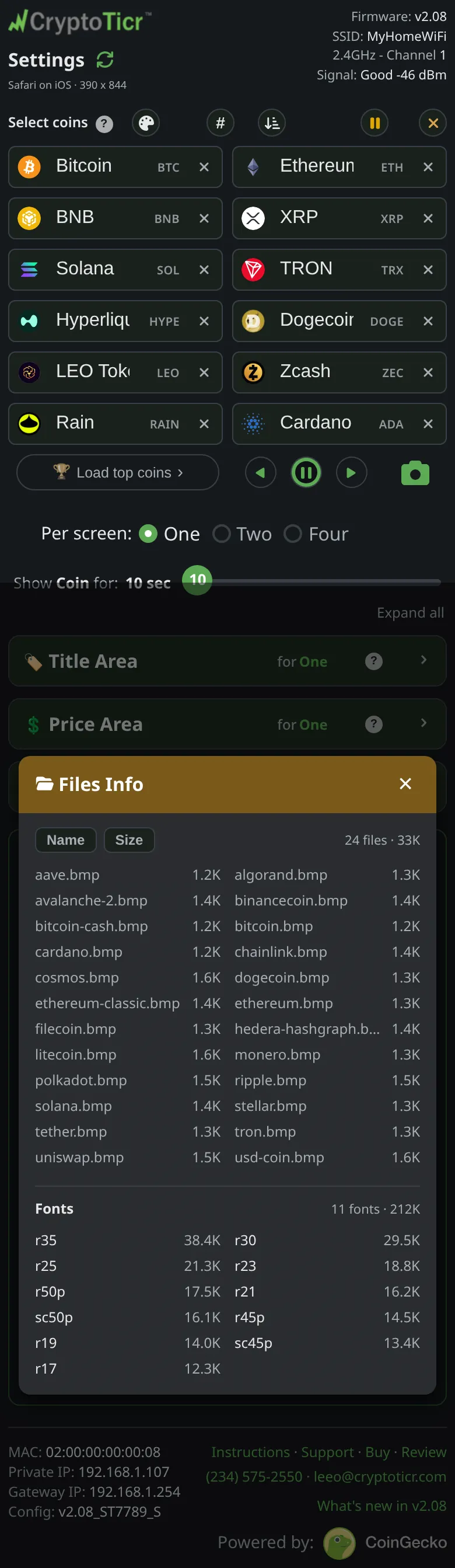
The coin icons and the fonts the ticker carries, with what each one takes.
 9:41192.168.1.107
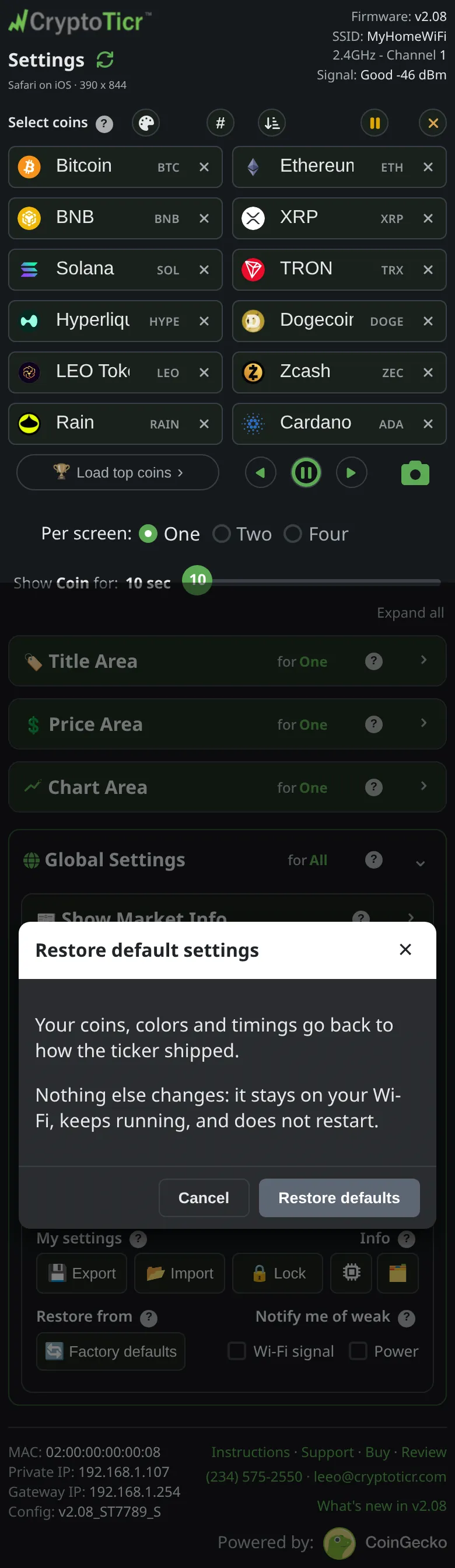
Coins, colors and timings back as they shipped. The Wi-Fi stays and the ticker keeps running.
More: export and import, copy settings to a second ticker, restore factory defaults, the Wi-Fi signal check, the power check.
Give me the full detailsHide the details
What does Export save?
Export saves every setting on the settings page to a small file on the phone or computer you are using, named after the ticker and the moment you saved it, for example CT123_2609191430.json for 2:30 p.m. on September 19, 2026. The file holds the coin list, with paused coins marked; the layout for one, two and four coins per screen; brightness, colorset and the colors chosen for each colorset; every timing; the Market Info cards; the address and QR code schedules; quiet hours; and the two notice switches.
The file leaves out the Wi-Fi network and its password, a fixed address, the Lock password and the time zone, which belongs to wherever a ticker sits rather than to its setup. Coin rankings are left out as well, because they are live figures; names and symbols are kept.
What does Import change?
Import applies a file to the ticker and saves it in one step, with no separate Save to press. The page first checks that the file is a settings file (“Import failed: not a settings file” if it isn't), fills itself in, sets brightness and colorset at once, saves everything else, and reports “Imported, saved and applied to your Ticker.” Coin names and symbols are refreshed from the page's coin list, and coins paused in the file stay paused. The file needs at least one coin that isn't paused, and on a locked ticker the page has to be unlocked first. The Wi-Fi, a fixed address, the Lock password and the time zone stay as they were. More: import failed.
Can I copy my settings to a second ticker?
Copying a setup to a second ticker takes an Export on the first ticker's settings page and an Import on the second's. Set the second ticker up on your Wi-Fi first, in the usual way, because the file doesn't carry a network. The second ticker keeps its own network, fixed address, Lock and time zone, and takes everything else from the file, so a ticker in another time zone keeps its own quiet hours on its own clock.
What does Factory defaults do?
Factory defaults puts every setting on the page back to how the ticker shipped while the ticker keeps running: no restart, no welcome, nothing to save. The coin list returns to the starter set, brightness to 70%, and the colorset, colors, timings, Market Info cards, schedules, quiet hours and notice switches to their shipped values, and the screen redraws with them. The time zone is reset with the rest, and the settings page hands the ticker your phone's zone again the next time you open it (see the time zone). The Wi-Fi, a fixed address, the Lock password and the ticker's record of having welcomed you are left alone. The page asks first, under “Restore default settings”, and says “Default settings restored.” when it is done.
Start over (keep Wi-Fi) under Erase… resets the same settings but restarts, replays the welcome and removes the password; see Erase.
Does the ticker keep its own backup of my settings?
The ticker keeps two copies of its settings and checks both every time it starts. Each save writes the backup copy first and the working copy second, so a power cut in the middle of a save always leaves one complete copy. If the working copy fails its check, the ticker restores it from the backup and says so once, on a “Health status” card: “A storage check found a problem and repaired it.” While there is something to report, the settings page footer shows a “Settings copy” line, such as “restored from backup”. Both copies live inside the ticker, so erasing the settings wipes both; an exported file is the copy that survives. More: settings health and the backup copy.
What do System Info and Files Info show?
System Info is one list of the ticker's vital signs, for the curious and for troubleshooting with support; the two buttons under Info in the Device card open it and Files Info. Among other things, System Info shows how long the ticker has been running and why it last restarted; its memory; the state of its coin pictures and of its two settings copies; its network, with the Wi-Fi name, the ticker's address, the router's address, the signal in dBm, how many times it has reconnected since it started, and the channel; and a Power section with the voltage now, the lowest and highest while running, the last minute's average with its dip and peak, the lowest during start-up, and the limits it judges against. Files Info lists the files stored on the ticker, mostly coin pictures, then its images and fonts, with their sizes. Neither one changes anything. More: System Info and Files Info.
Where does the settings page show the signal and the power?
The settings page header always carries a Signal line with the ticker's signal word and reading, for example “Signal: Good -46 dBm”, and that line is highlighted below -79 dBm, the line at which the ticker calls its signal weak. A Power line appears in the header only when the supply isn't good: “Power: Check” when it is a bit low or high, and “Power: Check now” when it is very low or very high. Tapping either line opens System Info. The header is filled in when the page loads, so reload the page for a fresh reading. The cards the ticker itself shows about both are under Notices.