Join the ticker's setup network
Every step with pictures, the phone and the ticker side by side: the Device page.
Before you start
- The ticker is on and cycling its setup cards. The card
Join my Wi-Fishows the name you are looking for. - Your phone (or tablet or computer) is within a few meters of the ticker.
Steps
-
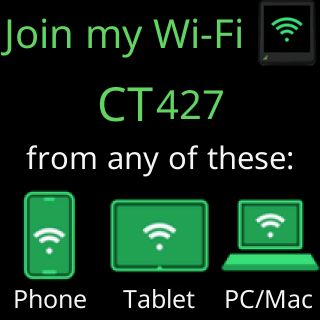
Read the network name off the
Join my Wi-Ficard. It isCTfollowed by three digits. The digits come from the ticker’s own chip, so two tickers in one home almost always show different names.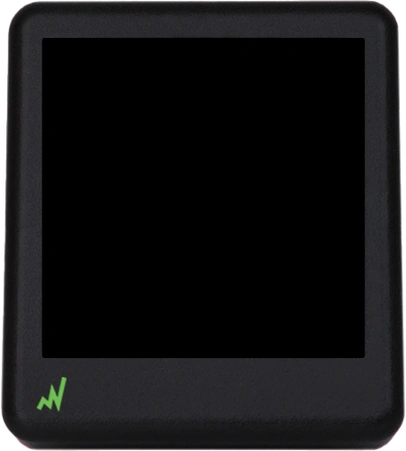
-
On your phone, open the Wi-Fi settings and wait for the list to refresh. The ticker’s network has no password, so it shows as an open network. It accepts up to four devices at once, so a second device can join alongside a first one that got stuck.
-
Tap the
CTnetwork to join it. Your phone may warn you that the network has no internet, or ask whether to stay connected. Stay on it: the network exists only to carry your Wi-Fi password to the ticker, and it shuts itself down the moment the ticker is on your Wi-Fi. -
Look at the glass. It changes to
You're on my Wi-Fi!with a revolving middle line:My setup page should pop up now.,iPhones & most Androids pop it up...,Some, like Samsung won't and will...,...need a Sign-in tap, or browse to the IP.,Stuck? I'll show a QR code to scan soon.... Under it:If not, browse to:, the address192.168.4.1, andhttp:// not https://.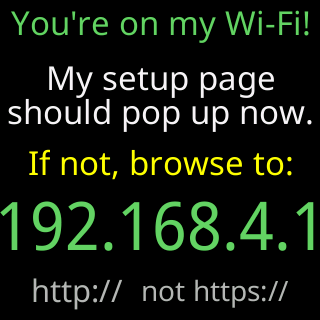
-
Wait a few seconds for the setup page. Most phones open it by themselves as a sign-in window. Some show a sign-in notification instead, tap it; the glass says as much:
...need a Sign-in tap, or browse to the IP. -
If nothing opens, open your browser and type
http://192.168.4.1into the address bar. The ticker answers every address on its setup network with its own page, so any address works, but that one is the shortest. -
When the page has loaded, the glass shows
Doing great!/On that page, pick/your Wi-Fi network., with a reminder that placing the ticker on a public or guest network probably won’t work.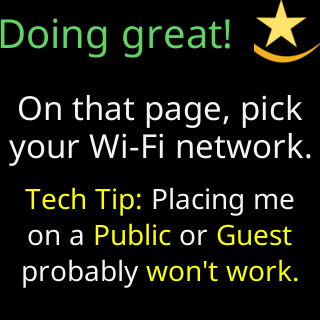
You’re done when
- The setup page is open on your phone, showing its four welcome cards, and the glass says
Doing great!. Continue with The welcome cards on your phone and Choose your Wi-Fi and connect.
Problems?
- The
CTnetwork is not in the list: The CT setup network is not in my phone's Wi-Fi list - The glass says
My setup page/did not open.: The setup page did not open by itself - Your phone left the
CTnetwork on its own: My phone keeps leaving the setup network - The glass shows
No activityand a countdown: nobody used the setup network for 15 minutes, so the ticker restarts and starts its cards again. Join theCTnetwork once it is back. See Setup restarted for a fresh start. - Per-device notes: Setting up from an iPhone or iPad, Setting up from an Android phone, Setting up from a Windows PC, Setting up from a Mac.