Setting up from an iPhone or iPad
Before you start
- The ticker is on and showing
Join my Wi-Fiwith aCTnetwork name. - Wi-Fi is on in the iPhone’s Settings.
Steps
-
Open Settings, tap Wi-Fi, and tap the
CTnetwork. It has no password. -
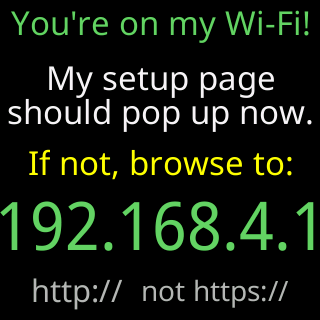
Wait for the sign-in sheet. An iPhone checks every new network for a sign-in page, and the ticker answers that check by pointing it at its setup page, so the sheet opens with the page inside it. The glass says
You're on my Wi-Fi!.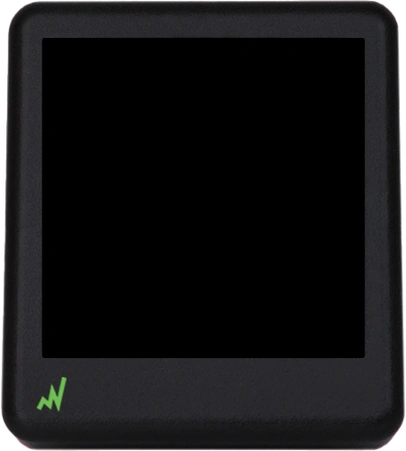
-
Read the four welcome cards in the sheet and tap
Got it, let's set up!.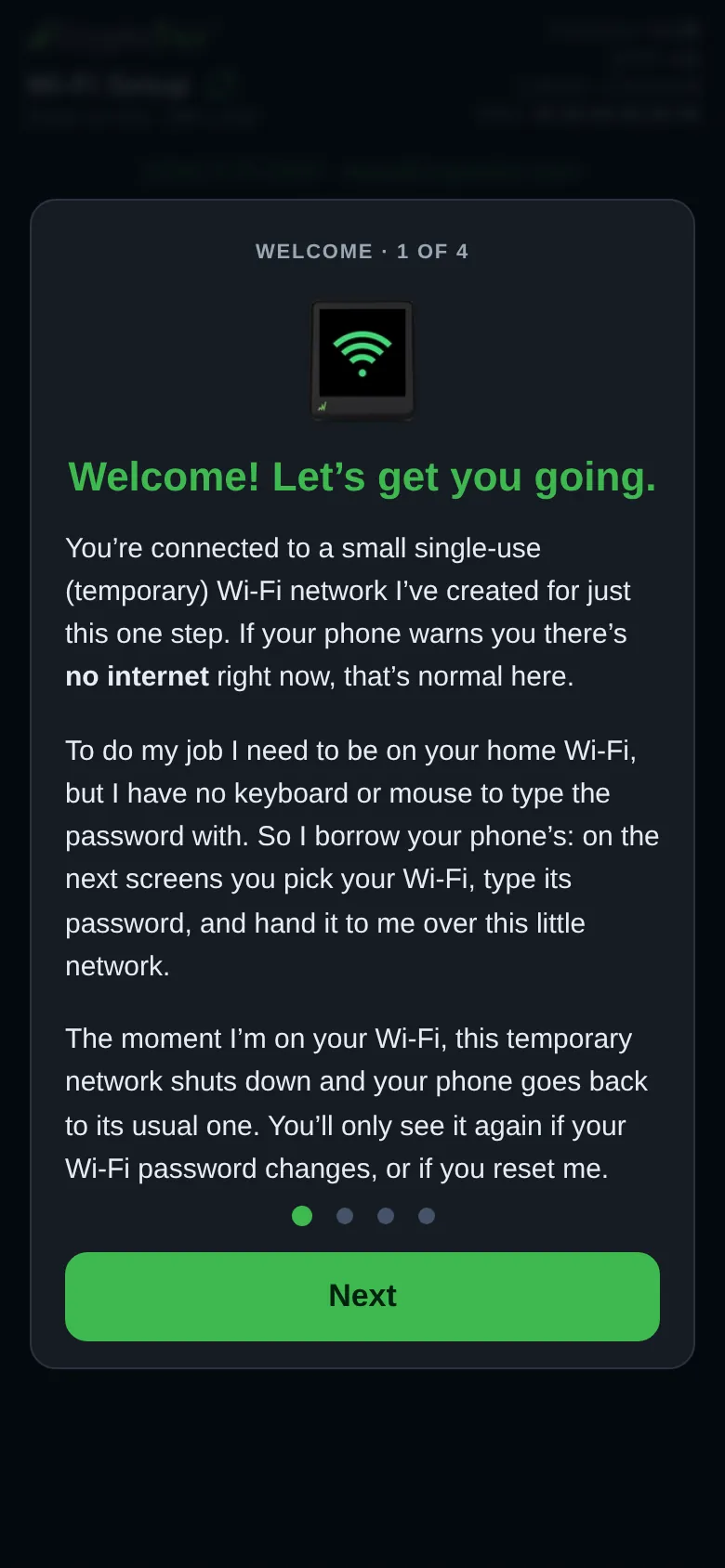 9:41192.168.4.1
 -
Pick your home network, type its password, tap
Connect. The page is written so the iPhone does not offer its password AutoFill or a suggested password here; if a keyboard toolbar appears anyway, ignore it and type the password. -
Leave the sheet open while the ticker connects. When the ticker joins your Wi-Fi it restarts, its own network goes away, and the sheet closes by itself. The page warns you:
If this popup closes by itself, that's normal: rejoin your usual Wi-Fi and open the address above. -
Go back to Settings › Wi-Fi and make sure the iPhone is on your home network again, then open Safari and type the address the glass shows, with
http://in front.
If the sheet never opened, or you closed it: with the iPhone still on the CT network, open Safari and go to http://192.168.4.1.
Using the iPhone’s own hotspot as the ticker’s network? In the hotspot settings turn on Maximize Compatibility, otherwise the hotspot runs only on a band the ticker cannot see.
You’re done when
- The settings page is open in Safari at the ticker’s address on your home Wi-Fi.