Choose your Wi-Fi and connect
Every step with pictures, the phone and the ticker side by side: the Device page.
Before you start
- The setup page is open and past its welcome cards. Its heading reads
Choose your Wi-Fi, withHelpandRescanbeside it. - You know your home Wi-Fi password exactly, capitals included.
Steps
-
Wait for the list. Networks appear as the ticker finds them. While it scans, the page shows
Scanning for Wi-Fi in your area…above the list, withHold on, this takes a few seconds.until the first one appears. Each network in the list shows its name, a lock if it has a password, five signal bars, and the signal in dBm. The bars and the number are colored together: green is good, amber is fair, red is weak. A network the page thinks is a guest network carries aguestbadge. -
Tap your home network. Pick the main network, not a guest one, and if your router offers a 2.4 GHz and a 5 GHz name, pick the 2.4 GHz one. If your network is not listed, tap
Rescan: each search adds what it finds and keeps the rows already shown. If it is hidden, tapHidden SSID? Enter it manuallyand type the name exactly.The networks it can see
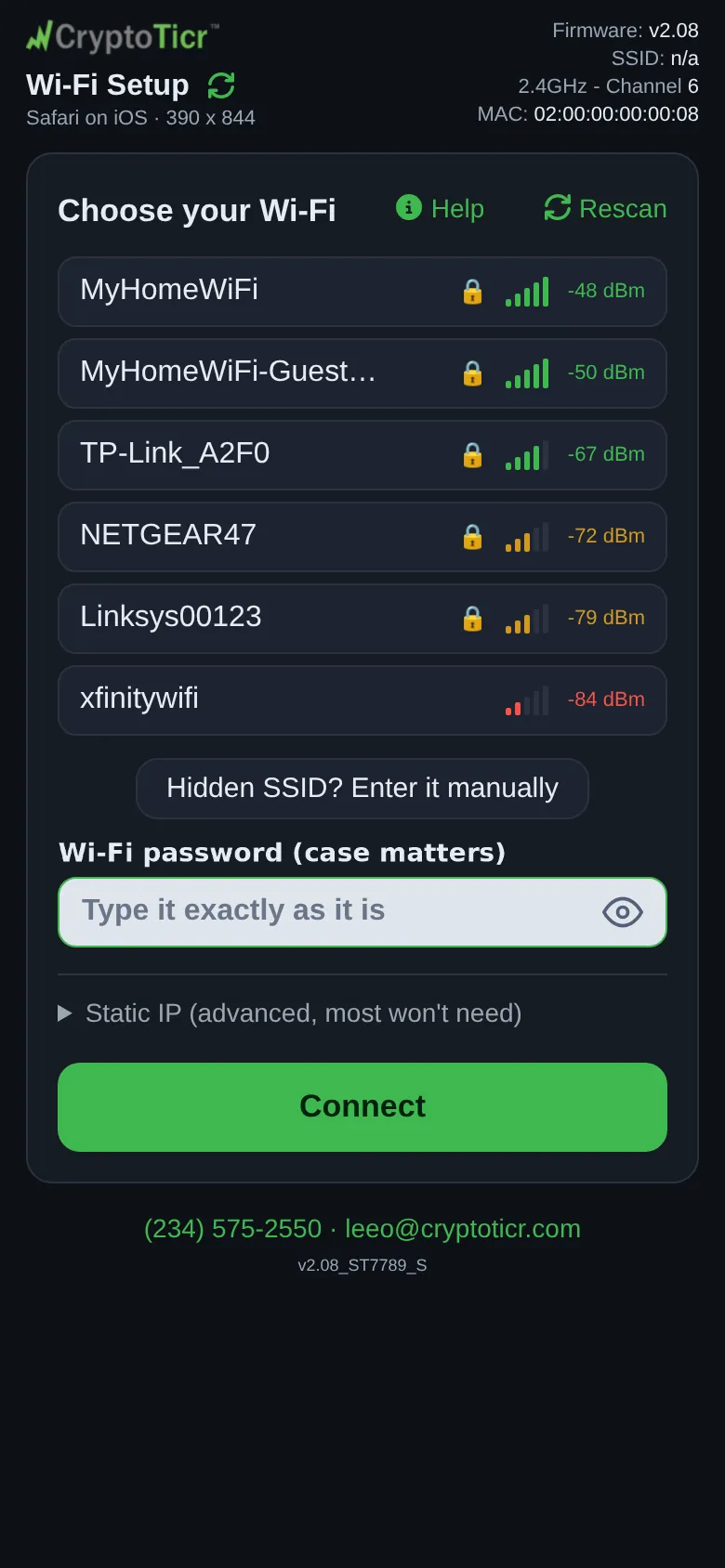 9:41192.168.4.1 The one you picked
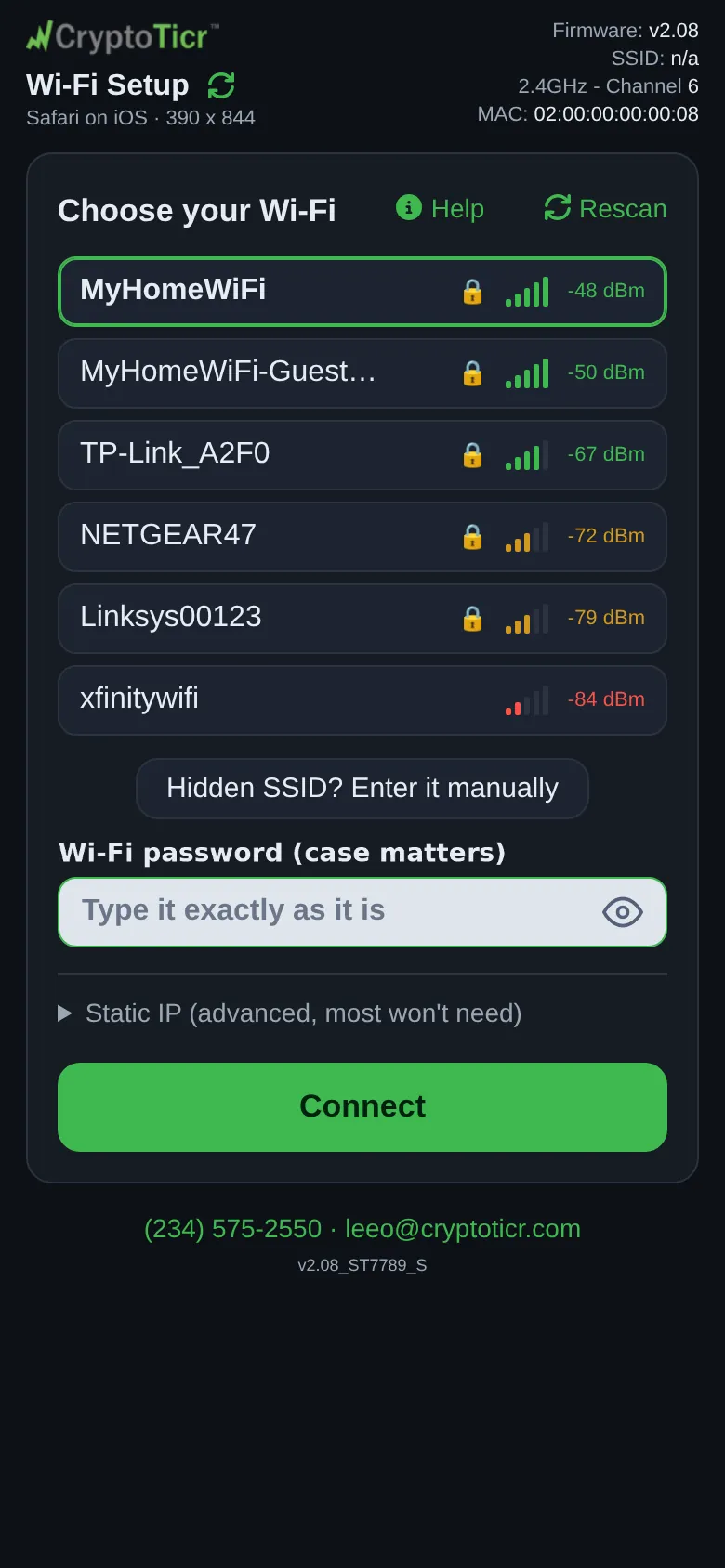 9:41192.168.4.1
 -
Type the password in the box under the list. It is a plain text box with the hint
Type it exactly as it is, and it shows what you type; the eye button beside it hides it. What the eye does also decides whether the ticker’s screen shows the password while it connects.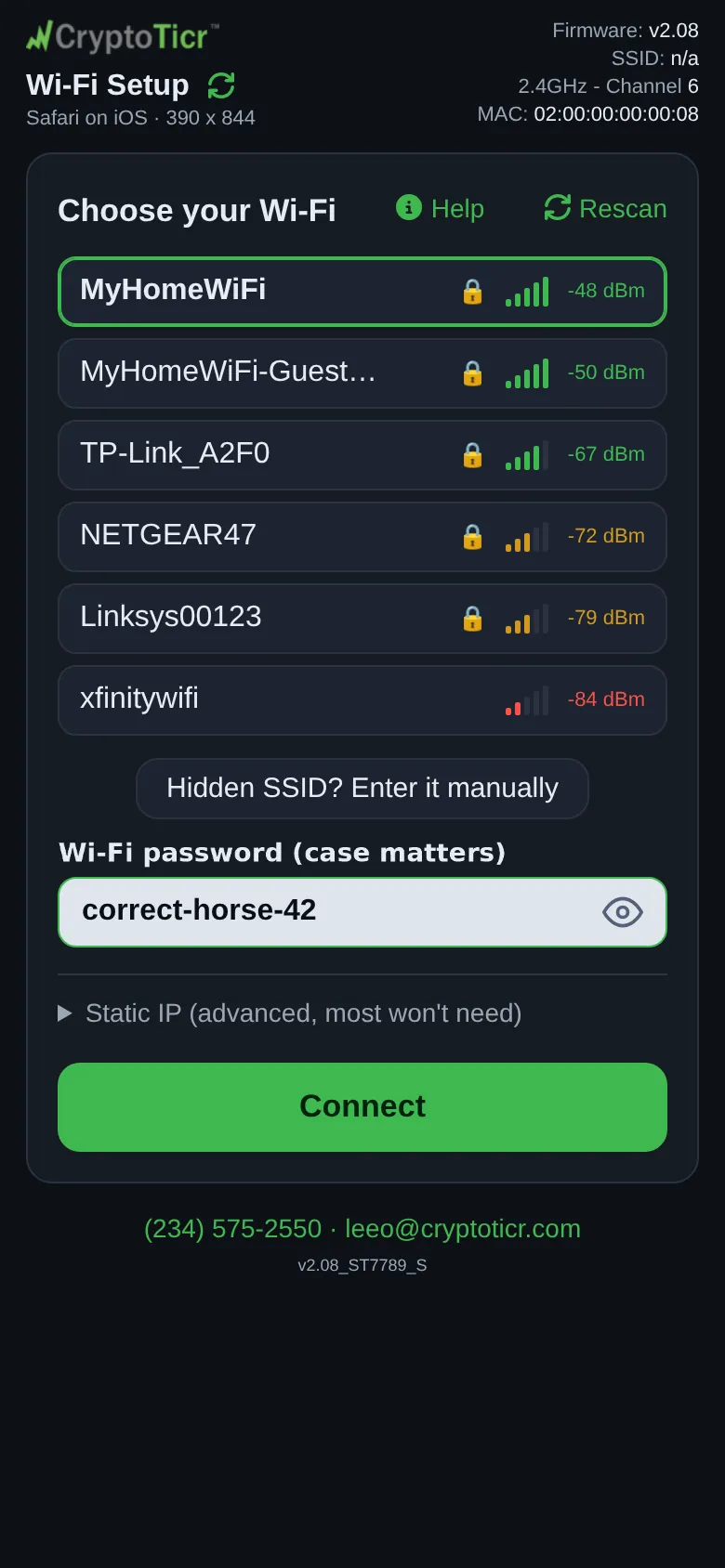 9:41192.168.4.1
 -
Leave
Static IP (advanced, most won't need)closed unless you know you need a fixed address; see Give the ticker a fixed address. -
Tap
Connect. The button turns intoWorking on it… 60sand counts down; under it:👀 Watch my screen./I show every step there.If the page has a doubt about what you typed it says so first,⚠️ That doesn't seem right. Are you sure?, and a second tap onConnectsends it anyway; if it cannot use the entry at all it says⚠️ I can't use that.and explains.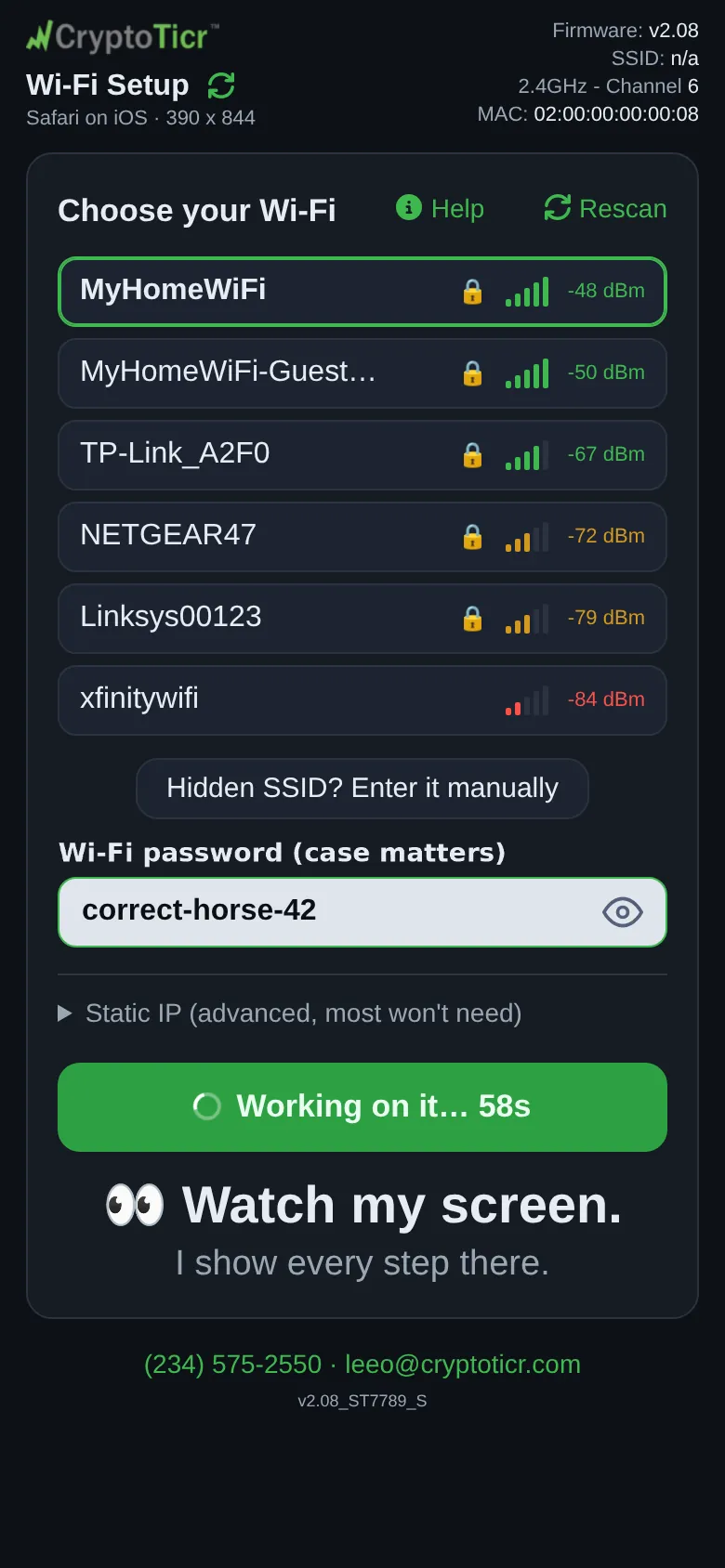 9:41192.168.4.1
 -
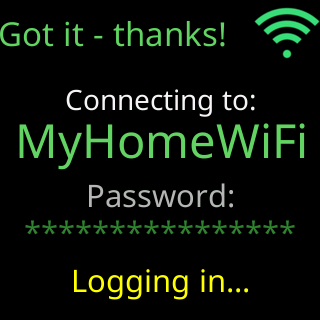
Watch the glass. It shows
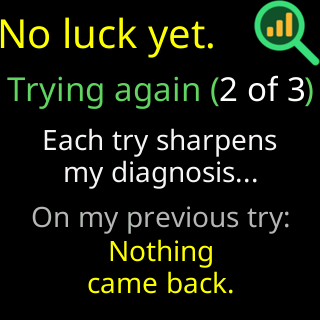
Got it - thanks!/Connecting to:and the network name, thenPassword:and the password as asterisks (or in clear, if you left the eye open), thenLogging in.... If a first try fails, the glass showsNo luck yet./Trying again (2 of 3)/Each try sharpens/my diagnosis...and, below,On my previous try:with the reason. The page shows nothing new meanwhile: the button’s countdown is its only sign of progress until there is a result.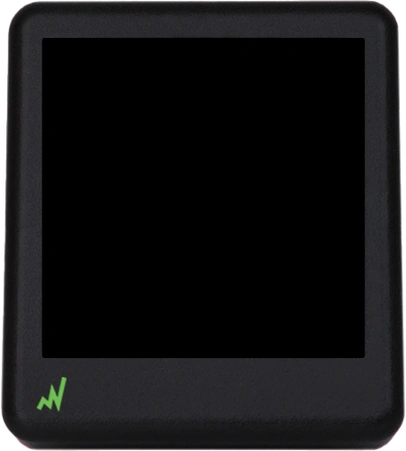
-
Read the result. On success the glass shows
Status report:, your network’s name,Signal,Me(the new address),DHCP,DNS, and threeIProws that show whether the ticker could reach its server and two internet addresses, for eight seconds, thenYou're all set!/My IP Address/ the address /One moment...for eight seconds, then it restarts. The page showsConnected! 🎉 My setup Wi-Fi is off now. Your phone should hop back to your usual Wi-Fi by itself. If not, open Settings → Wi-Fi and tap it.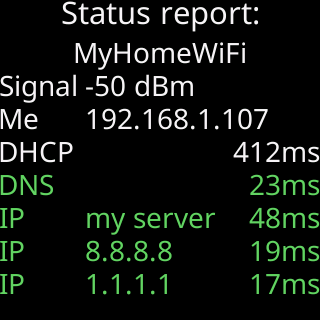
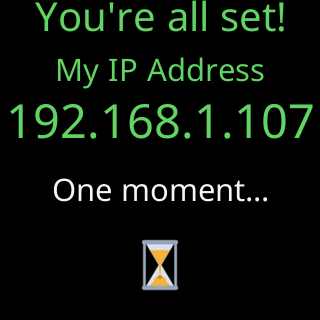
If the ticker gets onto the network but nothing on the internet answers, the glass shows
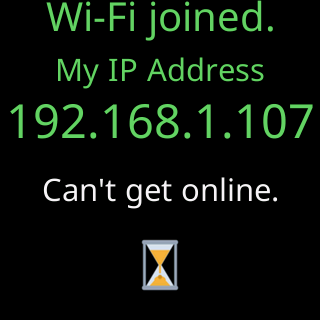
Can't get onlineinstead, and the page asks:Use it anywayorPick another Wi-Fi. Pick another network if this one was a mistake. Use it anyway if it is your home Wi-Fi and the internet is down for now. With no answer, the ticker uses it after about 3 minutes and the glass showsWi-Fi joined.with the address.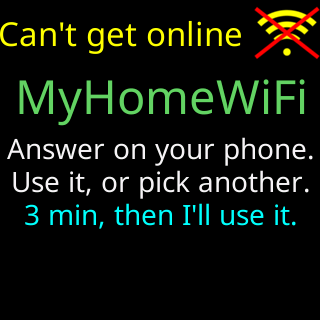
The page’s USB Power: line, shown from the moment the page loads, is the ticker’s reading of its own supply: USB Power: good with a voltage, or a warning with advice. It is about the ticker’s cable and adapter, not your phone’s battery.
You’re done when
- The glass has shown
You're all set!with an address and restarted, and the page has shownConnected! 🎉. On a network you chose to use without internet, the glass showsWi-Fi joined.instead, and prices start when the internet answers. Continue with Find the settings page after setup.
Problems?
- The list is empty or your network is missing: My Wi-Fi network is not in the setup page's list
The password was refused.orWrong password: The password was refusedThe router turned me away.: The router turned me awayThe router says it's full.: The router says it's fullNo address was given to me.: No address was given to meCan't get online, or the page asksUse it anyway: Setup says it can't get onlineThe signal here is very weak.: The signal here is very weakI lost sight of the router.: I lost sight of the routerNothing came back.: Nothing came back when I asked to join- A network that wants a username: This network wants a username
It failed and didn't say why.: It failed and didn't say why- The page says it has lost touch with the ticker: My phone keeps leaving the setup network