Screen messages during setup
A ticker that has no network to join runs a short show on its own screen until it has one. Every card below is the real thing, painted by the ticker. If you are looking at a screen right now and want to know what it means, find it here.
Which cards play, and for how long, is covered in The setup cards on the glass.
The first screen
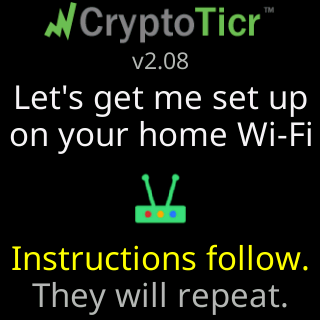
The logo, the firmware version, and what is about to happen. Instructions follow. and They will repeat. say the rest: nothing here needs to be caught the first time. It holds for nine seconds, then the cards begin.
The cards
They rotate, in this order, until a phone joins the ticker’s setup network.

For help... gives the number and address of the person who wrote the firmware. The warnings about guest and public networks are on your phone, on the setup page’s welcome cards.
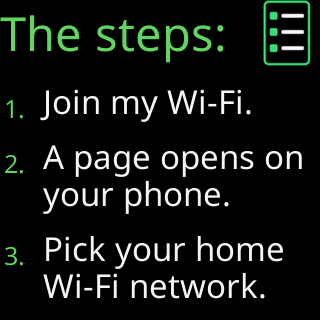
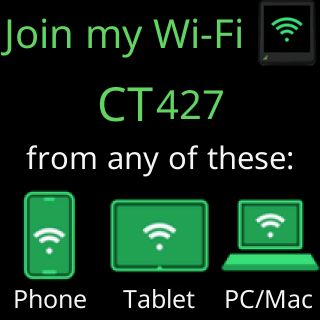
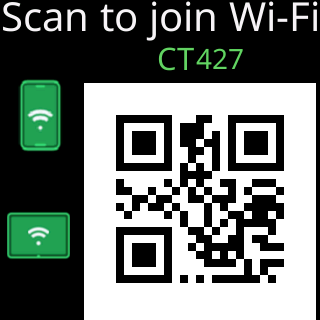
The steps: is the whole job in three lines. Join my Wi-Fi names the setup network, always CT and three digits, and Scan to join Wi-Fi is the same network as a QR code your camera can take. If the code cannot be built, that card shows Join this Wi-Fi: and the name instead.
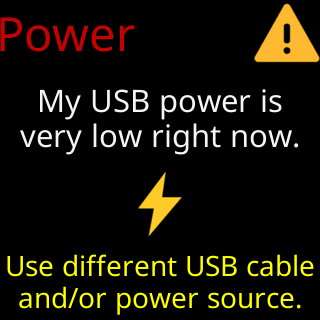
Power appears only while the supply is actually in the danger band, low or high, and it names the cable as well as the adapter, because a thin or long cable drops voltage under load exactly as a tired adapter does.
On a ticker that already had a network
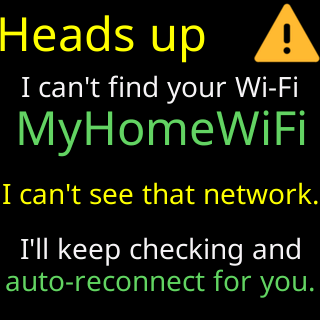
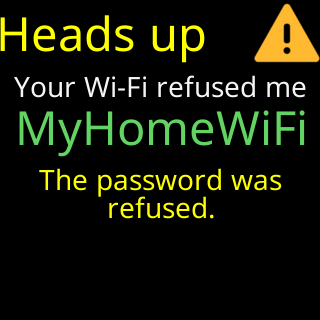
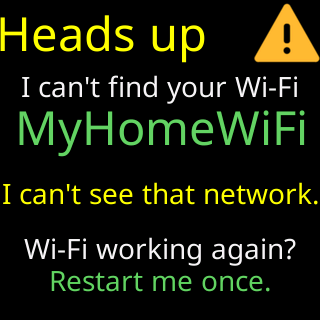
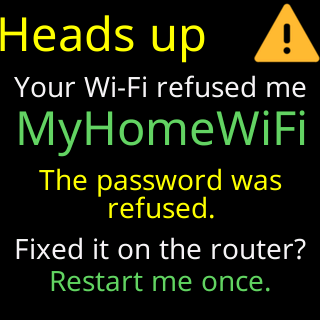
Heads up leads the rotation when the setup network opened because a network the ticker knew went missing or turned it away. It names the network and says what happened on the last try. When the network vanished, it promises to keep checking for it. When the router refused it, it says I'll retry by myself / in 15 minutes. and counts down. It comes back once more each lap, between Join my Wi-Fi and Scan to join Wi-Fi, ending Fixed it on the router? / Restart me once. (refused) or Wi-Fi working again? / Restart me once. (missing).
Once your phone is on the setup network
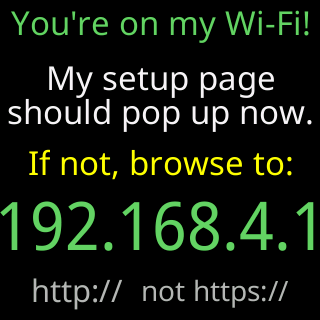
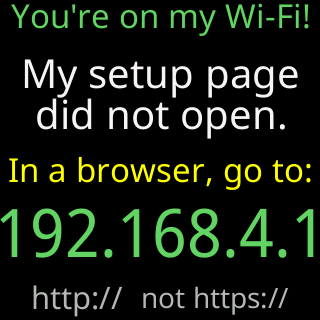
The moment a device joins, the screen changes. The first face expects the sign-in page to pop up by itself, which is what most phones do. The second face is for the phones that do not, and it gives the address to type. Both insist on http:// rather than https://, which matters: a typed address that starts with https will not reach the ticker.
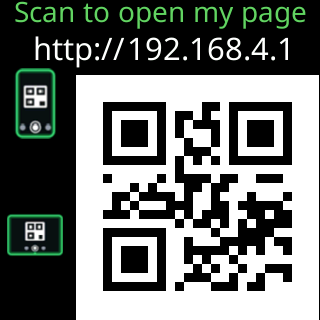
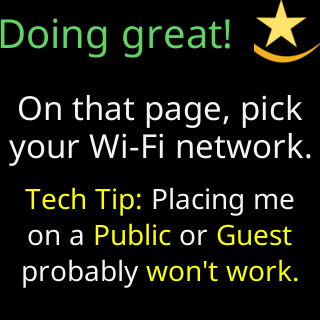
After ninety seconds with a phone joined and no page opened, the ticker offers the address as a QR code. Once the page is open, Doing great! stays up until you submit a network, with a last word about public and guest networks.
While it joins
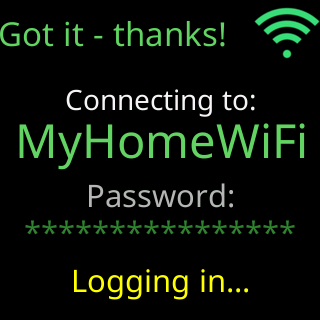
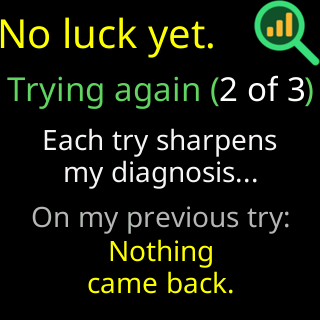
Got it - thanks! repeats the network and the password back, as dots unless you left the eye open on the page. No luck yet. narrates the retries and names the reason the previous try gave, so a wrong password is visible before the last attempt runs out.
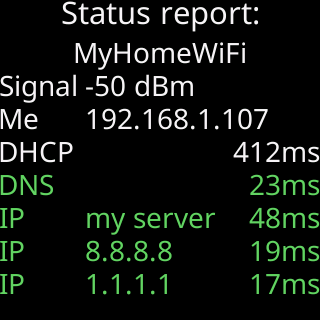
The Status report: is the diagnosis: the network’s name, the signal, the address the router gave, and how long DHCP, DNS and each of three servers took to answer. A row can read refused, silent or not tried instead of a time. When the ticker’s own server did not answer, or a sign-in page was caught answering in its place, a line underneath names which part is at fault, one of A sign-in page blocks me., No internet here., My name fails here., 443 fails here, 80 works. or My end, not yours.
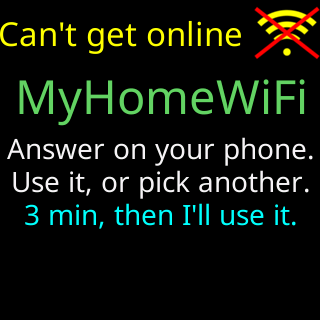
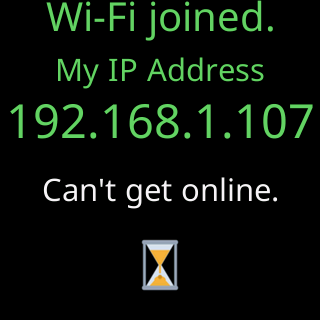
On a network where nothing on the internet answers (behind a sign-in page, for example, or a phone hotspot with no data), the status report is followed by Can't get online: the network’s name, then Answer on your phone. / Use it, or pick another. / 3 min, then I'll use it. If you pick another network on your phone, nothing is saved. If you tap Use it anyway, or nobody answers in 3 minutes, the card that follows reads Wi-Fi joined. / My IP Address / the address / Can't get online., and the ticker restarts with Wi-Fi saved. / Starting up....
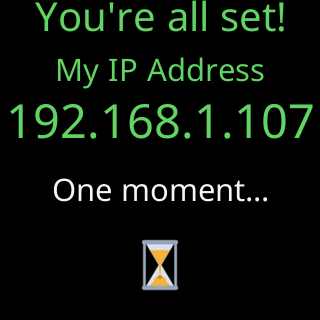
You're all set! gives the address the settings page will live at from now on, then the ticker restarts into normal running.
When a join fails
One line says what happened, on the glass and at the top of the page’s panel. Each links to what to do about it.
| What the screen says | What it means |
|---|---|
The password was refused. or Wrong password - the router rejected it outright. |
The password was refused |
The router turned me away. |
The router turned me away |
I can't see that network. |
My Wi-Fi network is not in the setup page's list |
The router says it's full. |
The router says it's full |
No address was given to me. |
No address was given to me |
Joined, but my server is quiet. |
Setup says it can't get online |
The signal here is very weak. |
The signal here is very weak |
I lost sight of the router. |
I lost sight of the router |
Nothing came back. |
Nothing came back when I asked to join |
It failed and the Wi-Fi router didn't say why. |
It failed and didn't say why |
After repeated refusals the wording hardens to Password refused 2x - Wrong password?
The first failure paints nothing more than that line. From the second, a second rotation replaces the teaching cards, because someone whose router has already turned them away is past being told how to open the page.
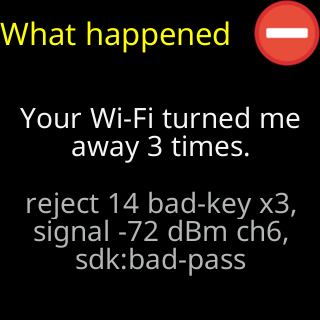
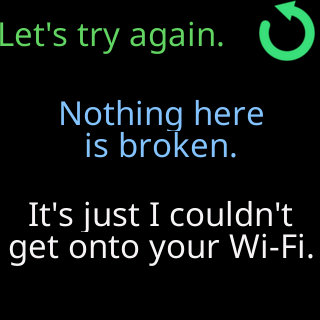
What happened carries the router’s own words in gray, and it changes with the verdict: a network that was never found reads I can't see that network. instead. Let's try again. is there to say the ticker is not broken, which is the first thing an owner assumes.
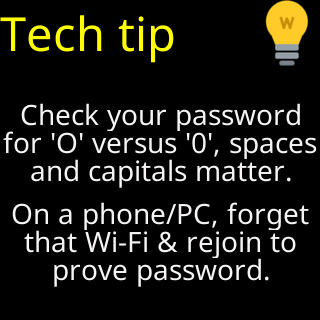
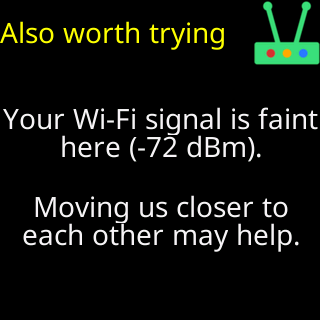
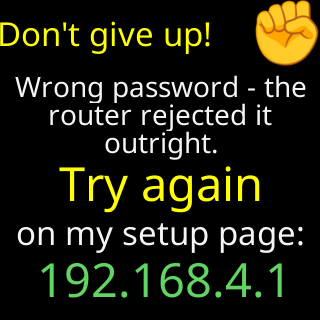
Tech tip appears after a refusal, and its second line is the trick that solves most of them: forget the network on your own phone and rejoin it, which proves the password before the ticker tries it. Also worth trying appears only when the signal was actually measured poor, and it prints the reading. Don't give up! closes every lap with the setup address, so a closed browser tab is never a dead end.
If setup is left alone
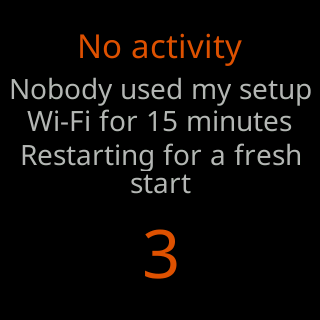
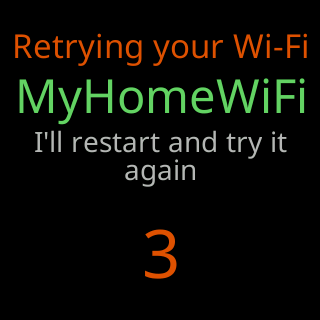
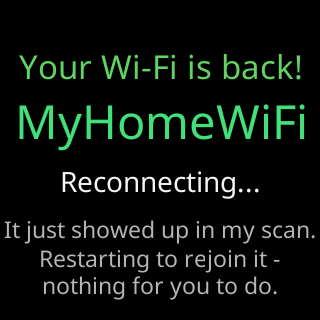
Fifteen minutes with nobody on the setup network and the ticker restarts itself for a clean start. On a ticker that has a saved network, it restarts to try that network again instead. And if the missing network reappears in a scan while the ticker is waiting, it says so and restarts to rejoin it, with nothing for you to do.