The setup cards on the glass
This page covers the loop a new ticker runs before anything has joined its setup network: which cards play, in what order, and for how long. What each card says word for word, and everything that happens after a phone joins, is on Screen messages during setup.
The first screen
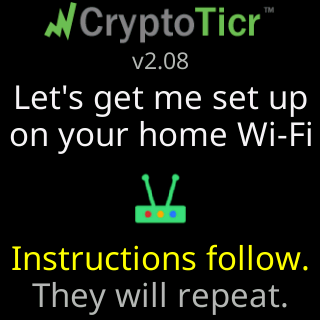
A ticker that has never been on a Wi-Fi network starts on its welcome screen: the CryptoTicr logo, the firmware version, then Let's get me set up / on your home Wi-Fi, a router icon, and two lines at the bottom, Instructions follow. in yellow and They will repeat. in gray. It holds for nine seconds, then the cards begin.
The cards, in order
The cards play in a loop, in this order, for as long as nothing has joined the setup network:
For help..., 11 seconds.The steps:, 9 seconds. Plays on the first two laps only, then drops out.Join my Wi-Fi, 90 seconds.Scan to join Wi-Fi, 61 seconds.
From the second lap the cards run a little faster (10 percent shorter on lap two, 15 percent from lap three on), so someone who has read them once is not held up.
A fifth card, Power, joins the loop only when the ticker measures its own USB supply in the danger band. It stays in the loop for as long as that reading holds.
For help…
The header is For help... with a question-mark icon. Under it: Call or text Lee:, then the phone number large, then the email address. Beside a photo of Lee, three yellow lines: He built me, / wrote my code, / is happy to help! This card plays on every lap, because the person who is stuck on lap three needs the number more than the person on lap one.

The steps:
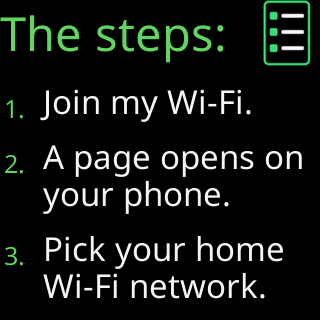
A list icon and The steps:, then three numbered lines:
Join my Wi-Fi.A page opens on/your phone.Pick your home/Wi-Fi network.
Step 3 says “home” on purpose: step 1 asked you to join the ticker’s network, and step 3 asks you to pick your own.
Join my Wi-Fi
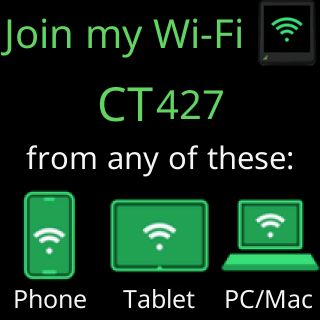
The header is Join my Wi-Fi with a picture of the ticker. Under it, large and green, the name of the ticker’s setup network: CT followed by three digits taken from the ticker’s own chip. The name pulses three times when the card appears so the eye lands on it. Then from any of these: above a row of device icons, a phone, a tablet, a computer, because any of them can do the next step.
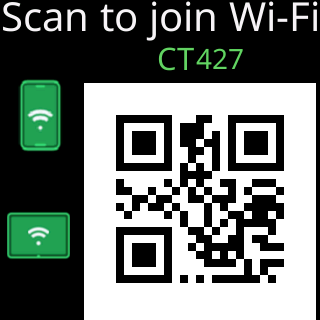
Scan to join Wi-Fi
Scan to join Wi-Fi across the top, the network name in green, and a QR code that holds the network’s join details. Point a phone camera at it and the phone offers to join the network without you finding it in a list. Two device icons sit beside the code. A red bar inside the code counts down how long the card stays.
If the ticker cannot build the code, this card shows Join this Wi-Fi: and the network name instead.
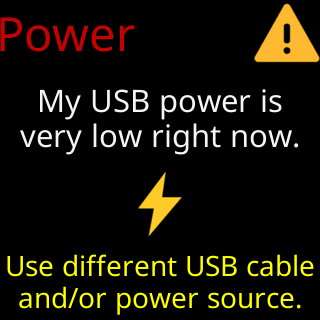
The Power card
Header Power in red with a warning icon. Then My USB power is and either very low right now. or very high right now. A bolt icon, then the advice in yellow: for a low reading Use different USB cable / and/or power source.; for a high one Unplug me. Use a / different power source. It plays only while the ticker’s own measurement of its supply is in the danger band.
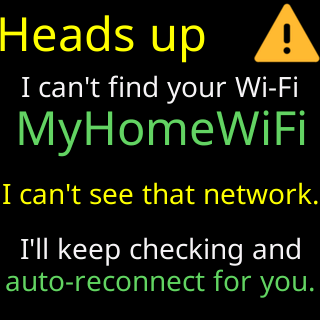
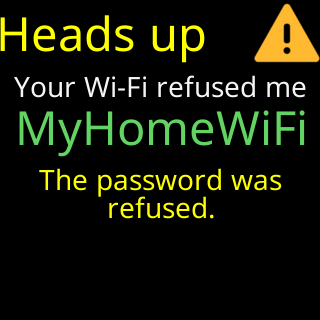
The Heads up card
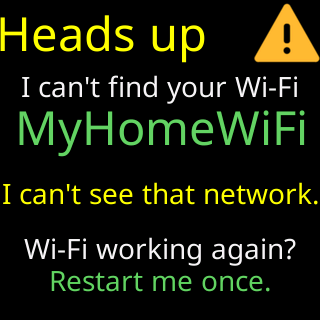
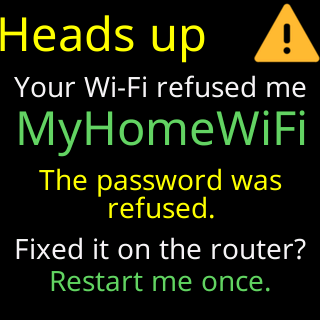
A Heads up card leads the loop only on a ticker that already had a Wi-Fi network and could not get back on it; see The ticker opened its setup network by itself. In that loop it plays on every lap and again between Join my Wi-Fi and Scan to join Wi-Fi, the second time ending Fixed it on the router? or Wi-Fi working again? / Restart me once. Join my Wi-Fi is shorter there, 60 seconds, with a green line counting down from the start.
What ends the loop
- A device joins the setup network. The how-to-join cards (
The steps:,Join my Wi-Fi,Scan to join Wi-Fi) leave the loop while a device is on it, and the glass shows what stage you have reached instead: What the glass shows while joining. - Nobody joins for 15 minutes, on a ticker whose saved network has worked before. The ticker shows
Retrying your Wi-Fi/ the network’s name /I'll restart and try it againwith a countdown, restarts, and tries that network again. A new ticker, or one whose Wi-Fi was erased, keeps waiting in setup instead.