The password was refused
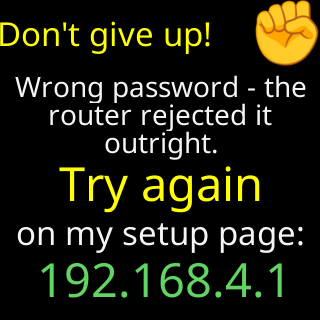
- Glass: `The password was refused.` or `Wrong password - the router rejected it outright.`
- Glass: `Password refused 2x - Wrong password?`
- Setup page: `The router rejected this password outright, so the password itself is wrong.`
- Setup page: `I've tried this password 3 times now and never got in.`
- Setup page: `The password exchange never finished. That is nearly always the password, so check it first.`
Symptoms
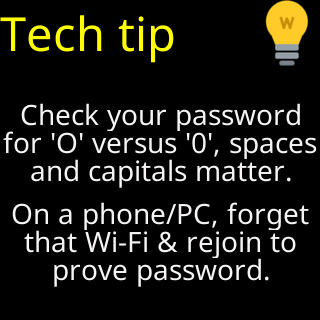
The glass shows The password was refused., Wrong password - the router rejected it outright., or after repeated tries Password refused 2x - Wrong password?. The setup page’s status panel says the same in more words: The router rejected this password outright, so the password itself is wrong. Retype it carefully, watch out for capitals and 0 versus O. or I've tried this password 3 times now and never got in. A typo is the usual reason. After a second failed attempt the glass shows Don't give up! with Try again / on my setup page: / 192.168.4.1, and then a Tech tip card: Check your password for 'O' versus '0', spaces and capitals matter.
Cause
The ticker sent the password exactly as you typed it and the router did not accept it. The wording tells you how sure the ticker is. Wrong password - the router rejected it outright. means the router proved the key was wrong, and the ticker says so plainly. Password refused 2x and The password exchange never finished mean the router refused or went quiet during the password exchange several times — nearly always a typo, but a very weak signal can produce the same refusal, which is why the page says “nearly always” rather than “certainly”. Capitals matter, 0 and O look alike, and a phone keyboard may have added a space.
Fix
- Read the password in the box against the router’s label or its app. The box shows what you typed; if you see dots instead, you hid it with the eye beside the box, so tap the eye to show it again. Check capitals,
0versusO,1versusl, and spaces at either end. - Retype the password and tap
Connectagain. The page keeps everything else you entered. - If it is refused again, prove the password on your phone: forget your home network in the phone’s Wi-Fi settings and rejoin it by typing the same password. The
Tech tipcard says it:On a phone/PC, forget that Wi-Fi & rejoin to prove password.If the phone is refused too, the password is not what you thought. - If the signal bars for your network were red or amber, move the ticker nearer the router and try once more; a refusal at long range is sometimes the distance, not the password.
If that didn’t work
- The router refuses without naming the password: The router turned me away
- This is a working ticker that has started refusing after you changed the router’s password: The ticker opened its setup network by itself
- Still stuck: Contact