Changing your router's Wi-Fi password
Before you start
- You cannot type the new password into the ticker ahead of time: it would be a password that does not exist yet. What you can do is warn the ticker, so it stops waiting patiently and opens its setup screen a couple of minutes after the network drops.
- Everything below keeps your coins and settings. Only the Wi-Fi is re-entered.
- If the settings have a password, unlock them on the settings page first, in the same browser. Without that, the Change Wi-Fi page’s list reads
My settings are locked. Unlock them on my settings page first, then change my Wi-Fi., andContinueanswersMy settings are locked, so I didn't take that. Unlock them on my settings page first.
Steps
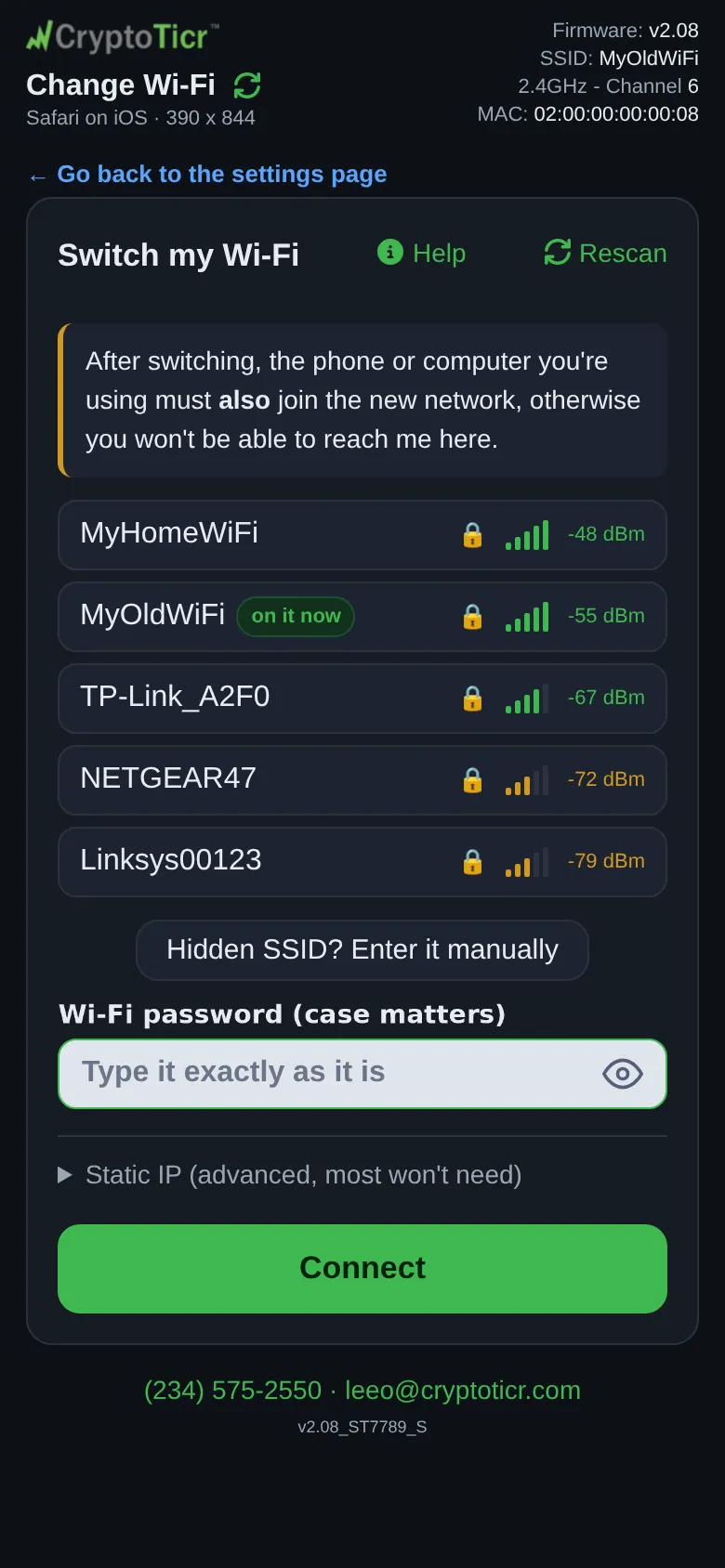
- On the settings page, open
Device→Wi-Fi…→Change Wi-Fi.
 9:41192.168.1.107
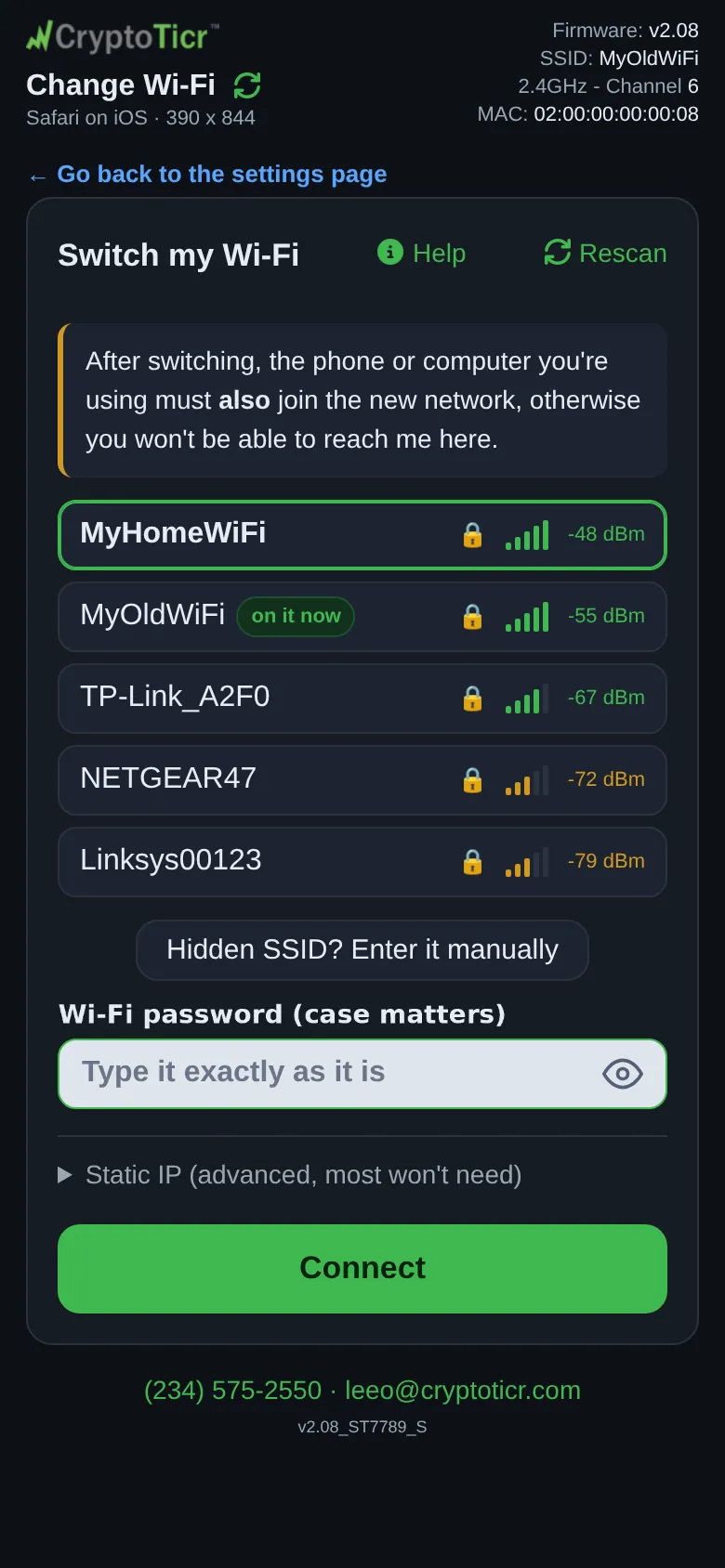
- In the list, tap the network the ticker is on, the row with the
on it nowbadge. Instead of a password box the page saysYou're on this one now - I already have what I need, so there's nothing to type.
 9:41192.168.1.107
-
Under that, tap
I'm about to change this password. The page explains:Here's what happens. You change the password at your router. I drop off your Wi-Fi, and this page goes with me. A few minutes later I'll open my setup screen and ask for the new password - type it there and I'm back, with everything I had.If you have a fixed address it adds:About your fixed address (…). If you're swapping the router itself, not just changing its password, that address may not fit the new one. -
Tap
Continue. The page showsReady. Go and change it at your router now. When I lose the Wi-Fi I'll open my setup screen and ask you for the new password.The warning stays armed for 30 minutes. -
Change the password at your router. The ticker drops off the network; its glass shows the
Looking for Wi-Ficard withI'll open my setup pageunder it, or, when the router turns it away, a box over the coins that saysWi-Fi refused. -
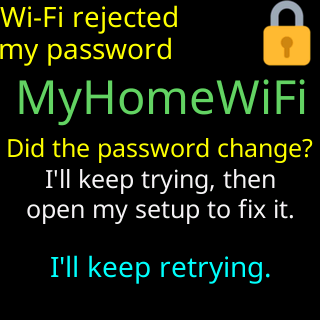
About two minutes after the drop the ticker restarts (
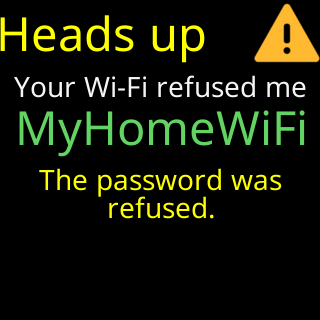
Restarted to reconnect,to your Wi-Fi), tries the old password twice, and is refused. It waits and tries a few more times: the glass showsWi-Fi rejected my password(orCan't join Wi-Fi), the network’s name, andDid the password change?,I'll keep trying, then,open my setup to fix it.After four refusals in a row it opens its setup network, leading with aHeads upcard:Your Wi-Fi refused me, the network’s name, the reason, andI'll retry by myself/in 15 minutes.
- Join the
CTnetwork with your phone. The setup page’s first card now readsI couldn’t get back on your Wi-Fi.and says the saved passwordmay have stopped working. Pick the network, type the new password,Connect.
You’re done when
- The ticker shows
You're all set!and restarts onto your Wi-Fi with everything as before.
Problems?
- Setup did not open and the ticker keeps saying
Waiting for Wi-FiwithI can't see it right now.: the router is not refusing it, it cannot see the network at all, see Glass says: I can't find your Wi-Fi - The new password is refused too: The password was refused
If you change the password without warning the ticker
The same thing happens, more slowly. A ticker that loses its Wi-Fi while running waits about 30 minutes before it restarts, because most drops are the router’s, not yours, and a restart during a short outage would only lose prices. After the restart the refusals count the same way and setup opens after four. If you would rather not wait, unplug the ticker and plug it back in: the restart happens at once and the refusals begin. Meanwhile the box over the coins says Wi-Fi refused., and the Is it on? card does not appear, because the router is plainly on.