Give the ticker a fixed address
Before you start
- Most owners do not need this. The ticker takes an address from your router automatically. Fix the address only if you want the settings page at the same address forever, for a bookmark, say.
- The recommended way is a reservation on your router: the router promises the ticker the same address every time, and nothing is typed into the ticker. It keeps working through a factory reset and through Erase Wi-Fi.
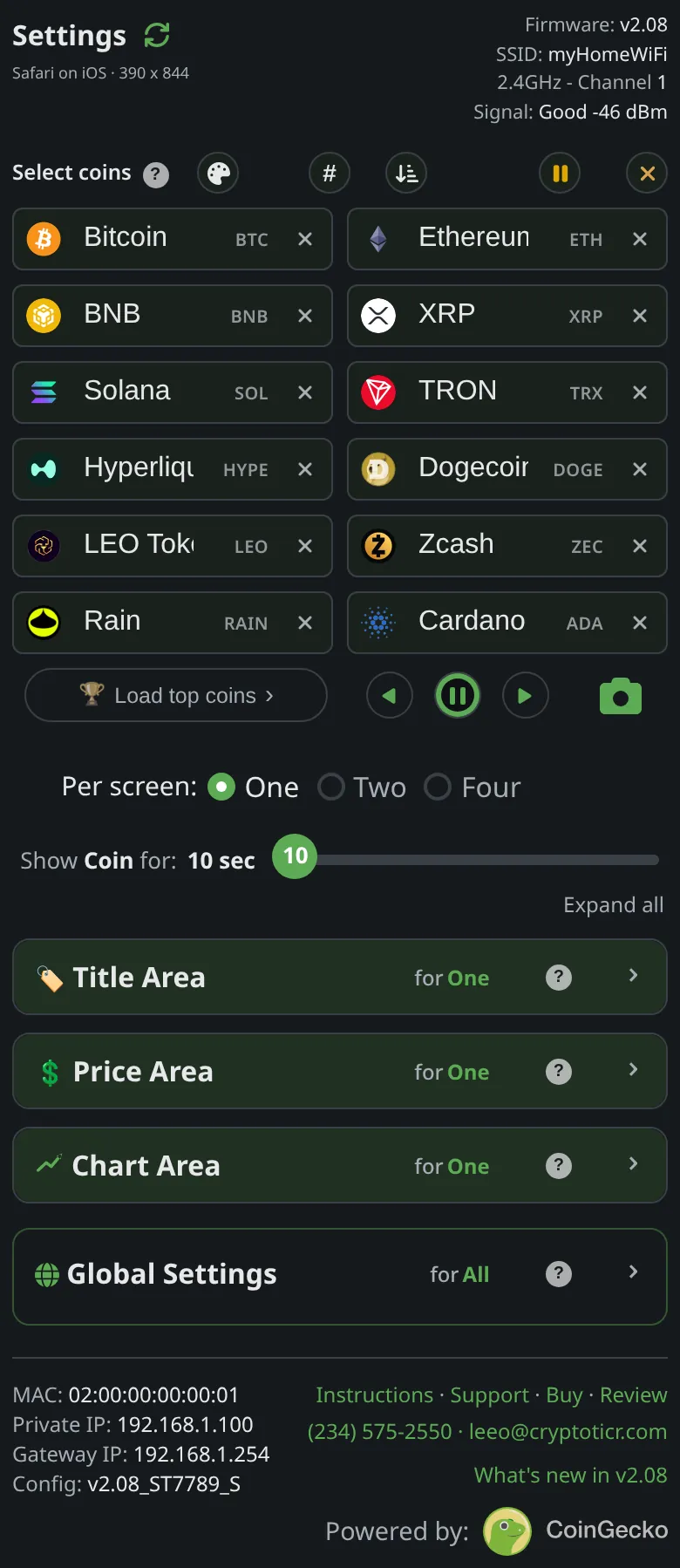
- You need the ticker’s MAC address. It is on the settings page, in the footer row
MAC, and at the top of the setup page asMAC:. It never changes.
Steps
- Open the settings page and write down the value in the footer row
MAC: six pairs of characters, for exampleA4:CF:12:3B:9E:01.
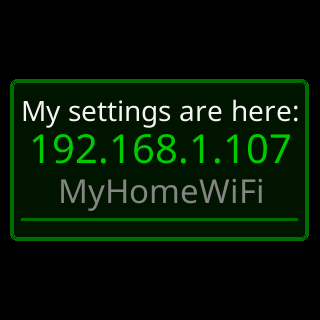
 9:41192.168.1.107
The picture comes from this site’s demonstration ticker, whose made-up MAC starts 02: so that it can never be a real unit’s. Yours will look like the example above.
- Open your router’s admin pages and find its address reservation screen. Routers call it different things: DHCP reservation, address reservation, static lease, fixed IP or IP binding.
- Add a reservation and type the ticker’s MAC in by hand, character by character. Do not pick the ticker from the router’s list of connected devices. Phones join Wi-Fi with made-up private MACs that change, and that list is full of them; a reservation made on one of those holds the address for a device that never comes back, and the ticker ends up with a settings page that still opens but no way out to the internet. A private MAC has 2, 6, A or E as its second character. The ticker’s never does.
- Choose the address to reserve. If the reservation screen offers a DNS setting for that one device, leave it blank.
- Save the reservation, then unplug the ticker, wait a few seconds and plug it back in, so it asks the router for an address again and receives the reserved one.
You’re done when
- The settings page opens at the reserved address, and its footer row
Private IPshows that address.
Problems?
- The settings page does not open at the reserved address: The settings page won't open
- The settings page opens but prices stop updating: check that the reservation was made on the ticker’s MAC, typed by hand, and not on a device picked from the router’s list.
Typing the address into the ticker instead
Use this only if your router cannot reserve addresses.
- On the setup page (or the Change Wi-Fi page), open
Static IP (advanced, most won't need). The hint readsFill in the first three boxes together, or leave them all blank for automatic (DHCP). - Type the address into
IP address, the router’s address intoGateway, and the mask intoSubnet. LeaveDNS (blank = your router)empty unless you have a reason. Spaces are removed as you type. - Pick your network and type its password as usual, then tap
Connect. The page checks the numbers first. Something that cannot be an address at all, such as a part over 255 or not four numbers, is refused:⚠️ I can't use that.with the reason, for exampleIP address 192.168.1.300 has a number over 255. The highest any part of an address can be is 255.Something that is merely odd is questioned once:⚠️ That doesn't seem right. Are you sure?with lines such asDid you mean 255 rather than 225? They are one key apart.,Gateway 10.0.0.1 isn't on the same network as 192.168.1.50, so I'd have no way out., orA fixed address needs the IP, Gateway and Subnet boxes filled in together. Leave any of them blank and I quietly fall back to automatic (DHCP).A second tap onConnectsends it as typed. - Let the ticker connect. If the three boxes do not all make sense on the ticker’s side, it uses none of them and takes an address from the router instead.
- Check the result: the settings page footer shows the address as
Private IP.
What the ticker does with a typed address
- At every start it checks that the fixed address can reach its server. If it cannot, the glass shows
That fixed address/isn't working./Asking your router..., and the ticker takes an address from the router for that session while keeping yours on file:Your router gave me/one that works.If that fails too:No luck either way./Keeping yours.
- When it starts on the fixed address it says so during the connection story:
I'm using the fixed/address you gave me:and the address. - To change or clear the address later, open Change Wi-Fi, pick the network you are on (the row marked
on it now), edit the boxes, which come pre-filled with what is saved, and tapConnect. The glass showsUpdating my address...and then the success card, orCouldn't apply that addressif the new one reaches nothing, in which case the old one is kept. Picking a different network clears the boxes, because an address belongs to the network it was set for. To go back to automatic, clear all the boxes. The ticker waits up to 12 seconds for an address from the router. If none comes, it keeps the old fixed address: the glass showsCouldn't apply that address, and the page saysThe router gave me no working address. I'm still on “YourNetwork” with the address I had.With a settings password, unlock on the settings page first, in the same browser. - If you replace the router itself, the address may not fit the new network. The start-up check above keeps the ticker reachable meanwhile, and a reservation on the new router is the lasting fix.
Erase Wi-Fiand a factory reset erase a typed address along with the network. A router reservation is not affected.