The setup page
Where it comes from
The setup page is served by the ticker itself, so it needs no internet. In setup mode it lives at 192.168.4.1 on the setup network; the same page, with the subtitle Change Wi-Fi, is reached from the settings page through Device → Wi-Fi… → Change Wi-Fi, and there it carries a ← Go back to the settings page link. The two look the same and differ only in the sentences that depend on whether the ticker is already on a network.
The header
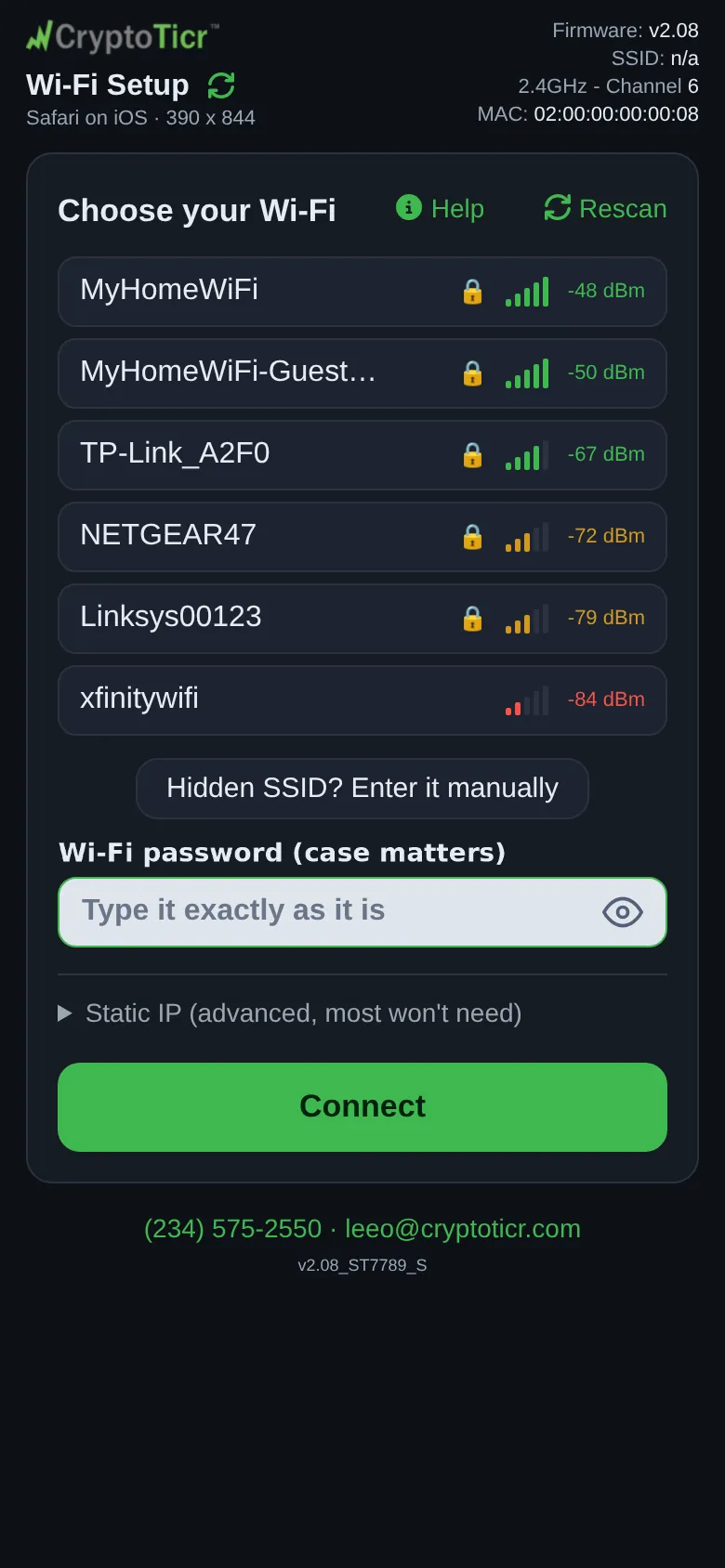
The CryptoTicr logo and the subtitle (Wi-Fi Setup or Change Wi-Fi); tapping anything on that side asks the ticker for a fresh scan, without reloading the page. Under the subtitle is one line naming your browser and screen size, so support can ask you to read it out. On the right: Firmware:, SSID: (in setup mode this is the setup network’s own name), 2.4GHz - Channel with the channel, and MAC:.
The welcome cards
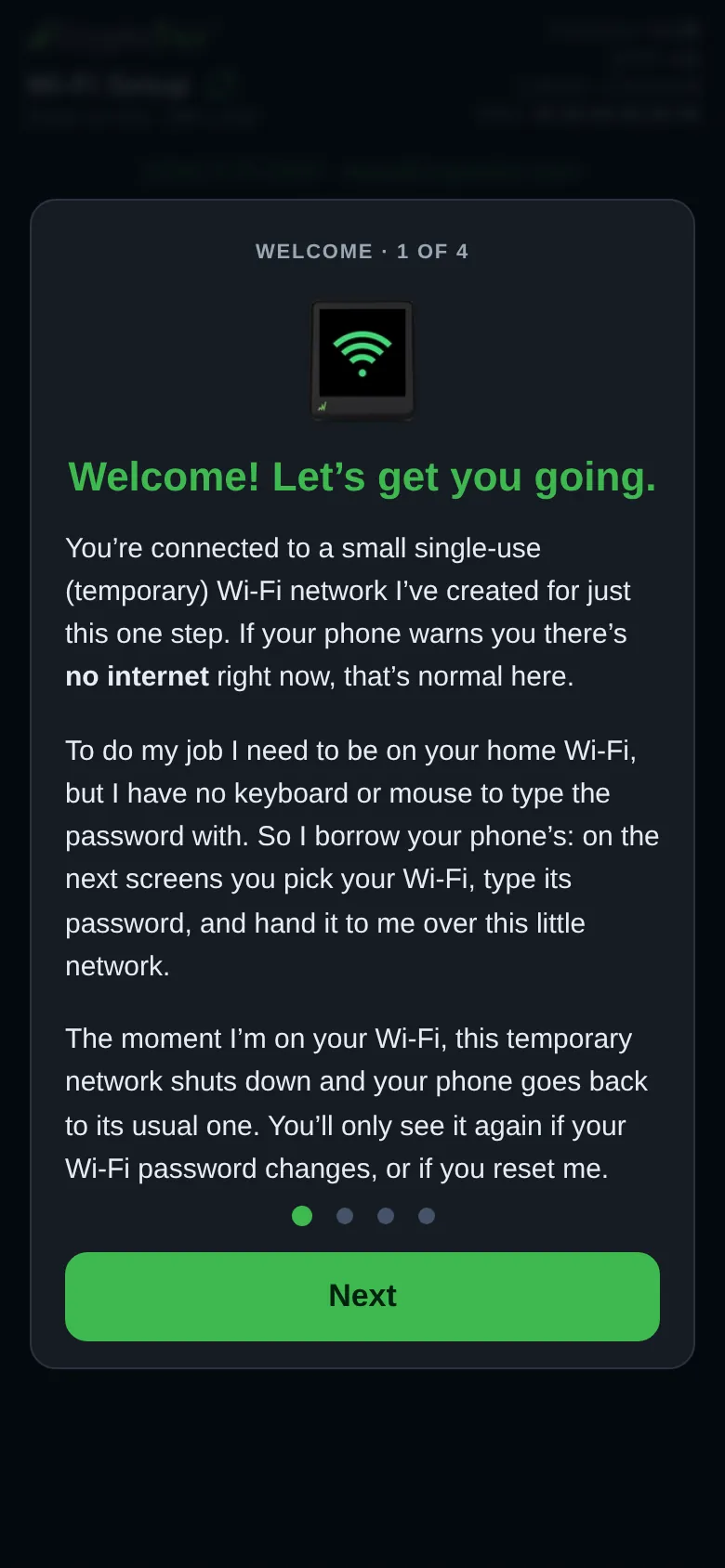
A fresh setup session opens with four full-screen cards; see The welcome cards on your phone. They are not shown in Change Wi-Fi mode.
 9:41192.168.4.1
The network list
The heading Choose your Wi-Fi (or Switch my Wi-Fi) has two small controls beside it: Help and Rescan. Rescan does nothing while a scan is already running. Networks appear as the ticker finds them, and rows already shown keep their place. While it scans, Scanning for Wi-Fi in your area… sits above the list, with Hold on, this takes a few seconds. under it until the first network arrives. Rescan adds what it finds to the rows already there. In Change Wi-Fi mode the list instead arrives all at once, and Rescan replaces it with a fresh one. If nothing is found it says No networks found. Move me closer to your router and tap Rescan. (in Change Wi-Fi mode: I couldn't get a list just then, I was busy drawing prices. Tap Rescan.).
Each network is one row: its name, badges (guest for a name that looks like a guest network, my saved Wi-Fi for the network the ticker already holds, and in Change Wi-Fi mode on it now), a lock if it has a password, five signal bars, and the signal in dBm. Bars and the number take the same color: green for a good signal, amber for fair, red for weak, see Signal bars and dBm. Tap a row to pick it. Hidden networks, and names with control characters in them, are left out of the list. Use Hidden SSID? Enter it manually for those.
 9:41192.168.4.1
In setup mode, a page left open asks the ticker for its list again after five quiet minutes, but the ticker answers from the list it already has until that list is half an hour old. To bring in a router that was off when you opened the page, tap Rescan. The page never asks while you are typing or once you have picked a network.
Entering a name by hand
Hidden SSID? Enter it manually adds a Network name (SSID) box under it, with the hint Exact Wi-Fi name, and the button then reads Pick from the list instead. The list stays where it is. See Join a hidden network.
The password box
The password box is on the page from the start, with the hint Type it exactly as it is and an eye button beside it; picking a network without a lock hides it. The box shows what you type until you tap the eye to hide it, and the eye also decides whether the ticker paints the password on its own screen while it connects. The box is deliberately not labeled “password”, so your phone does not offer saved passwords for it.
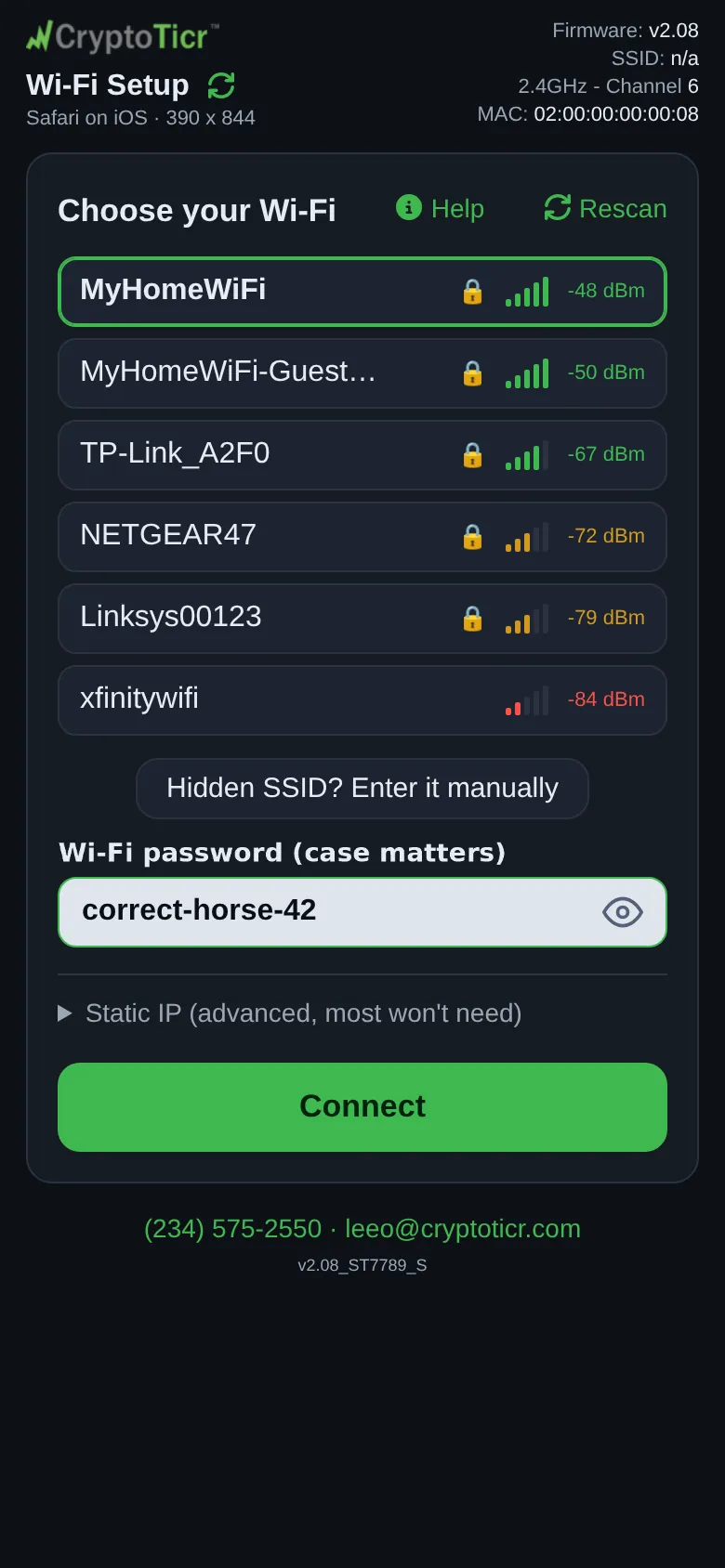 9:41192.168.4.1
Under the box, notes appear for two kinds of network. A guest network: This looks like a guest network. I'd still get prices on it, but guest networks are walled off from your main one, so afterwards this phone probably couldn't open my settings to pick coins. Your main Wi-Fi is the safe choice. An open network: This network is open. Hotel/cafe/store Wi-Fi usually makes you tap "I agree" on a web page, and I have no browser to do that.
In Change Wi-Fi mode, picking the network the ticker is already on shows no password box; instead: You're on this one now - I already have what I need, so there's nothing to type. Picking it again only applies the Advanced, Static IP settings below. and the password-change heads-up described on Changing your router's Wi-Fi password.
Static IP
A closed section headed Static IP (advanced, most won't need) with the hint Fill in the first three boxes together, or leave them all blank for automatic (DHCP). and four boxes: IP address, Gateway, Subnet, DNS (blank = your router). See Give the ticker a fixed address.
Connect
Connect sends everything above. It then reads Working on it… 60s and counts down; while it counts, the page shows 👀 Watch my screen., I show every step there. and ignores extra presses, because every extra press would make the ticker start over. The button comes back early when the ticker has a verdict you can act on. Pressing the keyboard’s go key does the same as Connect. Once the ticker has joined and is restarting, a late Connect gets I'm already restarting on “<network>”. To use a different Wi-Fi, open my settings page once I'm back, or restart me 5 times in a row, quickly, to set me up again.
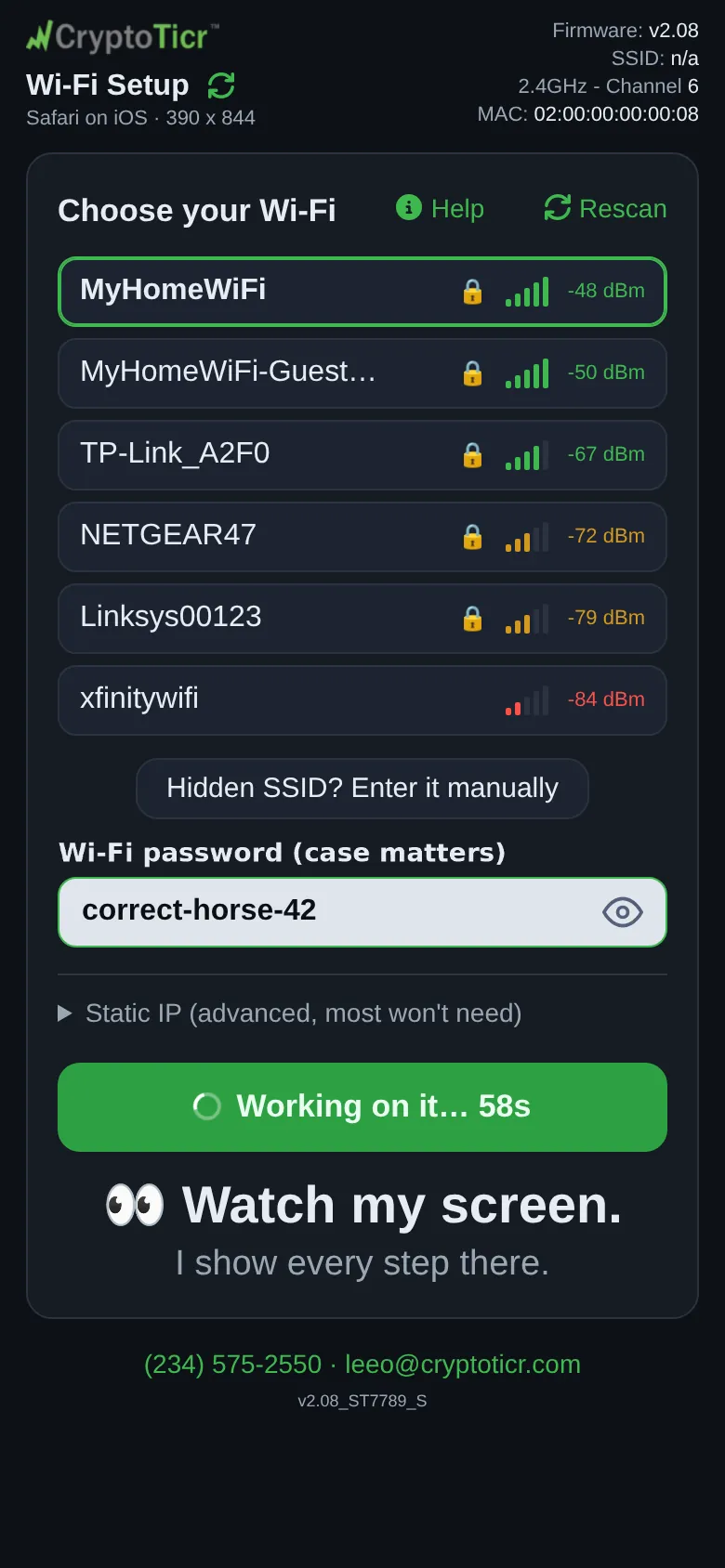 9:41192.168.4.1
USB Power
From the moment the page loads it shows the ticker’s reading of its own supply: USB Power: good with a voltage, USB Power: a bit low, USB Power: a bit high, USB Power: very low or USB Power: very high, with advice under the bad readings. It is about the ticker’s cable and adapter, not the phone’s battery. See Power and the USB cable.
The status panel
Results appear in a panel under the button: a green tick for success, a warning for something to act on. The panel names the verdict first, then What to do, then, folded away as Extra technical detail, the evidence the ticker recorded, including any reason codes the router sent, labeled Router reason N when the router sent them and My radio N when the ticker’s own radio concluded it. Every failure page under Wi-Fi quotes its verdict.
When the ticker gets onto a network but cannot get online through it, the panel asks a question instead: ⚠️ “<network>” let me in, but and the reason, then On this Wi-Fi I can't show prices., and two buttons, Use it anyway and Pick another Wi-Fi. With no answer, the ticker uses it in about 3 minutes. After Use it anyway the panel says I'm on “<network>” now. I can't get online through it, so no prices until I can.
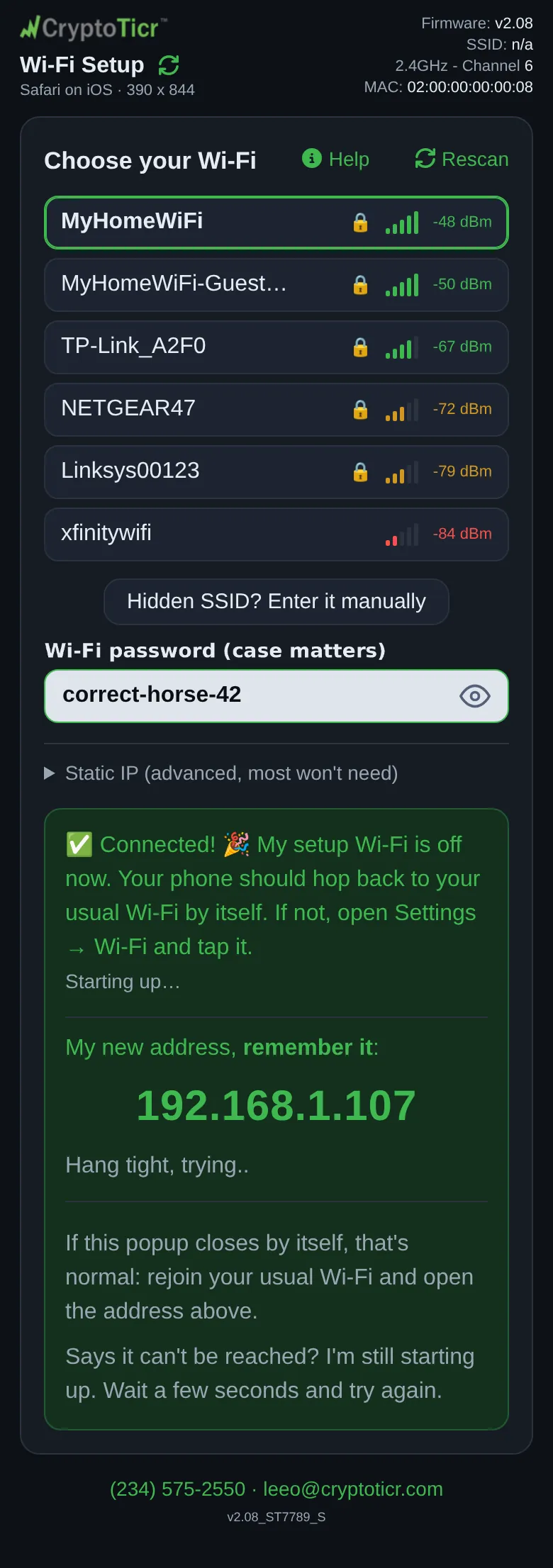 9:41192.168.4.1
After a failed Change Wi-Fi the panel also offers Save it anyway; see Save a network for another place.
Help
Help opens a panel with If I won't connect (a numbered list: check what you typed, pick your main Wi-Fi not Guest, it needs 2.4 GHz, don’t see your network (tap Rescan, or type the name with Hidden SSID? Enter it manually), move closer to the router, open http://192.168.4.1 if the page did not open, still stuck (restart me and rejoin), call or text Lee), then Hotel, cafe and airport Wi-Fi, Guest networks, Office and corporate Wi-Fi, and Worth knowing (signal, after a power cut, and how to start over by switching it off and on five times, quickly). It ends with ▶ Replay the welcome cards and Close.
The footer
The same in both modes: the phone number and email address, and the ticker’s name with its build, for example CT124 v2.09_ST7789_S.