Quick start
Before you start
- A 2.4 GHz home Wi-Fi network with internet access, and its password. The ticker cannot see 5 GHz-only networks, and it cannot use hotel, cafe or office networks that ask you to tap “I agree” or sign in with a username.
- A phone, tablet or computer with a web browser. You use it twice: once to hand the ticker your Wi-Fi password, and again to pick your coins.
- USB power for the ticker.
Steps
-
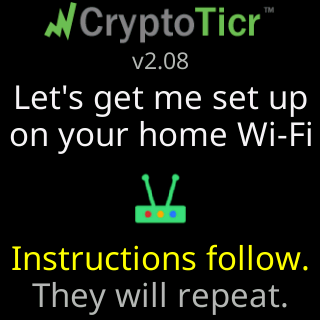
Plug the ticker in. The glass shows the CryptoTicr logo and the firmware version, then
Let's get me set up/on your home Wi-Fi, withInstructions follow.andThey will repeat.under a router icon.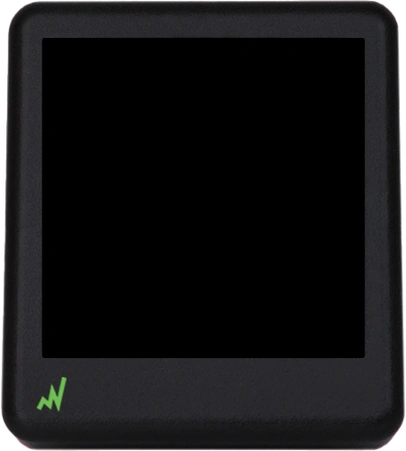
-
Watch the cards that follow:
For help...(Lee’s phone number and email),The steps:(the three steps you are about to do),Join my Wi-Fi(the name of the ticker’s own setup network) andScan to join Wi-Fi(a QR code that joins it for you). They repeat until you join. Full detail: The setup cards on the glass.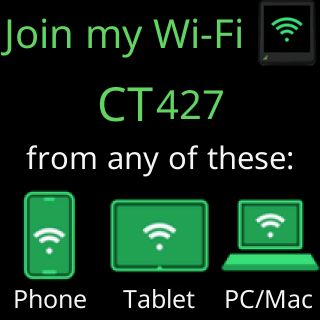
-
On your phone, open its Wi-Fi settings and join the network whose name is
CTfollowed by three digits, the name shown on theJoin my Wi-Ficard. It has no password. If your phone warns that this network has no internet, that is normal: the network exists only for this step. The glass changes toYou're on my Wi-Fi!. -
A setup page opens on your phone by itself. If it does not, open a browser and go to
http://192.168.4.1. The page shows four short welcome cards; read them and tapGot it, let's set up!. The glass showsDoing great!/On that page, pick/your Wi-Fi network.The cards it opens with
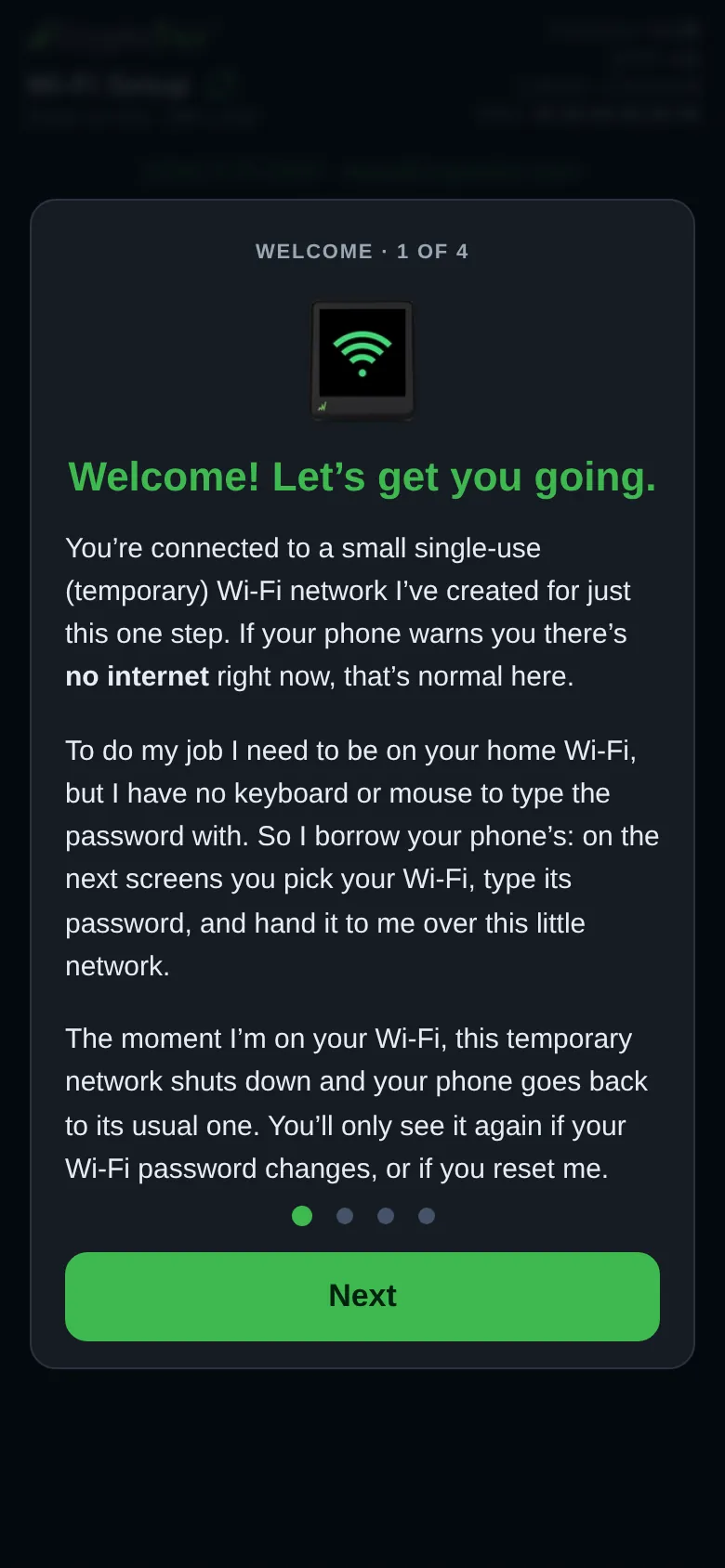 9:41192.168.4.1 Then your own Wi-Fi in the list
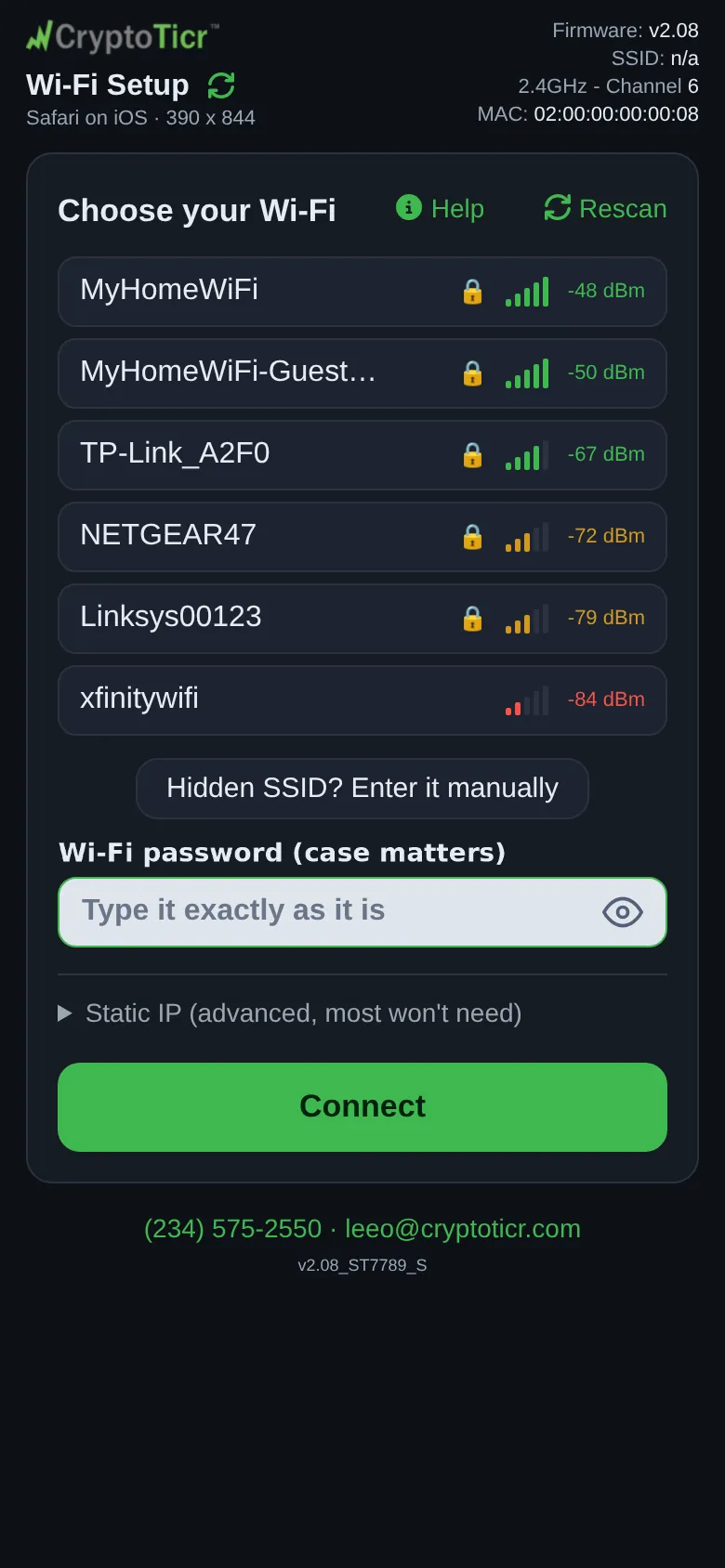 9:41192.168.4.1
 -
Under
Choose your Wi-Fi, tap your home network in the list, type its password in the box, and tapConnect. The button changes toWorking on it… 60sand counts down; under it the page says👀 Watch my screen.The glass showsGot it - thanks!/Connecting to:and your network’s name.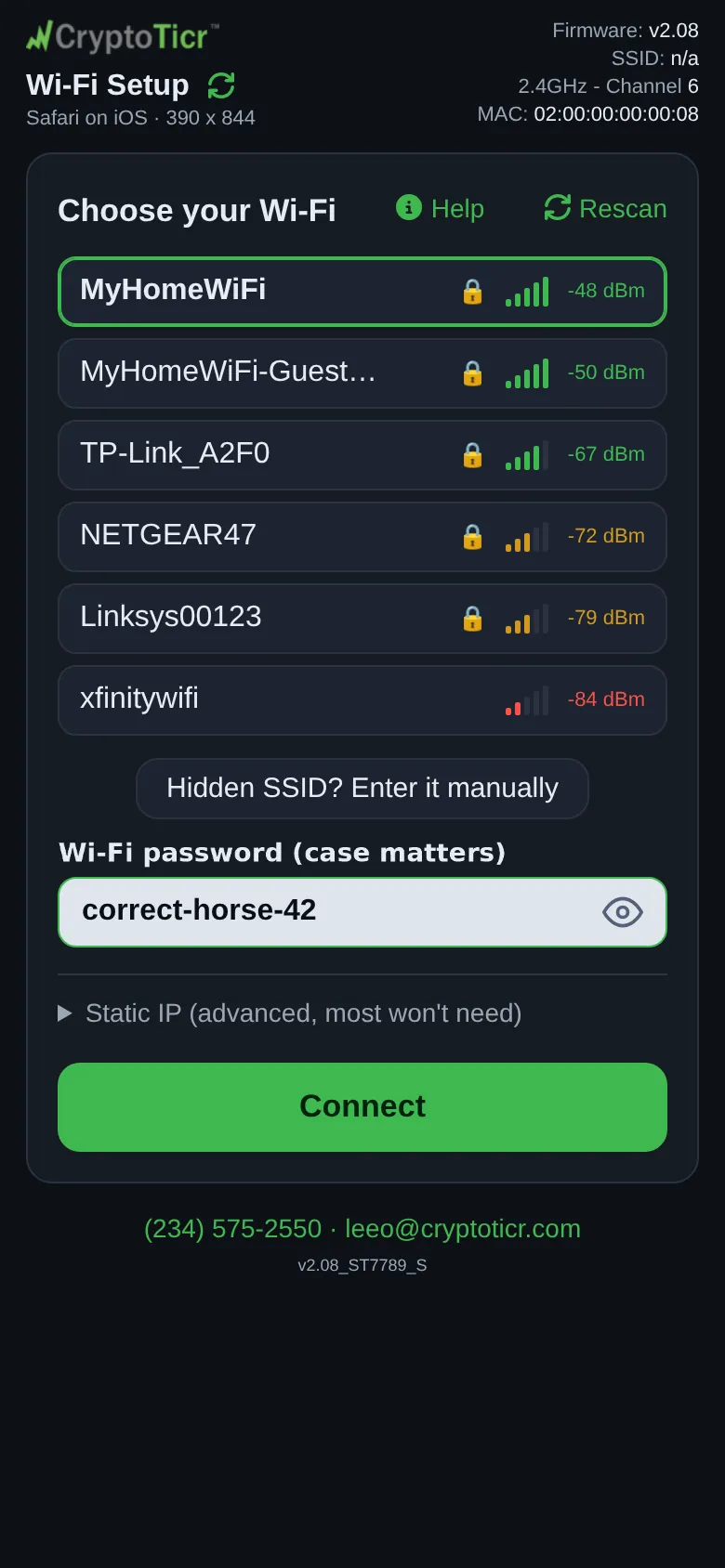 9:41192.168.4.1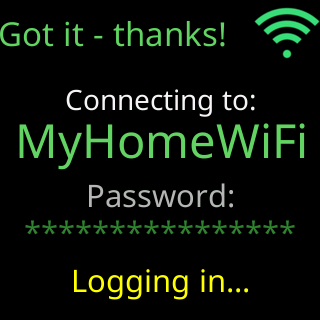
-
Wait. On success the glass shows a
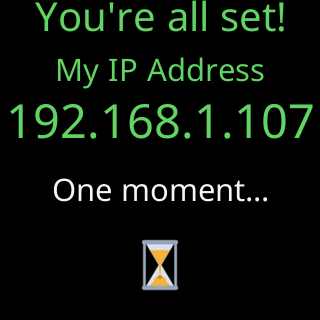
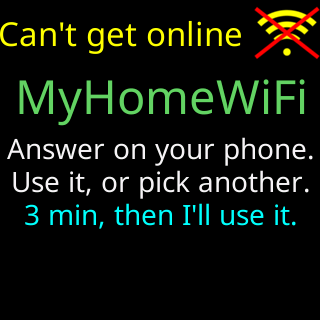
Status report:table for a few seconds, thenYou're all set!/My IP Addresswith the ticker’s new address, then it restarts onto your Wi-Fi. The phone showsConnected! 🎉 My setup Wi-Fi is off now.andMy new address, remember it:with the address. Once your phone can reach the ticker it saysOnline. Taking you to your settings now:and takes you to the settings page. If the glass showsCan't get onlineinstead, the network let the ticker in but has no working internet: answer on the phone withPick another Wi-Fi, orUse it anywayif it is your home Wi-Fi and the internet is down for now. See Setup says it can't get online.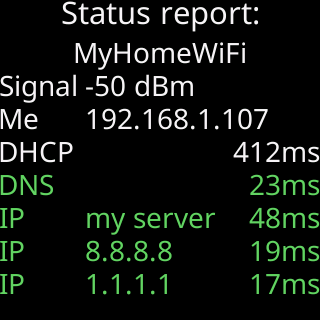
-
If the page did not take you there, put your phone back on your usual Wi-Fi, open a browser, and type the address into the address bar with
http://in front, not into a search box. The glass repeats the address on its own after the restart:Open a browser./Enter into its/ADDRESS BAR:and the address, then aScan for my settingsQR code.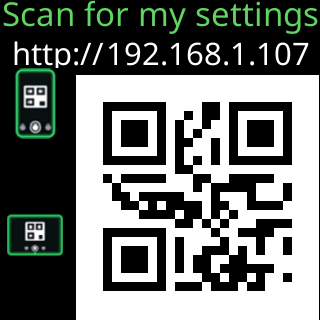
-
On the settings page, type a coin’s name or symbol into each box (a list appears as you type), or open
Load top coinsand tap the slider’s button to fill all twelve at once. Then tapSave & Apply Coins(it readsSave & Applyonce there is a change you could undo).
You’re done when
- The page shows
Saved & applied to your Ticker. - The glass shows
You're in settings!/Pick your coins,/hit Save, and/I'll get to work!for a few seconds, then starts cycling your coins with their prices.
Problems?
- The CT network is not in your phone’s Wi-Fi list: The CT setup network is not in my phone's Wi-Fi list
- The setup page did not open by itself: The setup page did not open by itself
- Your phone jumped back to its usual Wi-Fi mid-setup: My phone keeps leaving the setup network
- Your home network is not in the list: My Wi-Fi network is not in the setup page's list
- The ticker says the password was refused: The password was refused
- The settings page will not open at the address shown: The settings page won't open
Watch the setup once on video if you would rather see it than read it.