Setting up from a Windows PC
Before you start
- The ticker is on and showing
Join my Wi-Fiwith aCTnetwork name. - The PC’s Wi-Fi is on.
Steps
-
Click the Wi-Fi icon in the taskbar and connect to the
CTnetwork. It has no password. -
Windows checks a new network for a sign-in page and the ticker answers that check, so Windows may mark the network as needing action and open a browser at the setup page by itself.
-
If no page opens, open a browser and go to
http://192.168.4.1; the setup page’s own Help says this is common on Windows laptops. The glass shows the same address underIf not, browse to:. -
Read the four welcome cards, click
Got it, let's set up!, pick your home network, type its password and clickConnect.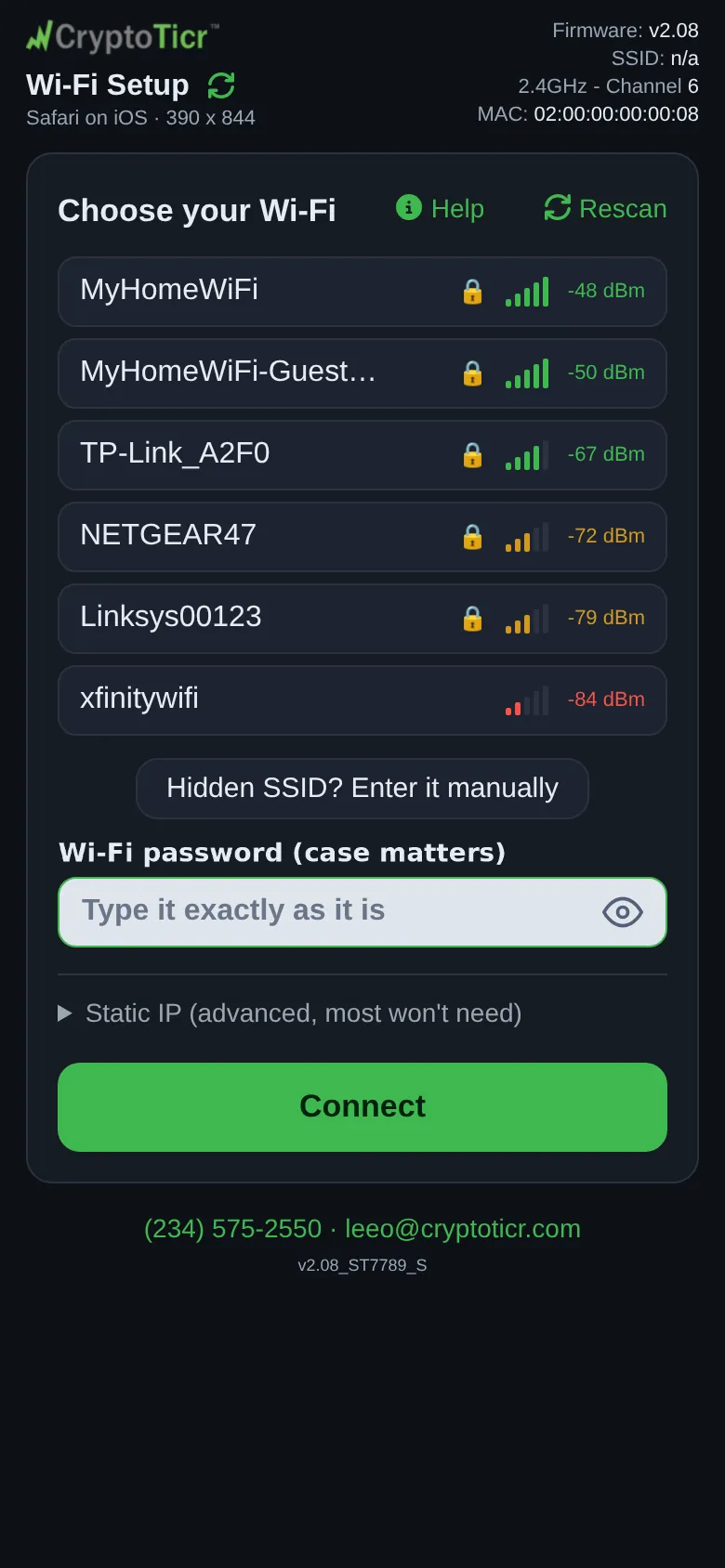 9:41192.168.4.1
 -
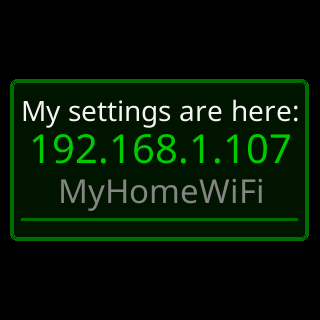
When the ticker joins your Wi-Fi it shuts its own network down. Reconnect the PC to your home Wi-Fi, then open a browser and type the address the glass shows, with
http://in front.
You’re done when
- The settings page is open in the browser at the ticker’s address on your home Wi-Fi.