Setting up from an Android phone
Before you start
- The ticker is on and showing
Join my Wi-Fiwith aCTnetwork name. - Wi-Fi is on.
Steps
-
Open the phone’s Wi-Fi settings and tap the
CTnetwork. It has no password. -
If the phone asks whether to stay connected to a network without internet, say yes. The network is only for this step.
-
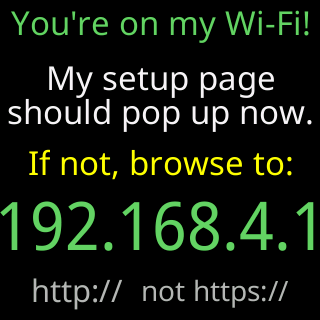
Wait for the sign-in page. Android checks every new network for a sign-in page, and the ticker answers that check by sending it to the setup page. Most phones open it as a window by themselves. Some, and the glass names Samsung, show a notification instead, such as “Sign in to network”; tap it. The glass says
You're on my Wi-Fi!, and its revolving line readsSome, like Samsung won't and will.../...need a Sign-in tap, or browse to the IP.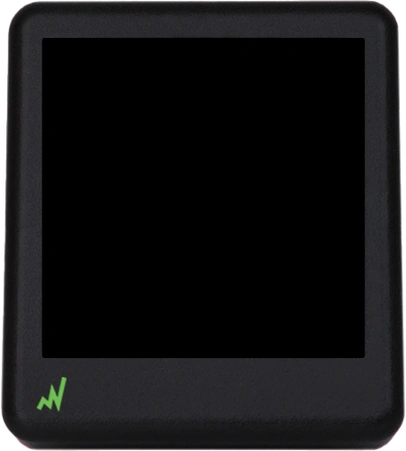
-
If no window and no notification appears, open Chrome and go to
http://192.168.4.1. -
Read the four welcome cards and tap
Got it, let's set up!, then pick your home network, type its password and tapConnect.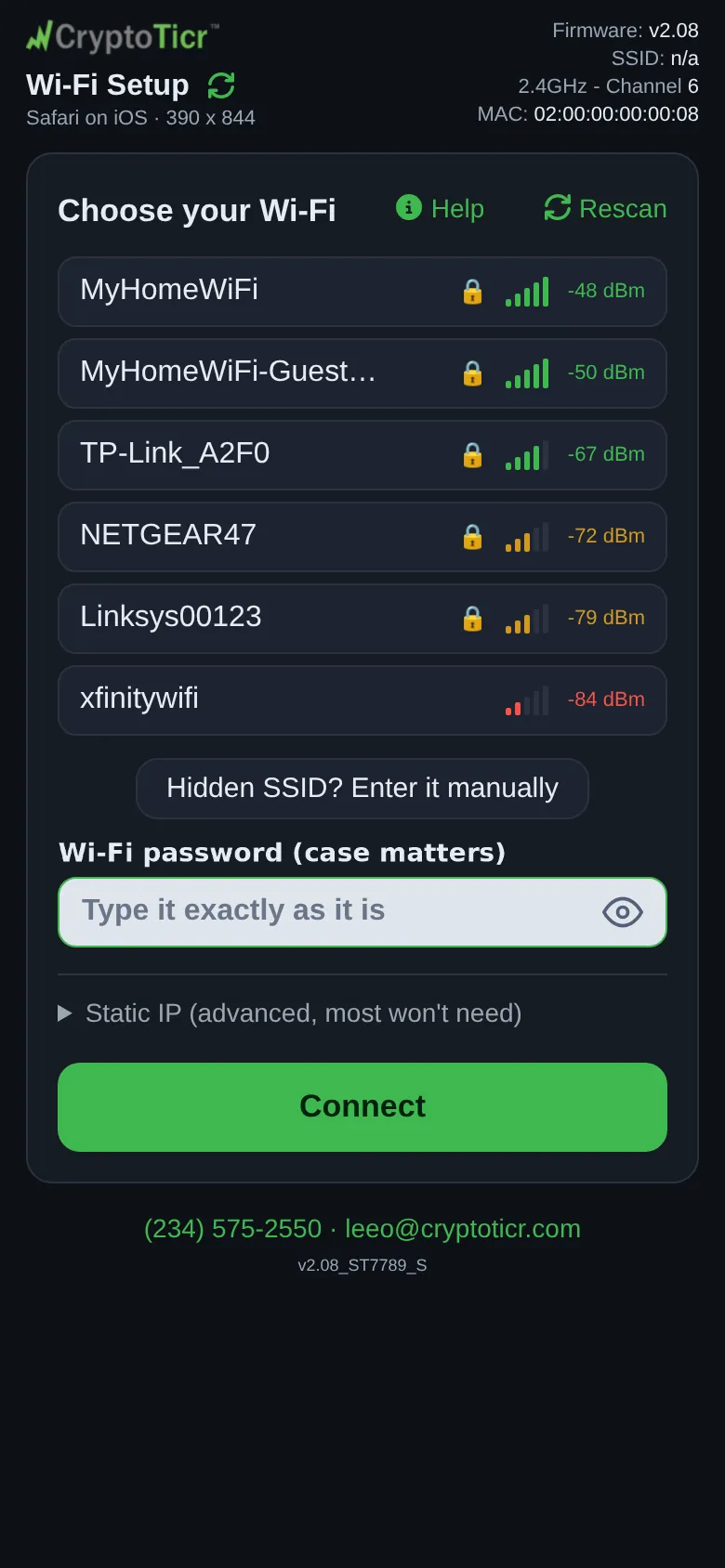 9:41192.168.4.1
 -
When the ticker joins your Wi-Fi it restarts, its own network goes away, and the phone goes back to your usual Wi-Fi. If the window closes on its own, that is normal. Open Chrome and type the address the glass shows under
My settings are here:, withhttp://in front.
Using the phone’s hotspot as the ticker’s network? Set the hotspot band to 2.4 GHz. A 5 GHz-only hotspot is invisible to the ticker.
You’re done when
- The settings page is open in the browser at the ticker’s address on your home Wi-Fi.