Router issues and how to fix them
The ticker joins Wi-Fi the way most smart plugs, bulbs and thermostats do: on the 2.4 GHz band, with a WPA2 password. Routers are tuned for phones and laptops, and a handful of their settings get in the way of small devices. When a ticker will not join a network, or keeps dropping off one, it is almost always meeting one of the settings on this page. Every ticker runs for at least 48 hours on a Wi-Fi 6 router before it ships.
The five-setting checklist
These five settings cover most cases. Check them in this order.
| Setting | What the ticker needs | Why |
|---|---|---|
| The 2.4 GHz band | On, and if joins fail, with a network name of its own | The ticker has no 5 GHz radio |
| Security | WPA2-Personal (AES), or mixed WPA2/WPA3 | The ticker cannot do WPA3 |
| Protected Management Frames (PMF, 802.11w) | Off or Optional, never Required | The ticker’s radio has no PMF, so a network that requires it turns the ticker away |
| Wi-Fi 6 (802.11ax) on 2.4 GHz | Off, if the ticker will not join or keeps dropping | Some Wi-Fi 6 features confuse older radios |
| The network your phone uses | The same one as the ticker, and not a guest network | The settings page is served by the ticker, inside your home network |
The rest of this page explains each one, and the less common settings after them.
The ticker’s own diagnosis
The ticker does not fail in silence. When a join fails, the setup page names what the router did, and the screen shows the same verdict. Start with what it says:
| What the ticker says | What it usually means | Where to go |
|---|---|---|
The password was refused. |
The router proved the password wrong. Retype it: capitals count, and 0 is not O. |
The password was refused |
The router turned me away. |
Usually the password. If it is right: WPA3-only security, PMF set to Required, an approval list, or band steering. | The router turned me away |
I can't see that network. |
The network is 5 GHz only, out of range, or hidden. | My Wi-Fi network is not in the setup page's list |
The router says it's full. |
The router’s device limit is reached. | The router says it's full |
No address was given to me. |
The router let the ticker on but never gave it an address: an approval list or an exhausted address pool. | No address was given to me |
I lost sight of the router. or The signal here is very weak. |
Distance or interference. | I lost sight of the router |
Nothing came back. |
Often a moment’s bad luck; tap Connect again. If it repeats, an approval list. |
Nothing came back when I asked to join |
Can't get online (the setup page asks Use it anyway or Pick another Wi-Fi) |
On the Wi-Fi, but something between it and the internet is in the way: a sign-in page, a filter, or the internet itself. | Setup says it can't get online |
Under Extra technical detail on the setup page, two more lines point straight at a router setting:
Your router and I could not agree on a security type. I can join WEP, WPA and WPA2 Wi-Fi, but not WPA3.The network is set to WPA3 only, or requires PMF. See Security type.Your router asked me to leave. That usually means it restarted, or it moved me to a different access point. Tap Connect again.Band steering or a mesh handing the ticker between units. See One name for both bands.
The full list of screen messages is on What the screen is telling me.
One name for both bands
Most routers now broadcast their 2.4 GHz and 5 GHz bands under one network name and decide for each device which band it gets. Makers call it band steering, Smart Connect, a Self-Organizing Network, or one name for all bands. It works well for phones. A small 2.4 GHz device can be refused while the router waits for it to move to 5 GHz, which it never will, or be asked to leave a few minutes after it joins.
Try these in order:
- Tap
Connectagain. A steering refusal is often a moment’s event, and the next try is let in. - Give the 2.4 GHz band its own name. Turn off band steering (or Smart Connect), then name the 2.4 GHz network something like
Home-2.4. The same password can stay. Your phones and laptops can keep using the 5 GHz name. - Pause 5 GHz while you set the ticker up. Some routers that cannot split the bands can switch 5 GHz off for a few minutes. Join the ticker during that window. It stays on 2.4 GHz afterwards, because that is the only band it can hear.
- Use a 2.4 GHz network kept for small devices. Some routers have an IoT network for exactly this. A guest network also works, but only if the router lets guests reach your main network; see Guest and IoT networks.
- Add a small 2.4 GHz access point. An inexpensive access point, or an old router set to access point (bridge) mode, plugged into your router by cable gives the ticker a plain 2.4 GHz network on the same home network as your phone. Set it to access point mode: in its normal router mode it makes a second network your phone cannot see into.
Router settings by brand
Where the band and security settings live on common home routers and internet-provider gateways, as of September 2026. Menus change with updates; if yours differs, look for the setting names in bold.
| Router or service | What to change |
|---|---|
| Xfinity gateway | In the Xfinity app: WiFi, then WiFi details, then Edit WiFi settings. Where the gateway offers Split bands, turn it on and give the 2.4 GHz network its own name. Set the Security mode to WPA2 if it says WPA3. Newer gateways may have no split option; use the other steps above. |
| AT&T gateway | Open http://192.168.1.254, choose Home Network, then Wi-Fi, then Advanced Options (it asks for the Device Access Code printed on the gateway). Pick the 2.4 GHz radio and give its Network Name (SSID) its own name, for example with -2.4G on the end. |
| Verizon Fios router | Turn off Self-Organizing Network (SON): in the My Verizon app under Internet, or on the router’s own page at myfiosgateway.com. The router then shows separate 2.4 GHz and 5 GHz names. Restart the router and any extenders afterwards. |
| Starlink router | In the Starlink app: Settings, then Router, then turn on Split 2.4/5 GHz networks. Your devices disconnect once while it changes. |
| eero | eero keeps one name for all bands. In the eero app: Settings, then Troubleshooting, then My device won’t connect, then Temporarily pause 5 GHz. It lasts ten minutes; set the ticker up inside that window. |
| Google Nest Wifi and Google Wifi | One name for all bands, with no way to split them. If the ticker is refused, turn WPA3 off under Advanced networking in the Google Home app; Google suggests the same for older devices. |
| TP-Link Deco | In the Deco app, More, then IoT Network creates a 2.4 GHz network for smart devices. TP-Link also advises turning Fast Roaming and Beamforming off under More, then Advanced, when smart devices drop. |
| NETGEAR Orbi | One name for both bands on most models. If the ticker joins but never shows prices, turn NETGEAR Armor off to test. A guest network works only with Allow guests to see each other and access my local network switched on. |
| NETGEAR Nighthawk | Under Wireless settings, clear Enable Smart Connect, then give the 2.4 GHz network its own name. |
| ASUS | Under Wireless, then General: turn Smart Connect off and give 2.4 GHz its own name. On the 2.4 GHz band, turn off 802.11ax / WiFi 6 mode, Target Wake Time and WiFi Agile Multiband, and set Protected Management Frames to Disable. ASUS publishes this list for smart devices. |
| UniFi | Make a network for small devices on the 2.4 GHz band only, with Enhanced IoT Connectivity on, Fast Roaming off and Client Device Isolation off. |
Security type
The ticker joins networks secured with WPA2, WPA or WEP, and open networks. It cannot do WPA3.
- WPA3 only refuses the ticker, even with the right password. Set the network to WPA2-Personal, or to the mixed WPA2/WPA3 mode most routers offer; mixed mode keeps WPA3 for the devices that have it. See Your router and I could not agree on a security type.
- Protected Management Frames (PMF, also called 802.11w or Management Frame Protection) must be Optional, Capable or Off. The ticker’s radio has no PMF, so a network set to Required turns it away. WPA3-only networks always require it; mixed WPA2/WPA3 mode normally leaves it optional.
- WPA2-Enterprise, the kind that asks for a username as well as a password, cannot be joined. That is usual at work and on campus; see This network wants a username.
Wi-Fi 6 features
Wi-Fi 6 and newer routers add features for the 2.4 GHz band that older radios, including the one in the ticker, do not know. Most routers handle the mix without trouble; a few do not, and the symptom is a ticker that will not join or drops off every so often.
If that is what you see, turn these off for the 2.4 GHz band, one at a time, and try again after each: 802.11ax or Wi-Fi 6 mode (the band then runs as 802.11b/g/n), Target Wake Time, and anything named Agile Multiband or OFDMA on 2.4 GHz. Your phones and laptops keep their full speed on 5 GHz.
Guest and IoT networks
A guest network keeps its devices away from your main network on purpose. The ticker on a guest network gets prices and runs normally, but your phone on the main network cannot open its settings page. Many routers also keep guests apart from each other, so joining the phone to the guest network does not always help.
Routers with a dedicated IoT network feature often filter their guest network harder still, on the reasoning that small devices belong on the IoT network. The old support pages met this on a TP-Link Archer AX6000.
You have three good choices:
- Put the ticker on your main network with your phone. This is the simplest.
- Put the ticker and the phone you set it up with on the router’s IoT network, where there is one.
- Turn on the router’s option that lets guests reach the main network, where it has one.
More on this is on Guest networks.
Mesh systems
A mesh system is several units working as one network. Three things about them matter to the ticker.
- Bridge mode. If the mesh is plugged into another router, the two can each run a network of their own, with the ticker on one and your phone on the other. Set the mesh to bridge mode, which some makers call access point mode, so there is one network. On TP-Link Deco this is Access Point mode; on eero it is Bridge mode.
- Which unit it joins. The ticker joins a unit when it starts and stays with it until that connection breaks. It never hops to a nearer unit while it runs. If you move the ticker to another room, switch it off and on so it joins again from where it now sits.
- Fast roaming. Turn 802.11r, often labeled Fast Roaming or Fast Transition, off for the network the ticker uses if joins fail. Many small devices cannot join a network that advertises it.
The full story is on Mesh and band-steering routers.
Approval lists, device limits and address pools
Some routers hold every new device until someone approves it in the router’s app, under names like access control or device approval. Some refuse new devices once their table is full, and some run out of addresses to hand out. From the ticker’s side these look like a refusal or an address that never comes; the setup page says which. Router settings that block new devices covers each one.
If you want the ticker to keep the same address, reserve one for it in the router (often called a DHCP reservation or address reservation). Type the ticker’s MAC address in by hand rather than picking it from the router’s list of devices: that list is full of phones’ private addresses that change, and a reservation tied to one of them holds an address for a device that never comes back. See Give the ticker a fixed address.
Where to find it: the ticker’s settings page shows its MAC in the footer as MAC:. In the router’s own list of devices the ticker appears under its name, CT and three digits, the same name as its setup network. During setup, the setup page’s header shows a MAC: too, but that one belongs to the setup network, not to the ticker as your router will see it.
Security filters and parental controls
Routers ship with security and filtering features under brand names, such as NETGEAR Armor, TP-Link HomeShield, eero Plus and Xfinity Advanced Security, and many homes add a filtering service or a Pi-hole. Now and then one of them blocks the ticker’s regular requests for prices.
The sign is a ticker that joins the Wi-Fi fine and gets an address, then cannot reach its server. The ticker notices when something answers in its server’s place, and says so: This network is blocking me on its signal card, and during setup the page says ⚠️ “<network>” let me in, but it wants a sign-in page first, and I can't sign in to one.
What the ticker needs from your network:
- DNS lookups, through your router.
api.cryptoticr.comon port 443, encrypted, for prices, charts and firmware updates.api.cryptoticr.comon port 80, for one small check that no sign-in page is in the way.- When it tests its connection, brief connections to
8.8.8.8,1.1.1.1andgoogle.com, to tell a network problem from a problem at its own server.
If your filter keeps an allow list, add api.cryptoticr.com. See Glass says: This network is blocking me.
Apartment, dorm and building Wi-Fi
Building-wide Wi-Fi often admits only devices registered on its own website, by MAC address. Register the ticker’s MAC the same way you would a games console. The ticker shows its MAC only once it is on a network, so set it up first on a phone hotspot, read MAC: in the footer of its settings page, register it with the building, then move the ticker over with Change to a different Wi-Fi network.
Wi-Fi that shows a page to accept terms before it lets anything online, as in hotels, cafes and airports, cannot be used: the ticker has no browser to tap “I agree” in. See Hotel, cafe and public Wi-Fi.
Scheduled restarts and power cuts
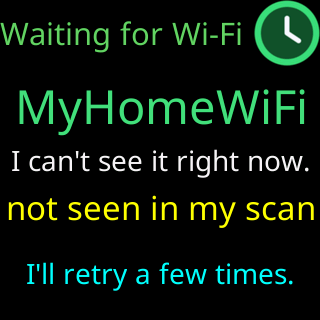
Routers restart themselves overnight, take updates, and come back from power cuts more slowly than the ticker does. None of this needs anything from you. A short drop is invisible: the ticker reconnects by itself and the coins carry on. After a longer one, such as a power cut, it waits for the router, trying every 15 seconds and restarting itself every 2 minutes, and its screen says so: I retry every 15 seconds, / restart every 2 minutes. It joins the moment the network is back. See What happens when the Wi-Fi drops and After a power cut.
Do not power it off and on five times to hurry it along. That is the factory reset, and it erases the ticker’s Wi-Fi and every setting.
If the ticker drops at the same time every night, look for a scheduled restart in the router’s settings. It is harmless, but it explains the pattern.
Distance and interference
The ticker’s radio is small. Give it a clear path to the router: fewer walls and floors, especially brick, concrete and tile, and a little space from metal, mirrors, and anything else that is noisy on 2.4 GHz, such as microwave ovens, cordless phone bases, baby monitors and USB 3 drives or hubs.
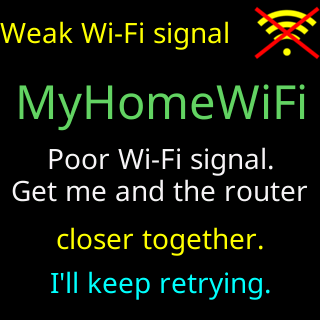
The ticker watches its own connection. When it drops three times within an hour, or the signal gets very weak, its signal card says so, Wi-Fi drops out or Weak Wi-Fi signal, at most once every 15 minutes.
An inexpensive 2.4 GHz extender or a mesh unit nearer the ticker is the fix when distance is the problem. See The Wi-Fi signal check.
Open-source router firmware
On some builds of OpenWrt, a small device with an ESP8266 chip like the ticker’s joins and is then never given an address. Turning off WMM for the 2.4 GHz network clears it. WMM off slows that network, so it is tidiest on a network kept for small devices. Turning off LDPC instead has worked on some builds.
A settings page that will not open
Once the ticker is on your Wi-Fi, a page that will not open is almost never the ticker.
| What is in the way | What it looks like | What to do |
|---|---|---|
https:// instead of http:// |
the browser refuses or warns the connection is not private | type the address with http:// in front; see The browser turns http into https |
| a VPN on the phone or computer | the address times out | turn the VPN off while you use the page; see A VPN blocks the settings page |
| the ticker on a guest network, the phone on the main one | the address times out | put both on the same network; see Guest networks |
| a work or campus network | the address times out, or the page half loads | these networks block device-to-device traffic on purpose; see Office and corporate Wi-Fi |
The rest are on The settings page won't open.
A new router or a move
Replacing the router is easiest when the new one uses the same network name and password as the old one: the ticker joins it as if nothing changed. If the name or the password changes, tell the ticker first, from its settings page, while it can still reach you. Moving to a new home or a new router has each case, and Changing your router's Wi-Fi password covers a new password on the same router.
Help from Lee
Text or call Lee, who wrote the ticker’s firmware. Two things make it quick: your router’s make and model, printed on its label, and what the ticker’s screen or setup page says. The number and email are on Contact, and Before you call: what to have ready lists the rest.