Move it to another Wi-Fi Change Wi-Fi on the settings page
Switch the ticker to a different Wi-Fi from its settings page. It tries the new network first and only keeps it if it works.
Step by step in the manual: Change to a different Wi-Fi network
Chapters
Read it insteadHide the text
To move your ticker to another Wi-Fi, open its settings page. In Global Settings, open Device, and tap Wi-Fi.
Choose Change Wi-Fi.
The ticker scans for networks. Its screen shows what it found, and so does your phone.
Tap the new network, type its password, and tap Go.
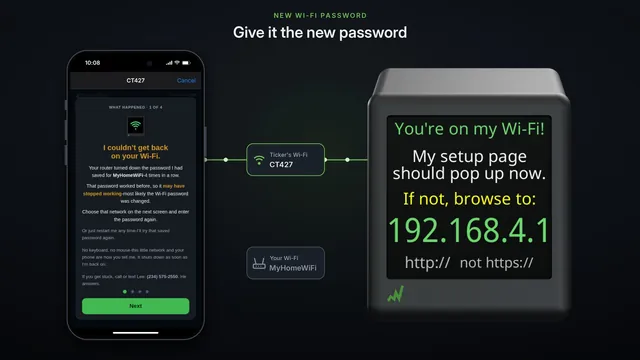
It tries the new network before it keeps anything. If the password is wrong, it goes back to the Wi-Fi it was on, and nothing changes, so check the password, and tap Connect again.
When it works, the ticker shows, connected, and its new address. On a new router, the address usually changes. Your phone is still on the old Wi-Fi, so the page loses touch. That's expected.
Now move your phone to the same new Wi-Fi, with its password.
Give it half a minute to restart. Then open the new address the ticker shows, and you're back on its settings page.