If your Wi-Fi password is refused fix it and try again
A typo in the Wi-Fi password: what your phone and the ticker say, how to fix it without starting over, and how to test the password on your phone.
Step by step in the manual: The password was refused
Chapters
More help with Part 1
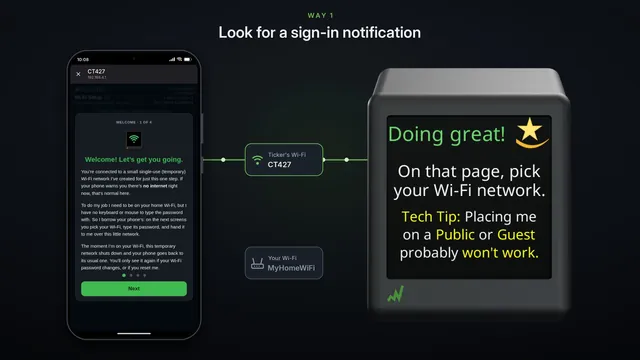
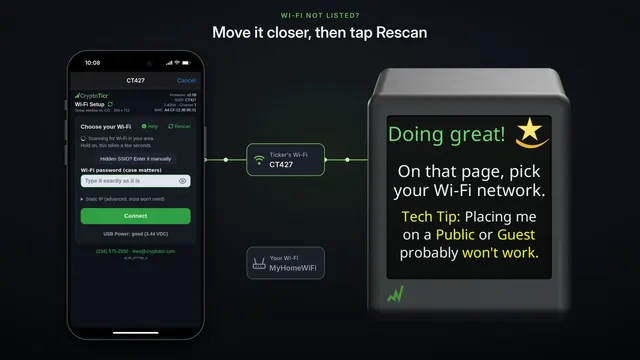
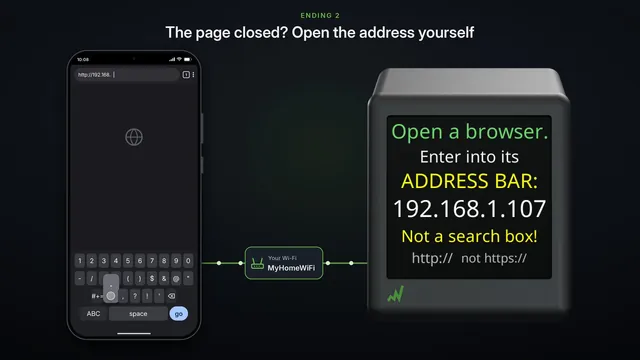
Read it insteadHide the text
Here's what happens when the Wi-Fi password isn't quite right. Say you pick your network, and swap two digits by mistake.
Tap Go, or Connect.
The ticker tries the password up to three times. Each try takes about ten seconds, so this can take most of a minute. Its screen tells you how it's going.
Then your phone says what happened: I've tried this password three times now, and never got in. A typo is the usual reason.
The ticker says the same, and adds a tip: capitals matter, and a zero is not the letter O.
Nothing you typed is lost, and you don't need to start over.
Tap the password, fix it, and connect again.
This time it gets in.
Still refused? The ticker's tech tip says how to test the password.
On your phone, open Wi-Fi in Settings, and forget your home Wi-Fi.
Then join it again, typing the same password.
If your phone gets in, the password is right: rejoin the ticker's CT network, and type it again, carefully. If your phone is refused too, the password isn't what you thought. Check it in your router's app.
Or call or text Lee. He wrote the ticker's software, and he answers.