Back up, copy and lock your settings Export, Import and Lock
Save your ticker's settings to a file on your phone, copy them to a second ticker in one step, and lock the settings with a password.
Step by step in the manual: Export and import settings
Chapters
Read it insteadHide the text
Save your ticker's setup to a file, copy it to a second ticker, and lock its settings with a password.
In Global Settings, open Device.
Tap Export.
If your phone asks, tap Download.
The file goes to your phone's Downloads, named after the ticker and the date and time. It holds your coins, colors and timings, but not your Wi-Fi or time zone.
Now open your second ticker's settings page. This one still has the factory colors.
Open Device again, tap Import, and pick the file.
It's applied and saved at once, and the page folds up like the first one.
The ticker shows its new colors, then your coins, Chainlink first.
A lock is for a ticker on a busy, shared network. Others can look, but can't change anything.
Tap Lock, and type a password: three to ten characters, no spaces. Capitals matter.
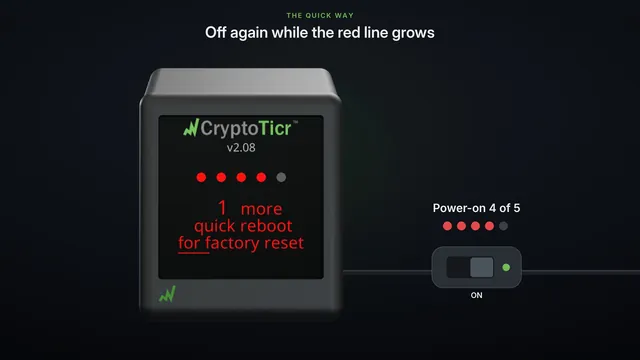
A forgotten password can't be looked up by anyone. The only way back is a factory reset.
Now the ticker shows a four-digit code. Type it in, to prove you're at the ticker.
Password set. The code was only for this step. Your password is the one you typed, so write it down.
The page locks at once, even here. Type your password in the bar at the top to make changes. Each browser asks once.
And keep your exported file safe. After a factory reset and a fresh setup, Import brings your coins and colors back. Then set the lock again.
Your settings are backed up, copied, and locked.