How to set up CryptoTicr with an Android phone
The whole setup on an Android phone: join the ticker's Wi-Fi, tap the sign-in page, pick your home Wi-Fi, and open your ticker's settings page.
Step by step in the manual: Setting up from an Android phone
Chapters
Did it go differently?
Find the moment yours went another way.
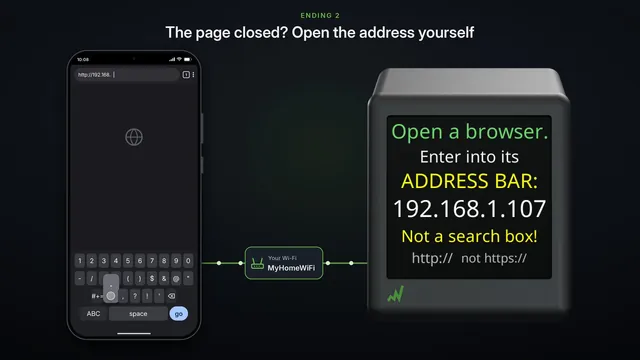
The same part on another device
Read it insteadHide the text
Plug your CryptoTicr into USB power. It starts up, and makes a small Wi-Fi network of its own, just for setup.
Its screen explains every step, over and over, until you've joined.
On your Android phone, open Settings, and go to your Wi-Fi list.
Tap the network with the name on the ticker's screen. It starts with CT, and it has no password.
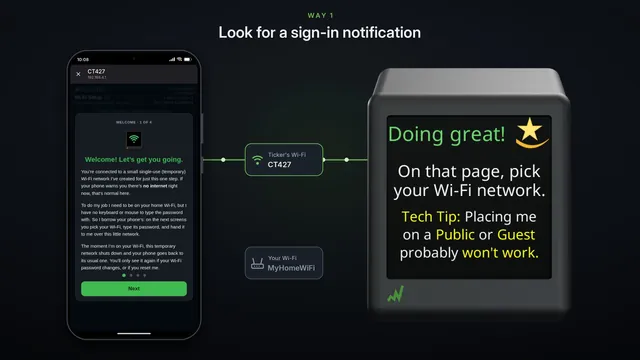
Your phone joins it, and on most Android phones, the setup page opens by itself. The ticker says, you're on my Wi-Fi.
If yours shows a notice instead, like, sign in to Wi-Fi network, tap it. And if nothing appears at all, there's a separate video for that.
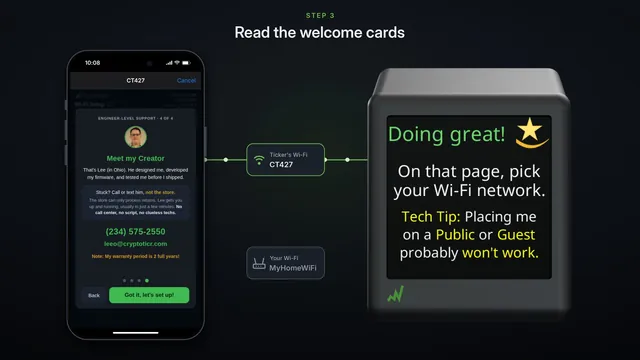
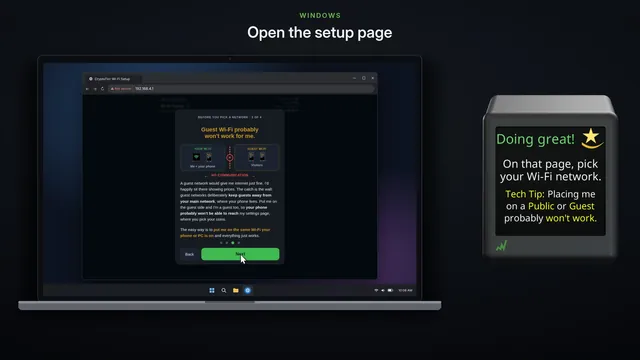
Four short cards explain what happens next, and why hotel, cafe and guest Wi-Fi won't work.
Tap Next to read each one.
The last card is Lee, who built the ticker. If you ever get stuck, you can call or text him.
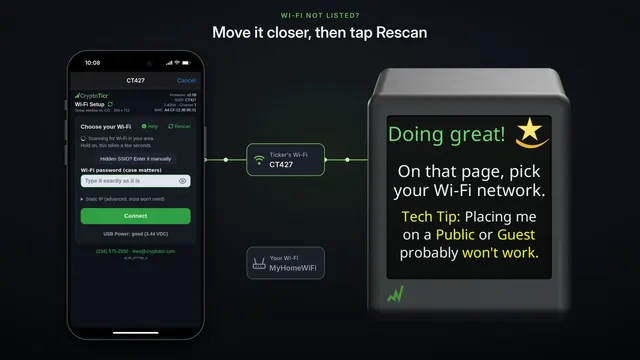
Tap, got it, let's set up. Then tap your home Wi-Fi in the list.
Type its password. Capitals matter, and the password stays in view, so you can check it before you send it.
Then tap Go, or the green Connect button.
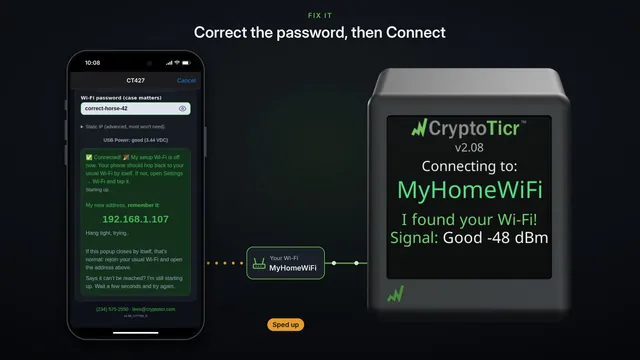
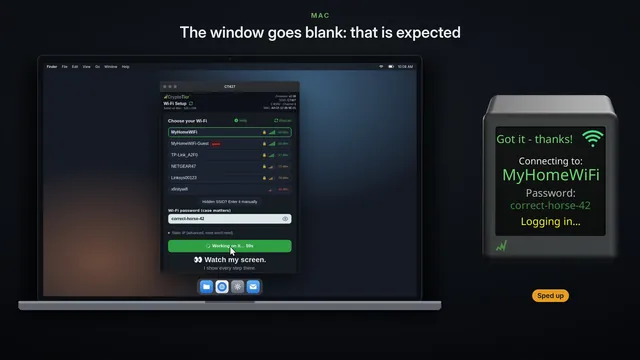
Now watch the ticker's screen. It logs in to your Wi-Fi, and checks that it can reach the internet.
Then it shows its new address on your network, and restarts.
The setup page closes by itself when the ticker's Wi-Fi goes away. That's normal. Your phone usually goes back to your own Wi-Fi by itself. If not, pick it in your Wi-Fi list.
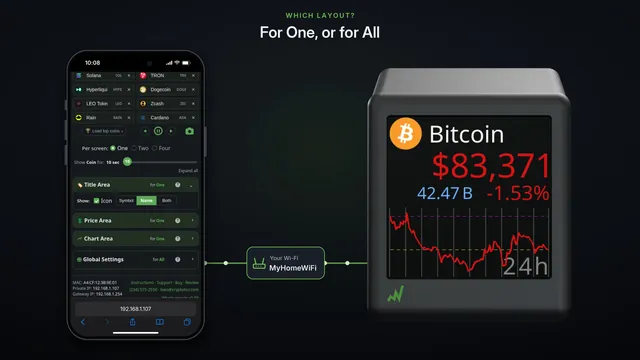
Your ticker is on your Wi-Fi. It shows where its settings page is, and after a while, a code you can scan.
Open the Camera, point it at the code, and tap the address that appears.
That's your ticker's settings page. It opens in your browser, at the address your ticker showed.
Everything here changes the ticker as you tap, except the coin list: pick your coins, then hit Save.
Try two coins per screen.
Tip: bookmark this page, so it's one tap away next time.
That's it. Your CryptoTicr is set up.