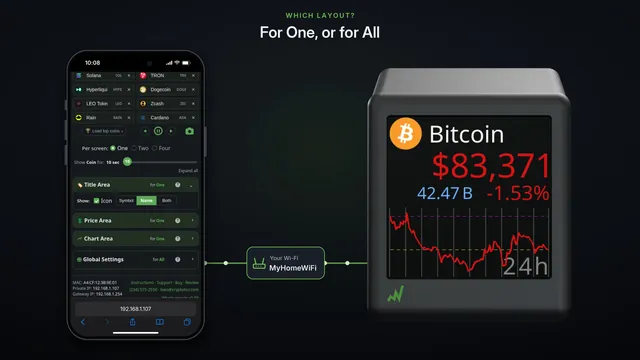
Set up from a Windows laptop
Set the ticker up from a Windows laptop: join its Wi-Fi from the taskbar, pick your home Wi-Fi on the setup page, and the settings page usually follows.
Step by step in the manual: Setting up from a Windows PC
Chapters
Did it go differently?
Find the moment yours went another way.
The same part on another device
Read it insteadHide the text
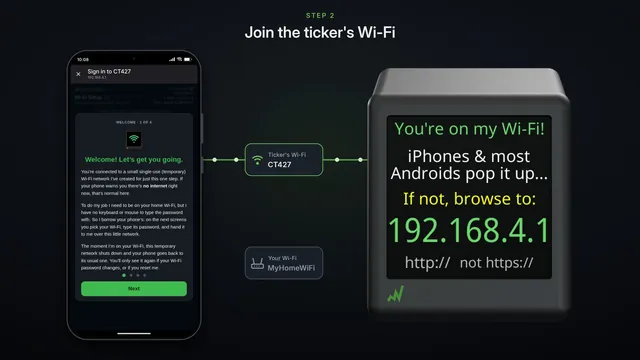
On a Windows laptop, click the Wi-Fi icon in the taskbar, and pick the network with the name on the ticker's screen. It starts with CT.
It's open, with no password. Click Connect.
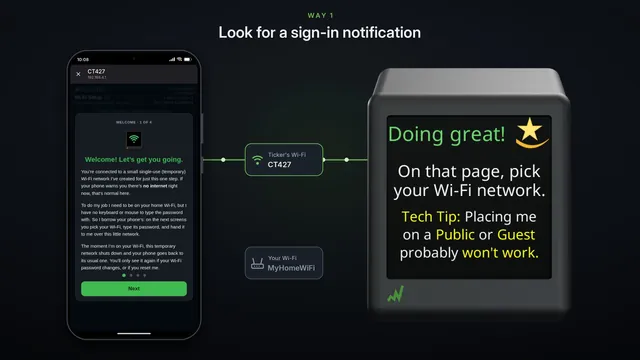
Windows notices the network wants a sign-in, and says Action needed. Click Open browser and connect, if your browser hasn't opened by itself.
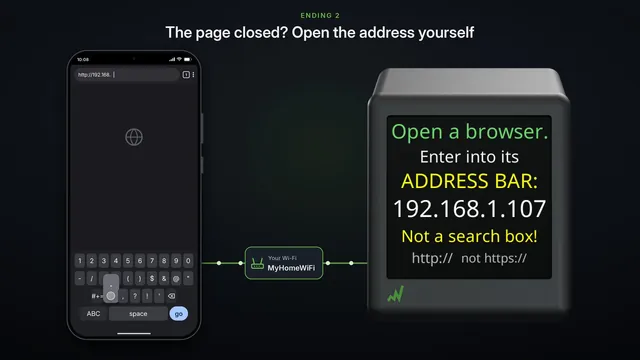
No browser at all? Open one yourself, and type h t t p colon slash slash one nine two, dot one six eight, dot four, dot one.
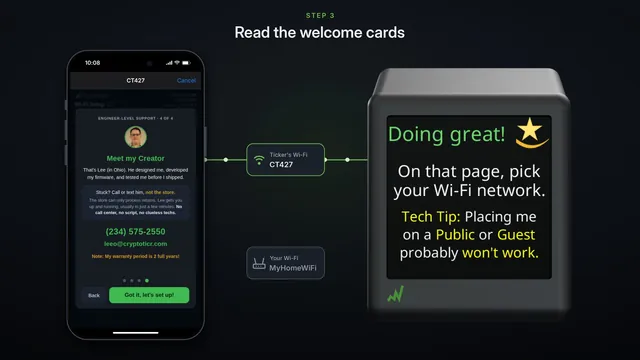
Read the four short cards.
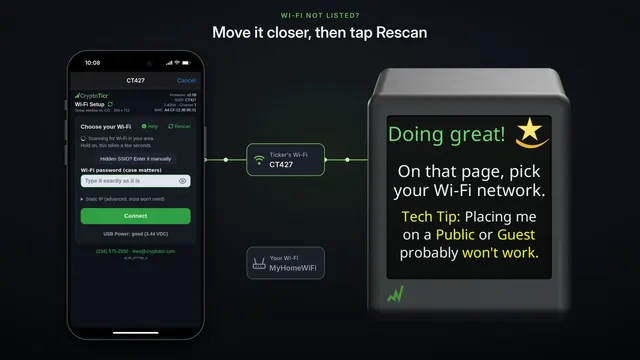
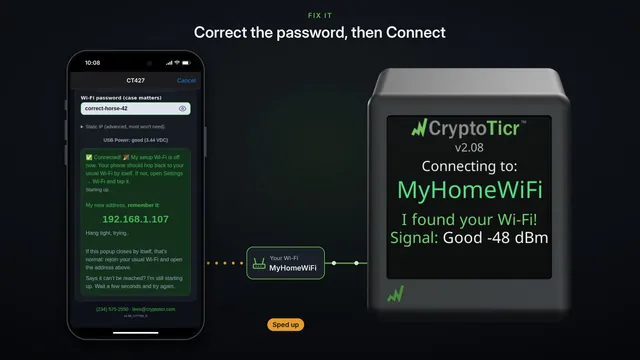
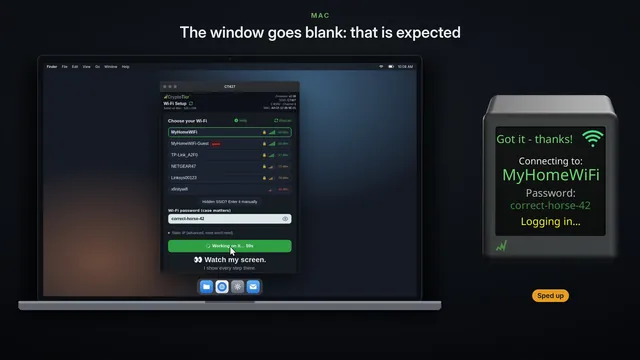
Then pick your home Wi-Fi, type its password, and click Connect.
The ticker joins your Wi-Fi, shows its new address, and restarts.
Your laptop usually goes back to your own Wi-Fi by itself, and the page keeps looking for the ticker.
When it finds it, it says, online, taking you to your settings now, and opens your ticker's settings page.
If the page doesn't move on by itself, make sure your laptop is back on your own Wi-Fi.
Then open a browser, and type the address the ticker shows, with h t t p in front.
Either way, bookmark the page, so it's one click away next time.