Use an Android phone's hotspot
Run the ticker on an Android phone's hotspot: a quick test of your home Wi-Fi, or a stand-in on a trip. The two settings that matter.
Step by step in the manual: Using a phone hotspot
Chapters
More help with Part 1
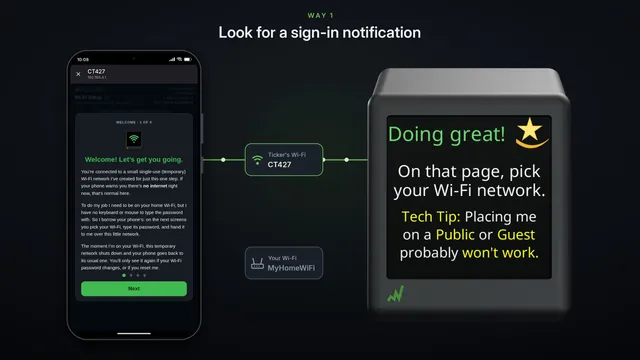 If the setup page doesn't pop up Samsung and some other Android phones
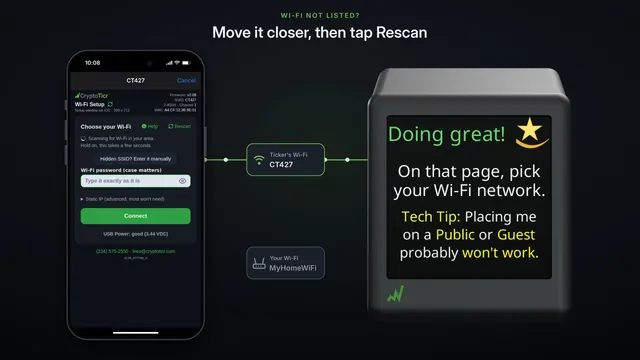 If your Wi-Fi isn't in the list
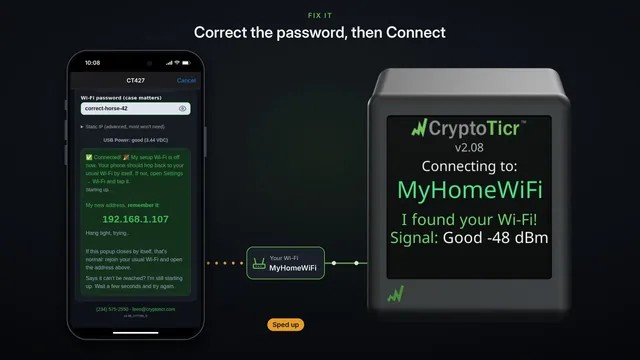 If your Wi-Fi password is refused fix it and try again
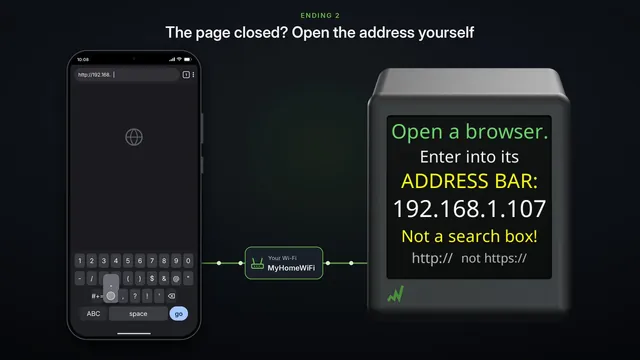 If the settings page doesn't open after setup two endings, both fine
 Set it up on a phone hotspot
 Use a Windows computer's hotspot
 Use a Mac's Internet Sharing
 Other Wi-Fi devices work, but the ticker won't? Three checks
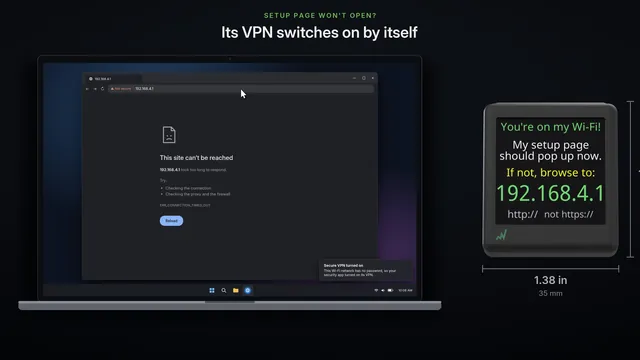 Setup page won't open on your computer
Read it insteadHide the text
A phone's hotspot is a quick test. If the ticker joins your hotspot, but not your home Wi-Fi, the ticker is fine, and something in your home Wi-Fi is in the way.
It also runs the ticker away from home, for a day.
On the phone with the data plan, open Settings, Network and internet, then Hotspot and tethering, and Wi-Fi hotspot.
Samsung phones call it Mobile Hotspot, under Connections, with these settings under Configure.
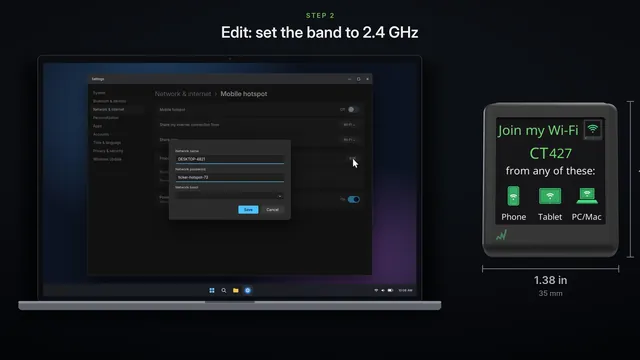
Security: WPA2-Personal is the safest. WPA2/WPA3-Personal usually works too. WPA3-Personal on its own locks the ticker out.
And the band: pick a choice with 2.4 gigahertz in it. 5 or 6 gigahertz on its own hides the hotspot from the ticker.
Turn off, Turn off hotspot automatically, so it waits for the ticker. Then turn on, Use Wi-Fi hotspot.
Note its name and password.
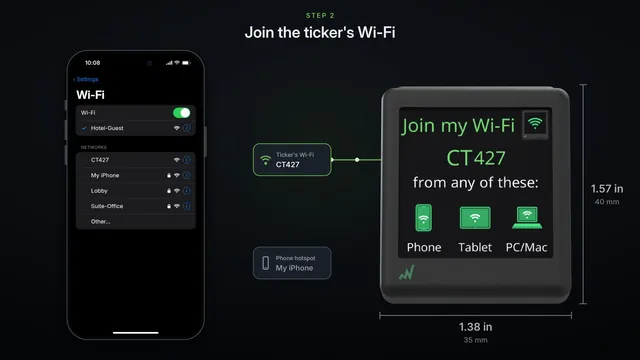
Set the ticker up from a second phone, tablet or computer. Join the ticker's Wi-Fi, the one starting with C T.
On the setup page, pick your hotspot by its name, and type its password.
The ticker joins your hotspot, restarts, and shows prices.
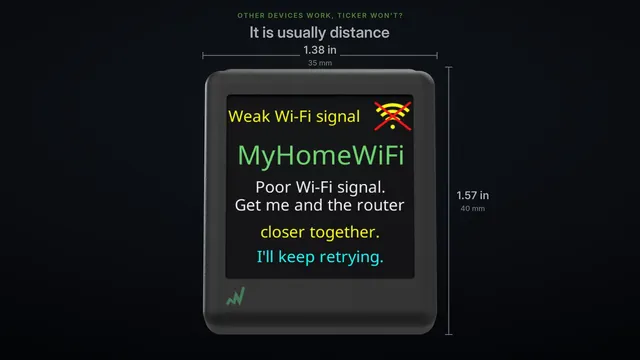
If it runs on the hotspot, but not on your home Wi-Fi, look at your router. Usually it's one of these: the 2.4 gigahertz band switched off or merged into one name, WPA3-only security, protected management frames set to required, or a list that has to approve new devices.
Our router help page goes through each one.
For every day, a phone is a poor home for the ticker. When the phone leaves the room, the ticker loses its Wi-Fi, and the phone carries its hotspot wherever you go.
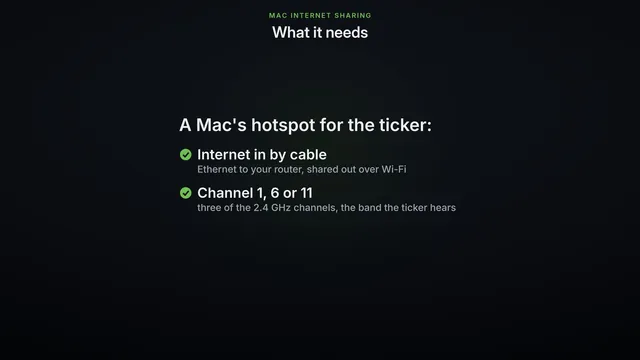
If you do leave it on, give it a long, strong password. A computer that stays on beside the ticker does the job better: our Windows and Mac videos show how.