Unboxing and first power-up
Before you start
- Nothing but the box. Wi-Fi comes in the next guide.
Steps
-
Take out the ticker, the USB cable with the on/off button in its lead, and the power adapter. The printed Quick-Start card is in there too. See What's in the box.
-
Plug the small USB-C end of the cable into the socket on the back of the ticker. Plug the other end into the adapter, and the adapter into a wall outlet. Any USB port that stays powered works instead of the adapter.
-
Press the button on the cable if the screen stays dark; it switches the ticker on and off.
-
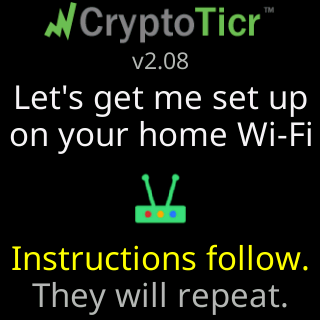
Look at the screen. It shows the CryptoTicr logo and the firmware version, and under them
Let's get me set up/on your home Wi-Fi, a router icon,Instructions follow.andThey will repeat.This screen stays for nine seconds.
-
Watch the cards that follow. The first is
For help..., withCall or text Lee:, a phone number and an email address, andHe built me,/wrote my code,/is happy to help!. After it come the setup steps:The steps:, thenJoin my Wi-Fi. The cards go round in a loop, so you can read them again. The setup cards on the glass lists every one.
-
If a card titled
Powerappears first, withMy USB power is/very low right now., the ticker has measured its own supply and it is too low to run reliably. Do what the card says,Use different USB cable/and/or power source., before you go on. If it saysvery high right now.instead, the card readsUnplug me. Use a/different power source.; do that at once. The card appears only while the reading is in that danger range.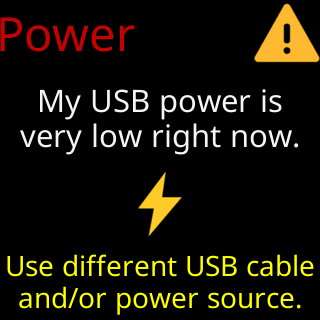
You’re done when
- The card
Join my Wi-Fiis on the screen, showing a network name that begins withCT. That is the ticker’s own setup network, and joining it is the next guide: Join the ticker's setup network.
Problems?
- The screen stays dark: The screen is dark or looks off
- The
Powercard keeps appearing: The power card says low or high - The
CTnetwork does not show on your phone: The CT setup network is not in my phone's Wi-Fi list