The address popup and QR code
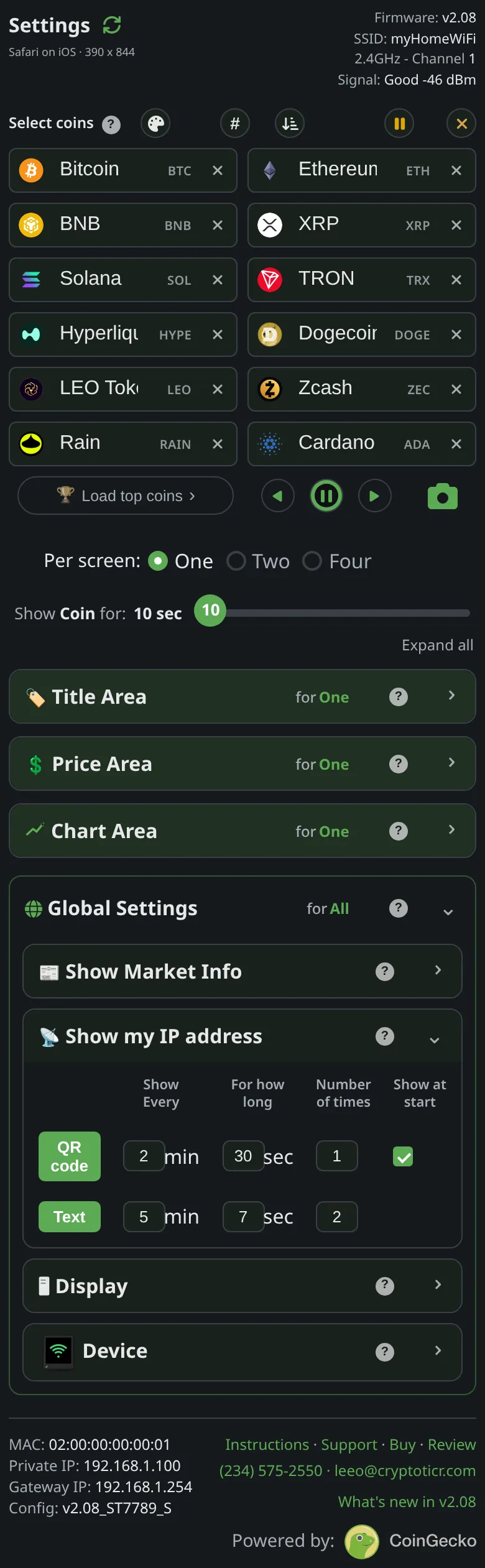 9:41192.168.1.107
What it shows
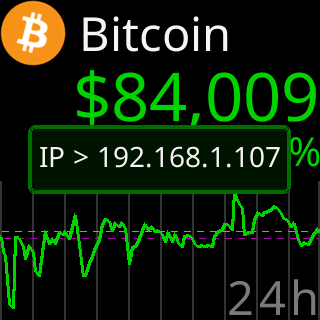
Two forms, over the coins:
- Text:
My settings are here:and the address in large type, for a few seconds, long enough to read and type. - QR code: the same address as a code, with phone and tablet icons beside it and a seconds badge that counts down, held longer because scanning takes longer than reading.
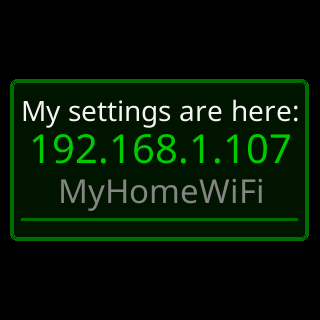
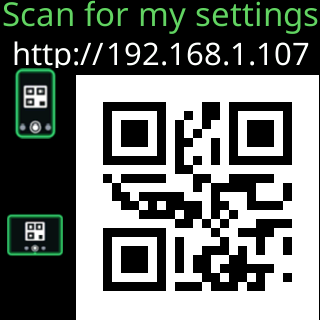
The page explains the difference: The address written out is read off the glass and typed into a browser; it only has to be read, so a few seconds on screen is usually plenty. The QR code is that same address to scan with a phone camera: the page opens with nothing to type.
The schedule starts when the first coin is on the glass, not at power-on. If the QR row’s Show at start is on, the code’s first showing comes a few seconds after that first coin; it counts as one of the row’s showings, not an extra. The text form has no start-up switch because the address is on the start screen already. When you open the settings page while a popup is up, the popup stands down: its job is done.
The exception, in the page’s words: Your router can give the ticker a different address than it had before. When that happens the ticker shows both forms together, once straight away if it was running, and once more the next time it starts, whatever the switches say. After that it returns to your schedule.
Options
Each row, QR code and Text, has the same columns:
Show Every: minutes between one showing and the next.For how long: seconds it stays up each time.Number of times: showings in total, then it stops; tap down to∞for forever.- Switching a row on puts that form on the ticker at once. The page says
The address is on your ticker's screen now.(orThe QR code is on your ticker's screen now.). Right after a restart it saysStill starting up, so the address isn't on your ticker's screen yet.(or the QR code), and the row still takes effect. Show at start(QR row only): moves the first showing to shortly after start-up.
Turning both off turns the whole thing off. A row whose count is spent stays quiet until the next power-on.
Where to set it
The Show my IP address section of the settings page. Reference pages: Setting: show my IP address, Setting: address popup forms, Setting: written address, minutes between, Setting: written address, seconds shown, Setting: written address, number of times, Setting: QR code, minutes between, Setting: QR code, seconds shown, Setting: QR code, number of times, Setting: QR code at start.