Using a computer as a hotspot
Before you start
- A computer can share its internet as a Wi-Fi network, and the ticker joins it like any other. Two good reasons to do it:
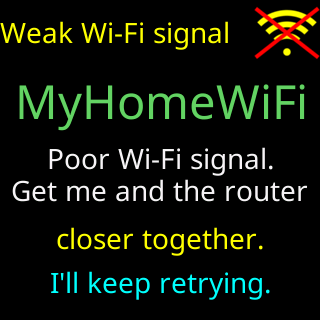
- A strong Wi-Fi right beside a far ticker. A computer that stays on near the ticker gives it a signal of its own, where the router’s is too weak.
- A test. If the ticker joins the computer’s Wi-Fi but not your home Wi-Fi, the ticker is fine and a setting in your home Wi-Fi is in the way.
- The ticker hears 2.4 GHz only, and it cannot join a network set to WPA3 on its own. The Mac steps below keep it on a setting the ticker joins; on Windows, if the Edit window offers a security choice, pick WPA2.
- Do the ticker’s setup from your phone or another device, as usual. The computer only provides the Wi-Fi.
Steps
On Windows (10 or 11)
- Open Settings, then
Network & internet, thenMobile hotspot. - Set
Share my internet connection fromto the connection the computer uses (Wi-Fi or Ethernet), andShare overto Wi-Fi. - Under
Properties, selectEdit, set the network band to 2.4 GHz, note the name and password, and selectSave. - Turn
Mobile hotspoton. - Turn
Power savingoff. With it on, Windows turns the hotspot off after a few minutes with no device connected. - Set the computer never to sleep while it is plugged in (Settings, System, Power). After a restart or an update, turn
Mobile hotspotback on if it is off. - If the computer is on 5 GHz Wi-Fi and the band will not stay on 2.4 GHz, connect the computer to the router by cable, or to your router’s 2.4 GHz network.
On a Mac (macOS 15 or later)
- Plug the Mac into your router with an Ethernet cable. Internet Sharing shares a connection the Mac gets this way out over Wi-Fi.
- Open System Settings, then General, then Sharing. Turn on Internet Sharing, then click Configure.
- Set
Share your connection fromto Ethernet. UnderTo devices using, turn on Wi-Fi. - Give the network a name, choose channel 1, 6 or 11 (three of the 2.4 GHz channels), keep Security on
WPA2/WPA3 Personal, set a password, and click OK, then Done.WPA3 Personalon its own locks the ticker out. - Keep the Mac from sleeping while the ticker uses it.
Then the ticker
- Set the ticker up from your phone as usual (Join the ticker's setup network), and pick the computer’s network by its name in the setup page’s list.
- Type its password and tap
Connect. The ticker joins, restarts and shows prices.
You’re done when
- The ticker shows prices, running on the computer’s Wi-Fi.
Problems?
- The computer’s network is not in the setup page’s list: the band is 5 GHz, or the computer cannot run its hotspot on 2.4 GHz. Try a phone hotspot instead: Using a phone hotspot.
- The ticker joins the computer’s network but not your home Wi-Fi: the ticker is fine. See Router issues and how to fix them for the settings that stop small devices, and My other Wi-Fi devices connect, but the ticker won't if your home Wi-Fi is weak where the ticker stands.
- To open the ticker’s settings page, your phone or computer has to be on the same hotspot.