My other Wi-Fi devices connect, but the ticker won't
- My laptop, TV or printer gets on the Wi-Fi with no trouble, but the ticker won't join
- The ticker keeps dropping off the Wi-Fi while everything else in the house stays on
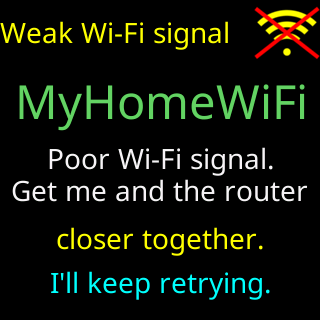
- Glass: `Weak Wi-Fi signal` / `Poor Wi-Fi signal.` / `Get me and the router` / `closer together.`
- Setup page: the bars and the dBm number beside my network are red
Symptoms
- Your laptop, desktop, TV or printer is on your Wi-Fi with no trouble, but the ticker will not join it, or joins and keeps dropping off.
- On the setup page, the bars and the dBm number beside your network are red.
- A ticker that is already set up starts with
Weak Wi-Fi signal/Poor Wi-Fi signal./Get me and the router/closer together., or shows aWeak Wi-Fi signalcard now and then.
Cause
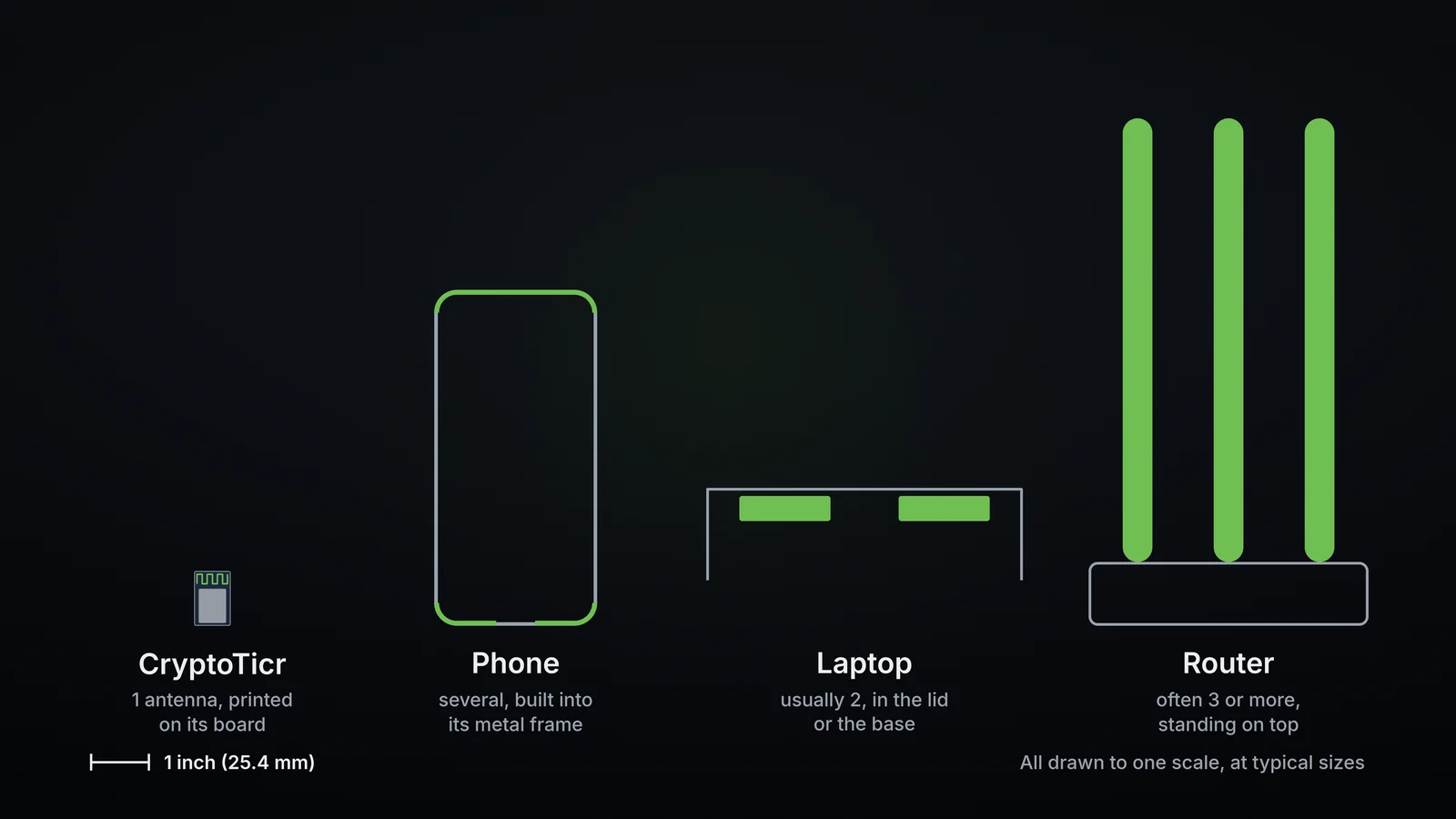
Most often it is distance. The ticker hears Wi-Fi through one small antenna printed on its circuit board, the same kind smart plugs and smart bulbs use. A laptop usually has two larger antennas, in the lid or the base, a phone uses parts of its metal frame as antennas, and many routers stand big ones of their own. So in a spot where a laptop still gets a usable signal, the ticker can hear too little to join, or to stay joined. Walls, floors, metal and the back of a TV all take signal away.
Distance is not the only reason a laptop connects where the ticker does not. Many laptops use the 5 GHz band, which the ticker cannot hear at all, and some router settings stop small devices only. The checks below tell distance apart from those.
Fix
- Read the ticker’s own signal. On the setup page, each network in the list shows the ticker’s reading where it stands now: green at -67 dBm or better, amber from -68 to -79, red at -80 and worse. Green or amber is fine; red means the ticker can barely hear your router from there. On a ticker that is already set up, the settings page header’s
Signal:line gives the same reading in words:GoodorFairis fine,WeakorVery Weakis too far. More on the numbers: Signal bars and dBm. - Move it closer and try again. Take the ticker near your router, on a USB power bank so it stays on, and tap
Rescanon the setup page. A ticker that is already set up can be plugged in near the router instead; on start-up the glass showsI found your Wi-Fi!and itsSignal:. If it joins near the router and not where you want it, distance is the problem. - Try a phone hotspot right beside it. The hotspot has to be on 2.4 GHz, the only band the ticker hears. On an iPhone, turn on
Maximize Compatibility: it puts the hotspot on 2.4 GHz. On an Android phone, pick a band that includes 2.4 GHz, with WPA2 security. Then set the ticker up on the hotspot. If it joins the hotspot, the ticker’s radio is fine and the trouble is between it and your router. Steps: Using a phone hotspot. - Fix the distance. Move the ticker or the router closer, keep the ticker up off the floor and in the open, away from metal and the back of a TV. If the ticker has to stay far from the router, a mesh point or a Wi-Fi extender near the ticker usually fixes it, as long as it offers 2.4 GHz with WPA2.
If that didn’t work
- The signal reads green or amber, or
GoodorFair, and it still will not join: distance is not the cause. Start with Router issues and how to fix them, then It failed and didn't say why. - Your network is not in the setup page’s list at all: My Wi-Fi network is not in the setup page's list.
- It joins your Wi-Fi but says no address was given: No address was given to me.