Use a Windows computer's hotspot
A Windows computer's Mobile hotspot gives the ticker a strong Wi-Fi right beside it, and tests your home Wi-Fi. Set the band to 2.4 GHz, keep it on.
Step by step in the manual: Using a computer as a hotspot
Chapters
More help with Part 1
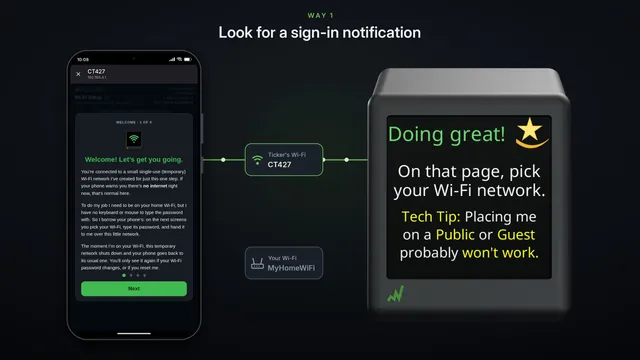 If the setup page doesn't pop up Samsung and some other Android phones
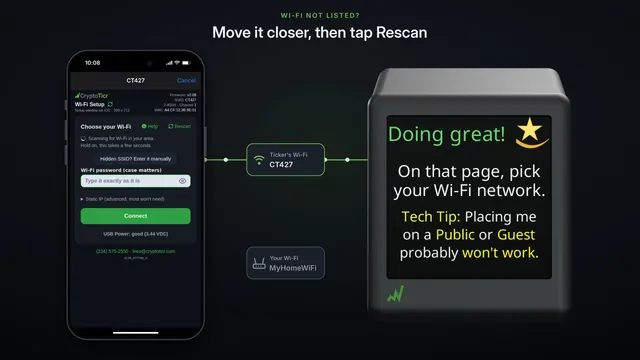 If your Wi-Fi isn't in the list
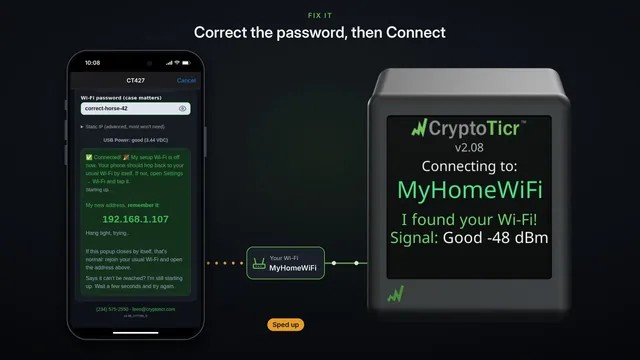 If your Wi-Fi password is refused fix it and try again
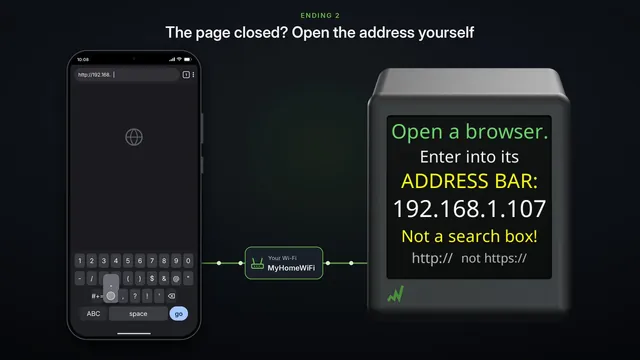 If the settings page doesn't open after setup two endings, both fine
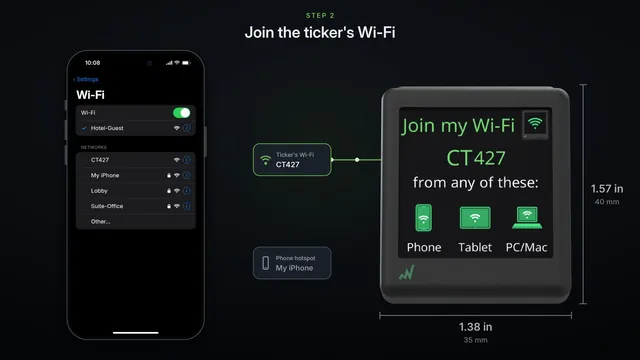 Set it up on a phone hotspot
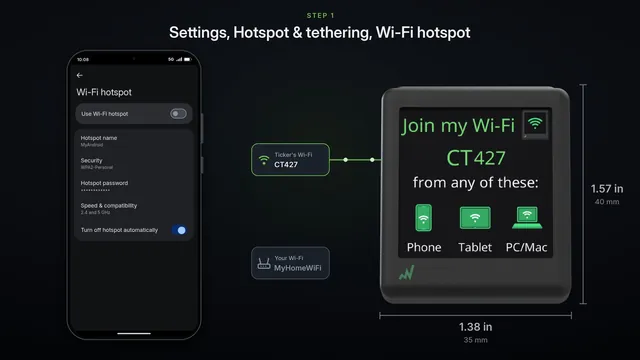 Use an Android phone's hotspot
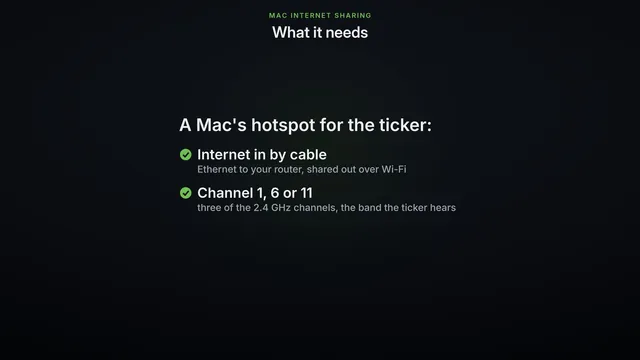 Use a Mac's Internet Sharing
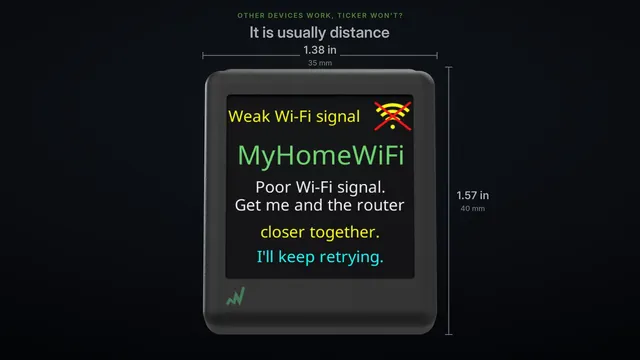 Other Wi-Fi devices work, but the ticker won't? Three checks
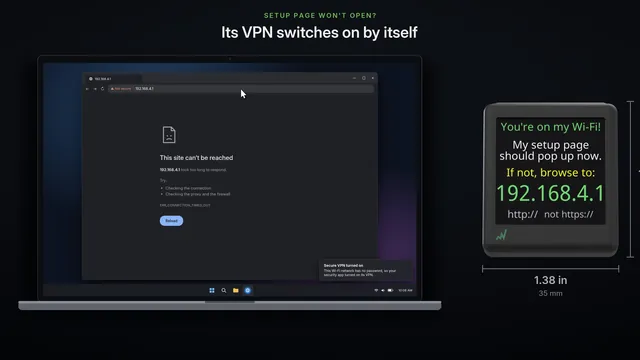 Setup page won't open on your computer
Read it insteadHide the text
Is your ticker too far from the router? A computer that stays on, right beside it, can give it a strong Wi-Fi of its own, with Windows' Mobile hotspot.
It's also a quick test. If the ticker joins the hotspot, but not your home Wi-Fi, the ticker is fine.
Open Settings, Network and internet, Mobile hotspot. Share your Wi-Fi, over Wi-Fi.
Under Properties, click Edit, and set the network band to 2.4 gigahertz. The ticker can't hear 5 gigahertz. Then Save.
Turn on Mobile hotspot. Then turn Power saving off. Otherwise Windows turns the hotspot off when nothing is connected.
Note the name and password under Properties.
Now set the ticker up from your phone, as in our setup videos. On the setup page, pick the computer's hotspot by its name, and type its password.
The ticker joins the computer's hotspot, and shows prices.
For every day, keep it on. Power saving off.
Set the computer never to sleep while it's plugged in.
And after a restart or an update, turn Mobile hotspot back on if it's off.
If the ticker runs on the hotspot, but not on your home Wi-Fi, look at your router. Usually it's one of these: the 2.4 gigahertz band switched off or merged into one name, WPA3-only security, protected management frames set to required, or a list that has to approve new devices.