If the settings page doesn't open after setup, two endings, both fine
After the ticker joins your Wi-Fi, the setup page sometimes walks you to the settings page by itself, and sometimes it closes. What to do in each case.
Step by step in the manual: Find the settings page after setup
Chapters
More help with Part 1
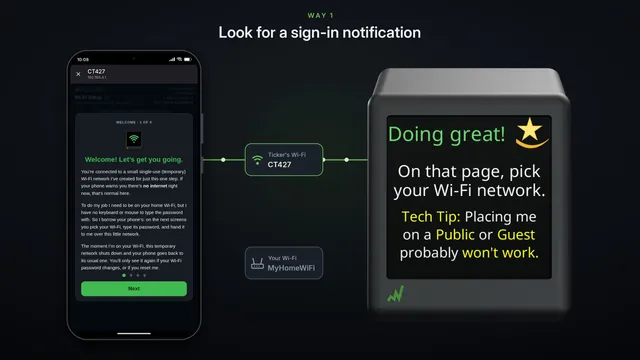 If the setup page doesn't pop up, Samsung and some other Android phones
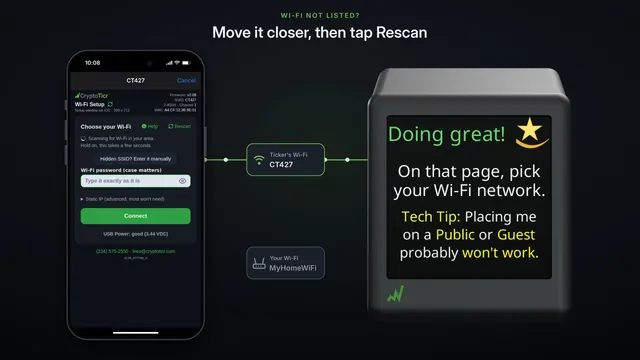 If your Wi-Fi isn't in the list
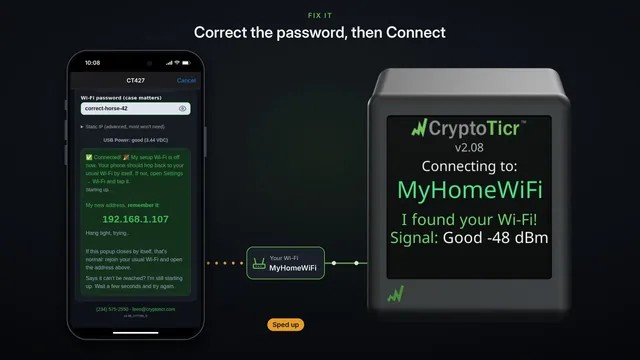 If your Wi-Fi password is refused, fix it and try again
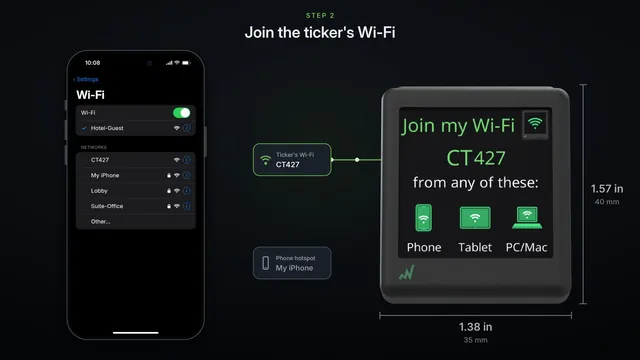 Set it up on a phone hotspot
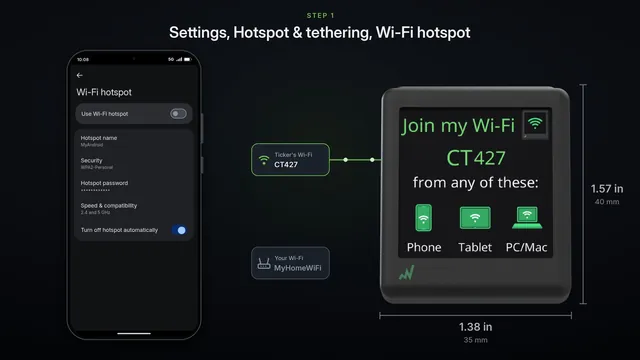 Use an Android phone's hotspot
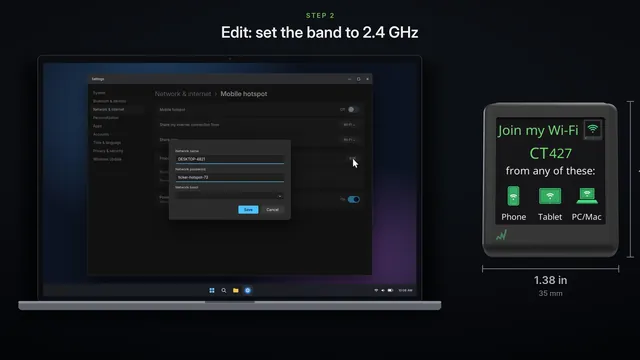 Use a Windows computer's hotspot
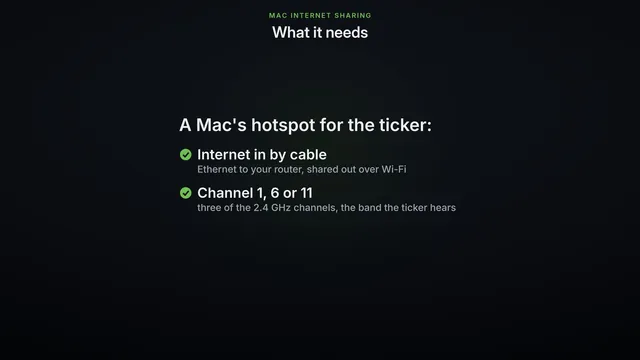 Use a Mac's Internet Sharing
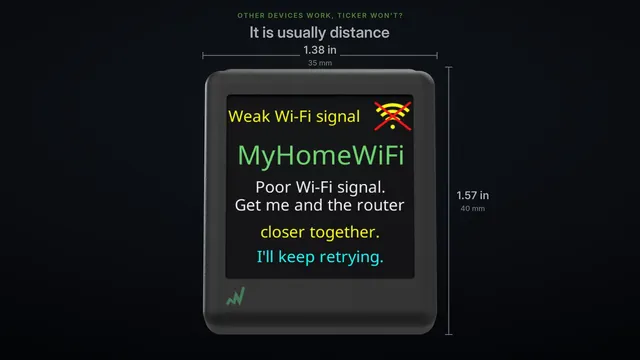 Ticker won't join Wi-Fi, others do? Three checks
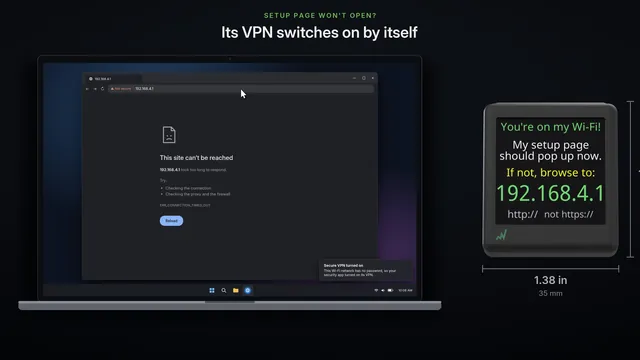 Setup page won't open on your computer
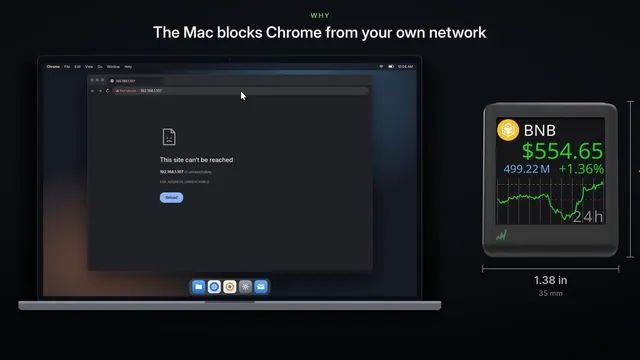 Chrome on a Mac can't open the ticker's page
Read it insteadHide the text
If you opened the setup page in a browser, like Chrome here, or on a laptop, it can walk you to the settings page by itself.
When the ticker joins your Wi-Fi, the page shows its new address, and keeps checking for it.
Once your phone is back on your own Wi-Fi and the ticker answers, it says, online, taking you to your settings now.
And there's the settings page. Nothing else to do.
If the setup page opened in the phone's small sign-in window instead, the phone closes it when the ticker's Wi-Fi goes away. That's normal too.
First, check your phone is back on your own Wi-Fi. It usually does that by itself.
If you'd rather not type, wait: after about a minute, the ticker shows a code you can scan with your camera.
Or open your browser now, and type the address the ticker shows into the address bar. Not the search box, and with h t t p in front.
That's the same settings page.
If it says it can't be reached, the ticker may still be starting up. Wait a few seconds, and try again.
Watch on YouTube