Set up from a Mac
Setting the ticker up from a Mac: pick its Wi-Fi in the menu bar, use the small sign-in window that opens, then open your ticker's settings page in Safari.
Step by step in the manual: Setting up from a Mac
Chapters
Did it go differently?
Find the moment yours went another way.
The same part on another device
Read it insteadHide the text
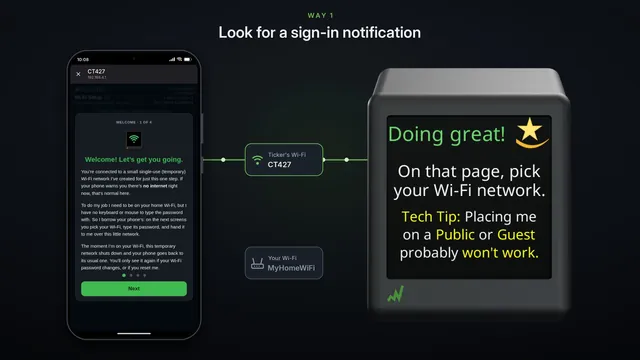
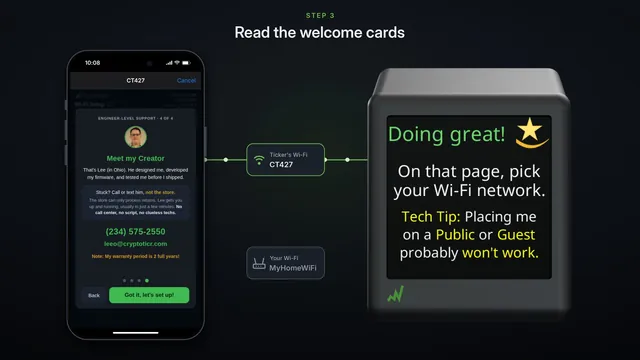
On a Mac, click the Wi-Fi icon in the menu bar, and pick the network with the name on the ticker's screen. It starts with CT, and it has no password.
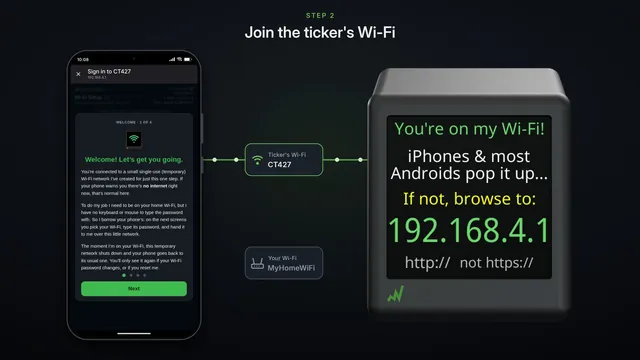
A small sign-in window opens by itself, with the setup page in it. If it doesn't, open Safari and go to h t t p colon slash slash one nine two, dot one six eight, dot four, dot one.
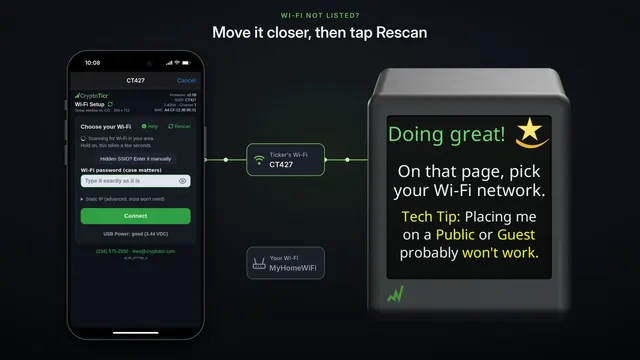
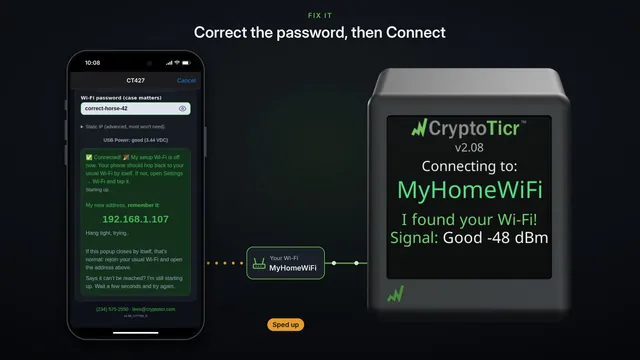
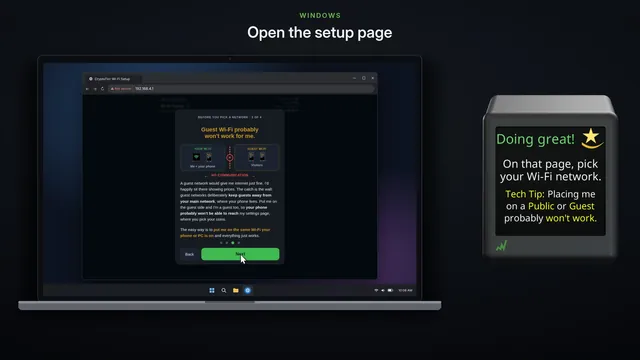
Pick your home Wi-Fi, type its password, and click Connect.
The ticker joins your Wi-Fi, and shows its new address.
When it restarts, its own Wi-Fi goes away, and the little window goes blank. That's expected. Close it.
Make sure your Mac is back on your own Wi-Fi.
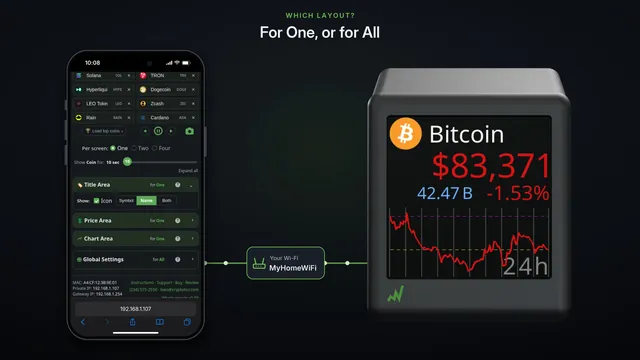
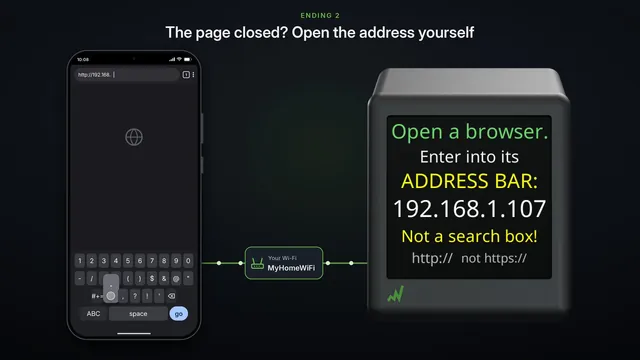
Then open Safari, and type the address the ticker shows, with h t t p in front.
That's your ticker's settings page. Bookmark it, so it's one click away next time.