Guest networks
What a guest network does
A guest network is walled off from your main network on purpose: devices on it can reach the internet but not your main network, and on many routers not each other either. The ticker on a guest network gets prices and runs normally. The catch is the settings page, where you pick coins: it is served by the ticker itself, so your phone has to be able to reach the ticker across your network, and the wall is there to stop exactly that.
The setup page puts it this way on its third welcome card: A guest network would give me internet just fine. I'd happily sit there showing prices. The catch is the wall: guest networks deliberately keep guests away from your main network, where your phone lives. Put me on the guest side and I'm a guest too, so your phone probably won't be able to reach my settings page, where you pick your coins.
So a guest network is not impossible for the ticker. It is harder, and on most routers it does not work the way people expect without changing a setting.
How the ticker warns you
- In the network list, a name that looks like a guest network carries a
guestbadge, and picking it shows:This looks like a guest network. I'd still get prices on it, but guest networks are walled off from your main one, so afterwards this phone probably couldn't open my settings to pick coins. Your main Wi-Fi is the safe choice. - When the setup page opens, the glass shows
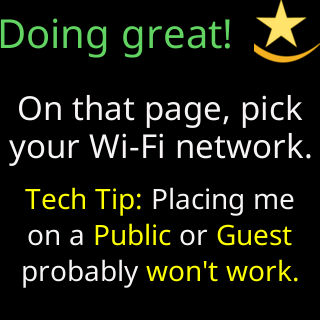
Doing great!with the reminderTech Tip: Placing me,on a Public or Guest,probably won't work. - The page’s Help panel adds:
Some routers can let guests through, but it's normally switched off and plenty can't do it at all.
The complications, in detail
- Guests cannot reach your main network. Your phone on the main network cannot open the ticker’s settings page on the guest network. This is the guest network’s whole purpose, so it is on by default everywhere.
- Guests often cannot reach each other. Many routers also keep guest devices apart from each other, often called client isolation or AP isolation. Then even a phone that joins the guest network cannot reach the ticker on it.
- A separate address range. A guest network usually hands out addresses from a different range than your main network, so the address the ticker shows belongs to the guest side and means nothing from the main side.
- Guest networks that change or switch off. Some routers turn the guest network off on a timer, or give it a new password now and then. The ticker then loses its network and waits for it to return, the same as during a router outage.
- 5 GHz-only guest networks. Some routers offer the guest network on 5 GHz only. The ticker hears 2.4 GHz only, so the guest network never appears in its list.
- Guest networks with a sign-in page. Some business and mesh routers put a “tap I agree” page in front of their guest network. The ticker cannot get past one; see Hotel, cafe and public Wi-Fi.
Making it work on a guest network
If you want the ticker on the guest network anyway, these are the ways that work. The setting names differ from router to router; look in your router’s app or admin page under the guest network.
- Let guests reach your main network. Some routers have a switch for this, with names such as “allow guests to access the local network” or “intranet access”. Turn it on, and your phone on the main network can open the ticker’s settings page as usual. It also lets every other guest reach your main network, which is the protection you are giving up.
- Or let guests see each other, and use the guest network for settings. Turn off “AP isolation” or “client isolation” for the guest network. When you want the settings page, join your phone to the guest network, and type the address the ticker shows.
- Or set everything up first, then move it. Set the ticker up on your main network, pick your coins and settings, and save a copy of them with Export and import settings. Then move it to the guest network from the
Change Wi-Fipage. It keeps showing your coins there. To change anything later you need step 1 or 2, or bring it back to your main network with the five-restart reset in Factory reset by switching it off and on five times, which erases its Wi-Fi and settings, and import your saved copy afterwards.
The simplest choice remains the ticker on the same network your phone or computer uses.