Hotel, cafe and public Wi-Fi
The terms page
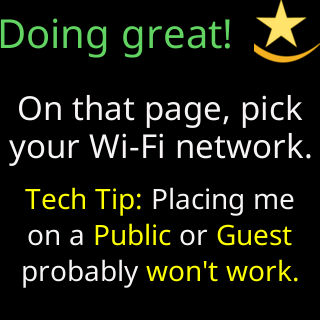
Hotel, cafe, airport and store networks nearly always open a page, “tap I agree”, “enter your room number”, before they let a device online. This is called a captive portal. The ticker has no browser and no finger, so it can never get past that page, and there is no setting on the ticker that changes it. The setup page’s second welcome card says: Hotel, cafe, airport and store Wi-Fi almost always opens a terms page (a "tap I Agree" screen) before letting anything online. I have no browser and no finger, so I can never get past it. It's not a setting. It just can't work there.
How the ticker tells you
-
Picking an open network on the setup page shows:
This network is open. Hotel/cafe/store Wi-Fi usually makes you tap "I agree" on a web page, and I have no browser to do that. -
If the ticker joins such a network and meets the terms page instead of its server, the glass’s status report ends with
A sign-in page blocks me.The setup page then says the network let it in, butit wants a sign-in page first, and I can't sign in to one, thenOn this Wi-Fi I can't show prices., with two buttons,Use it anywayandPick another Wi-Fi. TapPick another Wi-Fiand choose a different network: nothing is saved.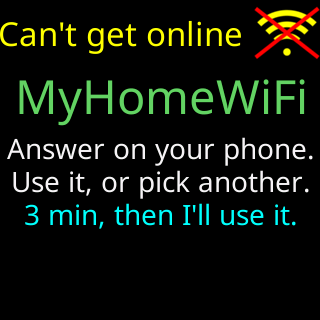
-
If a network like that is saved anyway, the glass shows
Something here blocks me.at start-up, and once running the signal card saysThis network is blocking me.
When public Wi-Fi does work
Not every public network has a terms page. A small hotel, an Airbnb, a cafe or an office that hands out a plain password, on a card or a sign, with no page to tap through, works for the ticker the same as home Wi-Fi does, as long as it offers 2.4 GHz. The ticker only needs the internet to show prices.
Two things still differ from home:
- The settings page. Public networks nearly always keep devices apart from each other, so your phone on the same network usually cannot open the ticker’s settings page. Pick your coins before you go, at home or on a phone hotspot; the ticker keeps them.
- Getting it onto the network. If the ticker is already set up, you can give it the new network before you leave: on the
Change Wi-Fipage, the ticker can save a network it cannot see yet and join it when it arrives. See Save a network for another place.
A network that asks for a username as well as a password (common in offices, universities and some hotels) is a different kind, and the ticker cannot join it: This network wants a username.
Ways around a terms page
- Device registration. Campuses, dorms, apartment buildings and some hotels let you register a device that has no browser, the way game consoles and streaming sticks get online, by its Wi-Fi address (its MAC address). Ask the front desk or the network’s help page. The address to give them is the ticker’s own: it is the
MACline in the settings page’s footer, read while the ticker is on any Wi-Fi, a phone hotspot will do. TheMAC:in the setup page’s header is a different address, the one of the ticker’s own setup network, and registering it will not work. - A travel router. A small travel router signs in to the terms page once, from your phone, and then makes a private Wi-Fi network of its own. The ticker joins that like home Wi-Fi, and your phone can join it too, so the settings page works. Set the travel router’s Wi-Fi to 2.4 GHz, or to both bands.
- A phone hotspot. On an iPhone, turn on
Maximize Compatibility; on Android, pick a band that includes 2.4 GHz and WPA2 security. See Using a phone hotspot. A phone you carry around takes the ticker’s network with it when it leaves the room, so this suits a stay of a few hours better than a week.