Using a phone hotspot
Before you start
-
The ticker can only see 2.4 GHz networks. Both major phones can run a hotspot that the ticker cannot see or join unless it is set up for it: on an iPhone 12 or later,
Maximize Compatibilitymust be on (older iPhones have no switch and need nothing); on Android, the band must include 2.4 GHz and the security must not be WPA3-Personal on its own. The ticker’s own screens say the same thing when a network blocks it:Use home Wi-Fi or a hotspot./iOS: Maximize Compatibility. -
The ticker fetches prices every few seconds, so it uses data continuously while it runs. Keep that in mind on a metered plan.
-
Android: on a Pixel and most phones, Settings,
Network & internet,Hotspot & tethering,Wi-Fi hotspot; on a Samsung Galaxy, Settings, Connections,Mobile Hotspot and Tethering,Mobile Hotspot, thenConfigure. Two settings decide whether the ticker can join:- Security:
WPA2-Personalis the safest choice;WPA2/WPA3-Personalusually works too.WPA3-Personalon its own locks the ticker out. - Band: a choice that includes 2.4 GHz (on recent Pixels, under
Speed & compatibility; on a Samsung,2.4GHzor2.4GHz & 5GHz, though the labels vary by model). 5 GHz or 6 GHz on its own, or a “5GHz Preferred” choice, hides the hotspot from the ticker. - Turn off
Turn off hotspot automatically(Samsung: the matching option under Advanced) while you set the ticker up, so the hotspot waits for it.
- Security:
-
iPhone: Settings,
Personal Hotspot, turn onAllow Others to Join, and on iPhone 12 and laterMaximize Compatibility. That switch is what puts the hotspot on 2.4 GHz with WPA2 security, the kind the ticker joins.
Steps
- Turn the hotspot on, with the 2.4 GHz setting above. Note its name and password.
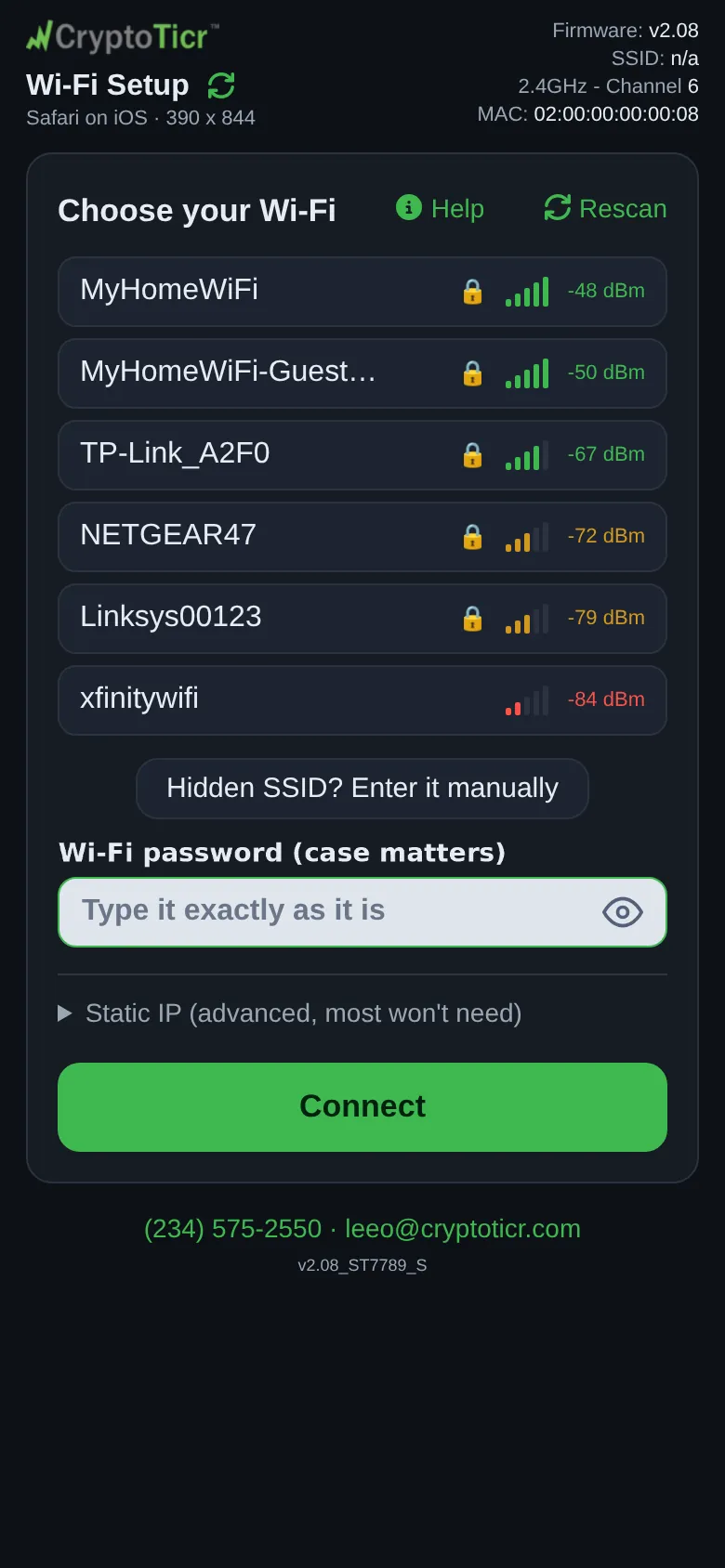
- Set the ticker up as usual, Join the ticker's setup network, and pick the hotspot in the list. If you are setting up from the same phone that runs the hotspot, use another device for the setup page, or run the setup from a phone that is not the hotspot.
 9:41192.168.4.1
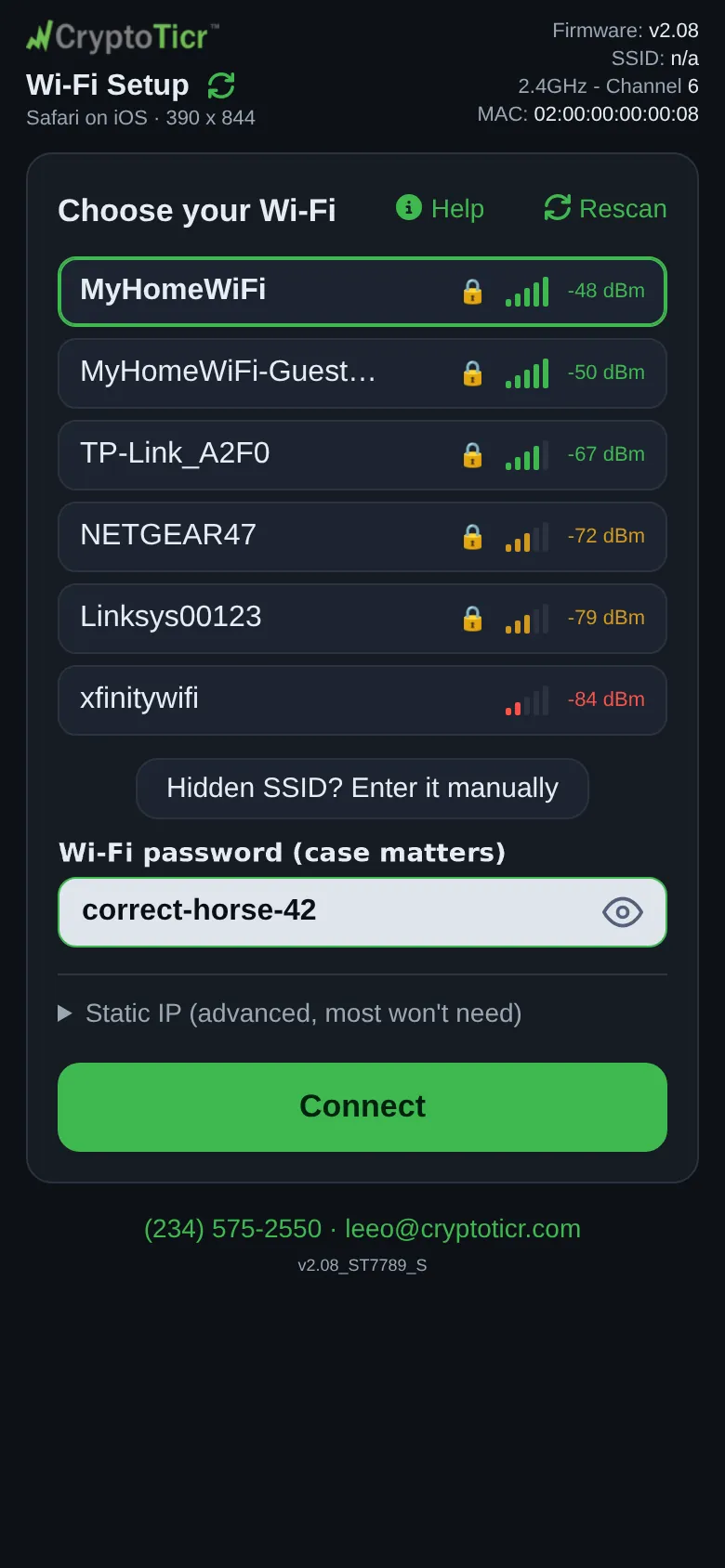
- Type the hotspot’s password and tap
Connect.
 9:41192.168.4.1
You’re done when
- The ticker joins the hotspot and shows
You're all set!, then cycles coins.
Problems?
-
The hotspot is not in the list: it is probably on 5 GHz only, change the band and tap
Rescan; see My Wi-Fi network is not in the setup page's list -
The glass says
Can't get onlineand the page asksUse it anywayorPick another Wi-Fi: the hotspot has no mobile data. Turn on mobile data, tapPick another Wi-Fi, then pick the hotspot again and tapConnect.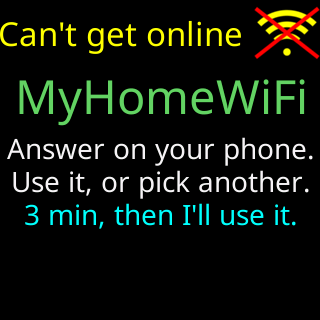
Worth knowing
-
A hotspot is a test. If the ticker joins your hotspot but not your home Wi-Fi, the ticker is fine and a setting in your home Wi-Fi is in the way: the 2.4 GHz band switched off or merged into one name with 5 GHz, WPA3-only security, protected management frames set to Required, or a list that has to approve new devices. See Router issues and how to fix them.
-
A phone is a poor everyday home for the ticker. When the phone leaves the room, the ticker loses its Wi-Fi, and the phone carries its hotspot wherever it goes. If you leave the hotspot on anyway, give it a long, strong password. For an everyday Wi-Fi beside the ticker, a computer that stays on works better: Using a computer as a hotspot.
-
Every time the hotspot goes off (the phone leaves, or the hotspot times out), the ticker loses its network, keeps retrying, and rejoins by itself when the hotspot is back.
-
The settings page is reachable only from a device on the same hotspot.